The Stalled Deals agent helps validate pipeline faster by using historical analysis of deal progression and win rates to identify deals that have sat in any stage for too long so teams can take action before any losses occur.
In this article, you will learn how to (action). This article includes:
The Stalled Deals insight requires the following configurations to ensure the data that’s being used is up to date:
The Stalled Deals insight appears when there are deals that have been in a stage for longer than the average time. The AI Insights icon will appear next to any stage that has an Insight available and there will be a box in the lower left side of the screen that indicates you are seeing a Stalled Deal insight.
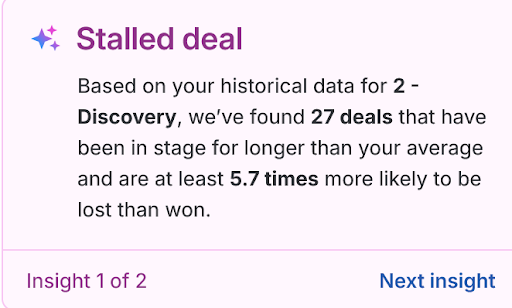
When a stage has opportunities that meet the insight criteria you will see the insight icon to the left of the stage name. Click on the view details button for that stage to see more information regarding the data and insight.
When the agent has identified insights about a stage, the stage details page will include a tile at the top of the page. This tile will list out the AI Insight (Stalled Deals) and describe the logic that prompted the Stalled Deal. Use the “View X Deals” button at the top of the screen to view a list of the Deals that are being called out by the agent.
Users with the Permissions to create Plays can use the “Create stalled deal review play” button to create a Play that will create a Rhythm task to remind you to review these Deals.
To create a Stalled Deal Review Play, start by clicking on the “Create Stalled Deal Review Play” button. This will bring you to the Play configuration screen.
Things to note: you must have the proper permissions enabled to be able to create Plays.

Configure the Play how you like. The Play settings are preconfigured for you but you can adjust them however you see fit.
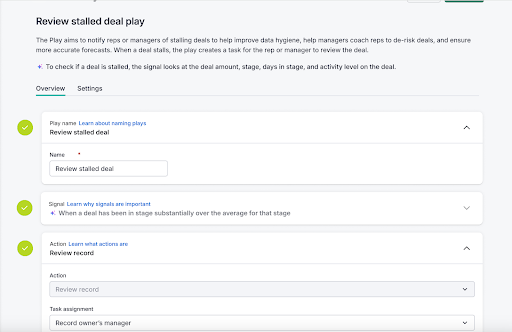
Once created, the Play will create a Rhythm task and assign it to the User that you specified in the task assignment field when configuring the play. Taking action on a stalled Deal includes:
- Making an update on the Deal
- Closing the Deal
- Reaching out to Stakeholders
