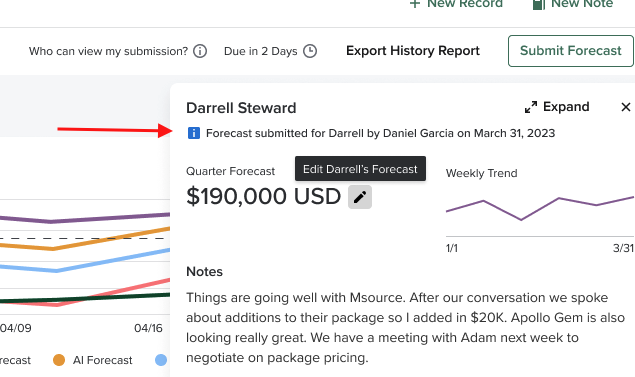
Forecasts are typically submitted by each individual rep or user. Submitting Forecast Numbers on an individual basis holds each rep accountable for the work they’ve contributed while adding to the overall group forecast.
Ideally, every rep would submit their own Forecast, no questions asked. But, let’s be honest, life can sometimes interfere with a user's ability to submit their Forecast on time. When these moments arise, Salesloft Forecast includes the capability for assigned admins or users to submit a Forecast on behalf of another user.
As a manager, one of your team members may be unable to submit their forecast due to one of the following reasons:
- Out on vacation
- On leave
- Called out sick
- Forgot to complete the task of submitting their forecast
- Updating numbers during a forecast call
In this article, you will learn how to submit Forecast numbers on behalf of another user, including:
Only Salesloft users with access to Forecast and the Manage Forecast Submissions permission enabled for their assigned Salesloft role will be able to submit Forecasts on behalf of another user.
Things to Note: The Manage Forecast Submissions permission is enabled for Salesloft Admins by default.
The users most likely to value and leverage managing others’ forecast submissions will most likely include your team’s sales managers and revenue operations personnel who oversee Forecast numbers.
To add the Manage Forecast Submissions to an existing Salesloft role, check out the Edit Roles KB article.
If you would like to create a new role that includes the Manage Forecast Submission function, follow the steps to Create a New Role and Assign that Role to Users.
Once the role is enabled, users with the assigned permission will gain the ability to edit Forecasts on behalf of other users.
To confirm you have the ability to edit a different user’s Forecast, hover over a Forecast number. A pencil icon with the prompt Edit (user’s) Forecast will appear.
Your team is most likely updating their forecasts regularly. If a rep is sick or out for a week or simply forgets, you can use the ability to update one Forecast number on behalf of a single user.
Let’s walk through updating a single Forecast number for an individual user named Darrell. Darrell’s manager, Heather, is gathering the Forecast information to deliver to their Senior Vice President. However, Heather realizes that Darrell forgot to update one of his weekly forecasts numbers. Heather needs to step in and formulate her own forecast on behalf of Darrell.
To edit a number in a Forecast on behalf of another user, follow these steps:
1. Start by looking through the user’s pipeline and decide what is a realistic forecast for their deals.
2. Inside Forecast, you can update a single forecast number using one of the following methods:
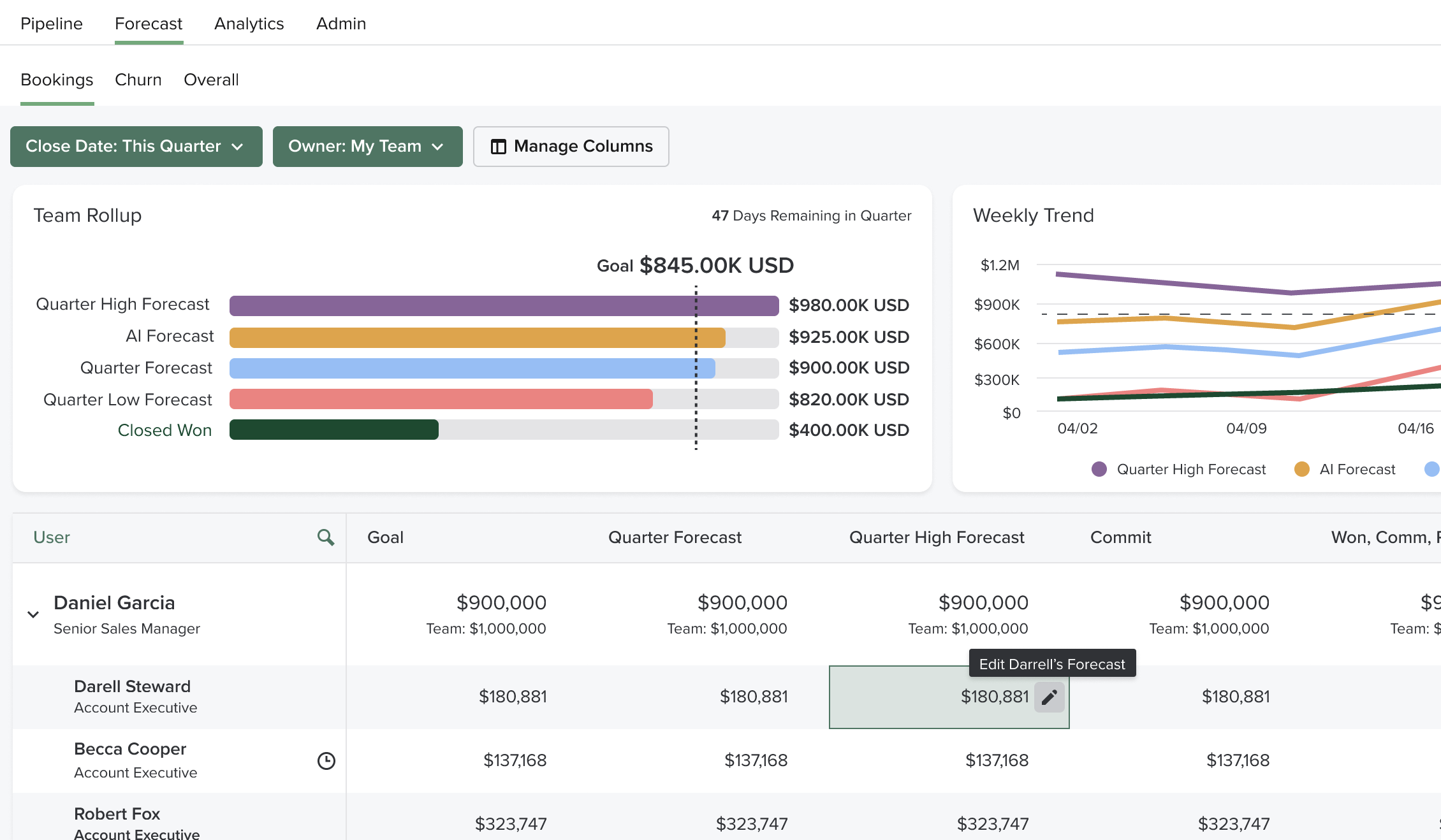
- Inside the Hierarchy Table: hover over any forecast number in the hierarchy table of other users. Click the pencil icon, and enter the number in the text box to change the forecast.
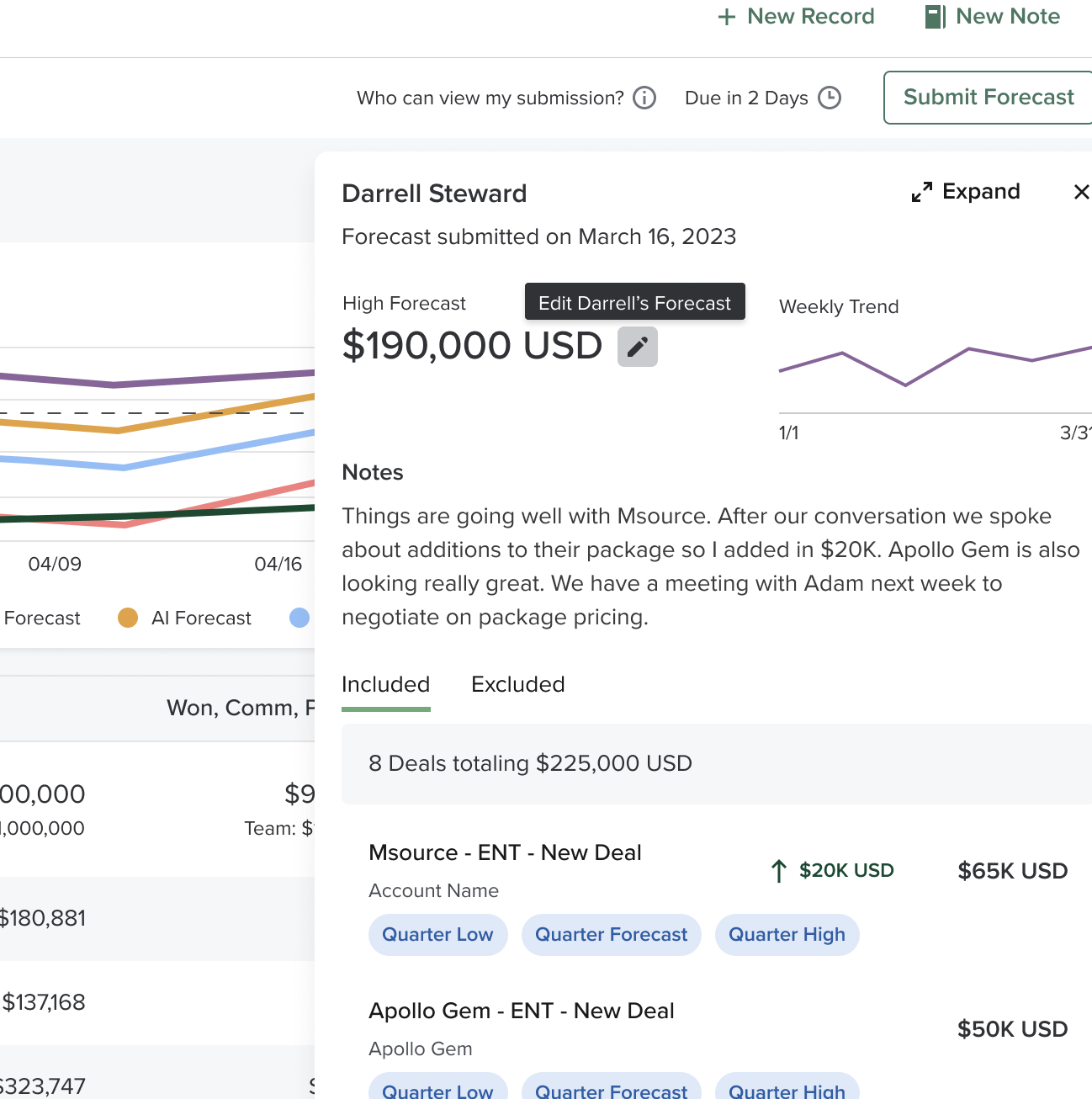
- From the Forecast Flyout: When you click and individual forecast number, the flyout view shows the list of deals that fit criteria which could contribute to the forecast number. Use this information when creating your forecast. Then, you can edit the forecast number in the upper left of the flyout by clicking the pencil icon to Edit (user’s) Forecast).
-
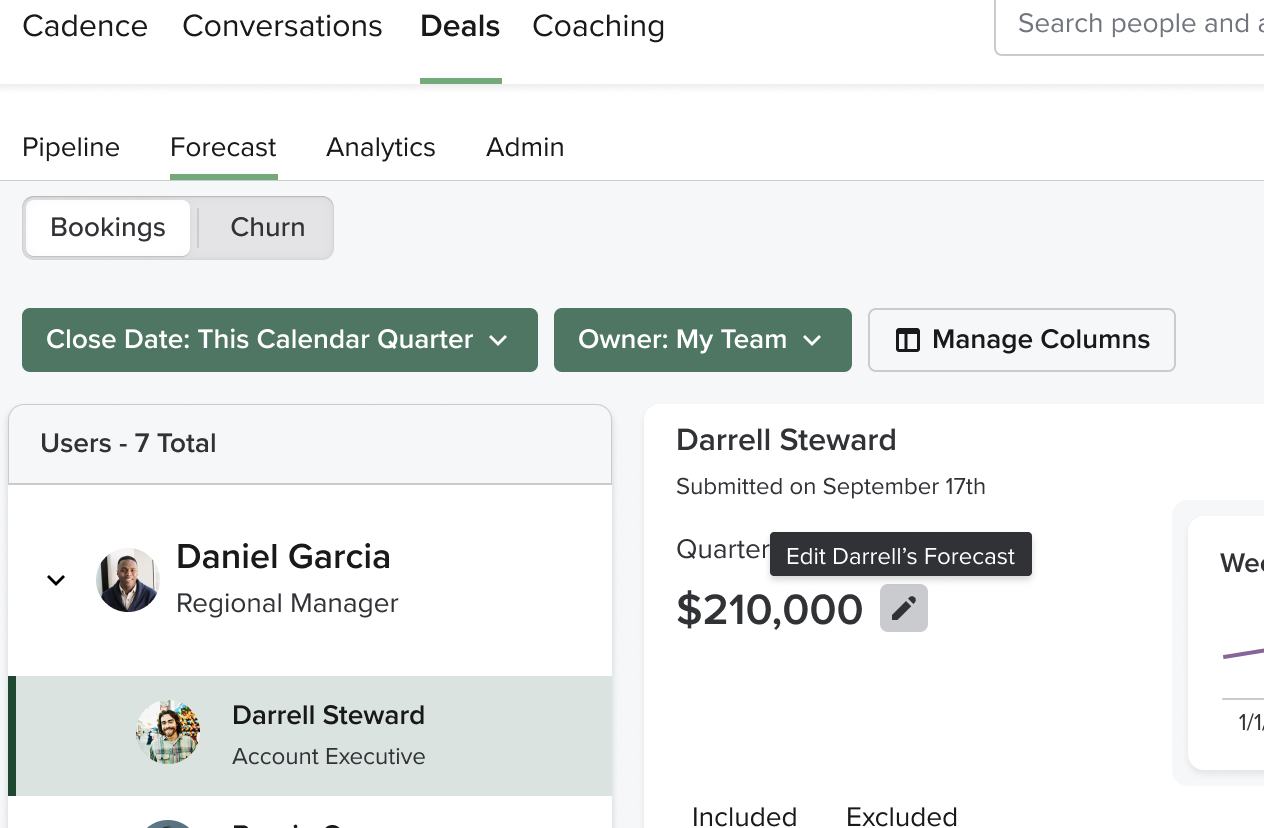
- From the Forecast Expanded View: The expanded view is accessed from the flyout and gives an even more detailed look at the opportunities that could contribute to the forecast. If you are a manager creating a forecast and need to know more information about potential deals, this is the best view to use. You can quickly learn the opportunity’s activity, stage, and risks to assess whether it should be included in the forecast or not. Then, you can edit the forecast number in the upper left of the flyout by clicking the pencil icon to Edit (user’s) Forecast).
3. Once the forecast number has been entered, click Save. The number will be saved and rolled into any existing team forecasts.
Beyond editing a single forecast number, you also have the option to submit a user’s forecast from a single modal. From this modal, you can update multiple numbers at a time and save rather than editing each cell.
This is particularly useful if a member of your team is out on an extended leave of absence or simply out during monthly or quarterly planning.
To submit forecasts on behalf of a user, follow these steps:
- In the Salesloft top menu, hover over Workspace. A dropdown menu will appear. Select Deals.
-
Go to the Hierarchy Table found inside of Forecasts.
-
Find the User whose forecast you want to submit. Hover next to the name of a user in the table. A pencil icon will appear.
-
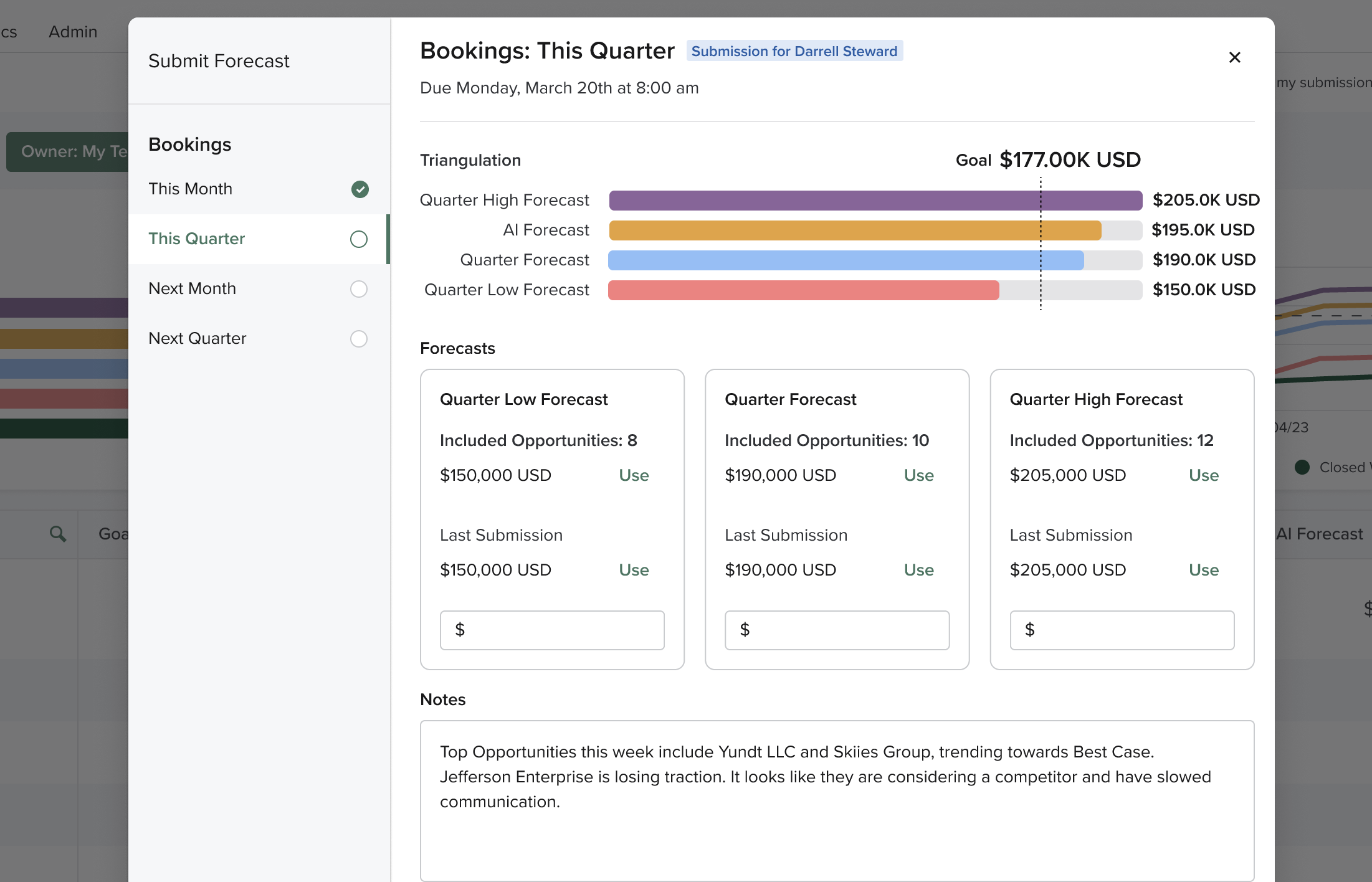
Click the pencil to Submit Full Forecasts for (User). When clicked it will launch the submit forecast modal on behalf of that user.
-
The first column will show any Forecast that can be updated. Select a Forecast.
-
When a forecast is selected, you will see the triangulation and details related to that forecast. Using the information available, type in the forecast in the available textboxes.
-
Repeat steps 4 and 5 for any forecasts that need to be updated.
-
Once the Forecasts are added wherever applicable, click Submit for (user).
While a manager can rest assured that a Forecast is complete by submitting a forecast for another user, it’s important to know which user has been updating forecasts.
If another user updates a forecast, a log will be kept of that change. You can view who updated a forecast in one of the following ways: