Plays are workflows and actions automatically added to your tasks list based on particular prospect actions, or signals.
Since these tasks are automatically added to your actionable to-dos, it could leave you wondering what triggered the task in the first place.
To help you identify the plays that bring additional tasks into your workflow, you can view enabled plays inside the Plays Settings.
From this settings page, you can view the logic behind tasks and confidently execute your communication.
In this article, you will learn how to view Plays. This article includes:
Before following the steps in this article, here are the things you’ll need to know:
- You will only be able to view Plays specifically assigned to your User Group or Plays assigned across your entire team.
- All fields will be in a read-only state to prevent accidental changes to team configurations.
Only team admins have the permissions to create, edit, and manage Plays. If you have suggestions for changes to a Play, please reach out to your team admin.
This video provides a visual walkthrough of the Settings menu and demonstrates how to identify the specific signals and filters that trigger your tasks.
To view plays as a user, follow these steps:
- Navigate to the “Plays” Settings: After logging into Salesloft, click your profile icon, and select Settings. Under the Workflow settings section, select Plays.
- View the Play List: The Plays page will show the list of plays, each play’s name, signal that triggers the play, the assigned action, and additional details to help you get a basic understanding of your available plays.
- View a Specific Play: Click on a specific Play to view more details of each Play’s underlying logic.
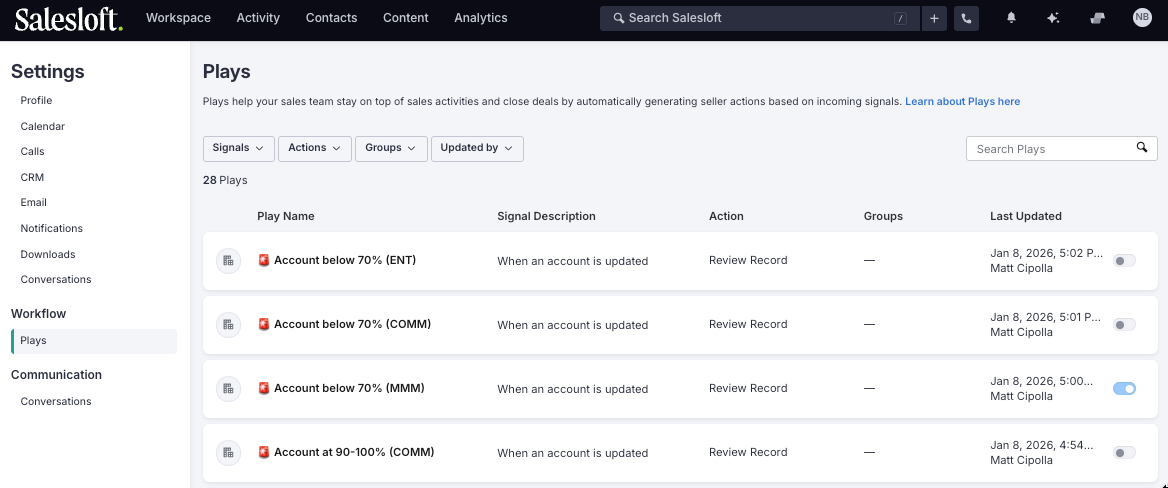
Figure 1: The Play's settings screen.
- Features like "Create Play," "Enable/Disable," and "Bulk Actions" are hidden for non-admins to ensure the integrity of global selling strategies.
- If a Play detail page looks blank, it may be in a draft state, which has limited visibility for non-admins.
