If your sales team uses an Account-based model, you know the significance of communicating with prospects across an entire account versus an individual contributor.
The Account Management tab defines how People are linked to Accounts in Salesloft upon import. Depending on how your account management page is set up, people are linked to pre-existing accounts or new accounts are created when you import people into Salesloft.
Salesloft will set defaults for account management, but you can edit them to best fit your account needs based on the data requirements of your team.
In this article, you will learn how to manage your account management settings, including:
Once you’ve set your CRM Type to Salesforce, HubSpot, or Dynamics, Salesloft will automatically update your Account Management Settings as follows:
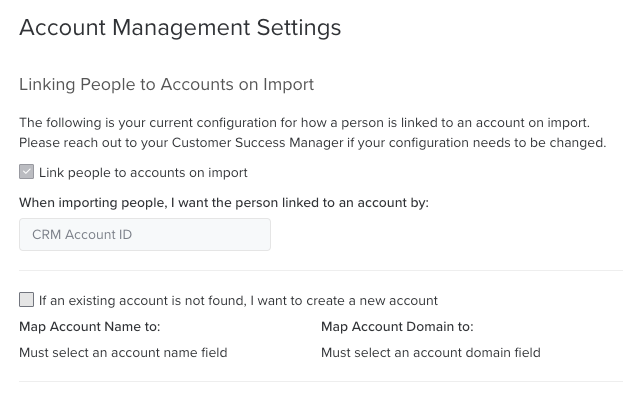
If you have not set a CRM type, the Account Management Settings will appear as follows:
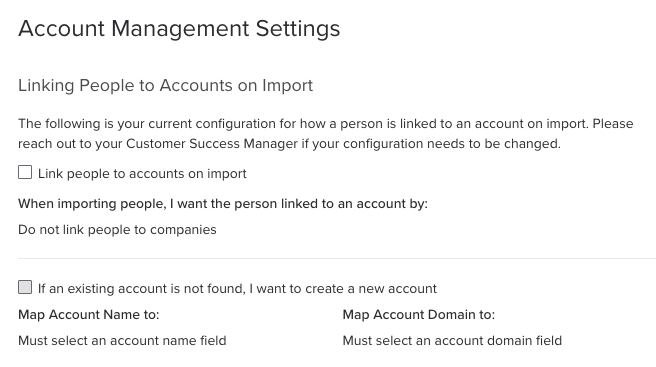
If your team hasn’t set your CRM type in Salesloft yet, you’ll start by joining people and accounts.
To link people to existing accounts in Salesloft, select the checkbox labeled Link people to accounts on import.
If you have a CRM connected, Salesloft will link people to accounts using the CRM Account Id. If there is no CRM connected or the connection has been lost, Salesloft can link people to accounts using fallbacks.
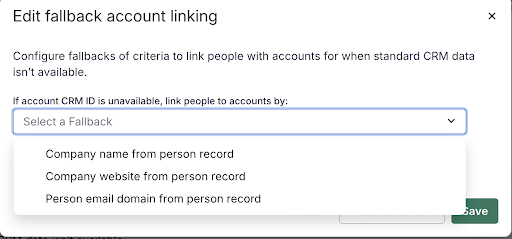
The following criteria are all available as fallback criteria:
- Company Name from person record
- Company Website from person record
- Person Email Domain from person record
Salesloft can not match people who use a free email domain (gmail, yahoo, hotmail, etc.) to accounts.
Things to Note: Only customers with a CRM Type configured will be able to use Account CRM ID as matching criteria.
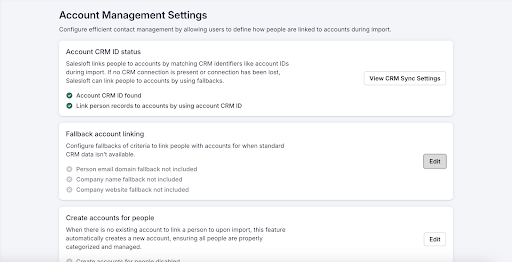
If you import people and their account is not already in Salesloft, you can select the option to create a new account when the person is imported.
Things to Note: Choosing this setting will create Accounts in Salesloft that are not tied to any CRM account. Do not use this setting if you want Salesloft Accounts to mirror your CRM Accounts.
To create a new account, select the checkbox for If an existing account is not found, I want to create a new account.
When creating an account, two fields must exist: Company Name and Website. If these elements cannot be found, Salesloft will not create an account.
Salesloft will search for these elements by looking for certain criteria.
Map Account Name To:
When populating the Account Name, Salesloft will look at the following criteria. We recommend this order:
- Company Name
- Company Website
Map Account Domain To:
When populating the Website, Salesloft will look as these criteria (again we recommend this order):
- Company Website
- Personal Email domain
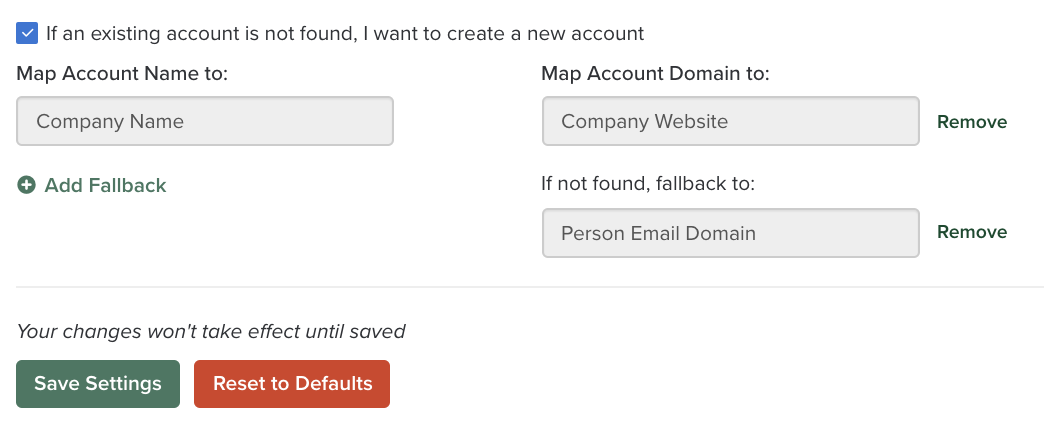
While we recommend the default options for your account management settings, certain field options may not pertain to your team. In those instances, edit the settings to best fit your needs.
Things to Note: These settings may be locked into place after the initial setup. If you want to edit the fields but are unable to do so, please reach out to your Success manager.
- Delete any unnecessary fields by selecting Remove next to the field option.
- If there are alternative or unused field options, you can select them by clicking + Add Fallback at the bottom of the list.
If Person records are not linking to the correct Salesloft Account, the most common cause is usually due to the team's Account Management settings not matching your team's use case. Specifically, you need to look at the When importing people, I want the person linked to an account by: arrangement.
The order of options could be incorrectly linking People to Accounts in Salesloft and may need to be adjusted.
For example, let's say your company works with a lot of leads or prospects that have "gmail.com" or "generic" email addresses. If your Account Management settings use Person Email Domain to help match People to Accounts, it's possible that all prospects with a "gmail.com" email address are tied to a single Account. even though they might each belong to separate accounts.
If you're experiencing this error, check the Account Management Settings and then contact your team's CSM to help review and adjust the Account Management settings.
