Copilot Conversational Intelligence
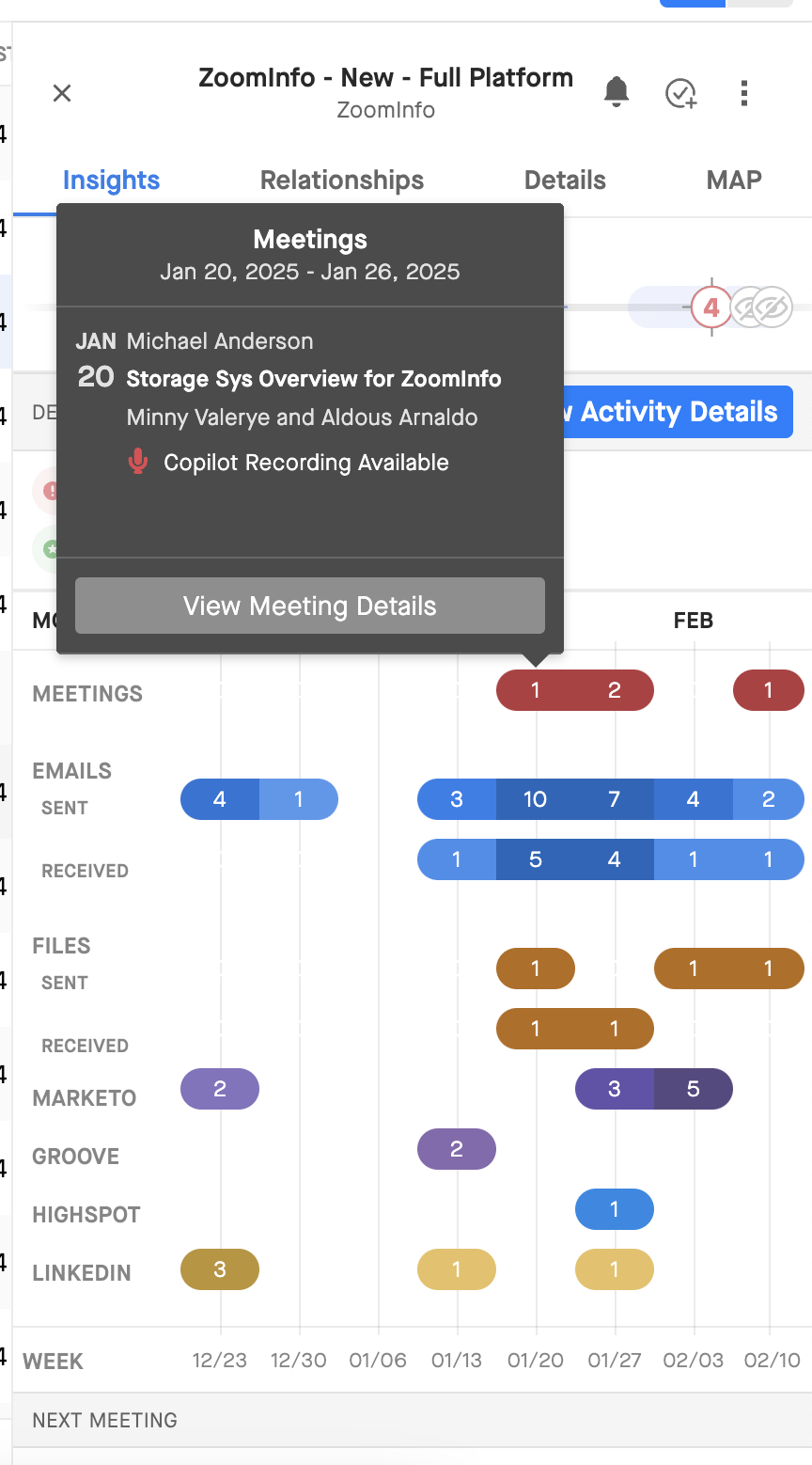
Clari integrates with Copilot by associating Copilot Conversational Intelligence data to meetings indexed by Clari. You can view Copilot trackers associated with a particular meeting and review the call directly in Clari’s Activity Detail view, which allows users to view meeting and email history for deals or accounts.
To view a Copilot recording, users can:
- "View Activity Details" from the right panel of an opportunity/account
- Click on a meeting with a Copilot recording directly from the hover tip (see screenshots below).
After you launch the Activity Detail view, Clari will format Copilot call trackers from the meeting records detail view and show an icon to "Click to review the meeting in Clari."
Note: You will be prompted to log into Copilot before accessing the recording in Clari.
That will launch an embedded call reviewer in Clari:
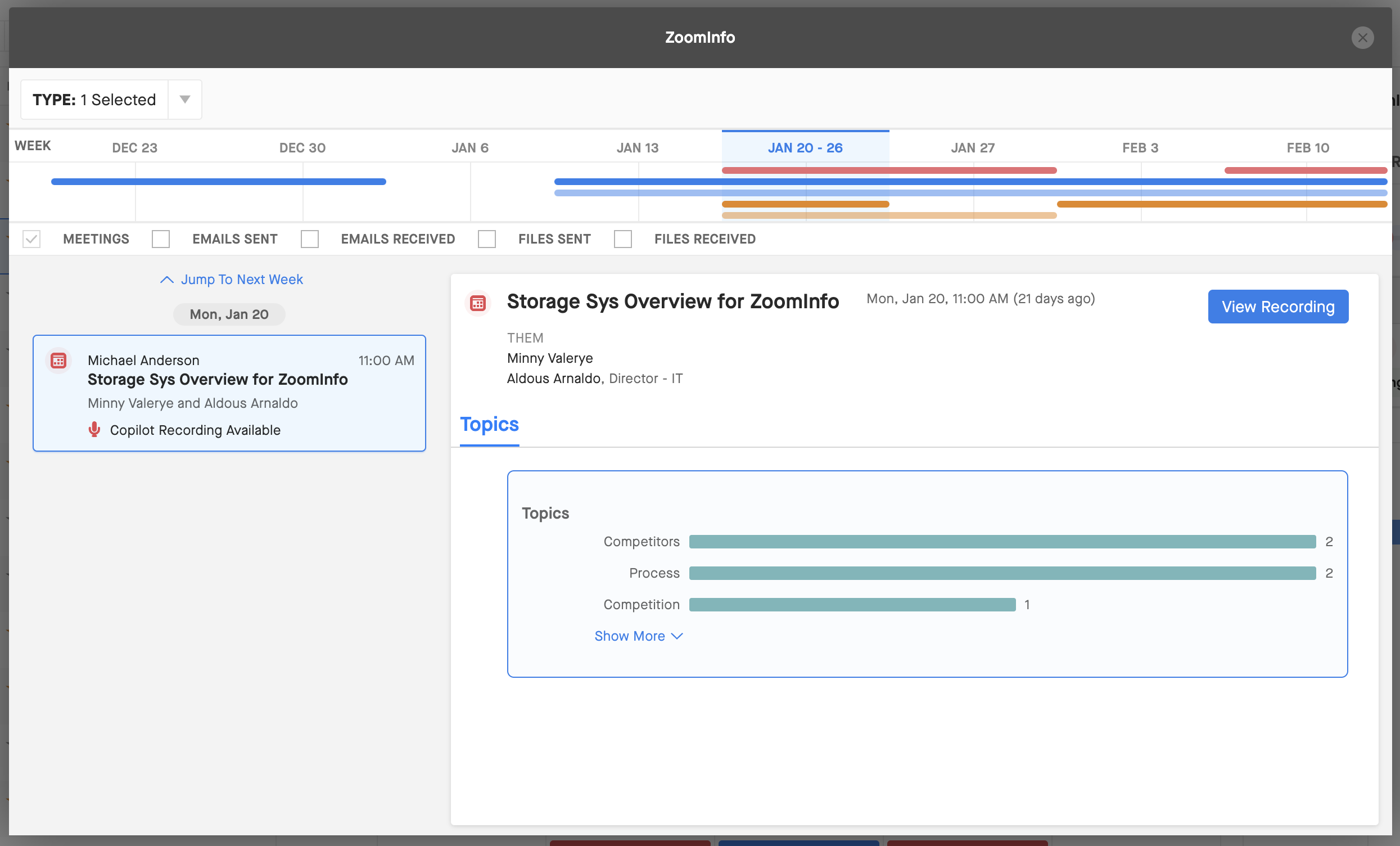
From there, you can click "View Recording" (shown above) to review the call recording from within Clari:
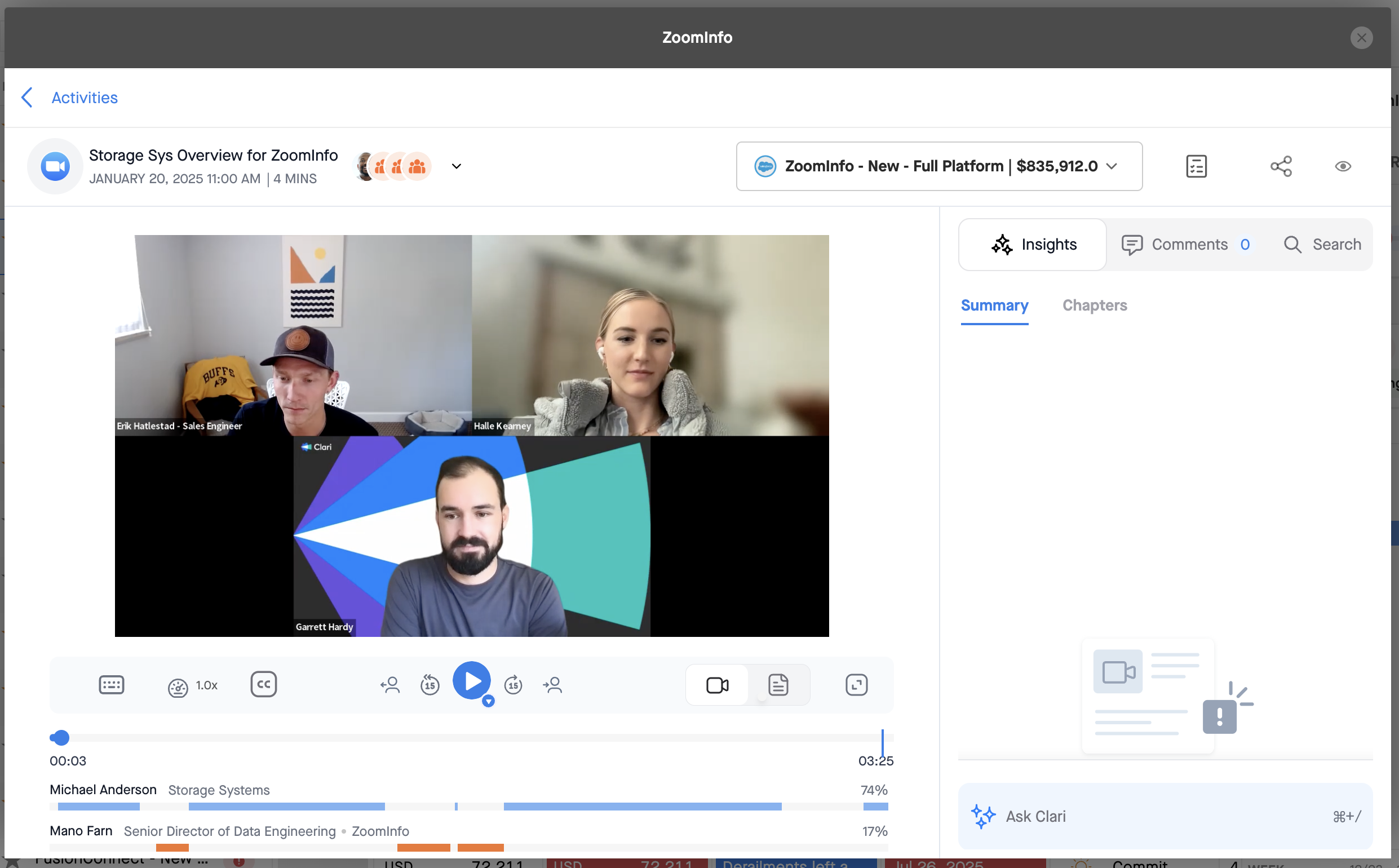
Copilot Integration Steps
Follow these steps to connect Copilot to your Clari instance.
Note: An Admin can follow the steps below.
1. From Clari Studio, click the top left menu  and click Integrations.
2. Click to expand the Conversational Intelligence section. On the Copilot card, click Set Up.
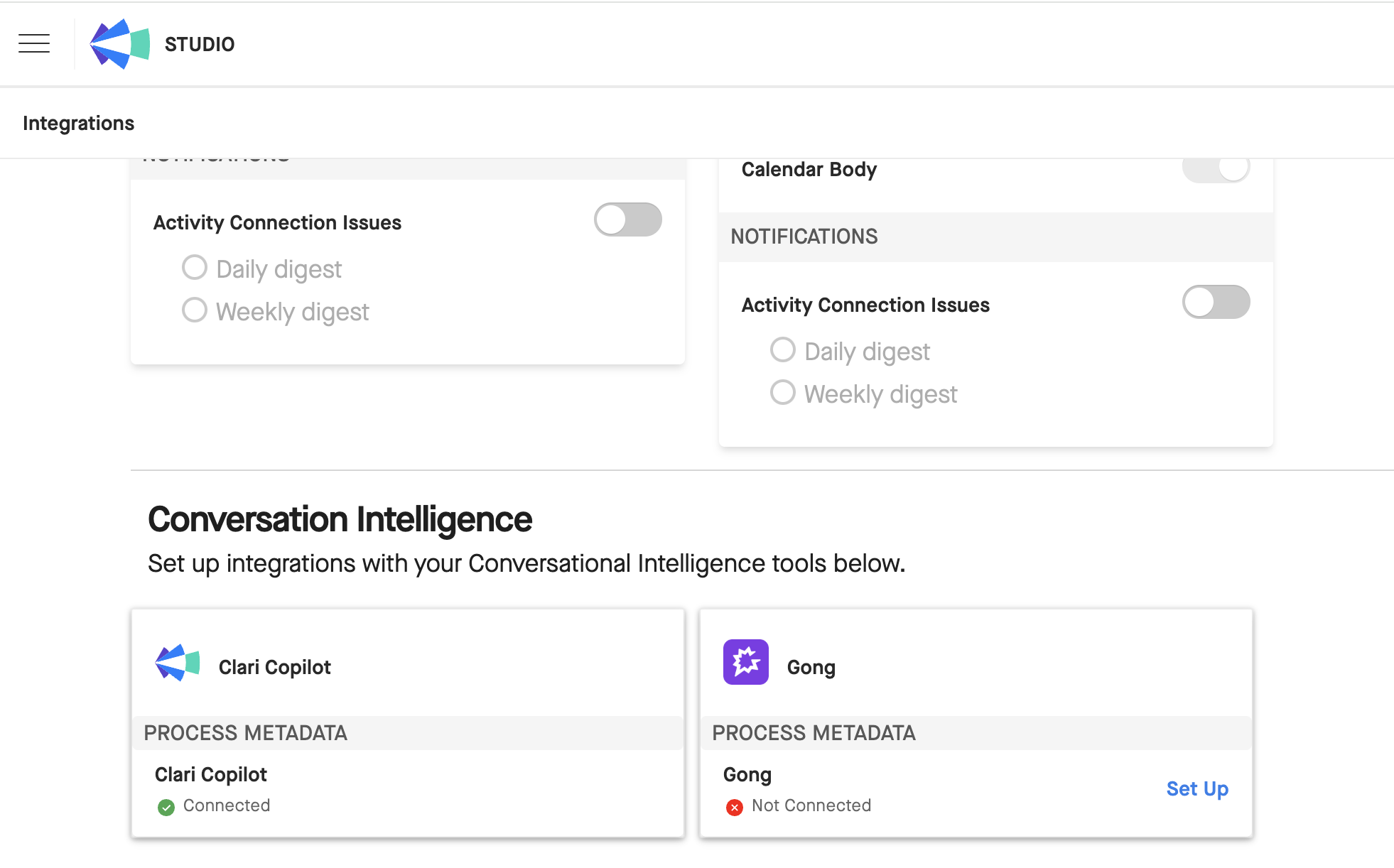
3. Go to the Copilot Admin Integration tab and copy the Copilot API Key and Secret. Then paste the API Key and Secret into the required fields in Clari.
4. Once the required fields have been populated, click Connect.
After connecting, Clari will kick off an automated process that connects and loads data from Copilot into Clari. If anything fails with authentication, you'll see the fail screen, which prompts you to reach out to support.
