In this article, you will learn how to set and manage Cadence and Tasks Settings for your team, including:
Users have the ability to set stages for specific Cadence actions when they Create their Cadences. These defined stages will automatically update based on that person’s most recent Cadence activity.
But, if your users update stages however they please, your teamwide data may suffer. One user may mark someone who completed a Cadence as "Closed" while another may say "Closed not Converted."
By setting default stages, you can standardize stages across your users' processes. You can set Cadence defaults for your entire team within your Stage Settings.
There are two options for setting your team’s stage options:
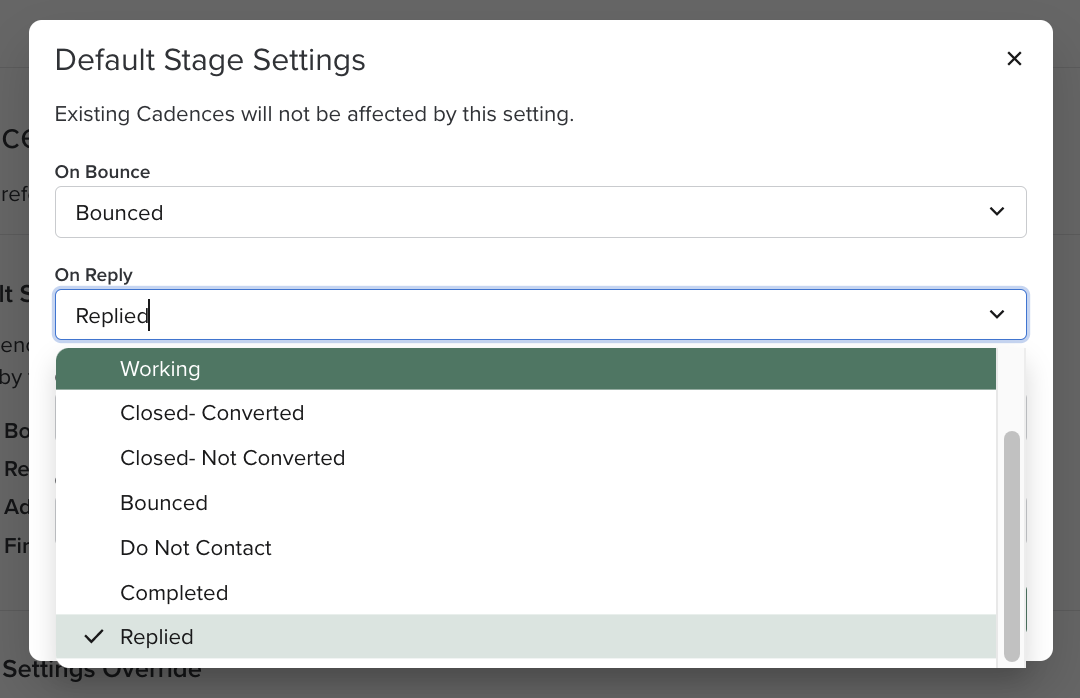
- Default Stage Settings: Default Stage Settings are displayed when a user is creating a Cadence, but can be changed by the user. Think of your Default Stage Settings like guidelines. Your user can still select their own stages if they choose, but you are recommending the default option.
- Stage Settings Override: Stage Settings Override will automatically be set when a user is creating a Cadence, and the user cannot change them. In fact, when any user goes to create a Cadence, the Stage Settings will be greyed out, figuratively set in stone.
Things to Note: If you select Default and Stage Settings Override, the Stage Settings Override will take precedence.
To edit the Cadence Stage settings, follow these steps:
- In Salesloft, go to your Settings, and select the Cadences and Tasks Settings on the left side.
- Determine whether you would like to set Default or Override the Cadence Stage settings. Based on your preference, select Edit in the Default or Stage Settings Override panel. A window will appear where you can change those settings.
- Use the dropdown to assign your preferred stage when various actions occur. You can select the follow:
- On Bounce
- On Reply
- On Added to Cadence
- On Finished Cadence
- Click Save. Any stages you select will appear on the Cadences and Tasks Settings page with a green check mark next to the Setting. The Setting will also include the stage that has been chosen. If you have not selected a stage, or have selected No Stage Change as an option, you will see an X next to the setting option.
Automatic Step Reassignment (Team Cadence) helps you ensure that follow-up Cadence steps are assigned to the right rep when a Person record is reassigned. For example, let's say that Rep A owns a Person record and that Person is assigned to a Cadence. If that Person record gets reassigned, here’s what happens:
- Any Cadence steps assigned to Rep A will be assigned to the new rep (Rep B)
- If the Cadence contains steps that are assigned to multiple reps, e.g. (Rep A and Rep C), only steps previously owned by Rep A will be assigned to Rep B. Rep C will remain assigned to the Cadence steps they were working on, as their assignment wasn't tied to the previous record owner.
To enable Automatic Cadence Step Reassignment, click the toggle button on (turn it to blue) under Automatic Step Reassignment (Team Cadences) located on the Cadences & Tasks Settings page.
Things to Note:
- Reassigning Cadence steps only applies to Team Cadences.
- Once the Automatic Step Reassignment setting is enabled, future updates to the Salesloft owner field will automatically be reflected for the Team Cadence assignee as well, meaning that user will see the Cadence in their Cadences To Do list and be prompted to take those actions.
If Tasks will only be assigned to the user that owns the Person record, the Automatic Tasks Reassignment setting allows you as the admin to designate that setting for the team.
To set Tasks assignment to the owner of the Person record, click the toggle button on (turn it to blue) next to When a Person owner changes, reassign the previous owner's task assignments to the new Person owner.

When it comes to your team's Cadences, certain steps or workflows may be deemed a little more important than others. Your users will most likely want to target the Cadences that offer the greatest chances for success. With Cadence priority, teams assign a priority level to their Cadences, and then sort their workflow based on the priority level.
As a team admin, you can view and manage the Cadence priorities from the Cadences & Tasks Settings tab. Each priority level will be listed in under Cadence Priority Levels. From that table, you can also see the number of Cadences that have been assigned the level.
By default, Salesloft offers the following priority levels:
Things to Note: The None priority level includes Cadences that have not been assigned a priority level.
Admins can change the Cadence Priority Settings by selecting Edit in the Cadence Manage Priority Levels panel. From the Manage Priority Levels window, you can:
- Edit a Priority Level: Change the name of an existing priority level by editing the name in the text box.
- Add Priority Level: Click Add Priority Level. Type in the name of the new priority level and hit the enter key on your keyboard.
- Reorder Your Priority Levels: Let Salesloft know your priority order. Grab the row by selecting the six dots to the right of the priority level name. Then, drag the row up or down.
- Remove a Priority Level: To delete a priority level, select the subtraction icon to the left of the priority level's name.
Once your changes have been made, click Save. You can also see the number of Cadence assigned to each priority level in the parenthesis.
The Cadence Enrollment Rule setting allows Admins to control how many cadences a prospect can be enrolled in at the same time. By setting clear rules, you can prevent overloading prospects with repetitive messages and maintain a streamlined engagement process.
For detailed instructions on how to set up and use this feature, check out the Manage Cadence Enrollment Rules article.
Here are some commonly asked questions and answers regarding Cadences & Tasks Settings:
How does Cadence Reassignment work?
When a Person owner changes, this tool will reassign the previous owner’s Cadence assignments to the new Person owner. This will only occur on active team Cadences.
For example, Person A is owned by John. John is also assigned to Person A on two team Cadences. With Cadence Reassignment enabled, the owner of Person A transfers from John to Carol. Carol is the new Person owner, and Carol is now assigned to Person A on the two team Cadences where John was assigned previously.
Which Cadences will be affected by the Cadence Reassignment option?
Only active team Cadences will be affected when the Person owner changes.
Which Cadence Person assignments will be affected by Cadence Reassignment when the Salesloft owner changes?
When the Person owner changes, only the previous owner’s assignments on active team Cadences will be assigned to the new Person owner.
