Research Agents in Salesloft look at various sources to quickly compile and synthesize information in a way that’s easier to consume and leverage. The default agent has been tried and tested to bring in the most relevant and accurate information possible, but your business may still have specific data that needs to be referenced.
Teams can customize the Account Research Agent to get the specific, tailored account research data your sales team needs, automatically delivered by the AI agent directly in Salesloft. By customizing the Account Research Agent, admins can add new custom fields with instructions, manage existing fields (edit, archive, enable/disable), control field visibility by user group/team, and configure the display order and grouping of fields for the seller view.
In this article, you will learn how to manage research agents. This article includes:
Before you manage research agents, be aware of the following prerequisites:
- The ability to define and manage custom research fields, including setting visibility rules and layout, is primarily controlled by Admins.
- The agent will be able to pull from web data, account, opportunity, and activity data by default to fill in the information.
- The quality of the data returned is highly dependent on the clarity and specificity of the instructions provided by the Admin when defining the custom field.
- If a custom field is not populating data, check the "Field Instructions" defined by the Admin. Ensure they are clear, specific, and represent information that is reasonably findable through public web research, Salesloft acitvities, and CRM data.
- Verify that the custom or default field is "Enabled" and not "Disabled" or "Archived" in the Admin settings.
- Confirm that the field's visibility settings include the user or team attempting to view the data.
When your organization or team needs specific, recurring data points (potentially from specific sources or internal fields) not covered by standard fields, you can create new focus area fields, so sellers get consistent, tailored insights automatically aligned with your strategy (e.g., focusing on relevant hiring trends).
To set up a custom research agent focus area for your team, follow these steps:
- Access Research Agent Settings: In your Settings, go to the Artificial Intelligence Settings. Find the Account Research Agent section of the page and select Manage. You will go to the Account Research Agent Settings page.
- Add Custom Research Fields: Click the plus sign button in the upper right corner of the page to create a new research focus area. The Add New Focus Area window will appear.
- Define the Display Name and Instructions: Add new custom fields by defining a display name and specific instructions for the AI agent to follow. Enter the following information in the Add New Focus Area window:
- Click “Add”: Select Add to create the new focus area. The area will be added to the Account Research Agent list.
- Configure Visibility Rules: New custom fields are disabled by default. Configure visibility rules for active fields to determine which user roles and teams see specific default and custom fields. If a group is not selected, the focus area it will be available for Everyone by default.
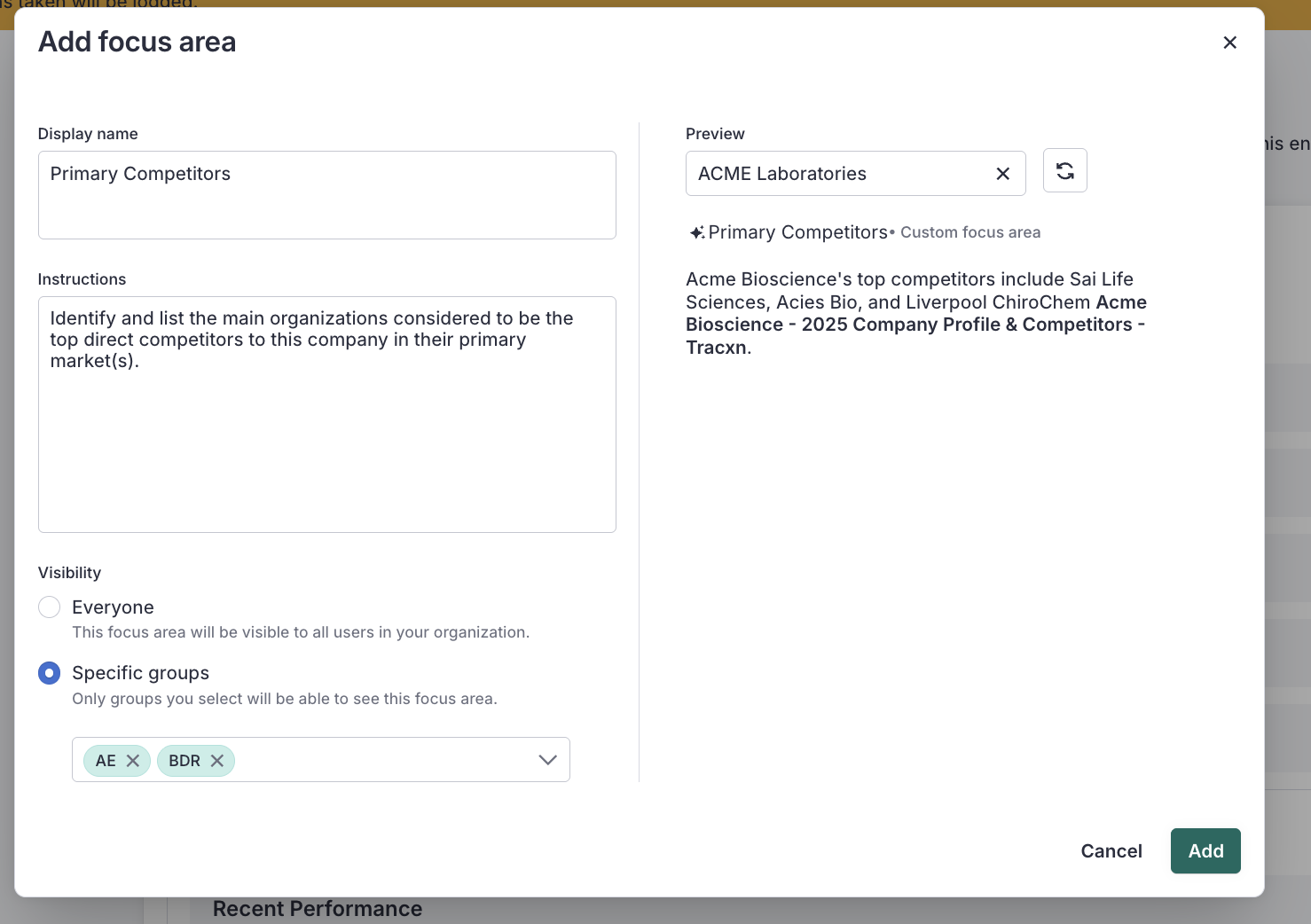
Figure 1: Add a New Focus Area to the Account Research Agent
Admins can edit the display name and instructions of existing custom fields if the field isn’t perfectly fitting your team’s needs.
To edit an existing research agent focus area for your team, follow these steps:
- Access Research Agent Settings: In your Settings, go to the Artificial Intelligence Settings. Find the Account Research Agent section of the page and select Manage. You will go to the Account Research Agent Settings page.
- Select the Edit icon: Find the focus area you wish to edit. Click the Edit icon. The edit focus area window will appear.
- Things to Note: You cannot edit default fields.
- Update Display Name and Instructions: Make changes to the display name and instructions as you see fit.
- Hit “Save”: Click the Save button to make the changes.
Seller View
Sellers will see a tailored view of account research data, including enabled default fields and custom fields relevant to their role/team, populated by the agents.
Best Practices
Check out these Best Practices for more ways to leverage research agent customization:
Verify the changes that have been applied in Account Research Agent.
