Scheduled Imports automatically import People into Salesloft from a Salesforce Report to queue up the People for engagement.
Salesforce Reports create lists of targets based on the attributes or characteristics that are important to your team. By adding these reports to a created scheduled import, your team can rest assured that their Leads or Contacts will be added to Salesloft and can be instantly added to the best cadence to create engagement.
Scheduled Imports are created and managed by a Salesloft admin. You can access the settings page by going to your Settings and selecting Scheduled Imports under the Data category.
Things to Note:
- Scheduled Imports are only available for Salesforce CRM users.
- You must have a valid Salesforce Report available to import and a valid CRM connection to a Salesforce Org. The Salesforce report must be in the tabular format and must include a column containing Lead IDs, Contact IDs, or a blend of Lead IDs and Contact IDs.
- In order for the Report import to run successfully, the Report and data must be visible to the Salesloft User that the import is routing through (Connected App Connection).
- Reports may include a maximum of 2,000 records.
In this article, you will learn about Scheduled Imports in Salesloft, including:
To create a new scheduled import from a report, follow these steps:
- In your Settings, go to Scheduled Imports.
- Select New Schedule in the upper right corner.
- Define your Import.
- Import Schedule Name
- CRM Report
- Set the Import Schedule to determine how often the import will run. You can select one of the following options:
- Hourly
- Daily
- Select the time of day when the import with run
- Select the action that will occur upon import.
- Import Records: Imports Lead or Contact records into Salesloft to create Salesloft People records.
- Import records & add to Cadence: Brings in new records and adds them to an assigned Cadence
- Assign the Record owner: The Record owner will be the Salesloft user assigned to the Person record. Select between the following options:
- Assign by CRM Record Owner: The current owner of the Lead/Contact record will be assigned as the People owner.
- Things to Note: Must have the CRM Username mapped in the Salesloft user management.
- Assign by Report Column (User Lookup Field or User ID Column)
- Things to Note: The User ID in the report column must match a CRM Username mapped in the Salesloft user management in order for the Person to be added to the Cadence if this option is selected.
- Click Save. The import will appear in the Scheduled Imports List view.
- Things to Note: The import will be DISABLED when you click Save.
- Enable the Scheduled Import inside the listview.
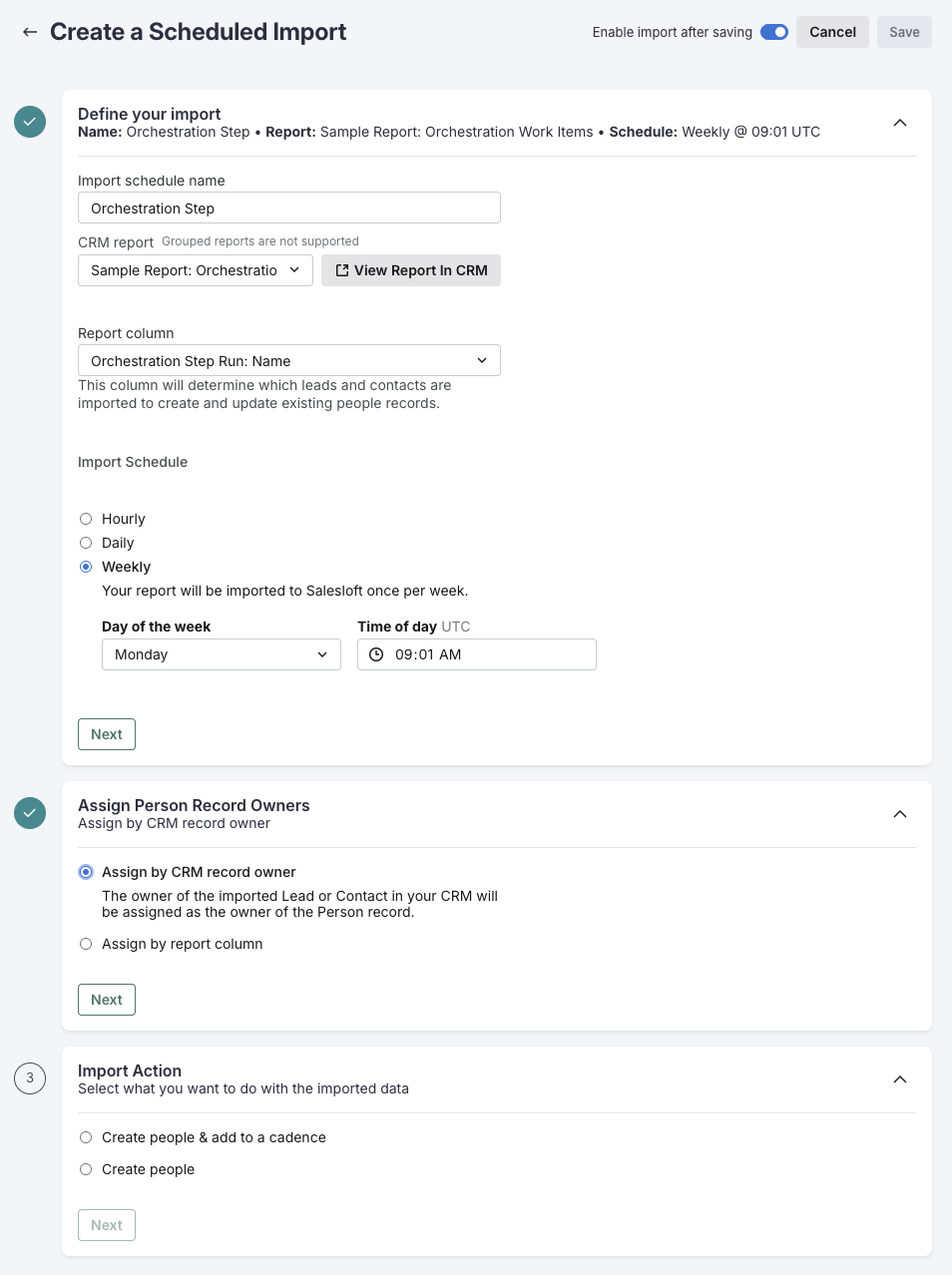
Figure 1: Create a Scheduled Import
When you select the action to Import Records and add to a Cadence, follow these steps to set up the action:
- In the Schedule a Report modal, select Import records & add to a Cadence. The page will expand to reveal the Select a Cadence options.
- Select between Personal or Team Cadences.
- Optional - Search for the cadence by cadence name
- Select a Cadence. You can also select Show Steps to select a specific Cadence Step that the people will start with.
- Next you will Assign the Users the Cadence will be assigned to.
- Personal Cadence Assignment: If you selected a Personal Cadence, the Cadence Owner will be assigned the Scheduled Import Cadence action.
- Team Cadence Assignment: Offers the following assignment options:
- Assign to specific user: - Assign all steps to a designated single Salesloft User.
- Assign by Salesloft Person Owner: Assign the steps to the owner of the Person record. This would be most ideal for regional based selling or customer service use cases
- Assign by Report Column: Assign the steps to a User based on a User Lookup Field or a CRM User ID from a selected Salesforce Report column. The CRM User ID is determined by the CRM Username field which is configured in the User Management table.
- Things to Note: The CRM Username field MUST be mapped to a Salesforce Username to use this assignment option.
- If no user is found via these methods, the Person will be imported into Salesloft, but will NOT be added to a Cadence.
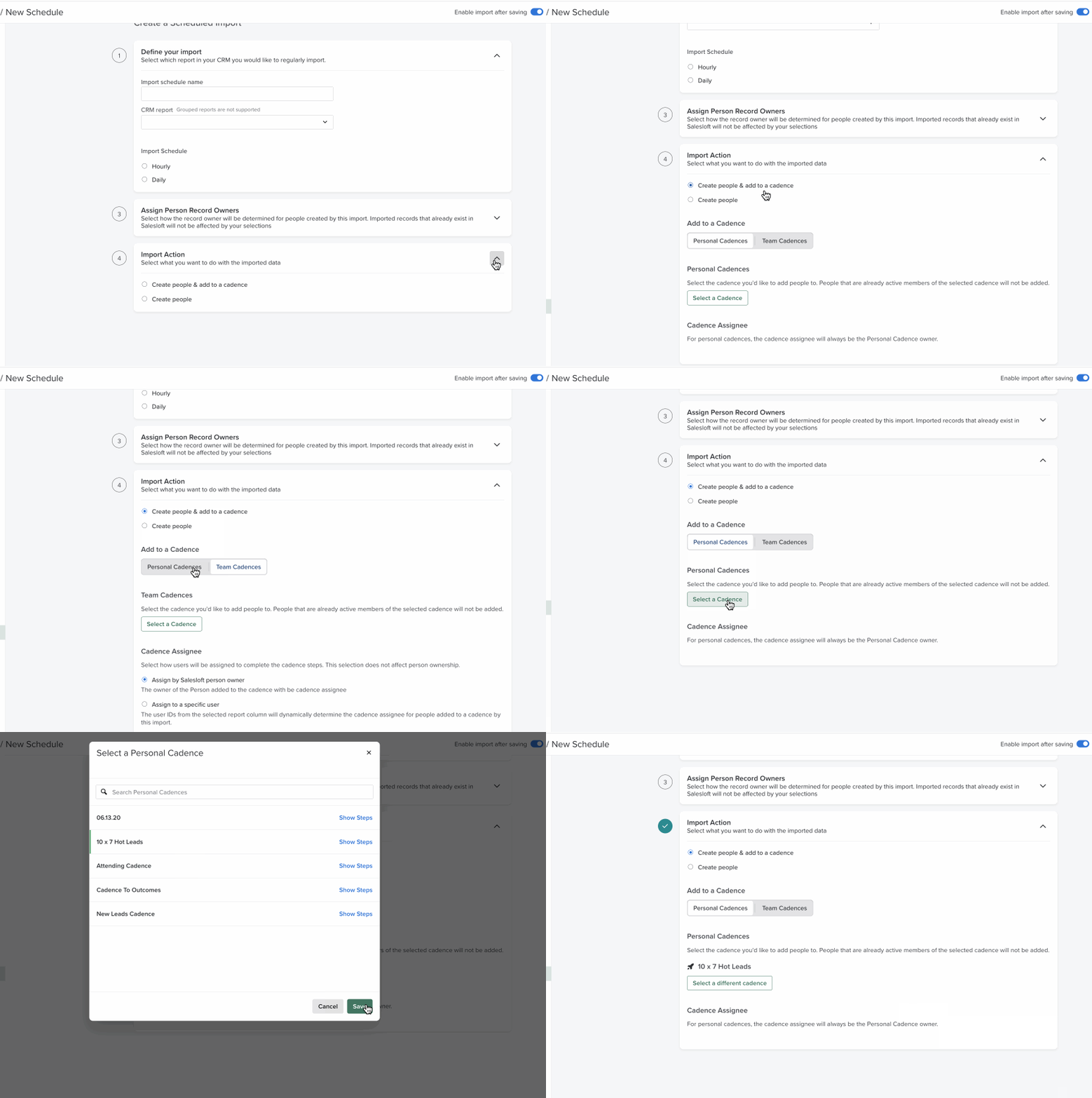
Figure 2: (GIF) Import and Add to Cadence
Things to Note:
- If a Scheduled Report includes a Person that is already on the same Cadence the Scheduled Import is adding the Person to, they will not be re-added to the Cadence Their place in the Cadence will not be changed as a result of being re-imported to the same Cadence.
- If the Person is on the Report and no longer a member of the Cadence or has never been on the Cadence, they would be added to the Cadence.
The Scheduled Imports Page offers a variety of tools to manage your snippets.
The Scheduled Imports page layout contains the following features:
- New Schedule: Add a new scheduled import. New schedules will be added to the listview.
- Number of Scheduled Imports: The total number of scheduled imports in the current view (according to your filters). When you select a schedule, the number will show how many scheduled imports have been selected out of the total number.
- Scheduled Imports Filters: Filters trim your list so you can view the scheduled imports that suit your current needs.
- Search Scheduled Imports: Search Scheduled imports in order to locate a certain import. You can search using a report or import name. To use the search, type the key word in the search bar located in the upper right corner of the Scheduled Imports page. Click the enter key on your keyboard to perform the search. The results will populate.
- Scheduled Imports Listview: The list of Scheduled Imports created.
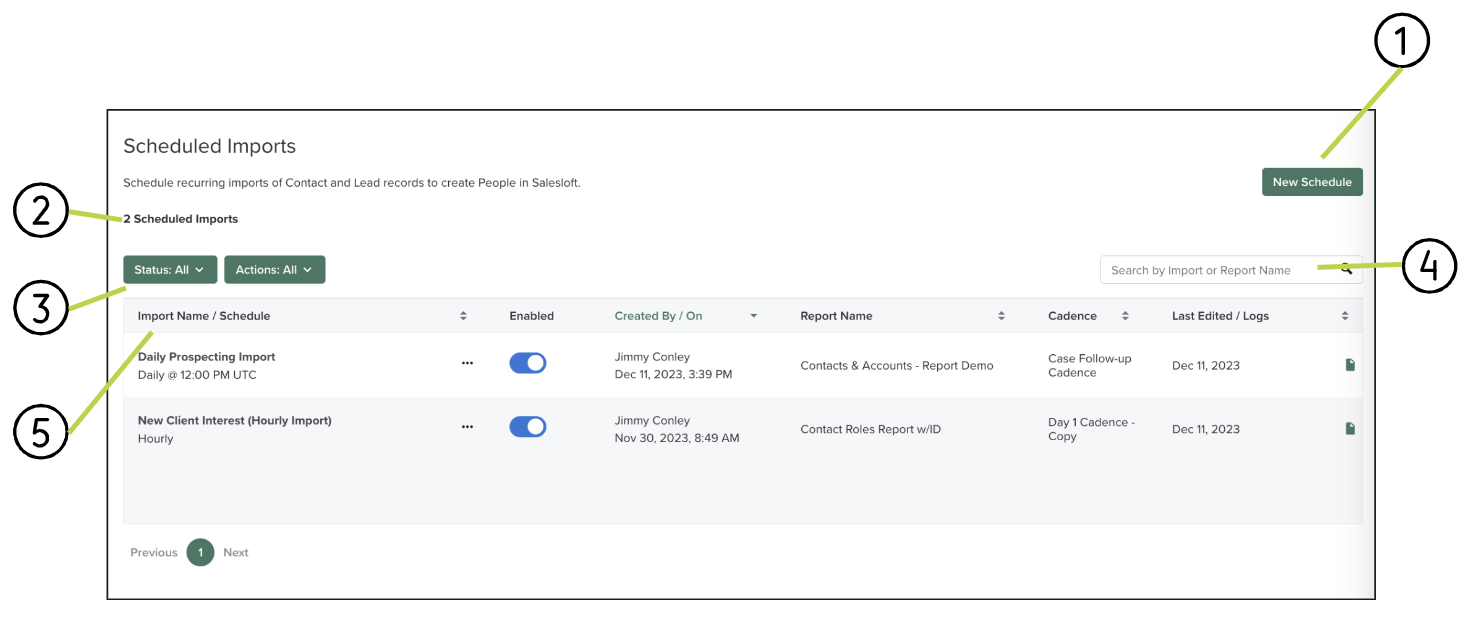
Figure 3: Scheduled Imports Page Layout
The Scheduled Imports Page hosts your list imports, also known as your Scheduled Imports listview. Your Scheduled Imports listview contains any Scheduled Imports that have been created (that fit your filters).
Inside the Scheduled Imports listview, you will find the following details:
- Import Name/ Schedule: Name of the Schedule imports that is determined when you create the Scheduled Import. Below the name of the import, you will find how often the import is scheduled to run.
- Enabled: Toggle used to enable or disable a Schedule.
- Created by/On: User who create the Schedule and Date/Time created.
- Report Name: Name of Report in Salesforce.
- Cadence: Name of Cadence the Schedule is adding People to.
- Last Edited: The last time the Schedule was edited.
- Logs: View a summary of logs for each import.
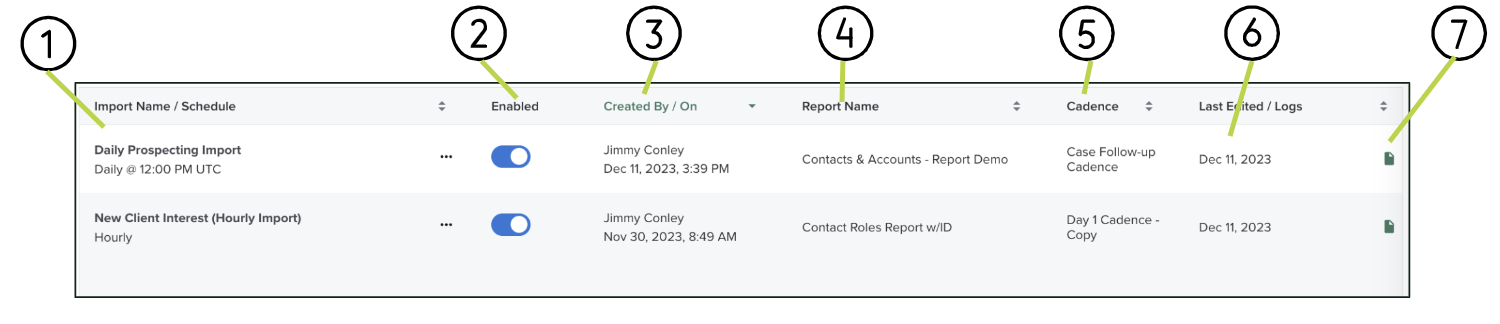
Figure 4: Scheduled Imports Page Listview
