While forecasting is a crucial part of your sales team’s operations, sometimes important tasks, like submitting a forecast, don’t get completed on time.
For the moments that forecast due dates are missed, Overdue indicators will appear throughout your Forecast in Salesloft. If you are someone who likes to be one time for everything, this may feel like a slap on the wrist. The purpose of the overdue icons is to help hold your team accountable and keep your Forecast updated.
In this article, you will learn about overdue Forecasts, including:
Typically, a team has due dates for their team members on when their forecast is due. By this date a rep or manager needs to submit their forecast.
For Forecast in Salesloft, admins choose the frequency of submissions. Within the Forecast Submission settings, you also have the ability to include Overdue Notifications.
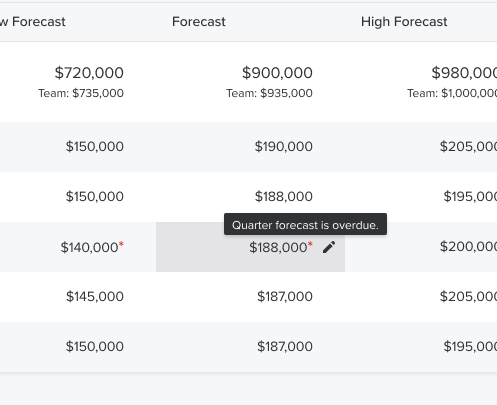
If a user has passed their submission due date and the elected overdue time period, an overdue icon will appear inside the Forecast view.
Keep in mind, there may be more than one Forecast that needs to be updated. Say your team requires a high and low forecast for this month, this quarter, next month, and next quarter. In this case, you would need to update all 8 numbers for your Forecast to be considered complete.
If you only update one of the numbers, the remaining 7 would be considered “overdue.”
Simply put, the only way to remove the Overdue Forecast icon is to submit your Forecast.
The options to submit a Forecast include the following:
For managers viewing Forecast, you can open up your team’s forecast and quickly see which of your direct reports are marked as overdue on their forecasts. As a result, you can either update the numbers on behalf of the rep OR message the rep to go and update their forecast.
The Overdue Forecast Icon shows up as a red clock throughout the Forecast view. This icon can be seen next to the rep’s name in the Hierarchy table, in the expanded opportunities view, and in the Submit Forecast window.
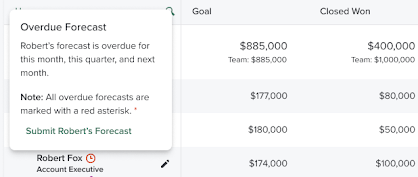
If a rep has been identified with an overdue Forecast, a red asterisk will appear within the hierarchy table to show which numbers are overdue.