Your Cadence is designed to run steps on the designated day and in a consistent pattern. However, there could be times when the due dates of your process need to be moved. When these moments come up, you can change the date a Person is due to run a cadence step.
In this article, you will learn about changing a Person's due date from the People tab inside a Cadence, including:
- If you are headed out of office and would like to stop all Cadence activity during your time off, you can Pause all Cadences.
- While changing due dates is a helpful tool, it's not meant to be used often. If you notice you are changing due dates regularly (once a week on average), it could mean that your cadence process does not fit your personal workflow. Consider reviewing your cadences to best fit your day to day.
To change the due date on People from the Cadence People tab, follow these steps:
- Access the Cadence People Tab: Go to the Cadences page in Salesloft. Select the Cadence containing the Person whose due date you want to change. Click the People tab within the Cadence.
- Filter and Sort People (Optional): Use the filters and sorting options to refine the list of People if needed.
- Select People: Select the specific Person or multiple People whose due dates you want to change. Cadence actions will appear at the top of the People list.
- Open Cadence Actions: Click the down arrow to the right of the Cadence Actions button (rocket ship icon).
- Select "Change Due Date": Choose Change Due Date from the dropdown menu. A calendar will pop up.
- Choose New Due Date: Select the new due date for the selected Person(s) on the calendar.
- Click "Update Due Date": Click the Update Due Date button to save the changes.
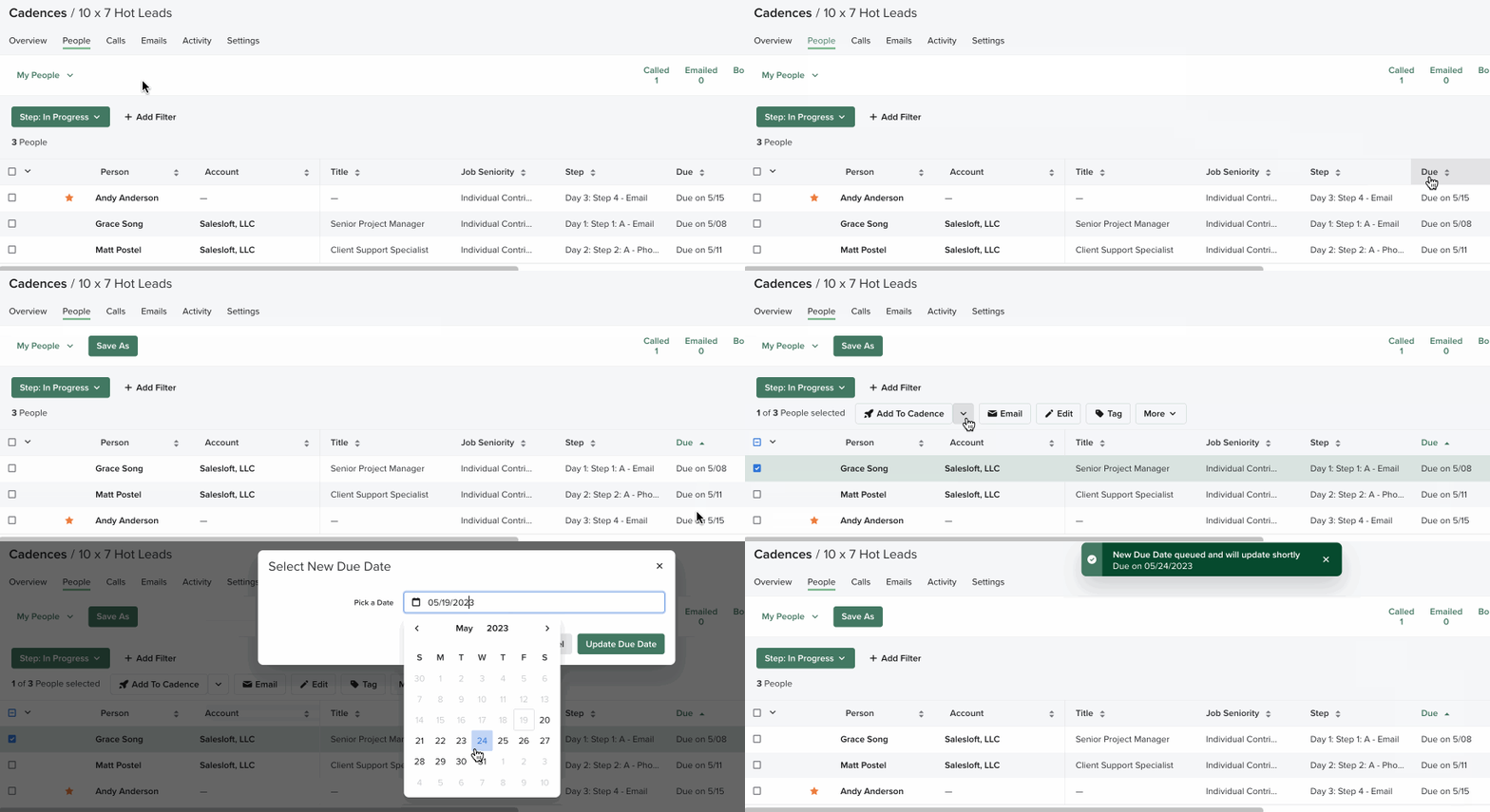
Figure 1 [GIF]: Change a Person's Due Date
Let's walk through some use cases that identify ideal moments for changing a Cadence due date. Changing due dates is ideal for moving dates of a single Cadence at a time.
Delay a Step
Sometimes, you may need to delay your Cadence. For example, let’s say you receive an out of office (OOO) response from a Person. Rather than falling behind in your process, change that Person's step due date so you can put those actions on hold until you are ready to complete them.
Moving dates Earlier
Changing the cadence due date can allow you to run actions earlier that proposed.
Some cadences may have a longer span between steps than you want. Rather than wait on each one, grab multiple records and change them to the current date or perhaps a day later.
Moving your cadence due date to an earlier day is also suggested if you are reacting to engagement with your prospect. For example, let’s say you create a cadence that includes a meeting confirmation. If your prospect books time on your calendar earlier than the original Cadence due due, change the date to the day before of the meeting to send the reminder email.
Move to a Specific Date
Let’s say your company has an upcoming conference and you want to include an invite to prospects in your ongoing outbound cadence. You can change the Cadence due dates to a specific date to email/call people. This way you can align to the dates prior to a conference and match your cadence to your calendar.
Holidays
Change Due Date can account for holidays in different cultures around the globe.
Managing Workload
If you have too much or too little work for a day, use change due date to help move your day along.
- Review your Cadences and adjust due dates for specific People as needed.
- Consider revising your Cadence structure if you find yourself frequently changing due dates.
- Explore other Cadence management features in Salesloft to optimize your sales workflow.
