The Pipeline Dashboard provides a list view of opportunities. This view can be filtered and sorted to adjust the information shown in the list, which is great when you want to see deals for a specific time period, user group, or even Deals that have a certain stage.
However, there are times when it may make sense to pull your Deals data out of Salesloft by exporting the Pipeline Dashboard. You can export the Pipeline Dashboard to compare the data in Deals with their Salesforce Dashboards via excel or you want to show Pipeline views with executives or non Salesloft users.
In this article, you will learn how to export the Pipeline Dashboard from Salesloft Deals. This article includes:
Only users with access to Deals may view and export the Pipeline Dashboard
- The ability to export the Pipeline Dashboard will be visible to Salesloft admins by default. Users with the Export Analytics permissions will also have access to the Export button.
- Data is exported into a downloadable CSV file.
- The following fields will not be included in the export:
- ToDo’s
- Deal Engagement Score
- Stakeholder Count
- All Tasks
- Your Tasks
- Before exporting, you can apply filters to the Pipeline Dashboard to tailor the data to your needs. Filters allow you to narrow down your view based on:
- Deal stages (e.g., New, Negotiation, Closed-Won)
- Close dates (e.g., upcoming, this quarter)
- Regions, territories, or segments
- Forecast categories (e.g., Committed, Best Case, Worst Case)
- Opportunity owner (e.g., filter by team member)
- If you’ve applied any filters, make sure to clear any unnecessary ones before exporting, so you’re not excluding important data unintentionally.
For a quick tutorial on how to export your Pipeline Dashboard, check out this video:
To export data from your Deals Pipeline Dashboard, follow these steps:
- Navigate to Deals: Hover over the Workspace tab in the top navigation panel, then select Deals. You will automatically land on the Pipeline tab in Deals.
- Click Export: Select Export found on the upper right side of the page. The Export Dashboard as a CSV window will appear.
- Confirm Export: In this window, click Export. A notification will inform you that the export will be sent to your email.
- Check your email: You should see an email that your export is ready to download. Open the email.
- Download CSV: Inside the email, click Download CSV. This will direct you to Salesloft and automatically start to download the file.
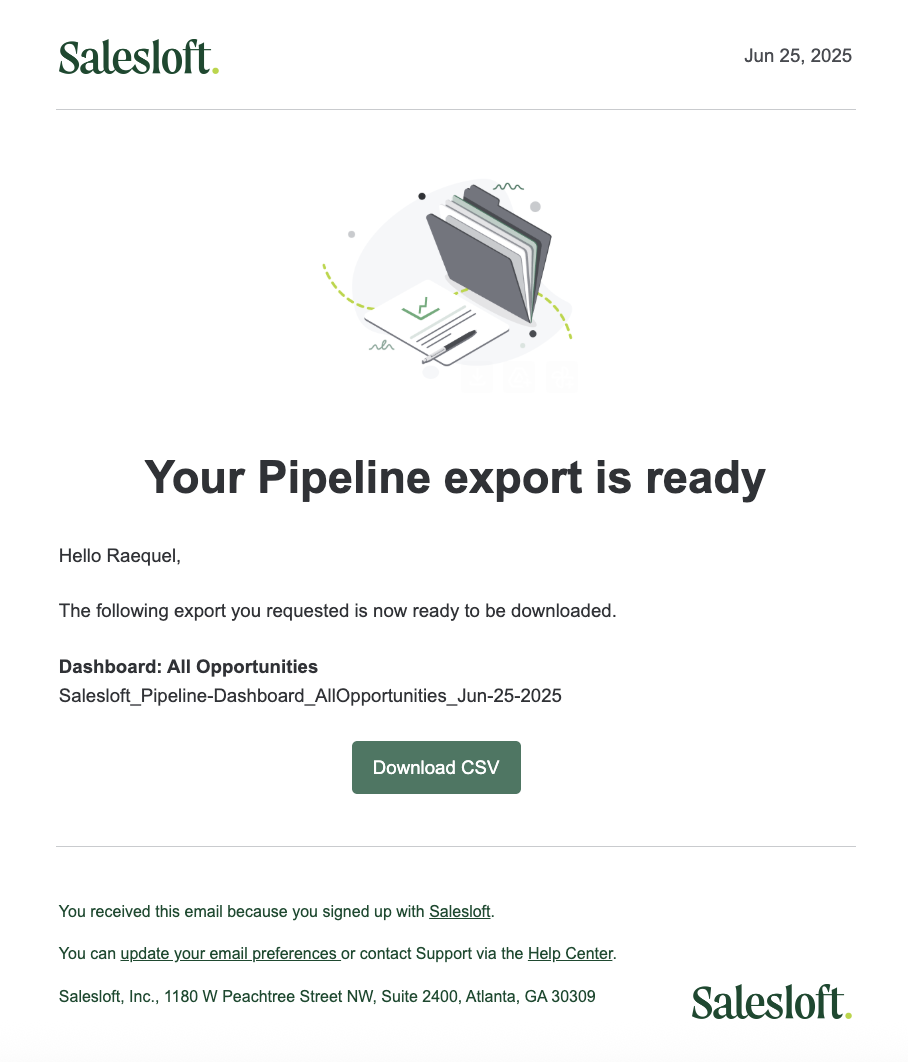
Figure 1: Export a dashboard on the Pipeline View.
Consult with your manager to ensure the export aligns with team priorities, permissions, and confidentiality standards.
