The Pipeline View is your quick glance at the state of your pipeline. This view is the easiest way to identify problematic Opportunities and/or spot if something may be missing using Deal Gaps.
The Deals shown in the Pipeline View are determined by the Pipeline Dashboard that is selected and the filters that are put in place.
Each column of the Pipeline View represents the different Opportunity field data brought in from Salesforce.
You will access the Pipeline View by default when you go to the Pipeline tab within the Deals Product tab. In the Salesloft top menu, hover over Workspaces. A dropdown menu will appear. Select Deals. You can select between the Pipeline view and the Deal View in the upper left corner of the Opportunities tab.
Figure 1: Deals Pipeline View.
In this article, we will walk through the different components of the Pipeline View, including:
Column Field Edits
Each field in the Pipeline View allows for in-line editing.
Any changes to the data in the fields will immediately update in Salesforce.
Things to Note:
- Opportunity Management checks Salesforce for new data every 5 minutes. So, if a field is updated in Salesforce, it will take 5 minutes for that update to show.
- If a field type is added, removed, or edited, those changes will reflect in Opportunity Management after a 24-hour period.
- Some fields are required according to your team's Salesforce instance. Salesloft will prompt you to Update Missing Required Fields in Deals.
To make changes within your Pipeline View, follow these general steps (we will go into details about certain field types below):
- In the Pipeline View, find the cell that needs to be updated. Click in the cell.
- The cell will switch to edit mode. Make your edits. Depending on the field type, you may edit anything you can edit in Salesforce including picklists, reference fields, short text, long text, etc.
- Press the Enter key on your keyboard. The edits will save and push to Salesforce.
Figure 2: Gif depicting Column Field edits.
Things to Note:
- If the edits can't be pushed to Salesforce, an error message will pop up explaining why the data can't push. Learn more about error messages in our Deals Troubleshooting guide.
- Opportunity Management follows Salesforce validation rules. If a validation rule is not met, the field edit will result in an error.
The Upcoming Meetings column shows upcoming meetings scheduled with People in each deal’s Buying Group. To understand which meetings are related to a deal, Salesloft looks at all the People associated with the Ppportunity (the "buying group"), and displays any future meeting on their calendar.
You can add this column to the Pipeline View via the Manage Columns icon at the top of the dashboard.
To find deals that have no next steps, click the sort arrow on the Upcoming Meetings or All Tasks column to bring all deals without an upcoming activity to the top of your list.
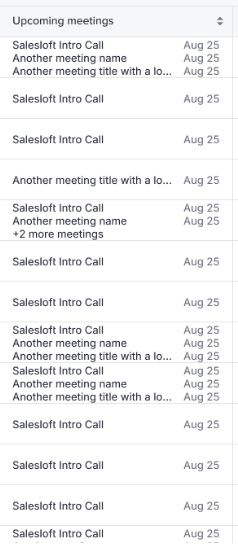
Figure 3: Upcoming Meetings column on the Pipeline View.
The All Tasks column shows all task types associated with a deal's Buying Group. This includes one-off tasks, Cadence steps, and tasks generated from Plays.
To find deals that have no next steps, click the sort arrow on the Upcoming Meetings or All Tasks column to bring all deals without an upcoming activity to the top of your list.
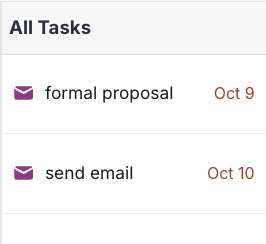
Figure 4: All Tasks Column on the Pipeline View.
Stage Column
The Stage column keeps track of the Opportunity Stage, aka how the Deal is progressing along.
The Stage column contains the following:
- Stage Name
- Number of Days in Stage
- Deal Gap (if applicable)
- Progress Bar
To edit the Stage column, follow these steps:
- From the Pipeline View, click in the Stage field. The Name of the stage will change to a dropdown menu.
- Click the dropdown. The menu will open.
- Select the stage option from the menu. That menu option will become the new Stage Name. Depending on the stage you select, the progress bar will increase or decrease.
Things to Note: All required Opportunity fields in Salesforce must be complete before you can change an Opportunity's stage in Salesloft. Check out Update Missing Required Fields in Deals for information on how you can update a missing Salesforce Opportunity field from the Pipeline View in Salesloft.
Activity Last 30 Days Column
Recent activity is a great indicator when viewing Opportunities since less activity can show which opportunities need more attention, while higher activity suggests which Opportunities are close to closing.
The Activity Last 30 Days column shows an engagement graph that highlights meetings, prospect activity, and rep activity to give sellers and managers a high-level view of what has recently occurred on each Opportunity in the last 30 days. You can find the column in your Pipeline View.
Things to Note: If you do not see the column, check your column management.
When viewing the Activity Last 30 Days column, you can gather the following information:
- Hover over the graph to see total activity counts across each category.
- Refer to Prospect Activity to understand the amount of actions Prospects have taken such as viewing an email.
- Refer to Rep Activity to understand the amount of emails, calls, and other steps reps are completing.
- This chart is clickable and when clicked it will take a user to the deal detail page where it will display a vertical activity feed.
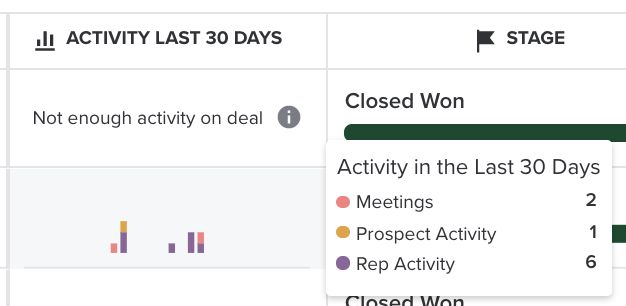
Figure 5: Activity Last 30 Days Column on the Pipeline View.
Score Column
The Score Column on the Pipeline View page shows the health score associated with the deal, if it is available. The score, known as the Deal Engagement Score Overview, is created from a machine learning model that uses factors of the deal to gauge the likelihood of the deal closing.
Things to Note:
- Deal Engagement Score must be enabled by a team admin before you can add or view the column in the Pipeline View. If you see the column with no data, make sure your admin has assigned a record type.
- Deal Engagement Score relies on logged activities to Deals Stakeholders. If you do not see any numbers, check that you have added Stakeholders in Deals. Then make sure you log calls, emails, and book meetings through Salesloft.
- Deal Engagement Score only applies to new business deals. If your Pipeline view is filtered to or includes renewals, the score will not populate.
- If a score doesn't exist for a deal, a user will see the "-" symbol and can hover to get a tooltip.
- The owner of shared dashboards must be sure to add the Score column in order for it to be visible by other viewers.
Using the score in the Pipeline view allows you to quickly evaluate a deal’s standing. You may need to add the score to your pipeline dashboards via the column editor on your pipeline view. The column can be dragged to wherever you would like in your pipeline dashboard.
You can sort the table to view scores from highest to lowest OR lowest to highest. You can use the advanced filters to sort the Pipeline View by the Deal Engagement score, to see a set score range. For example, if you only want to see scores that are in the red, you can filter from 1 to 40.
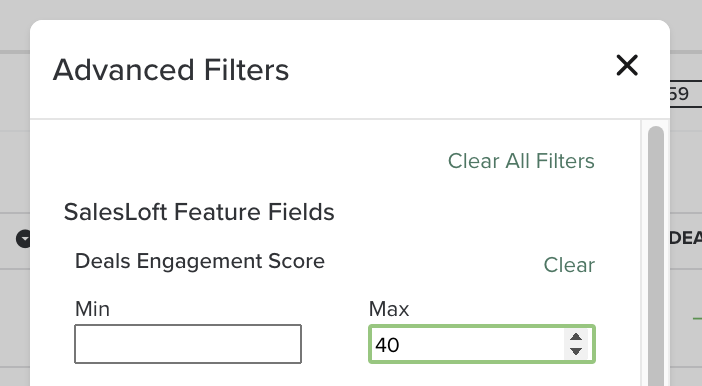
Figure 6: Advanced filters on the Pipeline View.
Each score is represented by a colored circle with a number in the center. The color signifies the health of the deal: green is for good scores (71 and above), orange is for scores that may require more attention (scores between 41-70), and red represents deals that are in danger and need attention (scores below 40).
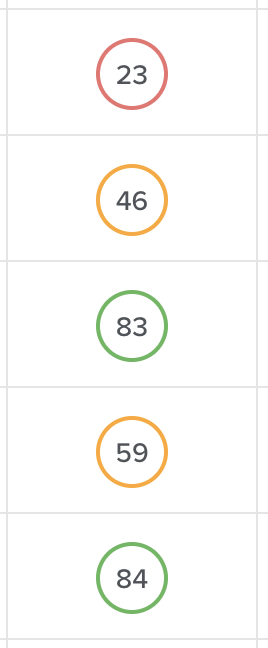
Figure 7: Deal Engagement Scores on the Pipeline View.
If you hover over a score, you can learn about the Score Trends. Score Trends include historical figures that will show how the score has changed over time and recently in the past 7 and 30-day periods.
When on the Pipeline view, you can hover over a score and see the following:
- The current score
- How the score has changed in the past 7 days
- If today is 40 and 7 days ago was 20, +20
- If today is 40 and 7 days ago was 60, -20
- How the score has changed in the past 30 days
- If today is 40 and 30 days ago was 20, +20
- If today is 40 and 30 days ago was 60, -20
- If a score went up, it will display an up arrow and green color
- If a score went down, it will display a down arrow and red color
- What happens if a deal is NOT open for 30 days or 7 days? An “-” (emdash) will appear in its place
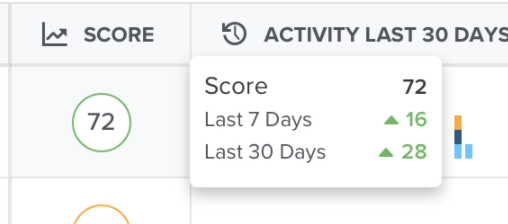
Figure 8: Score Trends on the Pipeline View.
Add the Stakeholder Count Column
The Stakeholder Count column in the Pipeline View shows the number of Stakeholders assigned to a Deal.
Figure 9: Add the Stakeholder Count column on the Pipeline View.
Having a stakeholder assigned to an opportunity is very crucial. Without stakeholders, it is hard to know who you should reach out to regarding that opportunity and Salesloft cannot track communications that go along with your Deals.
Viewing the Stakeholder Count column can help you gauge whether you have confirmed Stakeholders associated with a Deal. Alternatively, if you have zero stakeholders, the column can act as a warning sign to clean up your data and make sure the Stakeholder has been added. The Stakeholder Count can even be used as a Deal Gap indicator to show a deal gap when stakeholders are not assigned on an opportunity.
The Stakeholder Count column is not visible by default. To enable the column, follow these steps:
- From the Pipeline Dashboard, go to the Pipeline tab.
- On the Column Filter row, select the Manage Columns icon. The Customize Columns window will appear.
- Check the box for Stakeholder Count.
- Click Apply. The column will appear in your Pipeline View. You can rearrange the column by dragging the column header. You can also sort by the Stakeholder Count column by clicking the column header.
Figure 10: Customize the Stakeholder Count column on the Pipeline View.
Finally, you can use the advance filters to sort the Pipeline View by the Stakeholder Count. This could help you identify Deals that do not have Stakeholders or only view Deals that contain Stakeholders.
Figure 11: Advanced filters to sort the Pipeline View by Stakeholder Count.
Deal Gaps Column
The Deal Gaps column displays the number of Deal Gaps currently associated with that Deal. The number of gaps will appear in different colors based on your Deal Gap Settings.
Things to Note:
- Only a team admin can adjust the Deal Gap Settings.
- If a "-" appears rather than a number, a team admin has selected the "Hide gap count for healthy deals" option in the Gap Settings. You're good to go!
Learn more about Deal Gaps in the Pipeline Health and Deal Gaps article.
To-Dos Column
The To-Dos column shows any added To-Dos you have related to that Deal. If To-Dos have not been created, the cell will say No open To-Dos.
When there are To-Dos listed, the column includes:
- Editable check box
- Name of the To-Do
- Due date: Past due dates will be listed in red.
