Closing a deal often requires contribution from multiple team members, whether you’re obtaining a new client or processing a renewal. Your team structure may even include compensation for team involvement in a deal.
When dividing revenue between contributing team members, Opportunity Splits make it possible to divide revenue.
Opportunity Splits show the splits percentage and amount for a given deal. The Opportunity Split amount is a percentage of ownership across contributing team members that adds up to 100%.
Things to note: Opportunity Splits only supports Revenue Split Types and not Overlay Split Types.
The Opportunity Split icon is shown throughout Salesloft to indicate when a deal contains an Opportunity Split.

In this article, you will learn about Opportunity Splits in Salesloft, including:
Opportunity Splits are managed inside your team’s Salesforce account. Inside Salesforce you will configure, create, and designate the split amounts.
Once Opportunity Splits have been enabled in Salesforce, you can enable Opportunity Splits for your team in Salesloft.
Things to Note: Opportunity Splits will be enabled by default.
To enable Opportunity Splits for your team, follow these instructions:
- In the Salesloft top menu, hover over Workspaces. A dropdown menu will appear. Select Deals.
- Select the Admin tab.
- Select General Settings, then click Salesforce Sync.
- Scroll to the Opportunity Split tile and use the toggle to enable the Opportunity Split setting.When the toggle area is blue, Opportunity Split has been enabled.
- Below the toggle, it will outline the Revenue Split Type associated with the amount field configured in Deals. In order for splits to be enabled, an active split type must be connected to the configured amount field in Deals
- Once Opportunity Split is enabled, every opportunity that has a split will appear where opportunities are visible.
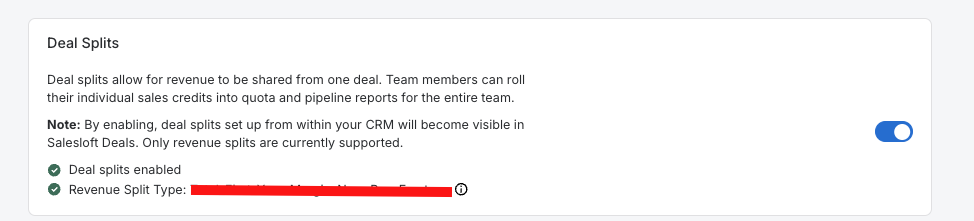
Things to note: If there is no active split type with an amount field, the feature will be off until that is corrected in the CRM.
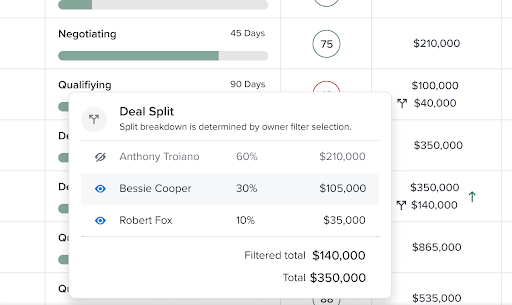
Let’s look at an example of Opportunity Splits in action.
Say there is a split deal that adds up to $350,000 that involves three people:
- Rep 1 owns 60% of the deal which is $210,000
- Rep 2 owns 30% of the deal, or $105,000
- Rep 3 owns 10% of the deal, or $35,000.
- The dollar amounts here add up to the total deal amount, $350,000.
Opportunity Splits show this breakdown so both sales reps and sales managers can easily view who is involved in a split and how much each person has contributed to the overall deal.
The Opportunity Splits icon is visible in the following locations:
Pipeline View: The Split icon is visible on any deal that contains an Opportunity Split in the Pipeline View. This allows managers to get a full picture of each deal in their pipeline and allows you to easily find which deals contain splits.
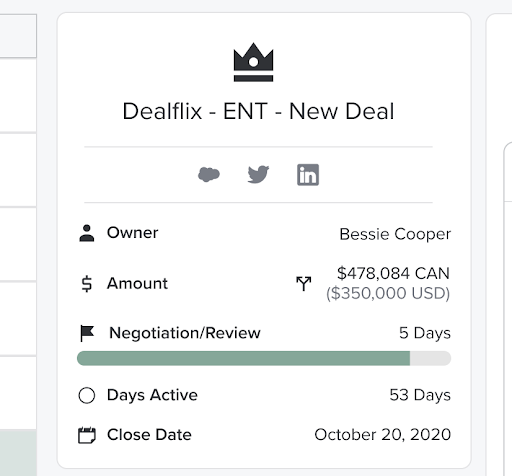
Deal Status Panel: If the field amount is present on the Deal Status Panel the split icon will show to indicate that a split is present. This provides a quick way for sales managers to view if a deal contains a split or not.
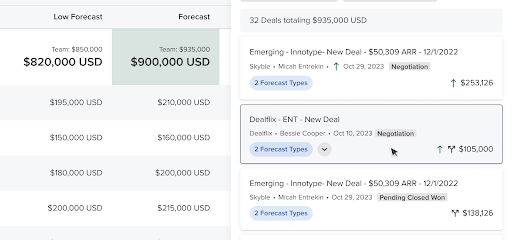
Forecast: The Forecast Hierarchy Table shows the split icon on deals associated with sales reps who are split owners. When a team chooses to view a Forecast with splits turned on they will see the corresponding split amounts for each split user in the hierarchy. For example, if a rep is being viewed in the forecast and is a split user on multiple deals, the rollup and deal amounts will reflect the amount corresponding to their split percentage on those deals.
Things to note: In Forecast, alternate amount fields can be selected for each segment. If splits are enabled in the settings and the amount field chosen on a segment has an active split type, it will be reflected in the Forecast view.
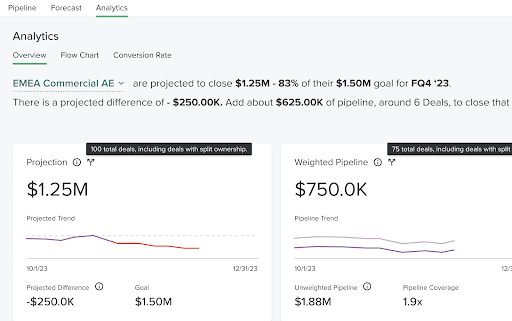
Deal Analytics: The analytics overview page will show a split icon on the Projection Tile and the Weighted Pipeline Tile which you can hover over to see more details on the split and ensure that everyone involved in the deal is being credited properly.
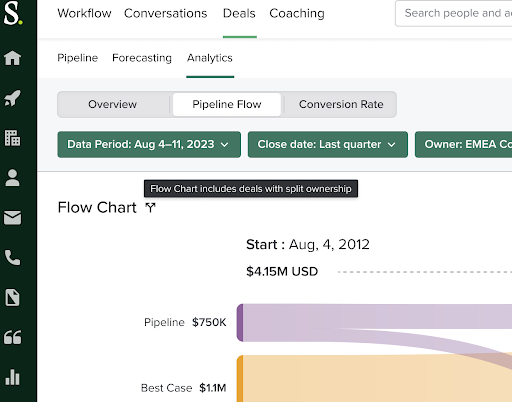
The Deals Flow Chart in the Deal Analytics section also contains a split icon on deals that are splits. Sales Managers can use this information to help craft a more accurate sales forecast.
Coaching: Coaching will also contain a split icon where Deals information and data are shown.
Hovering over the Split icon wherever it is present shows you a detailed breakdown of the split that includes:
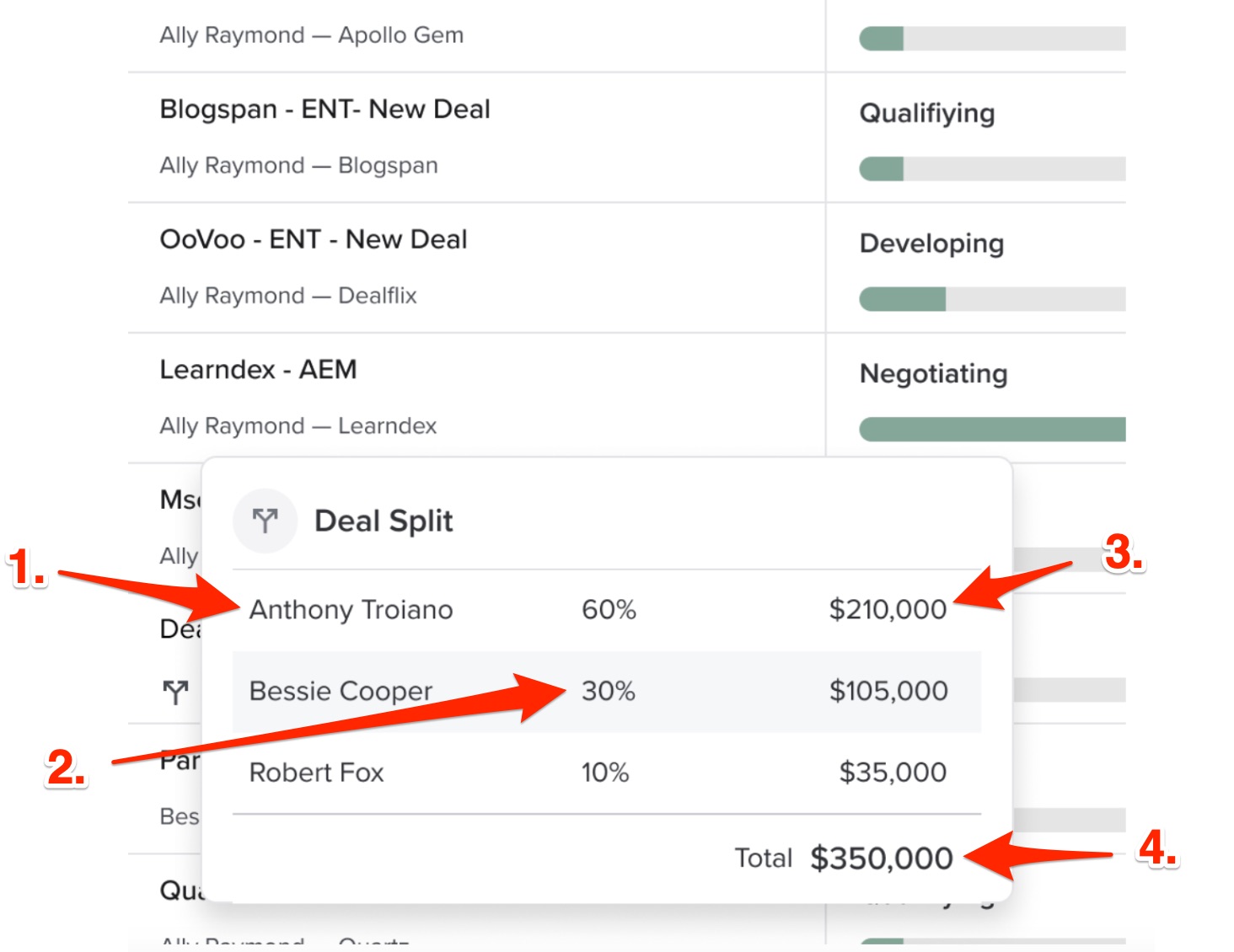
- Sales Rep Name: The name of each person who is a split user on the deal.
- Split Percentage: The percentage of the split that each person owns, totaling 100%.
- Dollar Amount Breakdown: The dollar amount that each person involved in the split owns. These figures add up to the total deal amount.
- Total Deal Amount: The total dollar amount of the deal you are viewing.
