The Deals Pipeline Dashboards help you quickly surface the insights that matter most—like deal progression, stage velocity, or forecast coverage. But as your sales process evolves, your dashboards should too.
If you decide the name of your dashboard doesn’t quite fit the use case, you can edit the dashboard in order to rename it.
In this article, you’ll learn how to rename a Deals Pipeline Dashboard. This article includes:
- You can only edit Dashboards you’ve created or have been given permission to modify.
- Sharing settings are based on your team’s setup.
For a quick overview of how to rename a Deals Pipeline Dashboard, check out this video:
If you decide the name of your dashboard doesn’t quite fit the use case, you can rename it.
To rename a Deals Pipeline Dashboard, follow these steps:
- Hover over the Workspace tab on the top navigation panel, then select Deals. You will land on the Pipeline tab.
- Click the All Opportunities dropdown. A dashboards dropdown will appear where you can see a list of available dashboards.
- Find the dashboard you would like to rename. You can scroll through the list or type the dashboard name into the search field.
- Hover over the dashboard title, the click the three vertical dots that appear. The Dashboard Actions menu will appear.
- Click Edit Dashboard. An Edit Dashboard modal will appear.
- Remove the previous Dashboard Name.
- Enter a new name in the Dashboard Name field.
- Hit Save. The Dashboard will refresh with the new title.
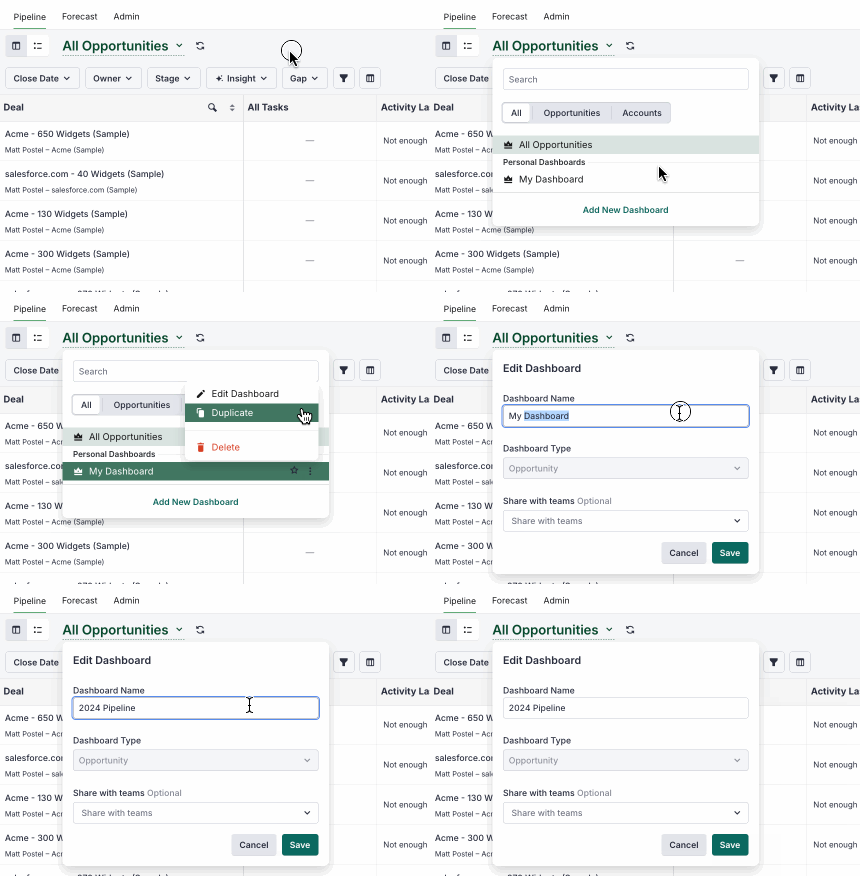
Figure 1: Rename a dashboard on the Deals Pipeline View.
- Dashboards with clear and specific names are easier to find and interpret, especially when they are shared across teams.
- Consider renaming a dashboard when:
- The dashboard’s focus has shifted (e.g., from "Q1 Pipeline" to "Strategic Accounts").
- You’ve adjusted filters or metrics to support a different team or use case.
- The original name is unclear, generic, or duplicated elsewhere.
- You’re standardizing naming conventions across teams (e.g., adding naming prefixes like “Manager –” or “Team –”).
