When it's time for you to go out of office, whether planned or unplanned, you want to be able to leave everything at your desk and deal with it once you return.
Pausing Cadences enables you to put Cadence actions on hold during a specified period of time. With this feature, you select a date range that shifts your Cadence step due dates to when you return to work and are ready to start executing Cadence actions again.
In this article, you will learn how to Pause Cadences. This article includes:
- Set Up Seller Out of Office Automation to automatically pause cadences when Salesloft detects an Out of Office event on your calendar.
- Pausing all Cadences only affects your own Cadences, not those of your team members.
- You can execute individual Cadence steps during a pause by clicking the "In Progress" button on the Cadence Overview page.
- Currently, you can only pause all Cadences. To pause single Cadences, we recommended changing a Person's due date in a Cadence.
- Cadence due dates are pushed to the midnight of the day you’re scheduled to leave, according to the Pause Date set.
- Salesloft uses the date range entered when pausing Cadences and pushes out, or shifts, the due dates for the number of business days that you are out of office. Any Cadence step that is due during or after your pause window will be pushed back that amount of time.
- If you resume Cadences before the scheduled resume date, due dates will adjust accordingly.
- To view scheduled actions, view your tasks in the Rhythm Focus Zone or the Cadence Focus Zone or go to the Emails page, filter to see Scheduled emails. If you see an action is scheduled when you will be out of office, you can select each email and Cancel Send. Then, create a task to send the email after you return.
Watch this quick video to learn how to pause cadences.
Pause All Cadences Instructions
Typically, when you take time off you want to freeze all Cadence actions until you return. For these moments, you can pause all Cadences in a single action.
The Pause All Cadences options appears at the top of the Cadences Page. It will pause all existing Cadence Actions during your scheduled pause window.
To pause all Cadences, follow these steps:
- Go to the Cadences Page: In Salesloft, navigate to the Cadences page.
- Click "Pause All Cadences": Click the Pause All Cadences button in the upper right corner. A modal window will appear.
- Enter Pause Date: The Pause Date will be the first day you're out of office.
- Pause Immediately: Select the current date to pause Cadences immediately.
- Schedule a Pause: Choose a future date to schedule the pause in advance.
- Enter Resume Date: Select the date when you will return to work and want to resume your Cadences.
- Confirm: Click Pause All Cadences to confirm.
- When Cadences are paused immediately there will be a yellow notification informing you that the Cadences are now paused.
- When Cadences are scheduled to be paused in the future, there will be an indicator in the upper right corner informing when Cadences will be paused.
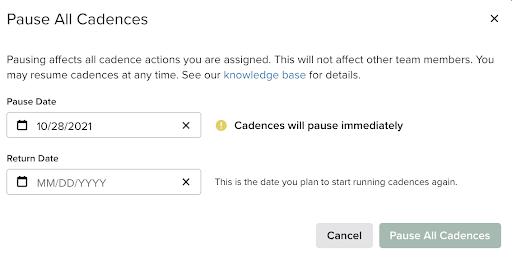
Figure 1: Pause Immediately Example
Resume All Cadences Instructions
If your leave of absence is cut short and you are ready to get back to work before your pause window has expired, you can override the pause state and begin executing actions again by selecting Resume All Cadences.
Things to Note: Users are able to execute Cadence actions during a pause state from the Cadence Overview page. They do not necessarily need to resume all Cadences in order to execute Cadence actions again.
Resuming All Cadences will push your due dates so the return date is the current day. To Resume All Cadences, follow these steps:
- Go to the Cadences Page: Navigate to the Cadences page.
- Click "Resume All Cadences": Click the Resume All Cadences button in the upper right corner.
- Confirm: A confirmation message will appear. Click Resume All Cadences to resume your Cadences.
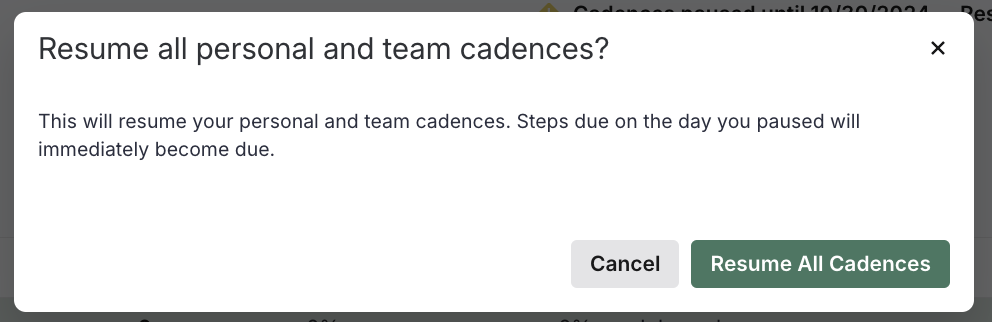
Figure 2: Resume all cadences window
Cancel Your Scheduled Cadence Pause Instructions
We've all come to learn, unforeseen circumstances can drastically change your plans. If you were on top of your calendar and already scheduled to Pause Cadences for a trip or event that is no longer going to happen, you can easily cancel your pause window.
To cancel your pause window, follow these steps:
- Go to the Cadences Page: Navigate to the Cadences page.
- Click "Cancel Pause": Click the Cancel Pause button in the upper right corner.
- Confirm: A confirmation message will appear. Click Cancel Pause to cancel the scheduled pause.
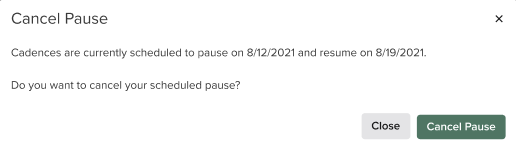
Figure 3: Cancel Pause window
Additional Information: Pause Cadences
- What if I have one-off emails scheduled during my out of office time? Pausing Cadences only applies to Cadence actions. One-off actions, like scheduled emails and tasks, are NOT touched by pause windows and will execute as normal without due date changes.
- Will Automated Cadence emails send? Cadence automated emails will not go out during a pause window unless you change the due date for an automated send to a date within the pause window. Otherwise, automated Cadence emails will send on the resume date right when the user returns from vacation. Automated emails due on the resume date or after the resume date will not be changed at all.
- What happens if I add People during a pause window? Salesloft will reschedule due dates for People added to a Cadence during the pause window using the same pause Cadences logic (# of business days). The only exception to this is for automated emails that originally had a due date inside your Pause Window (or during your time off). These automated emails will ALWAYS be placed on the resume date.
Things to Note: If the original due date for an automated email is after the resume date (after the pause window), then no change to the due date will be made and it will retain its original due date.
What Happens When a Cadence is Paused?
Once your pause window begins, Cadence actions will not appear as "due." You can confirm that you are in the "Paused Cadence" state by looking at the Cadences Page.
The Cadences Page will inform you that your Cadences have been paused until your defined date. In the event that you return to work sooner than anticipated, click Resume All Cadences to end the pause window.

Figure 4: Example Cadence Overview Page while Cadences are Paused
If you really start to miss work or feel like you need to complete one step during your cadence pause, you can execute an individual step by clicking the In Progress button on the Cadence overview page of an individual Cadence.
Next Steps
Explore other Cadence management features in Salesloft to optimize your sales workflow.
