Salesloft Rhythm is a signal-to-action engine designed to transform buyer behaviors into seller tasks actions. Using proprietary AI models, Rhythm creates a prioritized workflow to each user. Rhythm integrates workflows from Cadences, Plays, and manually created tasks.
Play tasks are actions that are automatically added to your workflow when triggered by a signal (e.g. buyer intent that warrants seller engagement). Administrators and managers with Plays permissions have the ability to customize available signals in Rhythm's marketplace and the resulting actions that should occur across the revenue team, aligning them with team objectives and enhancing overall sales strategy.
The core technology behind Salesloft Rhythm is known as Conductor AI. Conductor AI prioritizes Rhythm to maximize revenue outcomes (e.g. meetings booked, opps created, opps won) based on two models:
- Buyer Engagement Score: Determines the likelihood that prospecting activities will lead to an open opportunity or a booked meeting within 7 days.
- Deal Score: Determines the likelihood that open opportunity-related activities will lead to a closed deal, Conductor AI observes your Deals data, or synced opportunity data for non-Deals users. Deals data is then ranked according to the Deal Priority Model.
Rhythm is integrated throughout the Salesloft platform, guiding users through their actions with context and the mechanism to progress their deals.
Rhythm supports workflows across the entire sales organization from account executives and account managers to sales development and sales leadership. Sales professionals receive a prioritized workflow that highlights the most important actions, improving productivity and efficiency. Sales managers can optimize their team's focus on impactful activities and gain performance insights through Conductor AI's data analysis.
By default, Rhythm is incorporated into the Salesloft homepage and gathers data from Cadences and one-off Tasks to determine which tasks to prioritize. However, the tasks that show up in the workflow vary based on the Salesloft package.
Here’s a look at what’s available in your Salesloft Advanced Rhythm workflow:
| Rhythm Analytics Dashboard | X |
| Rhythm Focus Zone | X |
| Cadence Focus Zone | X |
| Close Focus Zone | X |
| Cadence Steps | X |
| One-Off Tasks | X |
| Partner Tasks | X |
| Tasks Enriched With Deals Info (i.e. Deals Engagement Score) | X |
| Meeting Reminder Play | X |
| Meeting Follow-Up Play | X |
| Action Items in Meeting Follow-Up Tasks from Conversations | X |
| Rhythm Live Feed Sidebar | X |
Rhythm itself does not need any setup, however, the data it gathers should be configured properly, including:
- Enable Calendar Sync: Enabling Calendar Sync allows the Meetings Reminder and Meetings Follow-Up Plays to function when booking meetings outside of Salesloft
- (Admins Only) Remove People from Archived Cadences: Consider removing People from archived cadences so that you have a fresh start in Rhythm
- CRM Sync: CRM Sync will impact the information available in the Close Focus Zone. This setup will vary depending on whether your team uses Deals.
- Salesloft Configuration for Deals Users: Rhythm gathers data from Cadence steps, One-off Tasks, and Deals To-Dos to create your personalized workflow. To ensure that Rhythm is able to use your synced opportunity data, you’ll want to be sure that your CRM and Deals are configured properly, including:
- CRM Sync Configuration
- Enable CRM Sync
- Map Opportunity Fields: Mapping the following opportunity fields allows Rhythm tasks to prioritize tasks by open opportunity:
- Amount
- Stage
- Probability
- Close date
- Align Opportunity Stages: Opportunity stages must be aligned to stages in your CRM
- Map CRM users in the User Management table
- Additionally, the following fields should be mapped to populate the workflow dashboard analytics in Rhythm for non-Account Executive roles:
- Created by CRM ID
- Created Date
- Deals Configuration
- Salesloft Configuration for Non-Deals Users Who Have Salesforce and Dynamics: Rhythm will gather data from synced opportunities in Salesloft. To ensure that Rhythm is able to use your synced opportunity data, you’ll want to be sure that your CRM is configured properly, including:
- Align Opportunity Stages: Opportunity stages must be aligned to stages in your CRM
- Map CRM users in the User Management table
- Enable CRM Sync
- Map Opportunity Fields: Mapping the following opportunity fields allows Rhythm tasks to prioritize tasks by open opportunity:
- Amount
- Stage
- Probability
- Close date
- Additionally, the following fields should be mapped to populate the workflow dashboard analytics in Rhythm for non-Account Executive roles:
- Created by CRM ID
- Created Date
Rhythm is incorporated into the Salesloft homepage. It is the first thing you see when you log in to Salesloft.
You can access the Rhythm page using one of the following methods:
Navigation
From the top Navigation menu, hover over Workspace then select Rhythm.
You may also use the keyboard short cut “G R” to complete this action.
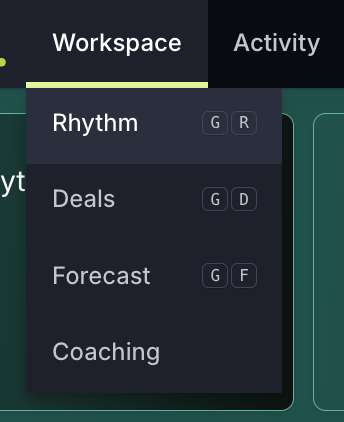
Figure 1: Navigate to Rhythm from Top Navigation bar
Select "Salesloft" in the Upper Left Corner
The Salesloft name in the upper left corner of the platform is also a home button. Select this name to return to the homepage and view your Rhythm screen.

Figure 2: Navigate to Rhythm from the "Salesloft" home button
Rhythm Sidebar
The Rhythm Sidebar allows you to run tasks, perform activities, and complete cadence steps anywhere in Salesloft. Appearing on the right side of your screen, the Rhythm Sidebar follows you as you move through Salesloft and allows you to complete tasks from virtually anywhere.
Access the Rhythm Sidebar using one of those following methods:
- Navigate to the Rhythm Focus Zone and click on a task. You will be directed to the Person’s profile page and the Rhythm Sidebar will appear on the right side of the screen.
- Select the Rhythm "Workflow" icon in the upper right corner or the navigation bar.
- Use the keyboard shortcut: G W
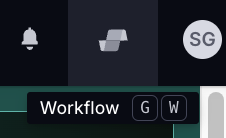
Figure 3: Navigate to the Rhythm Sidebar by clicking Rhythm Workflow in the Top Navigation bar
The Rhythm Workflow page is the centralized location for all of your task actions. Let’s walk through the Rhythm interface.
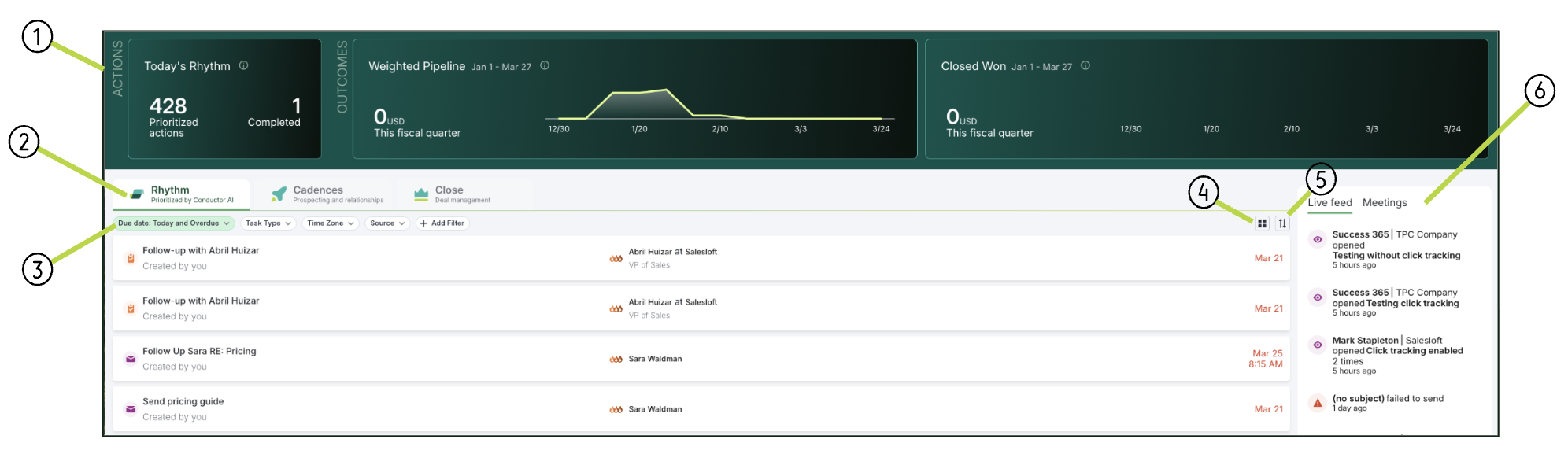
Figure 4: Example: Rhythm Workflow Page Layout
- Analytics on Rhythm Workflow: Analytics based on Rhythm data
- Focus Zones: List of your assigned tasks by area of focus. There are three focus zones:
- Rhythm Focus Zone: lists tasks prioritized by Conductor AI
- Cadence Focus Zone: lists your active Cadences
- Close Focus Zone: lists activities to drive deals forward
- Filters: Allows you to refine the list of tasks and cadences steps in each focus zone
- Grouping: Allows you to organize the list view into distinct groups. When you click the Group by dropdown, you can group the tasks by:
- No Grouping
- Account
- Cadence
- Time Zone
- Task Type
- Sorting: Allows you to organize the list view in a specific order. The Sorting menu options differ in each focus zone.
- Rhythm Focus Zone: Click the Sort by dropdown to sort tasks by:
- Conductor AI
- Account name
- Due date (newest to oldest)
- Due date (oldest to newest)
- Time zone (east to west)
- Time zone (west to east)
- Cadence Focus Zone: Click the Sort by dropdown to sort cadence steps by:
- Priority (high to low)
- Priority (low to high)
- Tasks due (most to least)
- Tasks due (least to most)
- Live Feed and Meetings Sidebar:
- Live Feed: Notifications about events and activities happening in real-time
- Meeting: Displays upcoming events
The header of the Rhythm Workflow Dashboard contains three widgets. These widgets are designed to help users understand how they are tracking against revenue outcomes.
The first widget of the Rhythm Header shows the number of tasks due today and the actions you have completed. Users can customize which widgets are visible by editing the layout of the header.
To learn more about the available widgets and how to adjust the layout, check out the Edit Rhythm Header Layout article.

Figure 5: Example: Rhythm Header Analytics
Filters allow you to refine the list of tasks and cadence steps in each focus zone. Each focus zone comes with a different variation of the following default filters:
- Due Date: Refines the list of tasks and cadence steps in each focus zone based on where they are due. By default, the Due Date filter is set to Today and Overdue. You can click the dropdown and choose from the following options:
- Today and Overdue
- Overdue
- Today
- Tomorrow
- This Week
- Next week
- This month
- Next month
- All future
- Things to note: Salesloft recognizes business days when scheduling due dates. Example: If a task is rescheduled on a Friday, Monday will be shown as the default option.
- Task Type: Refines the list of tasks and cadence steps in each focus zone by the task type. You can click the dropdown to choose the type of task you would like to refine the list by. By default, the Task Type filter in the Cadence and Close focus zones are set to All.
- Time Zone: Refines the list of tasks based on the time zone. Click the dropdown to type the time zone you would like to filter by.
- Source (Rhythm & Close Focus Zones): Refines the list of tasks based on the source of the task. Click the Source dropdown to choose from the following options:
- All
- Cadences
- One-off Tasks
- Plays
- No Reply
- Cadence (Cadence Focus Zone): Allows you to see a list of cadence steps within a particular cadence. Click the Cadence dropdown, then type the name of the cadence into the text field.
- Account (Cadence Focus Zone): Allows you to see a list of cadence steps assigned to a particular Account. Click the Account dropdown, then type the name of the Account into the text field.
You can also click +Add Filter to add additional custom filters. Check out our Filter Salesloft Pages article for more information on how to use filters in Salesloft. Check out our Complete List of Salesloft Filters article for a full list of filters in Salesloft.

Figure 6: Example: Rhythm Workflow Filters
The Rhythm Focus Zone is where you’ll find your Rhythm workflow, which consists of tasks prioritized by Conductor AI.
Each task item in your Rhythm Workflow is listed in its own tile. The tile is a clickable element that also contains valuable information to inform you about your tasks.
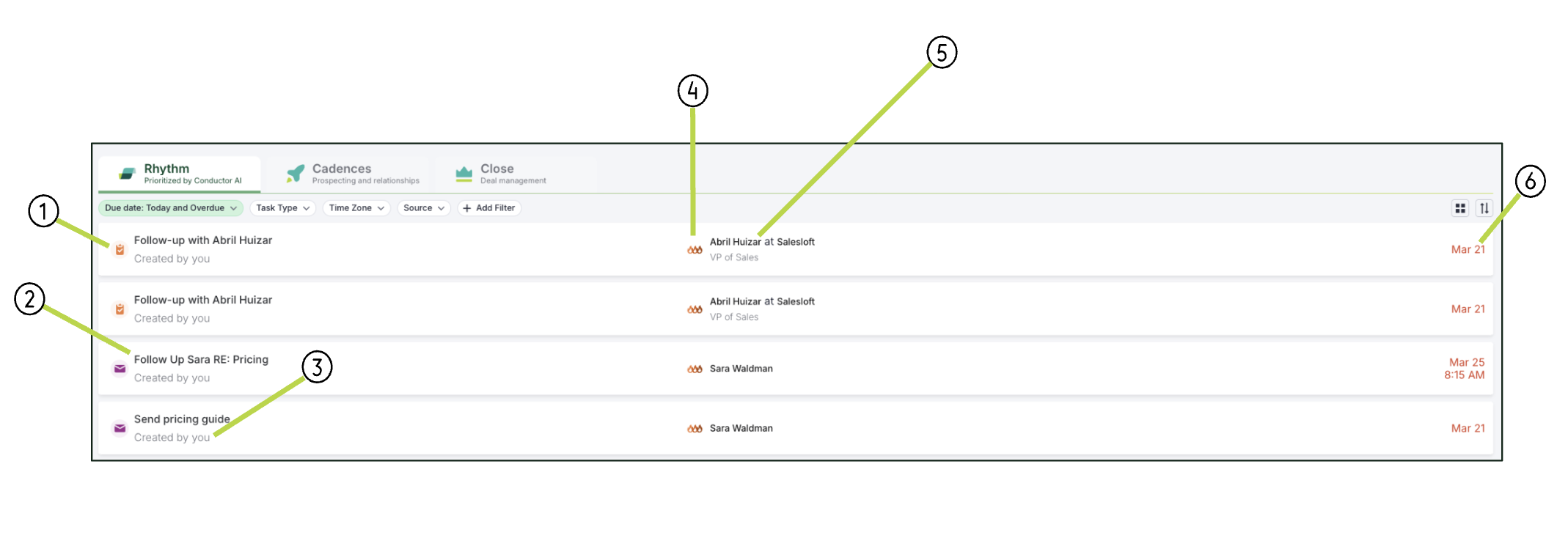
Figure 7: Example: Rhythm Focus Zone
The Rhythm Focus Zone tiles include the following:
- Activity Type Icon: Represents the type of activity. Some of the common activities that are represented in the Focus Zone Tiles, include:
- Call
- Email
- Other
- LinkedIn Sales Navigator
- Action Name: Name of the action you'll perform in this task
- Signal: Activity that initiated the task. Signals include:
- Cadence Step
- Manually Created Task
- Meeting Play
- Email Play
- Integration Play
- Prioritization: Conductor AI reviews your tasks and determines the likelihood of success. These tasks are prioritized within the Rhythm Focus Zone. Hover over the prioritization icon to see what data Conductor AI used to prioritize this task. The two types of prioritization include:
- Buyer Priority Icon (flames): Icon that determines the likelihood that a task will lead to a successful outcome. This priority model is used for Cadence steps and one-off tasks.
- Deal Priority Icon (dollar sign): Differentiates tasks prioritized based on the Deal Priority Model. This priority model is used for tasks that include Deals and Opportunity Sync data.
- Details:
- Opportunity Details: Details about the Opportunity related to this task
- Person Details: Details about the Person related to this task
- Due Date: Date that the task is due.
- Things to Note: Dates designated in red, indicate that they are overdue.
The Cadence Focus Zone is where you can quickly access and run Cadence steps.
By default, the Cadence Focus Zone groups by Cadence Step. The Group by Cadence Step view prioritizes actionable items by listing each of your cadences and all of the steps in each respective cadence.
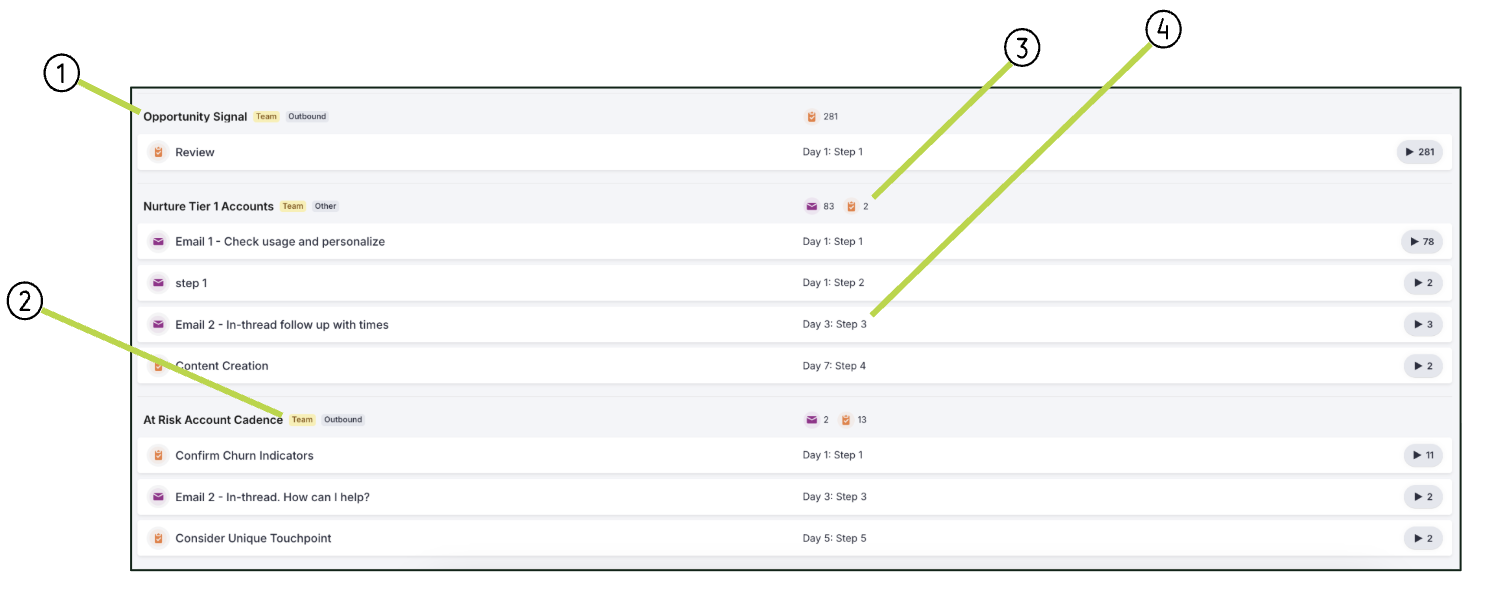
Figure 8: Example: Cadence Focus Zone
The Cadence Focus Zone layout includes:
- Cadence Name: Name of the cadence
- Cadence Labels: Identifiers of the Cadence like the Cadence Function and whether or not the Cadence is a Team Cadence.
- Number of Tasks by Types: Shows the number of each type of task you have to complete.
- Cadence Step Tiles: Cadence steps. Each tile includes the following details:
- Task Type Icon: Defines the type of action this cadence step prompts you to take
- Cadence Day: The day your steps will run once a person has been added to the Cadence
- Multi-Touch: Allows you to run a day's steps for a prospect all at one time
- Play Button: Allows you to run Cadence step tasks. The number beside the play button shows you how many activities are included in the Cadence step.
Click the cadence step tile to gain more details about the Person, Account, and due date for each cadence step.
The Close Focus Zone makes it easy to prioritize, find, and execute on closing tasks.
With the Close Focus Zone, you can work through prioritized tasks that focus on your deals. These tasks are prioritized based on Conductor AI’s Deal Priority Model. You’d use the Close Focus Zone rather than the Rhythm Zone when you want to narrow down your list of tasks to just those that are vital to closing deals.
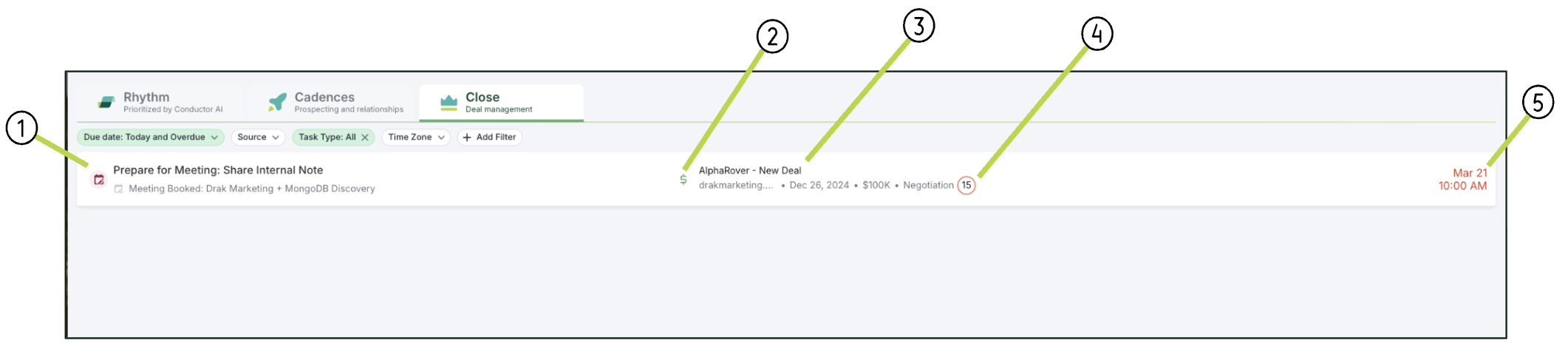
Figure 9: Example: Close Focus Zone
The Close Focus Zone includes the following:
- Task Title: Title of the task or Deals To-Do
- Deal Priority Icon: Differentiates tasks prioritized based on the Deal Priority Model
- Things to Note: You can hover over the Deal Priority Icon to learn more about what key factors Conductor AI used to prioritize a particular task.
- Deal Details: Information related to the Opportunity, like the Deal name, Account, amount, and status.
- Deal Engagement Score: Score that determines a deal’s health and the likelihood that it will close
- Due Date: Date the task is due
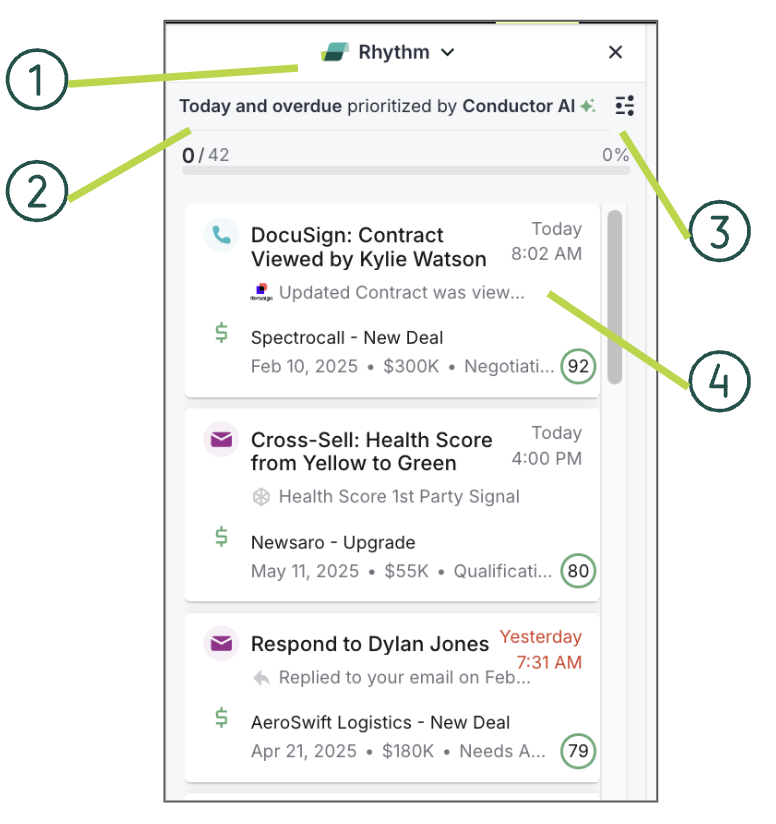
Figure 10: Example: Rhythm Sidebar Layout
The Rhythm Sidebar includes:
- Sidebar Focus Zone: Allows you to view and complete tasks. You can select between the three focus zones: Rhythm, Cadence, and Close. By default, the Sidebar displays the Rhythm Focus Zone.
- Things to Note: Tasks in the Sidebar focus zones will appear in the same order that it does in its corresponding Focus Zone on the Salesloft homepage.
- Currently Viewing: Explains what filters are set to the focus zone and how the list is prioritized.
- Rhythm Sidebar Filters: Allows you to tailor the list of tasks to best suit your workflow. To learn more about how filters work, check out the Complete List of Salesloft Filters article.
- Task/Activity Tile: Each task is listed on its own tile. Each tile contains details about the task or cadence step.
To learn more about the information included on each task tile, check out the One-Off Tasks in the Sidebar section and the Cadence Step Tasks section below.
One-Off Tasks in the Sidebar
One-off tasks allow you to complete one-off actions that may not be associated with a cadence. One-off tasks will appear in the Sidebar from the Rhythm Focus Zone or from the Close Focus Zone.
Like your Rhythm workflow, the Sidebar displays each task on its own tile. Each tile contains details that you need to know in order to complete the task.
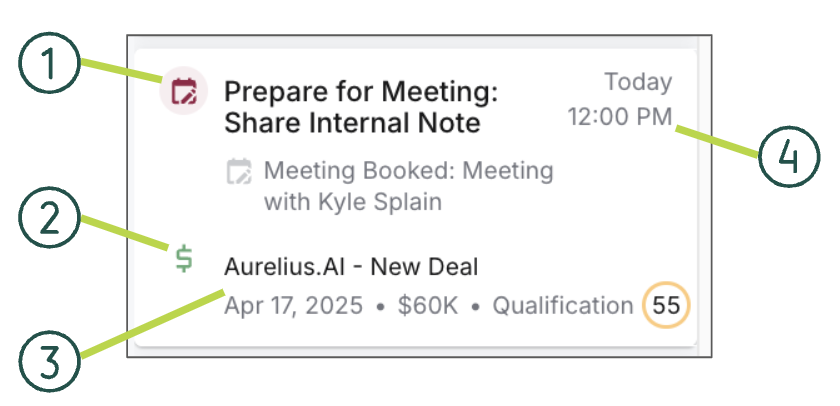
Figure 11: Example: One-off Tasks in Sidebar
One-off task tiles in the Sidebar include the following details:
- Task Details:
- Icon that depicts the type of activity
- Description of the activity
- Person
- Things to Note: Depending on the task type, the tile may also include the last interaction, the person who created it, or the name of the related cadence.
- Signal
- Task Priority Icon: How Conductor AI prioritized the task
- Things to Note: You can hover over the priority icon to learn more about the data Conductor AI used to prioritize that task.
- Details: Person or Deal
- Person Details:
- Name of Person
- Company
- Role
- Deal Details:
- Deal Name
- Account
- Close Date
- Amount
- Stage
- Deal Engagement Score
- Due Date: Date that the task is due.
Cadence Step Tasks in the Sidebar
Cadence steps allow you to execute tasks that are built into a cadence. You can view and complete cadence step tasks in the Sidebar by switching to the Cadence Focus Zone.
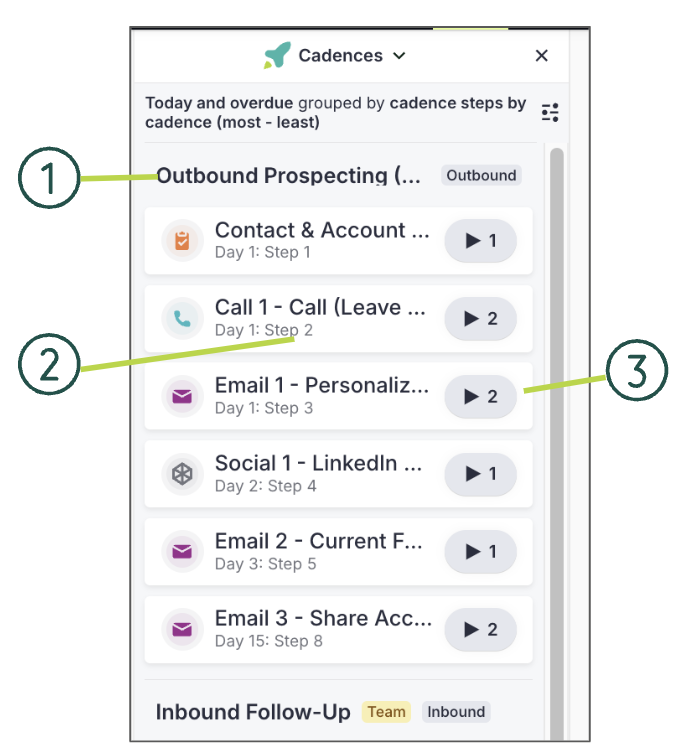
Figure 12: Example: Cadence Step Tasks in Sidebar
The Cadence Focus Zone in the Sidebar includes the following details:
- Name of Cadence
- Step Details:
- Number of tasks within the cadence step
To view the cadence step tasks, click the play button. When you click the play button, you will see a full list of cadence step tasks.
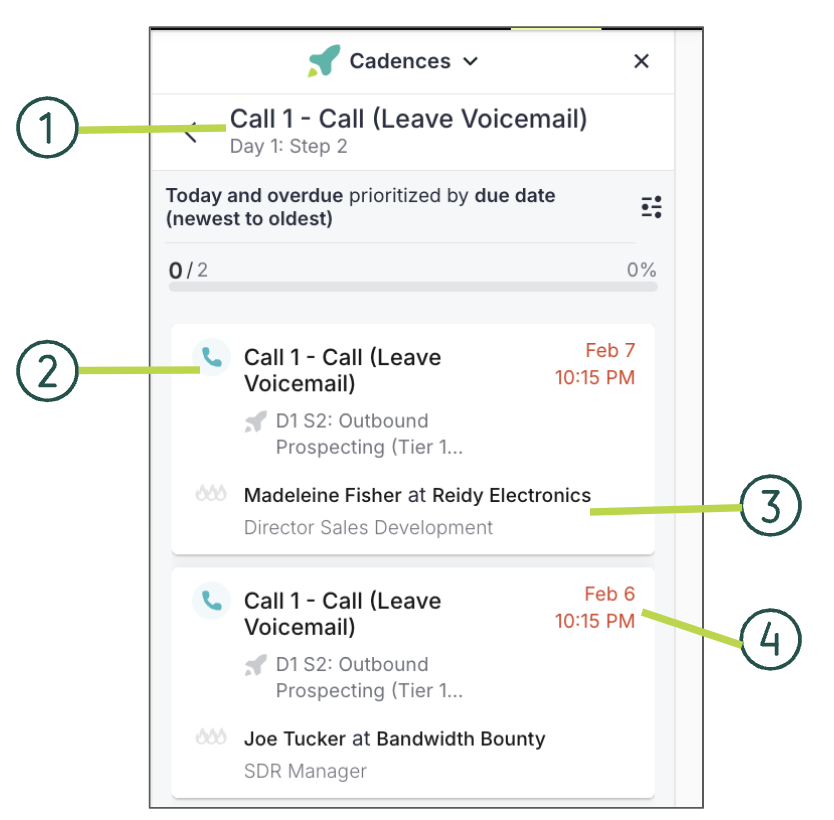
Figure 13: Example: Cadence Step Task Tile
The cadence step task tile includes the following details:
- Step Type and Name of Step
- Cadence Name
- Person Details
- Due Date
