Managing a call task can be a messy struggle. First you dig for contact information, then you have to try to track down and keep up with a notepad for call notes, and, finally, you hope above everything else that you don't have to leave a dreaded, unprepared voicemail.
Fear not, all of these chaotic tasks are easy to manage and execute from your Cadence phone steps.
In this article, you will learn how to run a Cadence Phone step. This article includes:
- You must have a Salesloft account with permission to run Cadences.
- To run a cadence step, you must have previously created a Cadence and added People to it. Learn how Add a Phone Step.
- You may need to set up your Dialer prior to running a phone step.
- To run steps using the Salesloft Dialer, you will need to grant access to your microphone.
- If the Disposition and/or Sentiment fields are mandatory for your team, you will see a red asterisk * to the left of the field name. The field must be completed before you can log the call.
Watch this quick video to learn how to run a phone step.
To run your phone step, follow these instructions:
- Start Your Cadence: Click Run Step next to the email step in the Cadences list. Salesloft will redirect you to the first Person's profile page, and the Dialer will appear.
- Make the Call: Use the Dialer to make the call. During the call you can add any notes inside the Dialer Log box. Hopefully the Person answers and you can have a conversation. If not, drop a voicemail or simply hang up.
- Select the Disposition and Sentiment: These will track the types of calls you are having.
- Log the Call: Choose a logging option:
- Log and Complete: Logs the call and moves to the next step.
- Log Only: Logs the call but stays on the current step.
- Complete Only: Moves to the next step without logging the call.
- Success: Marks the call as a success and moves to the next step.
- Go to the Next Step: Salesloft will automatically move to the next Person or step.
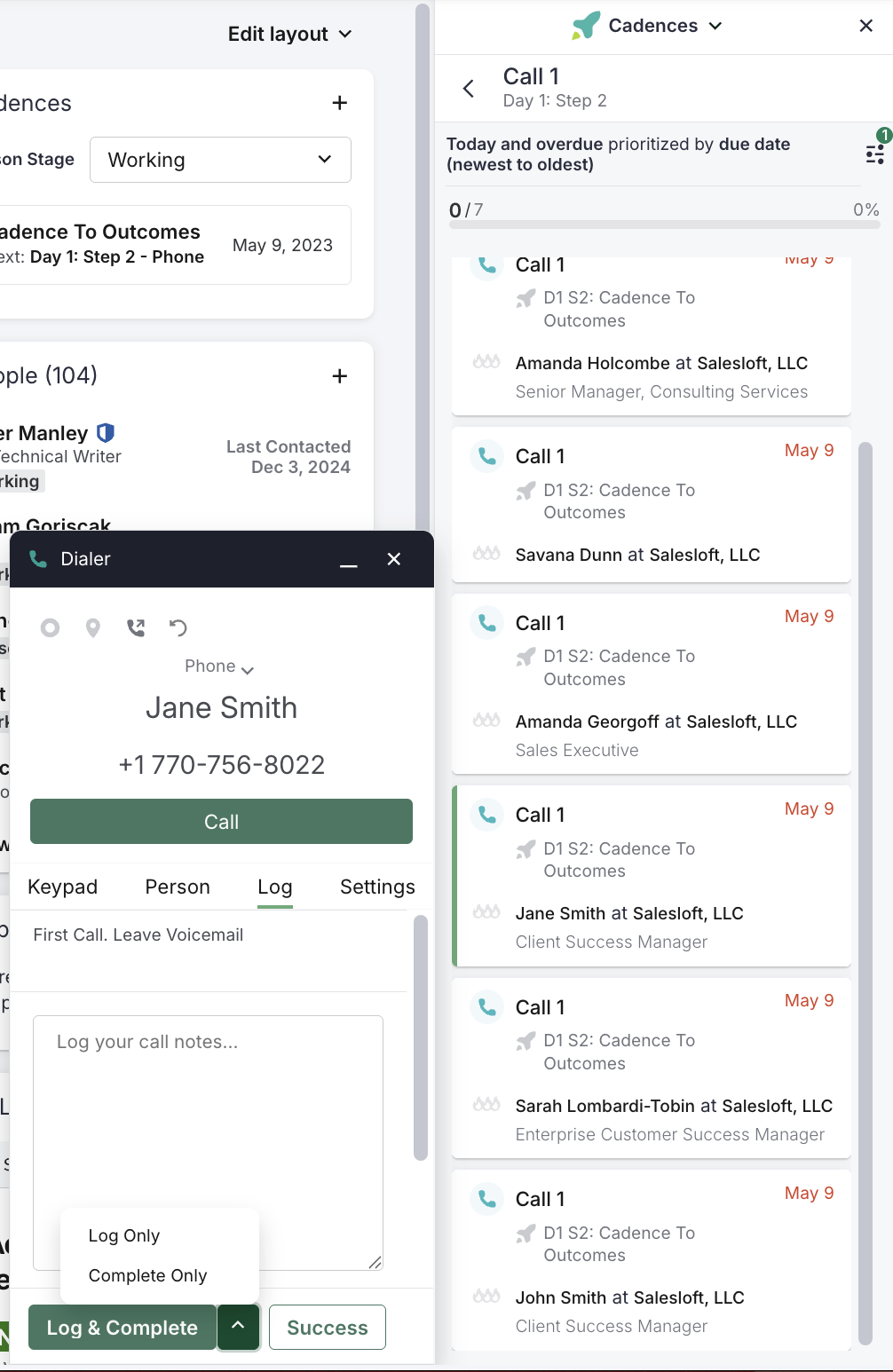
Figure 1: Run a Phone Step Example
- Clicking the Call button on the Quick Actions panel turns a phone step that is being run into a one-off Call and changes the Log & Complete button to a Log button. To return to the Cadence step, click on the Cadence panel. The Log button should revert to Log & Complete. For more information, see our Log a Call article.
- Check out Cadence Best Practices.
Repeat your cadence steps move through each contact card individually until the Cadence list is completed.
- If you logged a single call, your Cadence will open the phone step for the next Person in the Cadence list.
- If you completed the step for the last Person in the Cadence list, you will see Cadence Suggestions.
