Your Cadence email steps allow you to send a series of templated emails to individual recipients.
In this article, you will learn how to run an email cadence step. This article includes:
Watch this quick video to learn how to run an email step.
To run your email step, follow these instructions:
- Start Your Cadence: Follow the steps to start from the Rhythm Focus Zones or from the side panel.
- Select "Run Step": Click "Run Step" next to the email step in the Cadences list. Salesloft will redirect you to the first Person's profile page, and the Email window will appear.
- Sort Your List (Optional): Use the sorting options in the side panel to arrange the list of People as needed.
- Edit the Email (Optional): Personalize the email template using the available information and tools. Your changes will be auto-saved. Click "Discard Changes" to revert to the original template.
- Send the Email: Choose a sending option:
- Send & Edit Next: Sends the email and opens the next Person's email.
- Schedule (Clock Icon): Allows you to schedule the send to the Person. Edit your email and send it at a later time. Inside the Schedule Send menu, you will find:
- Send Email: Lets you pick from default time amounts:
- In 1 Hour
- In 4 Hours
- In 12 Hours
- Send at a Custom Time: Select a Date and time to send emails. This is best for sending emails at a later date. If you select one of the times listed under the Send Email section, the Time slot will adjust to the select email send time. If you select a date, the Send Email check will disappear and the Send at a Customer Time option will take over.
- Time Zone
- Your Time Zone: Scheduled emails sent at the designated time according to your set time zone.
- Person's Time Zone: Salesloft detects when to send the scheduled email based on the Person's time zone. Learn about how the time zone is assigned in the Automatic Time Zone Population.
- Schedule All: (Will only appear when you have multiple People running the Cadence step) Schedule your emails to be sent in bulk. Select from the following details in the Schedule Send All module. Once an option is selected, the Schedule to Send information at the bottom of the module will confirm when the emails are scheduled to start sending. Select Schedule to complete the action.
- Send Email: Select a time when your emails will begin to be sent. This is best for sending bulk emails on the current day.
- Now: Send your emails in bulk immediately.
- In 1 Hour
- In 4 Hours
- In 12 Hours
- Send at a Custom Time
- Time Zone
- Send First # Emails: Allows you to send a certain number of the emails listed in the step. For example, let's say you have 20 emails total running the Cadence email step, but you only want to schedule emails to your Tier 1 Accounts, follow these steps to send a select number of emails at a time:
- Sort the Cadence List by Tier so People listed in Tier 1 Accounts appear at the top of the Cadence list.
- Count how many names are in the Tier 1 section. For this example, we will say there are 5 People in Tier 1.
- In the Schedule All module, enter the number 5 in the Send First # Emails section.
- Hit Schedule. The Emails will be scheduled to be sent to the 5 People at the top of your Cadence list. Everyone else will remain in the Cadence list with the step still due.
- Go to the Next Step: After sending or scheduling the email, Salesloft will automatically move to the next Person or step.
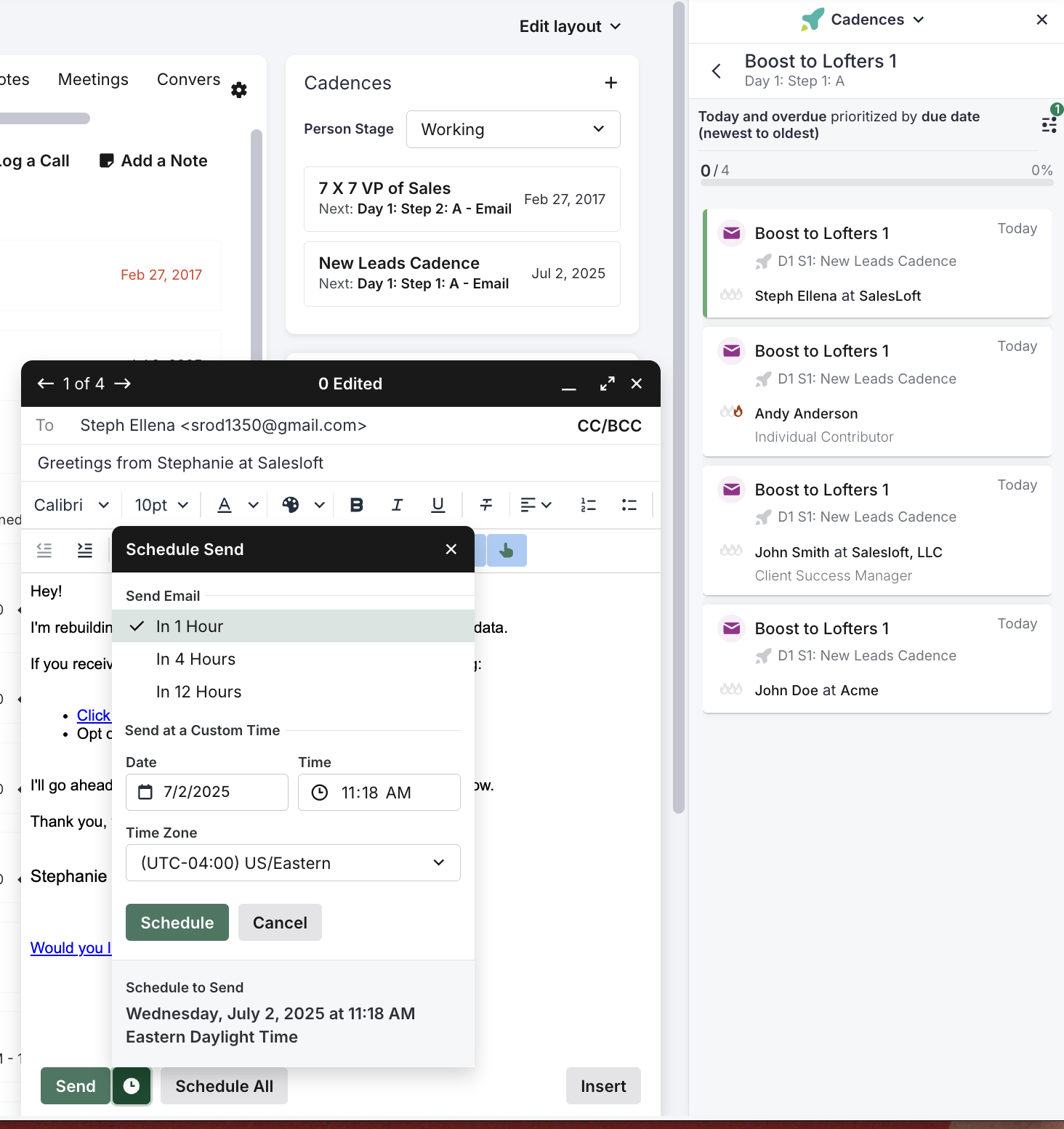
Figure 1: Run an Email Step example
Autosaved Cadence Emails
Email content autosaves when you run a Cadence Email Step. This will save you the pain of spending time personalizing emails, but losing all that content if you accidentally close the email pane or your computer reboots out of nowhere (these things happen).
When you begin to personalize a Cadence email, the content will autosave every three seconds. If you exit out of the window, your content will be saved to the Cadence. By hitting the X button in the email window, you will see a notification message pop up informing you that the email has been saved to the Cadence.
Next time you open that Cadence email step to the Person, you will find your saved message ready to go.
Change your mind? Click Discard Changes to revert back to the original template. Or click the trashcan button to delete all changes to the Cadence and close the email window.
Check out Cadence Best Practices.
Go to your next cadence step.
- If you sent one email, your Cadence will open the email step for the next Person in the Cadence list.
- If you send all or completed the step for the last Person in the Cadence list, you will see Cadence Suggestions.
