The Sales Strategist Configuration Page allows admins to manage the Sales Strategist Agent, set team and group level instructions, and specify custom opportunity fields for the agent to use.
In this article, we’ll go over:
In order to access the Sales Strategist Configuration Page:
The following configuration options are available on the Sales Strategist Configuration page:
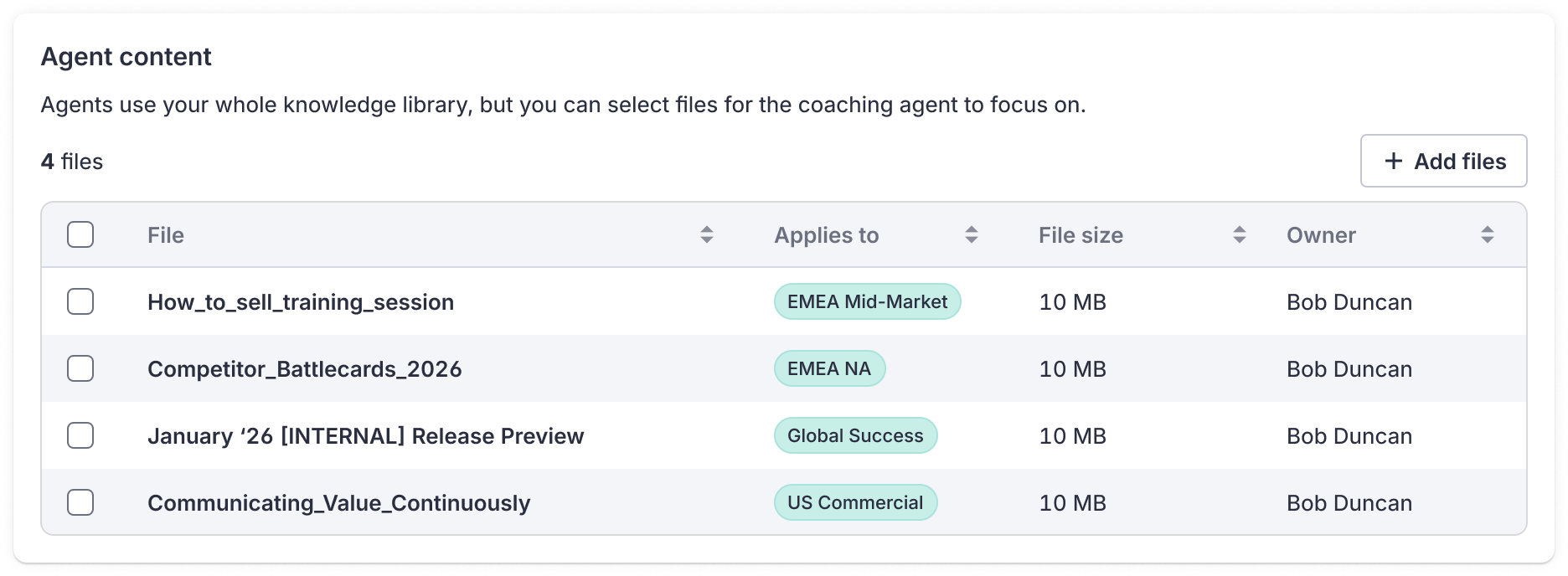
- Agent content: Allows the Sales Strategist agent to focus on specific information uploaded to prevent it from generating insights or tasks based on outdated sales playbooks, product details or processes.
- Agent instructions: Gives the agent additional instructions to follow.
- Custom opportunity field tracking: Sets additional custom opportunity fields for the coaching agent to track.
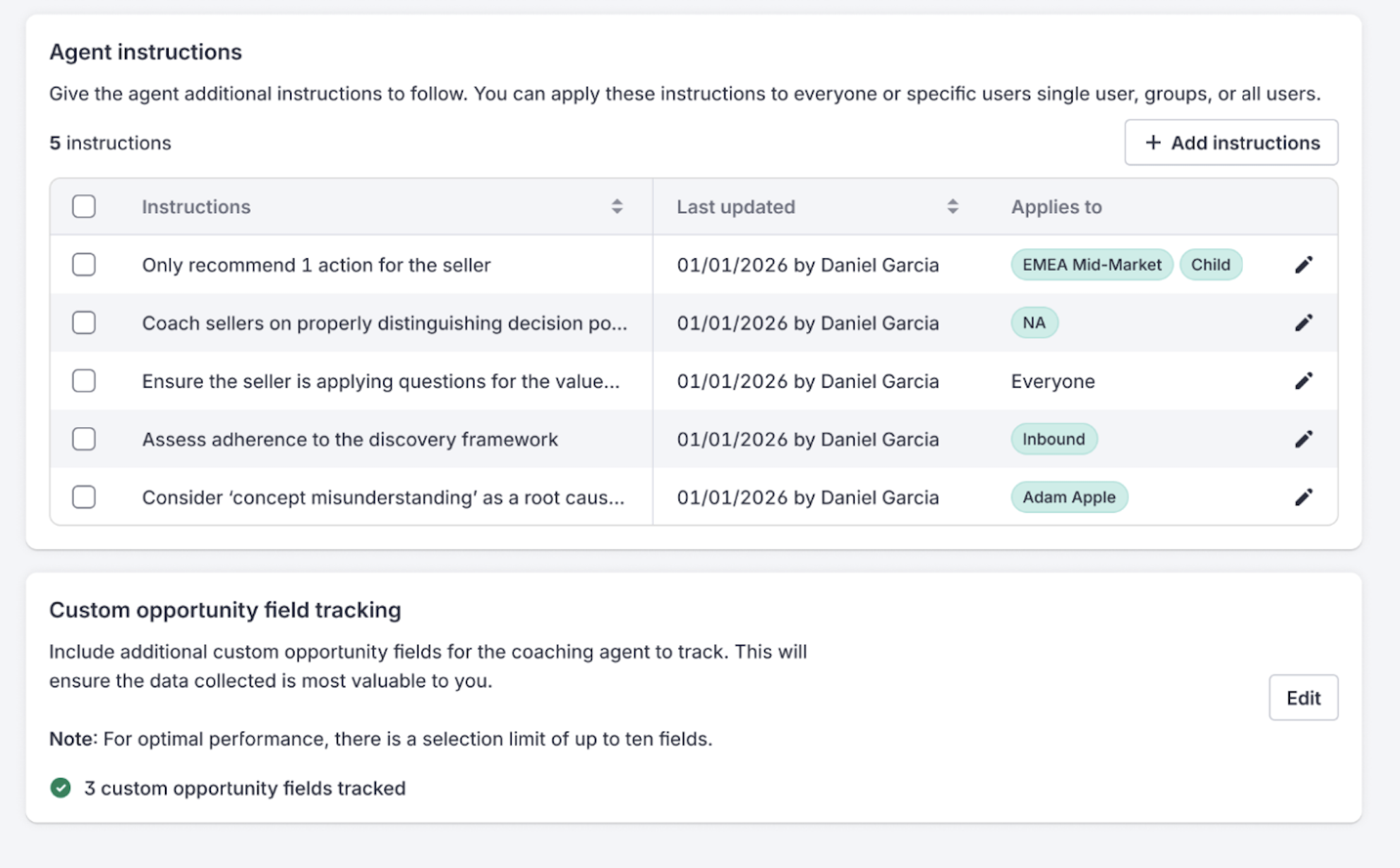
Figure 1: The Agent instructions and Custom opportunity field tracking settings.
Adding specific files to your AI knowledge library surfaces content onto the Agent content section of the configuration page. Toggleing content to focus on ensures the Coaching Agent will surface the most current and relevant information in your organization, and prevents it from generating insights or tasks based on outdated sales playbooks, product designs, or processes.
To select content that has been uploaded to the knowledge library for the Sales Strategist Agent via the Sales Strategist Configuration page:
- Click your profile icon on the top right-hand corner after logging into Salesloft.
- Click Settings.
- Click Artificial Intelligence under the Data section.
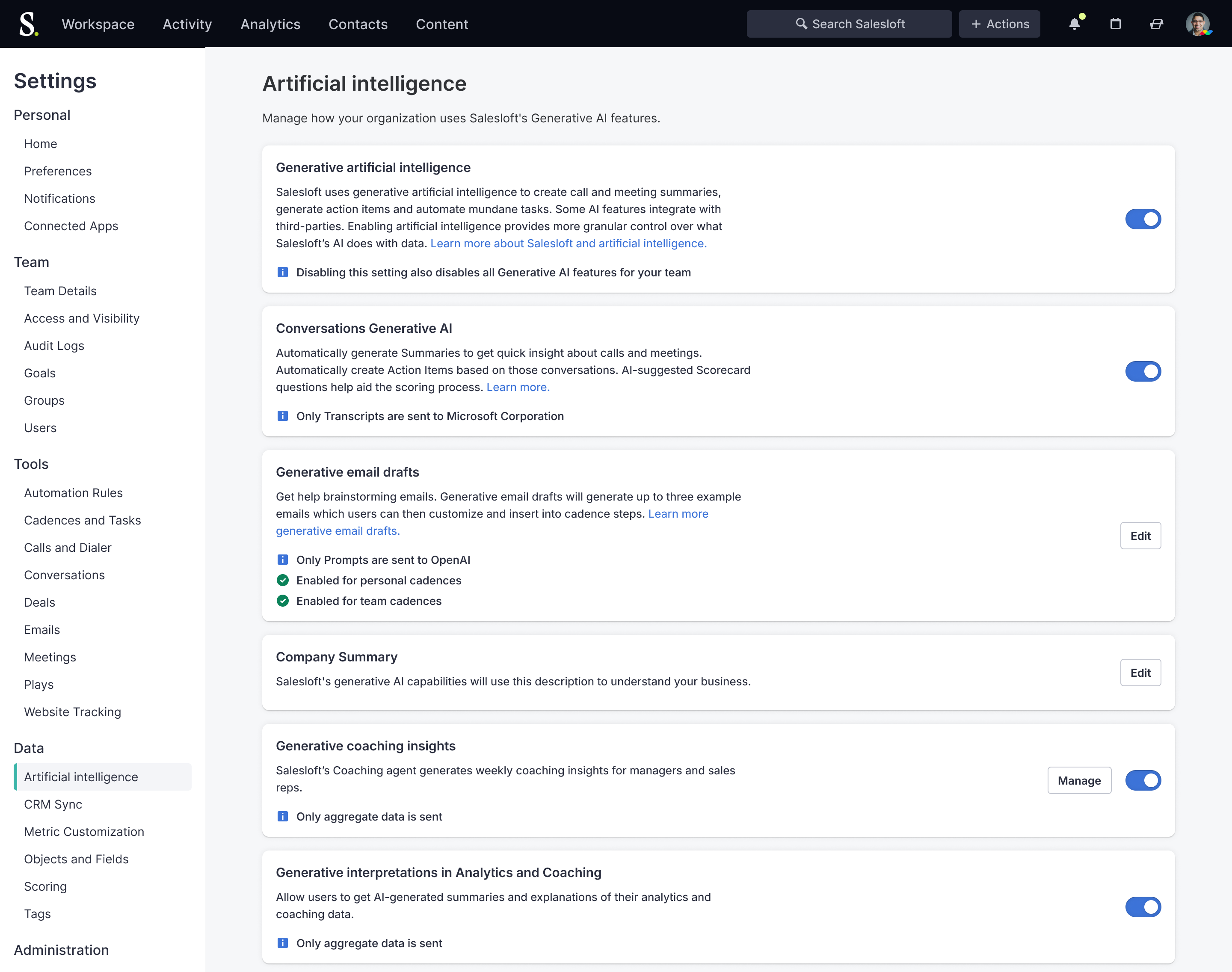
- In the Artificial Intelligence settings, click Manage in the Generative Coaching insights section.

- Click Add files in the Agent content section to upload your content.
Editing your Agent instructions allows your Sales Strategist Agent to surface content and recommendations based on your specifications.
To edit your Agent Instructions:
- Click your profile icon on the top right-hand corner after logging into Salesloft.
- Click Settings.
- Click Artificial Intelligence under the Data section.
- In the Artificial Intelligence settings, click Edit in the Generative Coaching insights section.
- Click Add instructions to add Agent Instructions.
- Enter your instructions into the instructions field. (i.e., Coach sellers on properly distinguishing decision power level and buyer role for deal influence, use an upbeat tone, Focus entirely on getting the rep to upsell Product XYZ in order to meet quota.)
- Select who the instructions will apply to.
- Click Save.
Things to note: In the event of an instructional conflict in your Agent instructions, the Sales Strategist Agent will prioritize the most granular level available, following a hierarchy from Individual (highest), to Group, to Team (lowest).
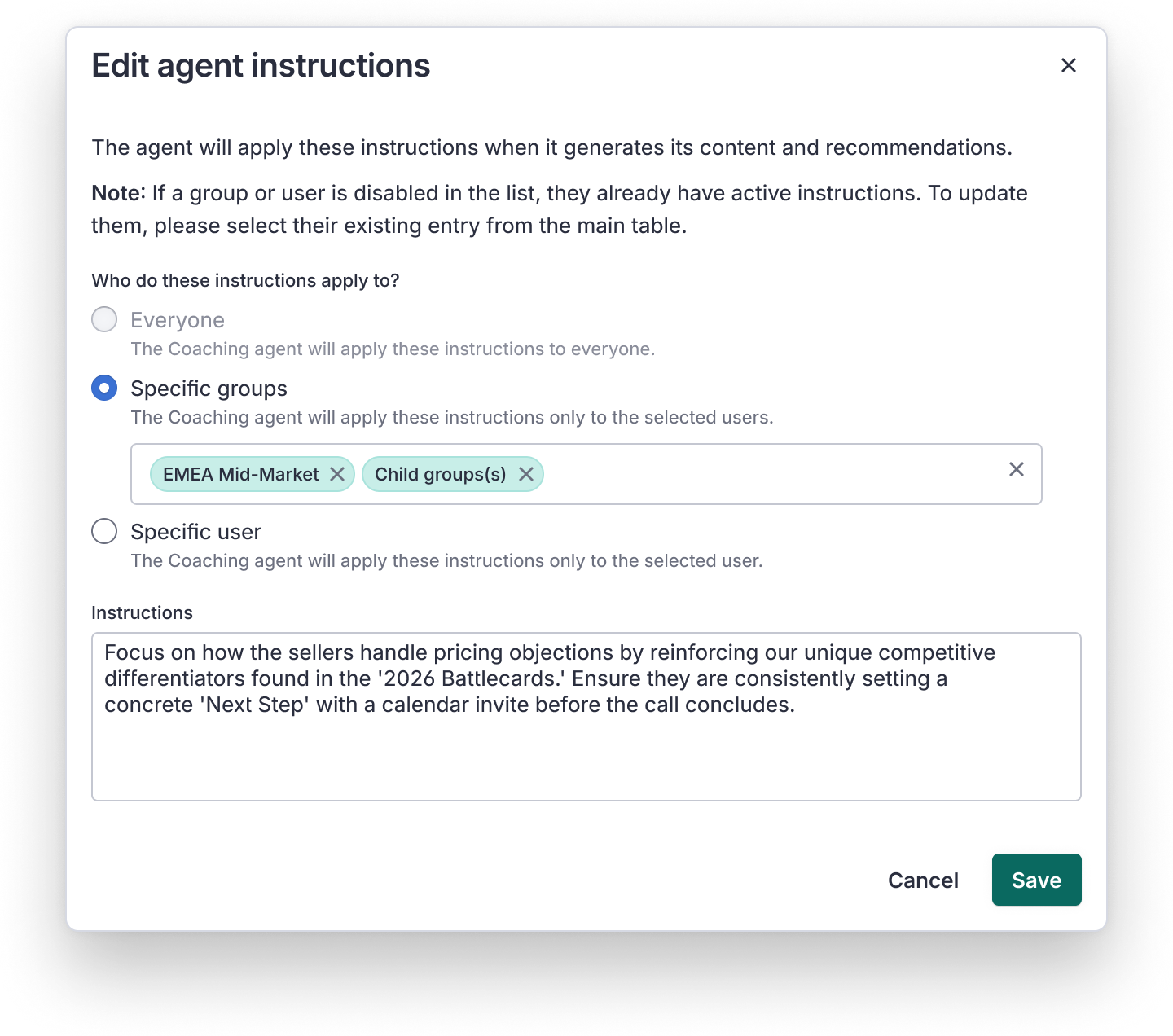
Figure 2: The Edit Instructions field and user options.
Including custom opportunity fields in the Custom opportunity field tracking section ensures the Sales Strategist Agent will focus on information on the opportunities most valuable for coaching your reps.
To track additional custom opportunity fields in the Coaching Agent:
- Click your profile icon on the right-hand corner after logging into Salesloft.
- Click Settings.
- Click Artificial Intelligence under the Data section.
- In the Artificial Intelligence settings, click Manage in the Generative Coaching insights section.
- Click Edit in the Custom opportunity field tracking section.
- In the Custom opportunity field, select your custom fields to include.
- Click Save.
Things to note: Admins are limited to selecting up to 10 Custom Opportunity fields for the Agent to focus on, and Custom Opportunity fields must be added through the Opportunity field configuration settings before being available to the agent.
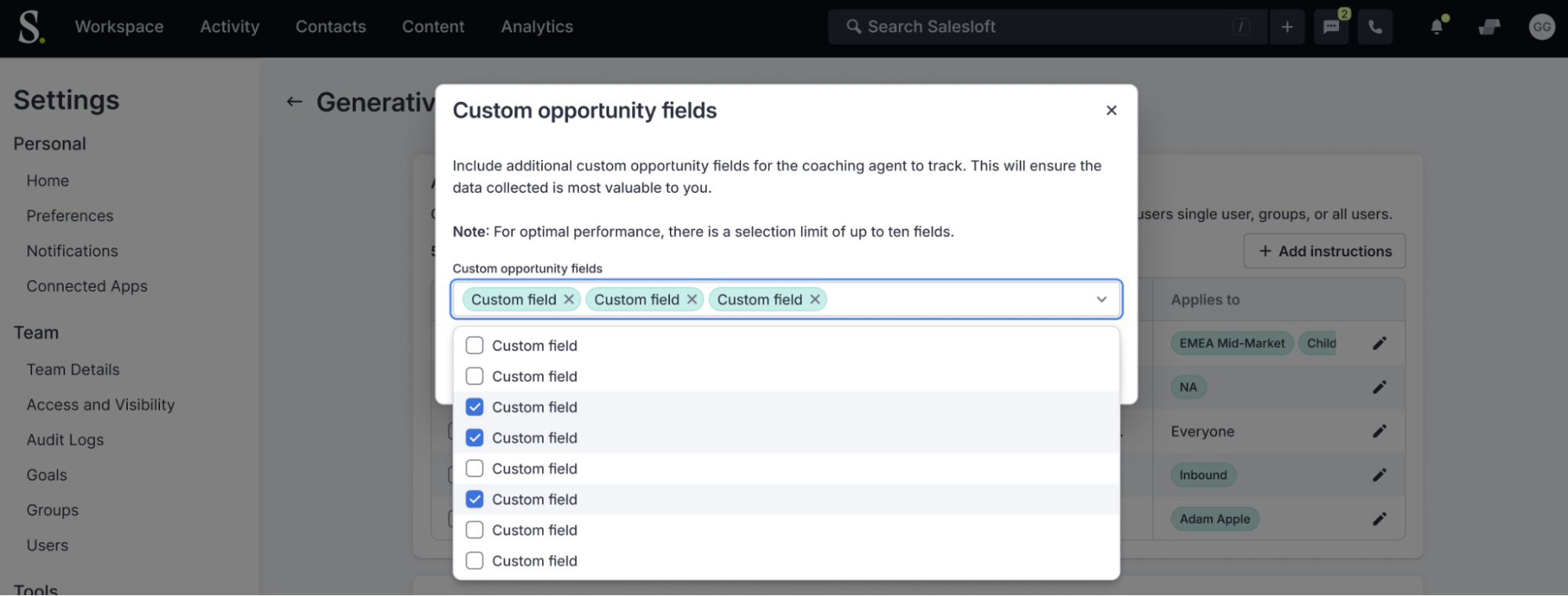
Figure 3: Adding Custom Opportunity fields.
