The Cadence to Salesforce Campaign Sync feature allows you to link any Cadence in Salesloft to a Campaign in Salesforce for easy Campaign Member management.
In this article, you will learn about the Cadence to Salesforce Campaign Sync, including the following:
In order to enable the Cadence to Salesforce Campaign Sync, you must have the following permissions must be enabled:
- Marketing User: The Salesloft connection user requires the 'Marketing User' permission in Salesforce in order to view and manage campaigns within Salesloft.
- Manage Salesforce Campaign Sync: Each user must have the ‘Manage Salesforce Campaign Sync’ permission applied
Things to note:
- If the Main CRM Connector does not have an admin profile in Salesforce, please ensure that the following Campaign permissions are enabled:
- Read Object permission is enabled for Campaign
- Read access is enabled for the Active Field Permission
- The Manage Salesforce Campaign Sync Permission is on by default for the Admin role and off by default for any User role but can be applied to Custom roles.
Navigate to the Settings tab of the Cadence you want to associate a Campaign with and scroll down to the Salesforce Campaign Sync settings.
To enable Campaign Sync for a Cadence, check the box to enable the feature. Once enabled, use the drop down menu to select the Salesforce Campaign you would like to be associated with your Cadence.


After you have selected the Campaign you want linked, use the drop down menus to select the status for each engagement type.
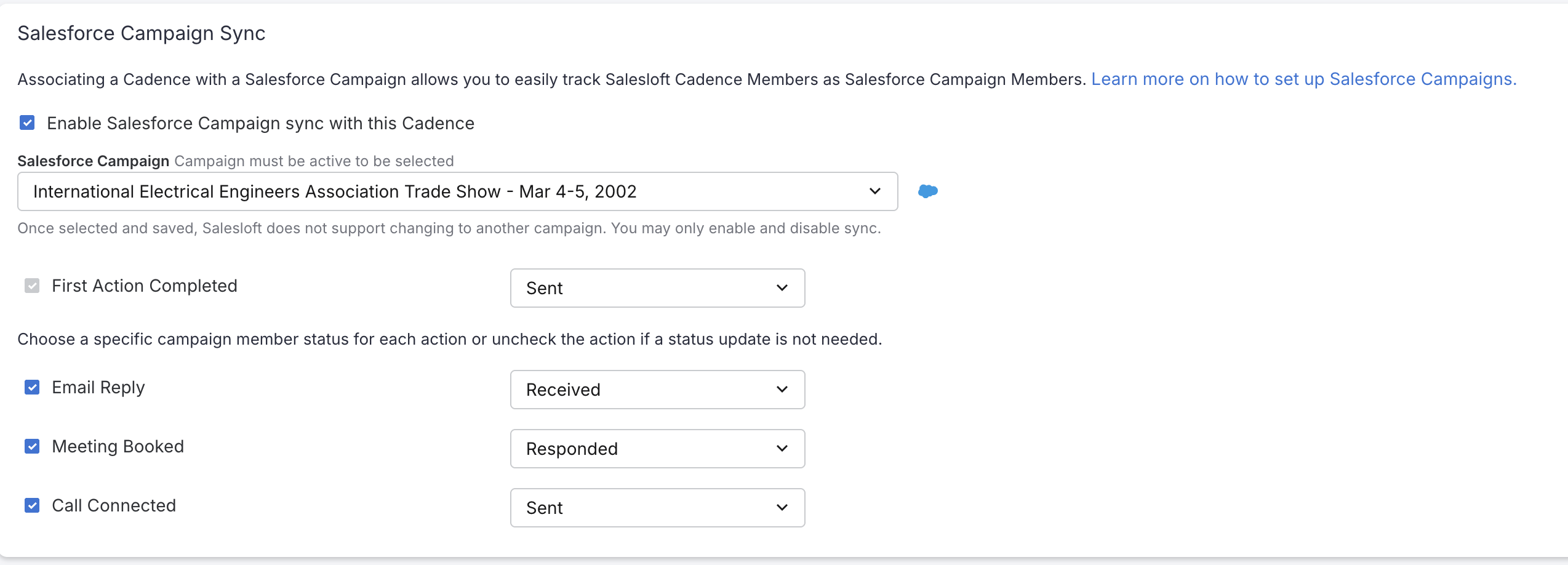
- Once the configuration is complete, the following automated actions are supported for Team Cadences and Personal Cadences:
Upon first step completion, create Campaign member with status of ‘Sent’.
Things to note: You can change the Status for any respective engagement type, but Sent is the default value. - When engagement (email reply, connected call, meeting booked) update Campaign member status to ‘Responded’ The same applies here, you can update the status to any status value available for that respective Campaign. Status picklist values are managed in Salesforce.
Things to note: A Campaign can not be unlinked from a Cadence after it has been configured, but you can disable Campaign Sync for a Cadence if needed, data flow for each engagement type can be changed or disabled using the checkbox next to each respective engagement type.
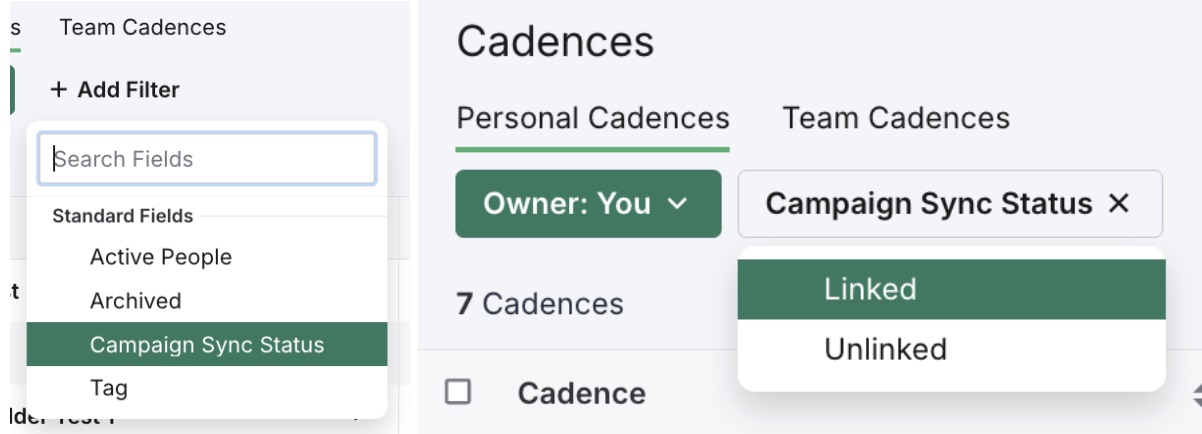
Users can easily view which Cadences are linked to a Salesforce Campaign from the Campaign list or while viewing an individual Cadence
From the Campaign list under Content, users can now filter Cadences based on their ‘Campaign Sync Status’. This filter allows users to see Cadences that are Linked or Unlinked from a Campaign.
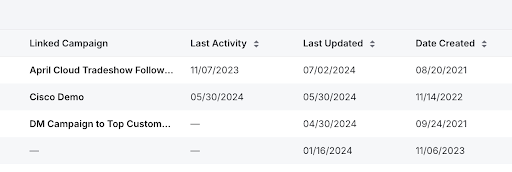
The Cadence table also contains a new column ‘Linked Campaign’. If a Cadence is linked to a Campaign, this column will show the name of the Campaign as a clickable link to easily navigate to the Campaign in your CRM.
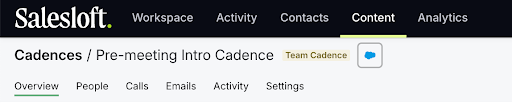
While viewing a specific Cadence that is linked to a Campaign, you can easily access the Campaign in your CRM via the cloud icon to the right of the Cadence name.
Trigger types will behave differently if a Campaign Member already exists for a Person in a Cadence linked to said Campaign.
- First Action Completed Trigger type
- First step completed since the Cadence-Campaign link was configured
- Engagement Trigger type
- Email Reply, Meeting Booked, Call Connected
First Action Completed:
- If a Campaign Member DOES NOT EXIST for a respective Person/Lead or Contact - Create Campaign Member with configured status (with initial value of the input set to SFDC default status)
- If a Campaign Member DOES EXIST exist for a respective Person/Lead or Contact - do nothing
Engagement Triggers:
- If a Campaign Member DOES NOT EXIST for a respective Person/Lead or Contact - Create CampaignMember with status configured for the trigger (in most cases we expect it to be "Responded")
- If a Campaign Member DOES EXIST for a respective Person/Lead or Contact - Update Campaign Member status to the status configured for the trigger (in most cases we expect it to be "Responded")
Q: Does the Campaign Sync feature automatically add Campaign members to Cadences?
A: No but you can manually add Campaign members, import in bulk, or use automation rules and scheduled imports to add Campaign members to Cadences.
Q: Does the Campaign Sync feature relate the Cadence activities to the linked Campaign?
A: No, we do not add those activities to the Campaign natively. This feature is specific to Campaign Member Management.
