Zoom is enforcing a mandatory security update on October 31, 2026. After that date, the Conversation Intelligence (formerly known as Copilot) recording bot can no longer join Zoom meetings on its own.
To keep your recordings running as expected, teams will need a connected Zoom account and Local Recording enabled. Use this guide to connect Zoom under Web Conferencing and enable Local Recording at the organization level.
After completing this guide, you will be able to:
- Connect Zoom to Conversation Intelligence under Web Conferencing.
- Enable and lock Local Recording for your Zoom organization.
- Identify which recording scenario applies to your organization.
In this article:
This applies only to organizations that rely on the Conversation Intelligence bot to record Zoom meetings. If your organization does not use Zoom with Conversation Intelligence, no action is needed.
Your experience depends on how your Zoom integration is configured. See the paragraphs below for more information on the configuration option:
- Zoom connected and Local Recording enabled (recommended): Largely unchanged
- Zoom connected, Local Recording not enabled: A Conversation Intelligence user must be in the meeting to admit the bot
- Zoom not connected in Conversation Intelligence: Zoom calls cannot be recorded
Zoom connected and Local Recording enabled (recommended)
If your Zoom admin has connected Zoom under Web Conferencing and enabled Local Recording at the organization level, bot behavior stays largely the same as it is today. Participants join, the bot joins, and the bot records.
Two behaviors to know:
- Externally hosted calls: The external host must approve the bot into the meeting.
- If the Conversation Intelligence user leaves: Recording stops when the Conversation Intelligence user leaves the call.
Zoom connected, Local Recording not enabled
The bot still works, but it is subject to Zoom's security restrictions:
- Participants join the call, but the bot cannot join until a Conversation Intelligence user joins the meeting.
- The host must admit the bot from the waiting room. If the bot is admitted late, the beginning of the call is not recorded.
- If the Conversation Intelligence user leaves, the recording stops. The bot then tries to rejoin if another Conversation Intelligence user is in the meeting, and the host must admit the bot again. Conversation during the rejoin period, around 20 to 30 seconds, is not recorded.
- Externally hosted calls can be recorded, but the host must approve the request.
Zoom not connected
If Zoom is not connected under Web Conferencing in Conversation Intelligence, Zoom calls cannot be recorded after October 31, 2026.
Before starting, make sure you have the following:
- Permission / Role: Admin access in Conversation Intelligence to connect Zoom, and Zoom Account Administrator credentials to authorize the connection and enable Local Recording. If your organization uses SSO, use the SSO sign-in option and sign in as a Zoom Account Administrator.
- Existing setup: If your Zoom Account Administrator has already completed both parts of this guide, no further action is needed.
- Log in as an admin: Log in to Salesloft or Clari Studio as an administrator.
- Open Web Conferencing Settings: Follow the steps to access the settings inside your platform:
- In Salesloft, go to Settings > Conversation Intelligence > Integrations and find the Web Conferencing section.
- In Clari Studio, go to Integrations > Web Conferencing.
- Select Connect next to Zoom: Select Connect on the Zoom card under Web Conferencing.
- Things to Note: Do not use the Zoom card under Dialer. Connecting Zoom through the Dialer section links call data but does not allow the bot to record.
- Sign in to Zoom: When Zoom's authentication page opens, sign in with your Zoom Account Administrator credentials.
- Things to Note: If your organization uses SSO, select the SSO sign-in option and sign in as a Zoom Account Administrator.
- Authorize the app: Authorize Conversation Intelligence in Zoom.
- Things to Note: If you see a permission error, confirm with your IT team that the signed-in user has Zoom Admin permissions. Only a Zoom admin can approve access for this connection.
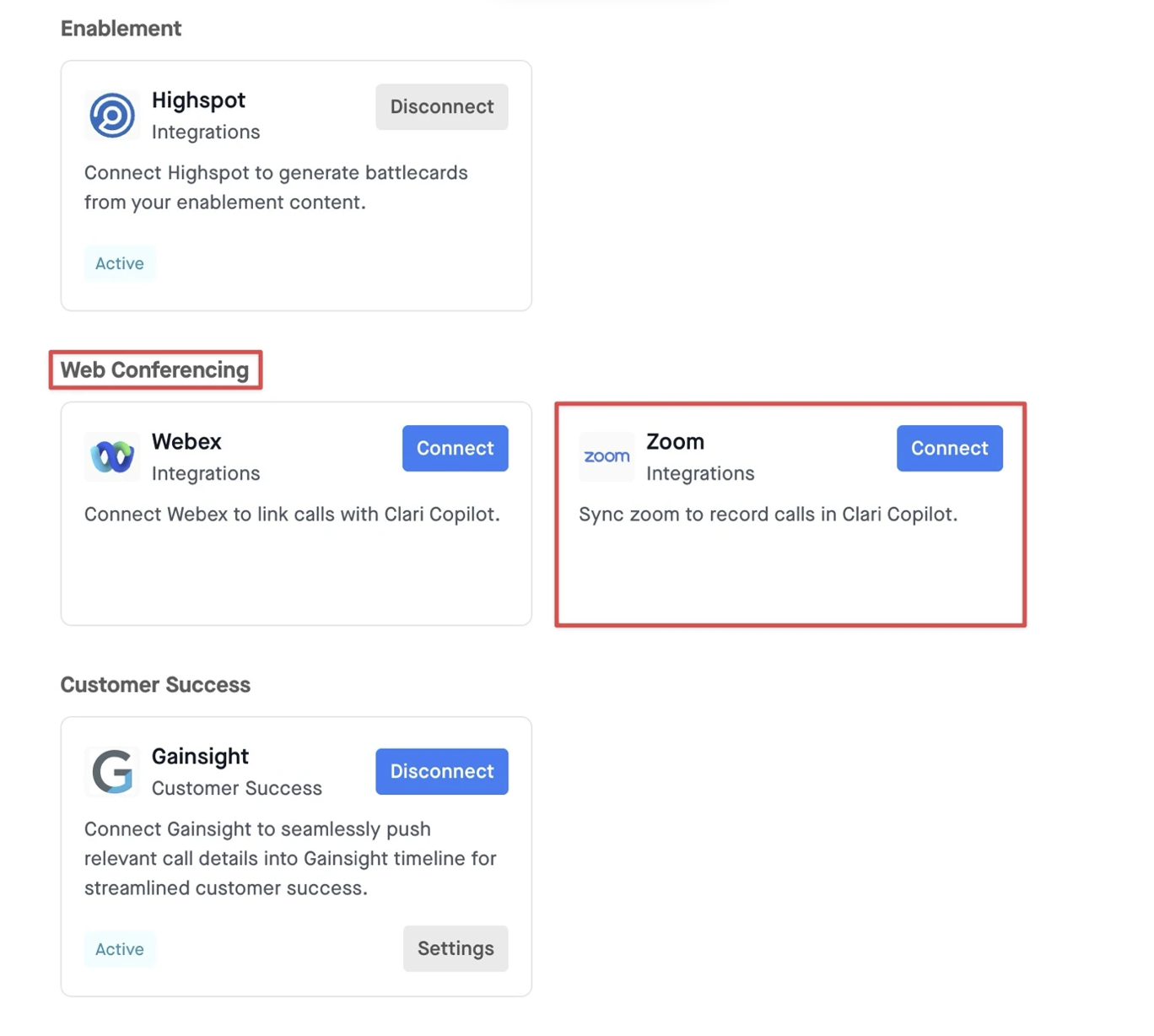
Figure 1: Zoom card under Web Conferencing with the Connect button
- Sign in to Zoom: Sign in to the Zoom web portal as a Zoom admin.
- Open Recording settings: Go to Account Settings, open the Admin section, and select the Recording tab.
- Turn on Local Recording: Turn on Local Recording.
- Lock the setting (recommended): Select the lock icon next to Local Recording so users cannot turn it off.
- Things to Note: Without Local Recording, the bot depends on a Conversation Intelligence user being present to admit it. This can mean missed call openings, incomplete transcripts and coaching data, and disrupted revenue intelligence workflows.
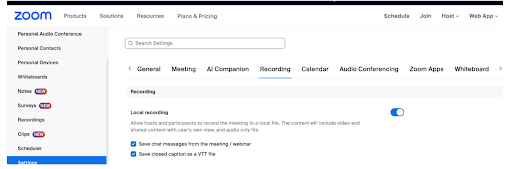
Figure 2: Local Recording setting with the lock icon in Zoom Account Settings
You have successfully completed setup when:
- The Zoom card under Web Conferencing shows a Disconnect option, which indicates an active connection.
- Local Recording shows as on, with the lock icon applied, in your Zoom Account Settings.
- After a test Zoom meeting, the recording appears in Activity > Conversation Intelligence within a few minutes.
- Why Local Recording matters: Local Recording lets the bot join and record calls automatically, without waiting for a Conversation Intelligence user to admit it.
- Externally hosted calls: For meetings that someone outside your organization hosts, the external host must approve the bot, regardless of your setup.
- Zoom reference: Zoom announced this change in its developer blog, "Transition to OBF token for Meeting SDK apps."
Avoid: Connecting Zoom only under Dialer. This does not allow the bot to record, and Zoom calls are not recorded after October 31, 2026.
|
Problem
|
Likely cause
|
Fix
|
|---|
|
You see a permission error when authorizing Zoom
|
The signed-in Zoom user does not have Zoom Admin permissions.
|
Sign in as a Zoom Account Administrator, or confirm permissions with your IT team. Only a Zoom admin can approve access.
|
|
Zoom calls are not recorded
|
Zoom is connected only under Dialer, or is not connected.
|
Connect Zoom under Web Conferencing, as described in Connect Zoom Steps.
|
|
The beginning of a call is missing, or the host must admit the bot
|
Local Recording is not enabled at the organization level.
|
Enable and lock Local Recording in Zoom, as described in Enable Local Recording Steps.
|
What's next
Conversation Intelligence is introducing a Zoom recording option that does not use a bot, built on Zoom Real-Time Media Streams.
Related
Manage Your Team's Recording Platform with Conversation Intelligence: Connect Microsoft Teams, Google Meet, Webex, and other platforms.
Record a Meeting with Conversation Intelligence Confirm automatic recording and manage the bot for individual meetings.
