Unused Dashboards can clutter your view and make it difficult to focus on the opportunities that matter most. If a Dashboard is no longer relevant, you can delete it to keep your workspace clutter free.
In this article, you will learn how to permanently delete a Deals Pipeline Dashboard. This article includes:
- Only users who created a dashboard—or who have permission to manage shared dashboards—can delete them.
- Deleting a dashboard is permanent. It cannot be recovered once removed.
- If the deleted dashboard is shared, it will also disappear from view for any users it was shared with.
For a quick overview on how to delete a Deals pipeline dashboard, check out this video:
To remove a dashboard, follow these steps:
- Hover over the Workspace tab on the top navigation panel, then select Deals. You will land on the Pipeline tab.
- Click the All Opportunities dropdown. A dashboards dropdown will appear where you can see a list of available dashboards.
- Find the dashboard you would like to rename. You can scroll through the list or type the dashboard name into the search field.
- Hover over the dashboard title, then click the three vertical dots that appear. The Dashboard Actions menu will appear.
- Click Delete. A confirmation message will pop up.
- Click Delete to permanently delete the Dashboard.
- Once deleted, the Dashboard will be removed from your Personal Dashboards.
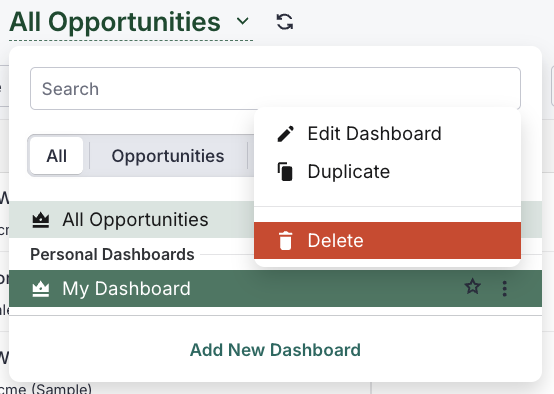
Figure 1: Delete a dashboard on the Deals Pipeline View.
- You cannot delete Dashboards owned by other users unless they’ve shared edit permissions with you.
- If you’re unsure whether to delete or edit, consider renaming or archiving the Dashboard temporarily instead.
- For shared team Dashboards, it’s a good idea to notify impacted users before deleting.
Now that you've deleted an unused Dashboard, consider:
