There are two important things you want to know when a call is logged: (1) what happened during the call and (2) the outcome of the conversation. Salesloft uses the Disposition and Sentiment fields to specify that exact information.
Most of your team-wide Disposition and Sentiment management will take place in the Dispositions & Sentiments tab located under the Communications section of your Admin Settings.
In this article, you will learn how to set and manage your team's call Disposition and Sentiments, including
Permission Settings for Disposition and Sentiments
All teams start with the standard Dispositions and Sentiments. Roles with the Dispositions & Sentiments permission can edit or create Dispositions and Sentiments.
The Salesloft admin role has the Disposition and Sentiments permission enabled by default.
Require Dispositions and Sentiments to Be Logged
Dispositions and Sentiments are not required for users by default, which means they can be skipped (or easily forgotten). But failing to log these fields prevents you from gathering insights into your team’s call behavior, which can negatively impact call performances.
So, admins can make Dispositions, Sentiments, or both required on a call step or one-off call. Once call Dispositions and/or Sentiments are required, we will indicate for your users to set the field during call step or one-off call.
Things to Note: When running a call step within a cadence, Dispositions and Sentiments are only required when someone is logging a call or "logging & completing. The "complete only" button will not require these fields since it does not log a call.
To require your users to log Dispositions and/or Sentiments on a call, follow these steps:
- Go to your settings.
- Select Dispositions & Sentiments under the Communication category. You will land on the Dispositions tab.
- Click the toggle area beside Require dispositions to be logged. When the toggle area is blue, the setting is enabled.
- Now that you've required Dispositions to be logged, it's time to do the same for Sentiments. To do this, select the Sentiments tab.
- Click the toggle area beside Require sentiments to be logged. When the toggle area is blue, the setting is enabled.
Salesloft admins can assign dispositions and sentiments to Groups. Group assignments ensure that reps have the correct dispositions and sentiments available to them, resulting in a clean data flow.
For example, if your group assignments are role based (BDR, AE, CSM, etc.), you can select to only show the relevant dispositions for that particular job.
Things to note:
- Groups must be configured prior to using this feature. If you do not have Groups configured, you will not have the option to manage dispositions and sentiments via Groups.
- Group assignments will not be automatically updated when group structures change.
To manage Dispositions and Sentiments using Groups, follow these steps:
- Navigate to Settings and click on Disposition and sentiment. From here click on the Group Assignment tab.
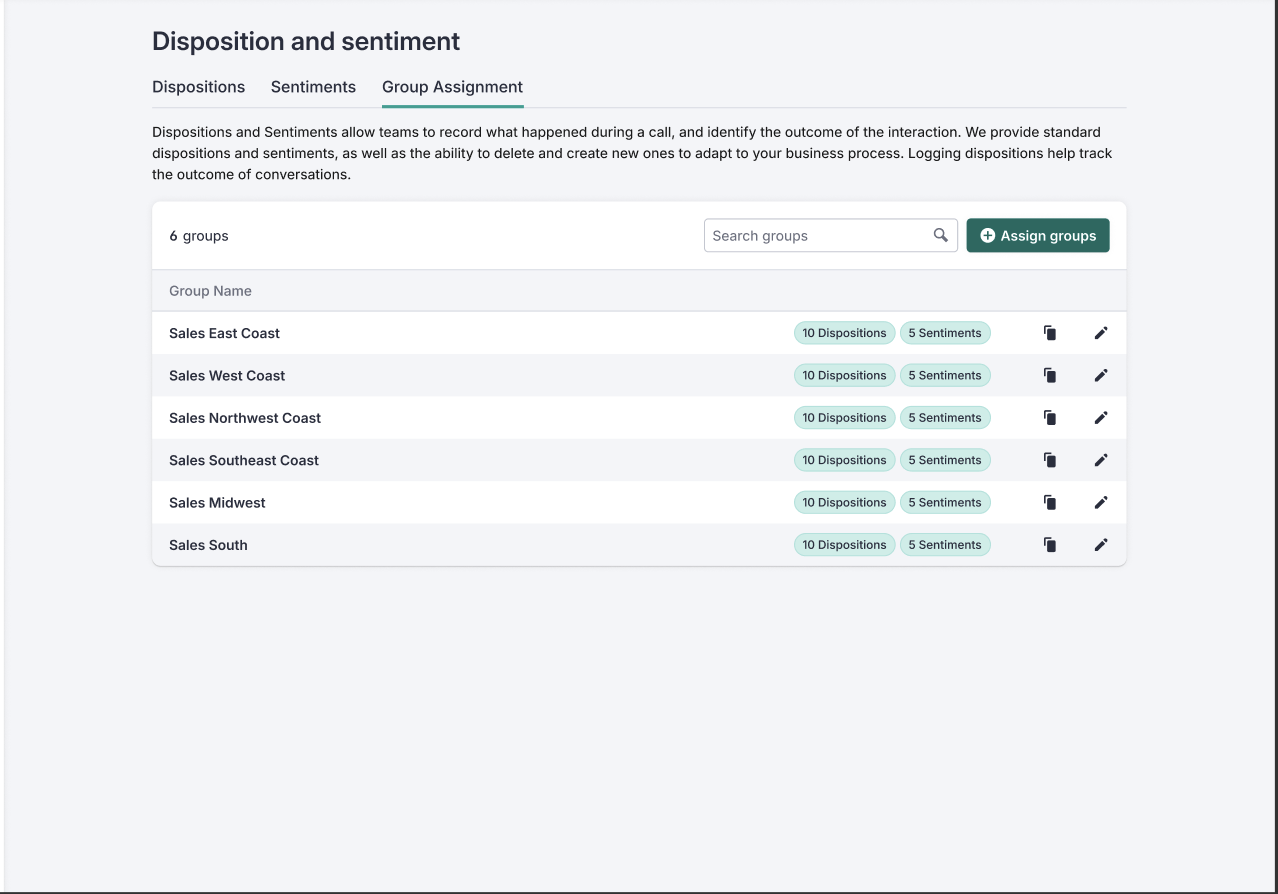
- Click Assign groups.
- Choose a Group and the specific Dispositions and Sentiments that users in this group should see. You must select at least one sentiment per disposition. If you do not want to include a disposition, but have sentiments available for your users, select the No Disposition Selected option. Selecting this option will make it so a user can use the selected sentiments, without a disposition selected first.
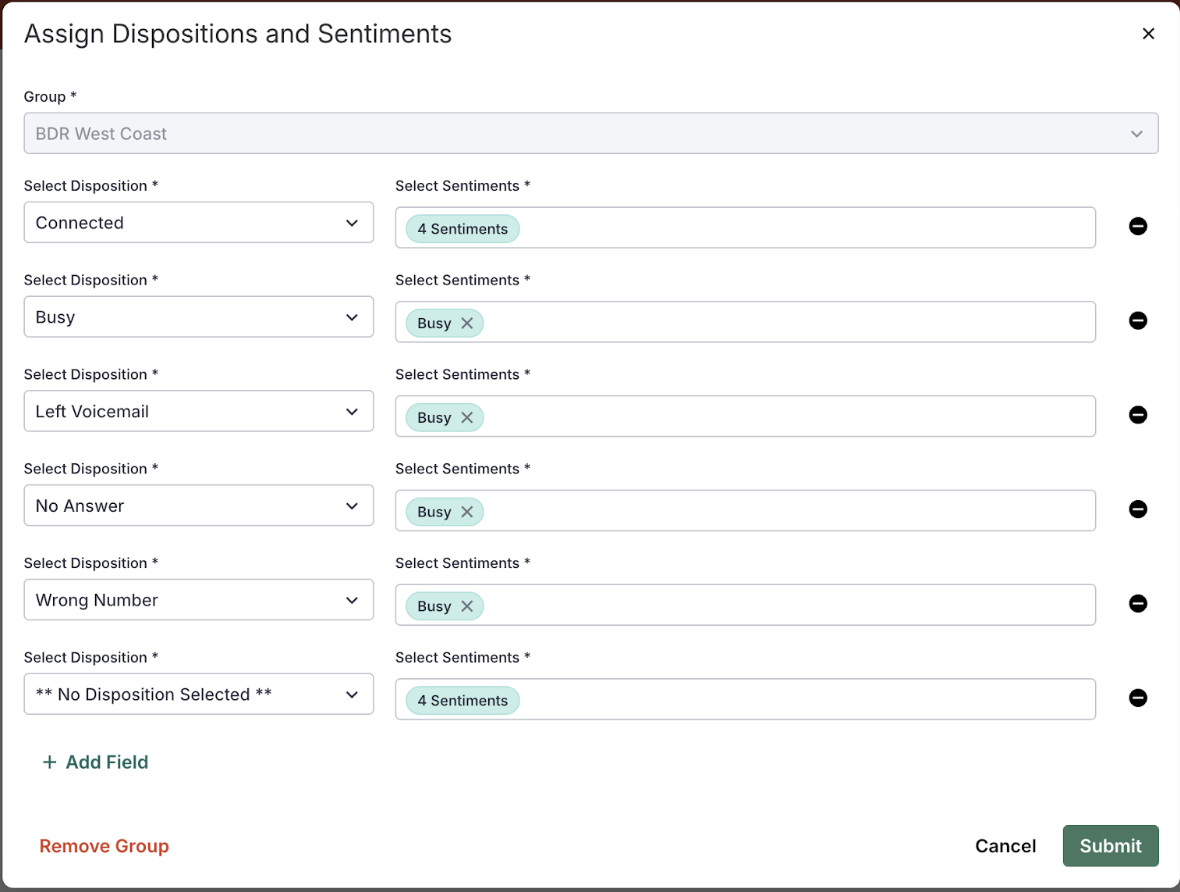
- Repeat steps for each group you want to have restricted dispositions and sentiments. Groups not configured will see the full default list of all dispositions and sentiments.
Standard Dispositions and Sentiments
Salesloft provides standard Dispositions and Sentiments when you start with your Salesloft account. These Dispositions and Sentiments are based on the most common outcomes that occur during sales calls.
The standard Dispositions and Sentiments contribute to Salesloft's call analytics. The call analytics help to see whether or not your team is having positive conversations based off of certain Sentiments.
Things to Note:
- If you delete a standard Disposition or Sentiment from Salesloft, and add a Disposition or Sentiment with the same name at a later time, the analytics will populate moving forward for Connected Count, Left Voicemail Count, and Positive Conversation Count.
- Dispositions and Sentiments are case sensitive. If you delete a standard Disposition or Sentiment and replace it with a custom one with the same name, you must ensure the first letter is uppercase and that it is spelled correctly.
The standard Dispositions include:
- Busy
- Connected
- Left Voicemail
- No Answer
- Not in Service
- Rejected
- Wrong Number
Things to Note: The standard disposition for Connected directly contributes to the Connected Calls metric inside Salesloft Analytics. Removing this disposition prevent that metric from populating.
The standard Sentiments include:
- Company - Bad Fit
- Contact - Bad Fit
- Customer
- Demo Scheduled
- Existing Opp
- Gatekeeper - No Contact with Prospect
- Interested
- Meeting Scheduled
- No Interest
- Reassigned to Partner
- Referred to Another Contact
- Rescheduling
- Timeline 6-12 Months
Things to Note: The standard sentiments Demo Scheduled, Interested, and Timeline 6-12 months directly contribute to the Positive Calls metric inside Salesloft Analytics. Removing this disposition prevent that metric from populating.
Add a Disposition or Sentiment
Your Dispositions and Sentiments need to fit your business process. So, Salesloft provides the ability to delete and create custom Disposition(s) and Sentiment(s).
To add a new Disposition or Sentiment, follow these steps:
- Go to your settings, then select Dispositions and Sentiments under the Communication category.
- Select Dispositions or Sentiments at the top of the page.
- Click the + Add button at the top of the list of dispositions or sentiments.
- Type the name of your new disposition or sentiment.
- Hit Submit.
Delete a Disposition or Sentiment
To delete a Disposition or Sentiment:
- Go to your settings, then select Dispositions and Sentiments under the Communication category.
- Select Dispositions or Sentiments at the top of the page.
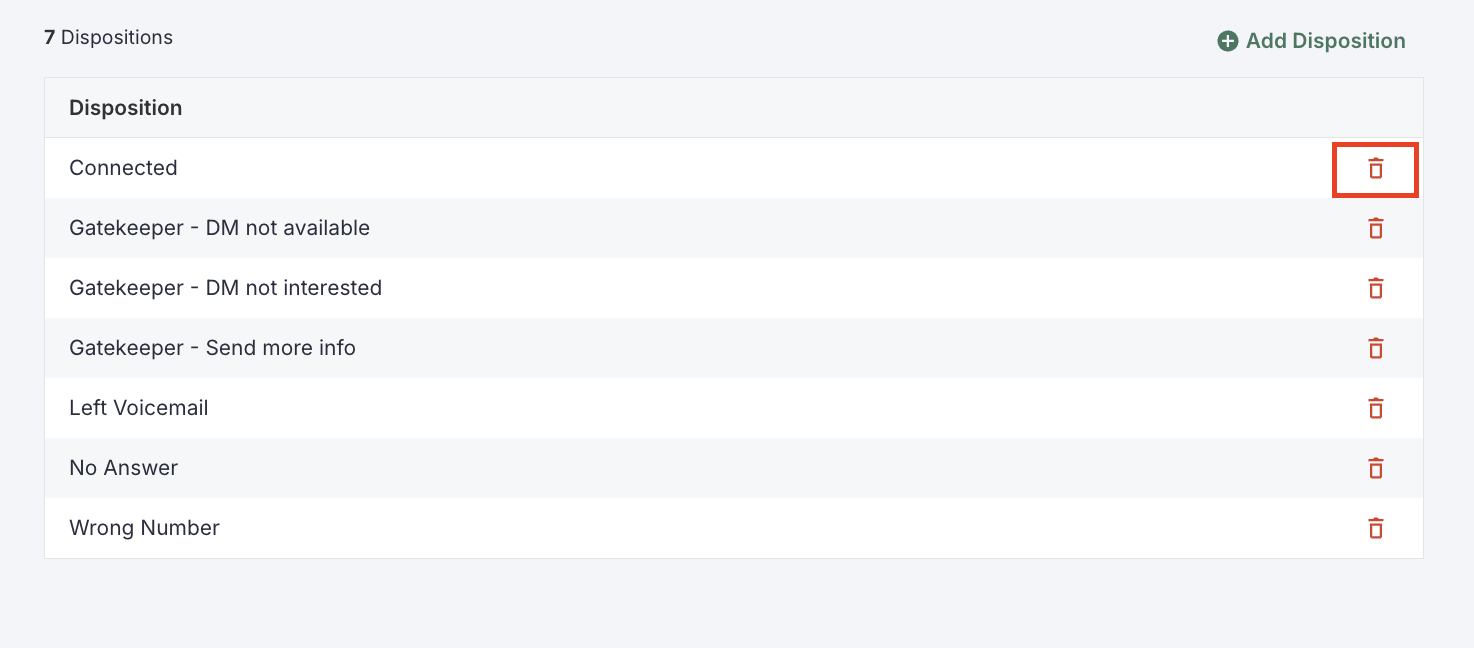
- Find the label you would like to remove, then hit the red trashcan icon.
As a safety feature, you cannot delete the last remaining Disposition or Sentiment on either page, and the delete button will disappear when only one remains.