Salesloft Cadences make it simple to execute your sales process efficiently. After you Create a Cadence and add people to your Cadence, you can carry out your sales tasks by seamlessly running through your Cadence steps.
In this article, you will learn how to run Cadence steps. This article includes:
The Cadence Focus Zone allows you to view your cadences and run cadence steps from the Salesloft homepage.
Things to Note: You can also see and run Cadence steps from the Rhythm Focus Zone.
To run a cadence step from the Cadence Focus Zone, follow these steps:
- Start on the home page: Navigate to your Salesloft homepage and click the Cadences Focus Zone tab. From the Cadences Focus Zone, you will see a list of cadence steps.
- Find a Cadence Task: Hover over the task icon for the step you would like to run. Click the dropdown that appears.
- Run Step: Click the play button to open the Run Step. The step will open in the Side panel. You will be directed to the Person Profile page of the Person record. Completed the step tasks using the instructions:
- Email
- Phone
- Other
- Integration: Integration steps bring Salesloft's most powerful integrations into your consistent sales process.
- Continue Steps: Once you have completed the task, you can continue running cadence steps from the Cadence Focus Zone, or from the Rhythm Sidebar.
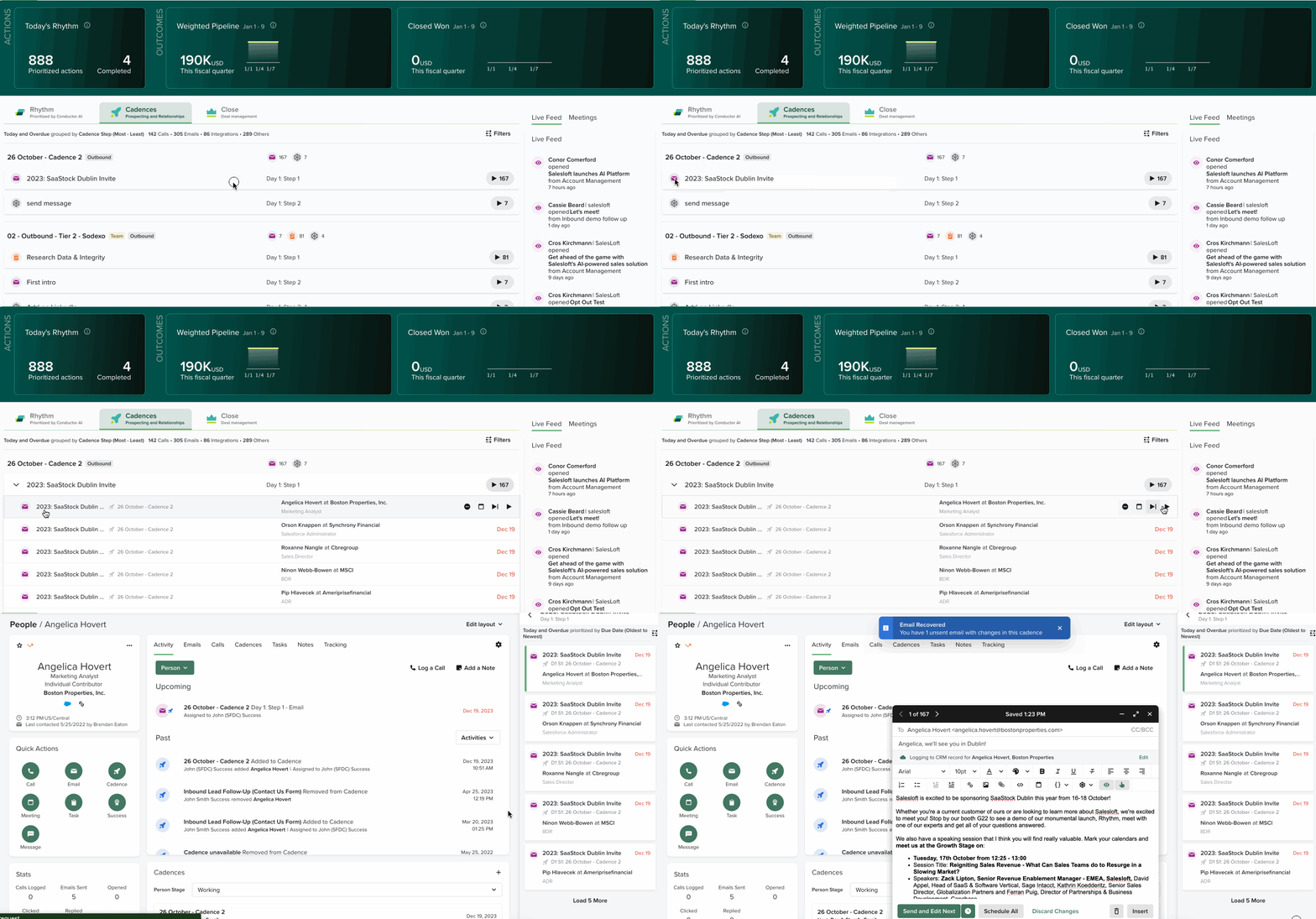
Figure 1 (GIF): Run a Cadence from the Cadence Focus Zone
The Rhythm Sidebar allows you complete cadence step tasks from anywhere inside Salesloft.
To run cadence step tasks from the Rhythm Sidebar, follow these steps:
- From the Rhythm Sidebar, click the focus zone dropdown and select Cadence Focus Zone.
- Click the play button beside a cadence step. This will open a list of tasks.
- Hover over the task tile then click the play button to complete the task.
- Complete the task.
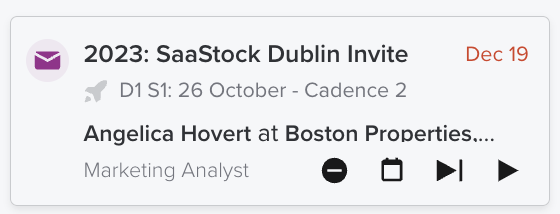
Figure 2: Run a Cadence from the Rhythm Sidebar
Your Cadence workflow is slightly different for the standard Cadence when you perform multi-touches. Typically, you work through one type of action at a time – like all of your email steps due for a Cadence.
Multi-touch steps are a packaged deal. So, instead of moving to the next Person after you run a step, you will run your follow-up step immediately after the first step is completed on the same Person.
Let's walk through an example. Say you create a Multi-Touch Cadence with Phone and Email steps. You add three People to the Cadence. When those People are due to run the Cadence steps, both steps will appear as due. When you click the button to Run Cadence Steps, the Cadence workflow panel will open. The Salesloft app will redirect to the Person Profile page of the first Person due for the Cadence step.
In the Cadence workflow panel, you will see the list of steps to complete the multi-touches. The top of the workflow panel will have the prospect's name. Each card under the Person's name displays the type of step and step name.
Things to Note: The "send all" option will not be available for email steps set to Multi-touch since the idea behind a multi-touch step is to complete the steps for that Person back-to-back. For example, if you send 50 emails out at one time, you cannot immediately call 50 People.
The Cadence workflow will automatically open the first step in the Multi-Touch grouping. Once the first step has been completed (ex: Click Send on an email), the second step will automatically open. You will stay on the Person’s Profile page the entire time you are running Cadence steps due to that Person. Once all steps are completed for a Person, the Cadence workflow will open the next Person due with the multi-touch panel.
Things to Note:
- If you would like an email step to land in the prospect's inbox later that day, you can still schedule it for a specific time in the Cadence workflow.
- You can run the Multi-Touch steps in any order. Click on the card to open the step panel.
- If you want to view the list of People due in the Cadence that day, click the back button at the top of the Cadence Workflow Panel.
Learn how to run each kind of cadence step:
Cadence Next Step Suggestions
When you log the last Cadence Step for a Person assigned to that step, you've successfully completed those set of assignments for the day (yay!) While you may want to stand up for a minute, you may also be wondering, "What should I do next?"
After the last Cadence Step is completed, your Cadence Side Panel will offer suggestions for where you want to go next. These options include:
- Return to Cadence Overview: Takes you to the Cadence Overview page of the Cadence step you completed.
- Return Home: Takes you to your Salesloft Home Dashboard.
- Run Next Step: Takes you to the next step in the same Cadence with People due.
- Return to Steps List: Goes back to the Cadence Step list in your Cadence Side Panel.
The first two options in the list above will appear in all suggested next step views. The final two options will appear based on certain criteria. Let's take a look into Run Next Step and Return to Steps Lists:
Run Next Step
When you've completed a Cadence Step, and have actions due on a different step in the same Cadence, you will see the Run Next Step suggestion. The view will show the step you completed and list the next step details (Day, Step number, Step type, and Cadence Name).
Salesloft will only suggest the next step when you are running steps within one Cadence or Account based on how your Cadence list is grouped.
Things to Note: The Cadence suggestion will recommend the first step in the group. So, if you completed a step 2 of your Cadence, and still have due items in step 1 of the same Cadence, the suggestion will recommend you to run step 1 of that Cadence.
Figure 3: Run Next Step Example
Return to Steps List
When all steps in the specific Cadence or the steps for a specific Account are completed, Salesloft will not present the next step to run option (because you're all done with this Cadence!).
If you know you have additional Cadence steps due in a different Cadence or Account, use the Return to Steps List suggestion to go back to the Cadence Step list in the Cadence Side Panel. This is the same list you can access by hitting the back arrow at the top of the Cadence Side panel.
From the step list, you can select the next Cadence or Account you want to run, and continue running Cadence steps.
Figure 4: Return to Steps List Example
- Practice running different types of Cadence steps.
- Explore the Cadence Focus Zone and Rhythm Sidebar for efficient workflow management.
- Analyze Cadence performance to optimize your outreach strategy.
