When you create a Cadence, you define the settings for that particular Cadence. These settings are the Cadence’s foundation. They determine how your Cadence will be identified and what will occur whenever an action is made.
However, the Cadence you’ve created is an empty shell. Cadence Steps need to be added in order to complete your new Cadence.
In this article, you’ll learn how to add a step to a Cadence in a way that supports your workflow and drives consistent follow-up.This article includes:
Adding Cadence Steps for personal cadences is available to the standard Salesloft admin and user roles by default. Editing Team Cadences is only available to admins and users with the Team Cadences: Create & Edit permission enabled.
You can add steps to Cadences created from scratch and Cadences created from a framework.
Before you add steps to a Cadence, be sure to want to choose the right step type for your goal.
- Email Steps: Best for automated or manual email engagement. Consider personalization to improve engagement.
- Phone Steps: Useful for follow-ups and direct conversations. Attach call scripts for consistency.
- Other Steps: Includes LinkedIn touches, SMS, and custom tasks. Use these to diversify engagement.
- Integration Steps: Automate tasks by connecting with external tools (e.g., CRM updates, Slack notifications).
Consider Step Order for Maximum Effectiveness
- Start with an introductory step, such as an email or LinkedIn touch.
- Use phone calls at key points to drive responses.
- Plan follow-ups strategically based on previous interactions.
For a quick overview of how to add a step to a Cadence, check out this video:
Adding Cadence steps allows you to upgrade your Cadences without having to rebuild the entire sequence.
To add steps to a Cadence, follow these steps:
- Hover over the Content tab in the top navigation panel. Click Cadences.
- Find the Cadence you would like to add a step to, then click its title. You will be directed to the Cadence Overview page.
- Below each existing Cadence step, you will see an Add Step button.
- Click the Add Step button. This will open the Create Step window.
- From the Create Step window, choose the type of step you would like to add by clicking the icon. Choose from the following step options:
- Once you click a step type icon, complete the step. This process differs for each step type.
- Click Add Step to finish, or Add & Create Another to continue adding steps. All of your steps will appear in the Cadence Overview tab.
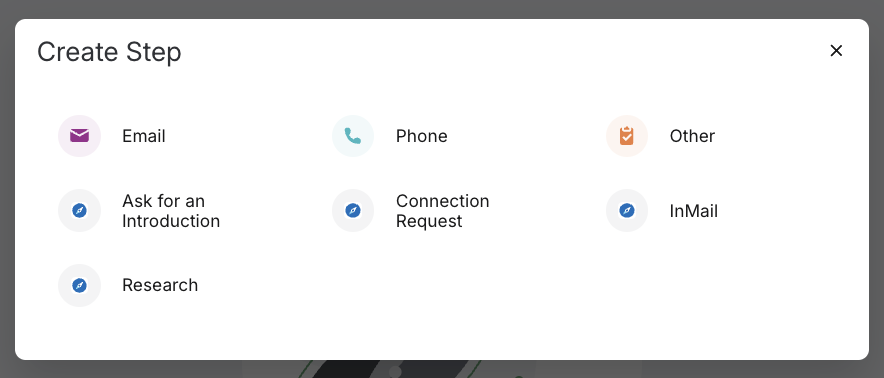
Figure 1: Add a step to a cadence from the Create Step window.
Add Cadence Steps to a New Cadence
As soon as you hit Save Settings in a new Cadence, you will be directed to the Cadence Overview page. The space will have two available options:
- Start from Scratch: Allows you to add steps on your own. This is best for creating your own specific Cadences.
- Start with Cadence Frameworks: Allows you to select a Cadence Framework.
Figure 2: Create a Cadence from scratch or use a Cadence Framework.
Additional Places to Add a Cadence Step
You can also add Cadence steps from the Cadence Actions dropdown menu. In the upper right corner of the Cadence Overview page, you will find the Cadence Actions dropdown. The first option in the menu is the Add Step button.
Figure 3: Click the Cadence Actions dropdown to add a step to a Cadence.
