Phone steps in your Cadences aim to engage a Person by calling them and having a conversation. While you can have one-off reminders to follow up with a contact, a Cadence workflow allows you to systematically schedule phone steps to increase your chances of a call connection.
In this article, you will learn how to add a phone step to a Cadence. This article includes:
Adding Cadence Steps for personal cadences is available to the standard Salesloft admin and user roles by default. Editing Team Cadences is only available to admins and users with the Team Cadences: Create & Edit permission enabled.
Phone steps do not require use of the Salesloft Dialer. However, with the Salesloft Dialer, you are able to complete call steps through the Salesloft platform.
Please be aware of the following while creating AI generated phone scripts:
- The ability to create Cadence phone steps using AI is governed by the Generative Artificial Intelligence setting. To learn more about Salesloft's use of AI, check out our Salesloft & AI article.
- You can use AI to generate phone steps for both Personal and Team Cadences.
- To create personal cadences, you must have the Personal Cadences: Manage permission. This permission is automatically enabled for default user roles.
- To create team cadences, you must have the Team Cadences: Create & Edit permission. This permission is automatically enabled for default admin roles.
- Salesloft uses Google Gemini for AI-generated content. The data is shared with Google Gemini via an API and is not used to train or improve Google Gemini's model.
- The call scripts are built using information you provide. We recommend only including information that you’re comfortable discussing with a potential customer on a sales call.
- Please review all AI-generated call script content before using.
- AI Generated call scripts are crafted prior to clicking the Run Cadence Step button.
To add a phone step to your Cadence, follow these steps:
- Create a Cadence.
- From your Cadence’s overview page, add a Cadence step.
- In the Create Step box, select the phone icon.
- Enter the Day you would like the step to run.
- Hit Next.
- Give your phone step a name to let you know what the purpose of this call will be. Common examples include “Intro Call” or “Follow up with a Voicemail.”
- Add any instructions you think are necessary. Instructions can include a script you may use or bullet points of the points you’d like to make during the call.
- Click Add & Create Another to continue adding steps to your Cadence or Add Step to add the step and close the add step window.
Figure 1: Add a Phone step to a Cadence.
Salesloft allows you to use AI to generate content for Cadence call steps. To do this, you’ll create a Cadence and provide key details such as descriptions, examples, and specific inputs to guide the content.
The call script will be dynamically generated at the moment you initiate the Cadence call task, ensuring the most current context is included. This allows you to be fully prepared for your call while saving you prep time.
The process of creating AI-generated phone steps begins when you create a Cadence.
Once you create a Cadence, you’ll be directed to the Cadence’s homepage. From the Cadence’s homepage, select Create from Scratch. This will open the Create Step window. This window is where you will add steps to your Cadence.
To generate a Phone Step with AI, follow these steps:
- Add a Phone Step: From the Create Step window, select Call.
- Select AI Dynamic Call: Next you will pick your Call Step Option. Hit Select beside the AI dynamic calls option. The AI dynamic Call Settings will appear.
- Enter your Instructions with AI Settings: In the AI Dynamic Call Settings, review and complete the following information:
- Instructions: Provide the instructions for the AI to use to generate the call script.
- Recipient: Enter a name or email or use the dropdown to select the recipient.
- Generate a Preview (Optional): Select the Generate Preview button to see a real-time preview of the AI-generated call script on the right-side of the window.
- Hit Add Step: Complete the setup by hitting Add Step.
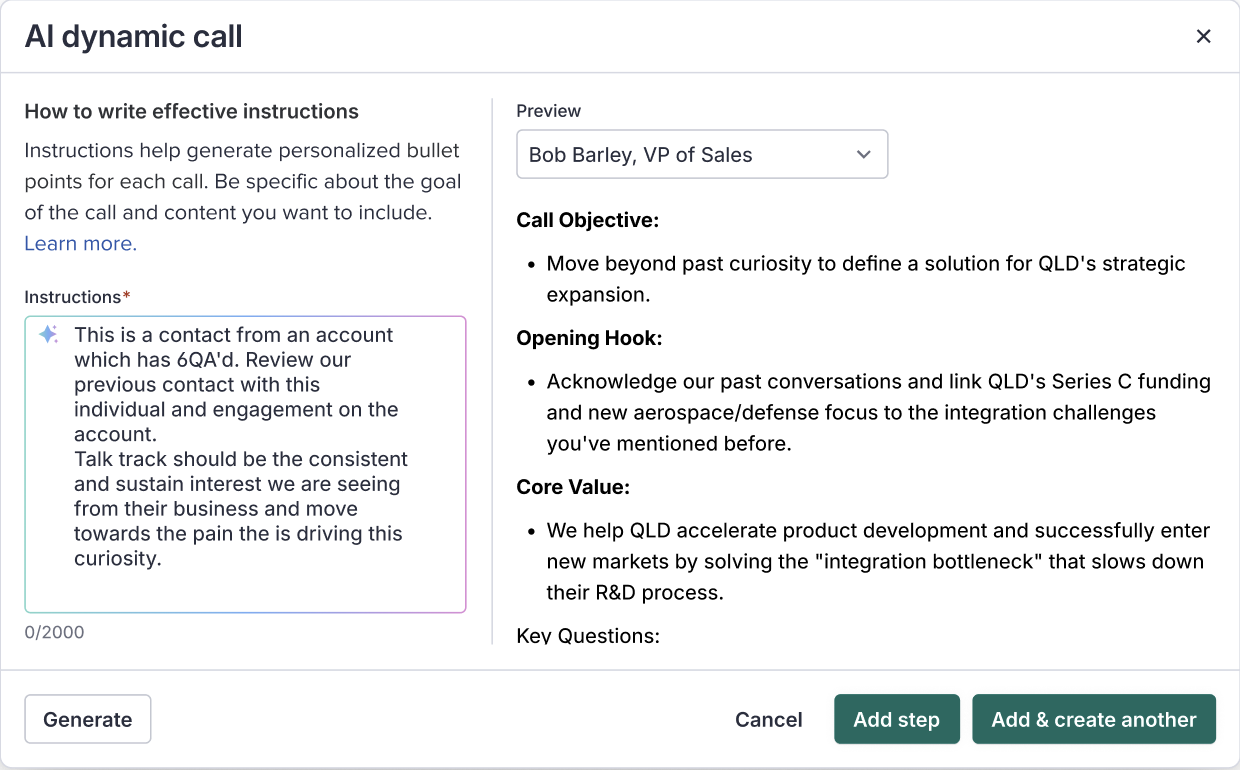
Figure 2: Create a phone step with AI.
Before you add a phone step to a cadence, define the goal of the call.
- Are you trying to schedule a meeting, follow up on a previous interaction, or gather more information?
- Ensure the purpose aligns with the overall Cadence strategy.
Once the step is added, you will see it on the Cadence Overview page as its own Cadence Step details panel.
The Phone step includes the following details:
- Phone Step Name: Designated name of the phone step. Common examples include, “Intro Call,” “Follow up Call,” “Call + Voicemail.”
- Instructions: Written out instructions on what should take place on your calls.
- Calls Made: the Total number of calls made while running this Cadence step.
Figure 3: View Phone step details from the step panel.
- Add another step to your cadence. You can add the following:
- Monitor a step’s performance from the Cadence Step Analytics.
