Reps working quickly through their daily tasks are liable to create duplicate records. Sometimes it's easier to create a new record rather than search for a record that may or may not exist. CRMs use the Merge & Delete process to correct this behavior.
The CRM Merge & Delete Process consolidates these records to make sure all of the appropriate information is in one place. When you go through the process into your CRM, you choose a master record and a losing record(s). Then you elect what information will remain on the Master Record.
Since Salesloft Person records match up to single Lead or Contact in your CRM, these merges can cause a disruption in the data. To keep information consistent, Salesloft created an admin-enabled feature to recognize CRM Merges that occur and align Salesloft Person Records with the customer's Lead and Contact Records automatically.
Things to note: Things to note: Salesloft supports CRM merge recognition for Leads, Contacts, Accounts, and Salesforce Person Accounts. Account merge reconciliation is supported for Salesforce, HubSpot, and Microsoft Dynamics. Person Account merge recognition is supported for Salesforce only.
In this article, we will go over how Salesloft interacts with CRM merge and deletes, including:
In order to turn on Merge Recognition, a team admin will need to enable the feature from the CRM settings. Once the Recognize Merge Setting is enabled, your Salesloft Instance will begin to recognize Lead and Contact Merges that occur in your connected your CRM Instance.
Follow these steps to enable merge:
- Go to Settings.
- Navigate to the CRM Sync Settings on the left hand side.
- Select the CRM Sync Management tab at the top of the page.
- From the CRM Sync Management page, scroll to Recognize CRM Merges. Turn the toggle to enable the setting. When the toggle is blue the setting is on.
If you have records in your CRM that are no longer relevant, you may want to delete them rather than merge them into another record. When a CRM record is deleted, what happens to the linked Salesloft record?
The recognize CRM Deletions feature automatically identifies any CRM Deletions that occur and whether they are aligned to a Salesloft Person, Account and Opportunity Records. Now, what happens with the linked Salesloft record will be determined by the Recognizing CRM Deletions Setting. There are two options:
- Enabled (toggle on): When your CRM record is deleted and Recognizing CRM Deletions Setting is Enabled, the corresponding Salesloft record is deleted.
- Disabled (toggled off): When your CRM record is deleted and Recognizing CRM Deletions Setting is Disabled, unlink the deleted your CRM record from the corresponding Salesloft record.
Things to Note:
- CRM Sync must be enabled to use this feature.
- Recognizing CRM Deletions will be on by default for any customers that have not previously enabled CRM Sync before. This means it will be enabled for all new customers that enable CRM Sync OR any current customers that haven't enabled CRM Sync yet but will in the future.
- If you are an existing Salesloft customer, you will have to manually enable the feature.
To edit the Recognize CRM Deletions settings, follow these steps:
- Go to Settings.
- Navigate to the CRM Sync Settings on the left hand side.
- Select the CRM Sync Management tab at the top of the page.
- From the CRM Sync Management page, scroll to Recognize CRM Deletions. Turn the toggle to enable the setting. When the toggle is blue the setting is on. A notification will appear at the top of the page to inform you of the setting status.
Merges can happen in your CRM in one of two ways:
- Manual merge action for
- Automated merging through third party applications.
Speak with your team's CRM admin for more information on setting up merge behavior within your CRM.
Once the merge occurs in your CRM, there are two scenarios to be accounted for in Salesloft:
While completing daily tasks, you might discover an existing Contact record in CRM and Salesloft that represents the same person as a Lead you’re pursuing. When this occurs, you can convert the Lead into an existing Contact record in Salesforce.
Things to Note: Lead Conversion to Existing Contact is only available for customers that use Salesforce as their CRM. Lead Conversions is a standard workflow in Salesforce and the option to convert to an existing Contact record exists for all Salesforce customers using the Leads object.
Lead Conversion to Existing Contact can be enabled from the CRM Sync Management setting Recognize CRM Merges .
When a Person is linked with Lead converted to an existing Linked Contact in CRM, the following occurs:
Salesloft deletes the Person record linked to the Lead record from Salesloft.
- All historical activities for the Lead will be available on the Contact record in Salesforce, but will not be visible for the Person linked to the Contact after the conversion occurs.
- The CRM Sync logs show a Merge for the Contact record the Lead was converted to.
- The actions for any active Automation Rule with the trigger “When Lead is Converted in CRM” fire for the Contact record the Lead was converted to.
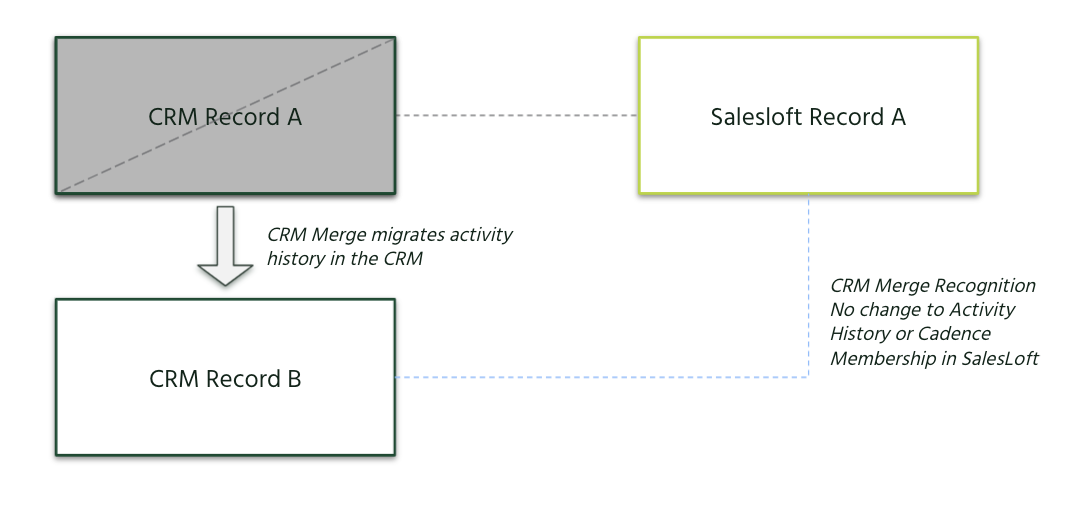
The first possible scenario for CRM merges occurs when you merged multiple records in your CRM but there is only one Salesloft Person Record associated with the Contacts or Leads you merged.
The result of this merge scenario keeps all of your Active Cadences work history (Emails, Calls, Cadence History) intact on your Salesloft Person record.
The only change that occurs is the CRM ID gets updated to the CRM ID of the CRM Master Record that you selected when merging the records in your CRM and any information you selected to move to that Master Record while in your CRM.
Things to Note: If there are discrepancies between the data on the winning CRM record and your Salesloft record, the data will be reconciled according the field's designated field configuration merge behavior.
The second possible merge scenario occurs when you merge multiple records in your CRM and you have multiple Salesloft Person Records associated with the SFDC Contacts or Leads you merged. This merge will result in a master record and one or more "losing" records.
NOTE: Converting a Lead into an existing linked Contact (Salesforce customers only)
In the event a Lead record is converted into an existing Contact record in Salesforce instead of creating a new Contact, Salesloft treats this as a merge in the event the Contact record the Lead is converted existed as a linked Person record in Salesloft prior to the Lead Conversion in Salesforce.
Impact on the Master Salesloft Record:
- The Salesloft Person Record that was linked to your selected CRM Master Record will be the Salesloft Record that takes precedence.
- Any Cadences that were associated with the Master Salesloft Record will remain on all active Cadences and work history will stay intact.
The Losing Salesloft Record(s):
- Any Salesloft Person Records that are linked to the Losing CRM Record(s) in the merge are deleted in Salesloft.
- If any of these "Losing" Salesloft Records were in active Cadences, they will also be removed from those Cadences.
- No work history from the Losing Records will be moved to the Salesloft Master Record, however, the activities will remain in our system and will continue to populate analytics.
In addition to recognizing merges for Leads and Contacts, Salesloft automatically detects when accounts are merged in your CRM and reconciles the corresponding Salesloft Account records to match.
When a merge occurs in your CRM, Salesloft listens for the event and aligns the Salesloft Account records to reflect the principal (master) record chosen in the CRM. This ensures that account data stays consistent across both platforms without requiring manual intervention.
Things to Note:
- Account merge reconciliation is supported for Salesforce, HubSpot, and Microsoft Dynamics.
- Reconciliation may take 1–2 minutes to process after the merge is completed in the CRM.
- Automated account linking uses the Website or Domain fields as the primary matching keys. Ensure these fields are populated on your Account records for accurate matching.
- Searching for accounts by CRM ID is not currently supported.
- Admins can monitor account merge activity under Settings > CRM Sync > Sync Management > View Logs. Look for the CRM Merge log type to confirm whether a reconciliation was successful.
When an account merge is detected, Salesloft reconciles the corresponding Account records as follows:
The Principal Salesloft Account Record:
- The Salesloft Account linked to the CRM master (principal) record takes precedence.
- Associated People, activities, and work history on the principal record remain intact.
The Losing Salesloft Account Record(s):
- Salesloft Account records linked to the losing CRM record(s) are merged into the principal record.
- Activities associated with losing records are retained in Salesloft and will continue to populate analytics, but will not be surfaced on the principal Account record going forward.
Automated Account Linking:
When a new account is created in your CRM that shares a domain or website with an existing Salesloft Account, Salesloft will automatically link the two records. If automated matching is not possible — for example, if the Domain or Website fields are not populated — admins and users can manually link accounts through the CRM Sync setting.
A Salesforce Person Account combines a Contact and an Account in a single record. To learn how Salesloft works with Person Accounts, see Salesforce Person Account with Salesloft.
When you merge Person Accounts in Salesforce, Salesloft recognizes the merge and aligns your Salesloft records as follows:
- Account merge: Salesloft processes a Person Account merge in Salesforce as an Account merge. For details, see CRM Account Merge Reconciliation Behavior.
- Linked Person: The Salesloft Person linked to the Person Account follows the Contact merge logic. Salesloft deletes the Person linked to the losing Person Account through Recognize CRM Merges and Deletions.
- Surviving Person: The surviving Salesloft Person maps to the PersonContactId of the Person Account in Salesforce.
Things to Note: To confirm that Salesloft processed a Person Account merge, go to Settings > CRM Sync > Sync Management > View Logs and look for the CRM Merge log type.
