Picklists are the options available in a dropdown menu, ex: the 'title' picklist on a Person record. As a Salesloft admin, you can create custom picklists for Account records and Person records.
By creating custom picklists, you can be confident that your reps are updating information accurately. You can also map the customized picklists to your CRM, which allows your team to sync information between the two applications.
Things to Note:
- Admins, please make sure when you are mapping to a picklist field in your CRM that the options are the same in both systems. Otherwise, you will see sync errors related to the picklists being out of sync.
- You are able to utilize any custom picklist fields in an Automation Rule in the Criteria or Action fields. In order to utilize records to contain no value/-None-, you can select "Is Null" for the operation.
When setting up a picklist value, keep the following guidelines in mind:
- Picklist items cannot be duplicative values.
- Picklist items cannot be a blank value.
Be sure to update your Salesloft picklist values to stay current with your business processes and the values coming from your CRM.
In this article, you will learn how to create and manage custom field picklists in Salesloft, including:
When you want to add a picklist in Salesloft, you will need to create a custom field and set the picklist values. Picklists may be created for Accounts and Person records in Salesloft.
To set up a custom Picklist in Salesloft, follow these steps:
- In your Settings, go to the Field Configuration Settings. Then, go to the record tab for which type of field you would like to add (e.g., Person or Account).
- Click Add Custom Field.
- Things to Note: To create a custom field in Salesloft, the name must meet the following criteria:
- Field only accepts use of A-Z characters, dashes, underscores, and numbers 0-9
- Name cannot start with a dash, underscore, or digit (must start with a letter)
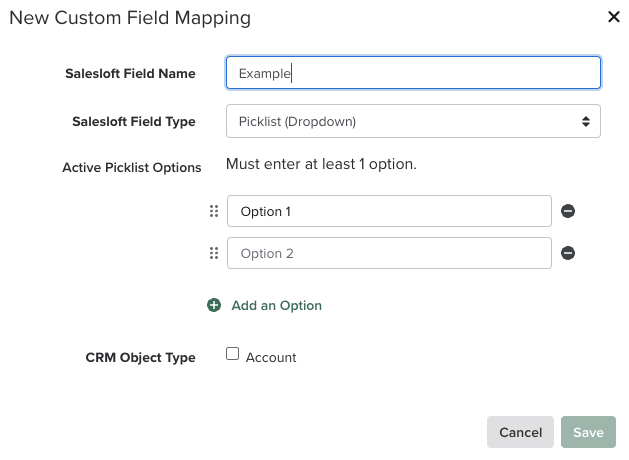
- Add Salesloft Field Name and Field Type to Picklist (Dropdown).
- Add your options in the available text boxes. If you will be syncing the picklist to your CRM, make sure the picklist values match your CRM exactly. For example, if you are adding a value for "Vice President," do not type in "VP" or "vice pres." You can verify that the API name of each value matches what you are putting in Salesloft.
- Things to Note: At least one picklist value must be active.
- Select the Add an Option to add more picklist items.
- Things to Note: In Salesforce, both picklists and multi-picklists exist, but multi-picklists do not work in Salesloft.
- To reorder your picklist entries, select the six dots to the left of the field entry, drag, and drop the picklist item to its preferred spot.
- Complete the Field Mapping steps by checking the box beside Map to CRM Account.
- Select the CRM Field Name. Once the Field Name has been chosen, the CRM API Name and Field Type will populate.
- Pick the mapping Direction.
- Click Save. You can now view this field in Salesloft.
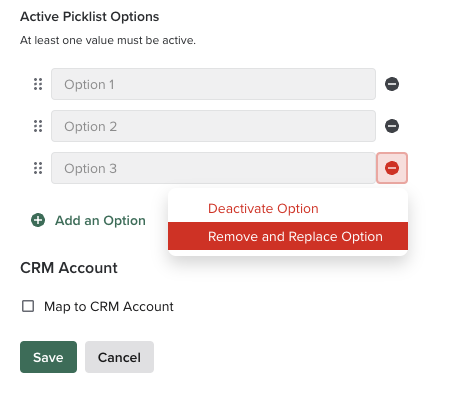
Once a picklist has been created, you do have the option to delete a value, if necessary. This process differs if the value is used in an automation rule (see instructions below).
Deleting a picklist value includes a couple of options:
- Deactivate Option: Users can no longer select the value when editing a record. However, the deactivated value will still be preserved on records where it is already in use. Inactive options from the CRM will be allowed.
- Things to Note: Deactivated values may be reactivated at any time.
- Remove and Replace Option: All records with a value will be replaced with a value of your choice.
To remove a picklist value that is not part of an automation rule, follow these steps:
- From the Field Configuration Settings, find the picklist item and edit the field. The Edit Field module will appear.
- On the right side of the value name, click the minus side icon and select the Remove and Replace Option.
- If any Records are currently using this value, use the dropdown to select the replacement value for the picklist option. You can choose another one of the options or the value of --None--.
- Once you select the value you want to replace, select the Replace button. Once a value is removed, an Inactive Picklist Options section will appear with the removed item(s) listed.
- Things to Note: Picklist options that have been deactivated can be Activated at any time. Click the three dots to the right of the Deactivated Option you want to reactivate and click Activate. Now it will return to the Active Picklist Options set.
- If a picklist option is being used by records, the records will maintain the deactivated value but will no longer be able to be selected moving forward for new records and can be Activated at any time.
- When CRM Sync pushes a value to Salesloft that is an inactive option, Salesloft will accept that value.
- Press Save to implement the desired changes. No changes are actually saved until you press the save button. Once you click Save, a confirmation informing you of a successful Field Configuration change will appear.
When an Automation Rule is using a picklist option you would like to delete, you will be notified that you are not able to remove that option. You can click Show Places to see the areas where this value is used. You can click the name of the individual Automation Rules to navigate directly to the Automation Rule and remove that from the rule or leave it alone.
If your team has any Picklist-related errors, your CRM Sync Alert Contact will receive a CRM Mapping Error email every 48 hours until any issues are resolved.
Picklist Field Errors can occur for 3 primary reasons:
- The picklist values in the CRM and Salesloft do not match.
- The field in CRM is a picklist type, but the field it's mapped to in Salesloft is a text field type.
- The field in Salesloft is a picklist type, but the field it's mapped to in CRM is a text field type.
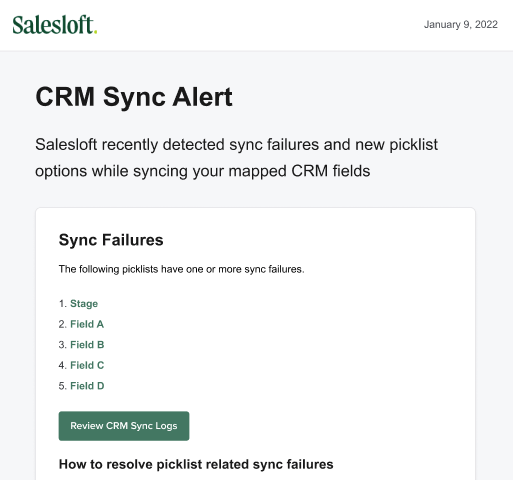
Every CRM Mapping Error email contains step-by-step directions to help you figure out what the problem is as well as how to resolve the issues. The emails will contain instructions and links for the following:
- Fields Links to Location In-App: Each field shown in the email is a clickable link that will direct you to that field's Configuration page, so you can manage the options in Salesloft.
- Knowledge Base Articles: Specific article links for Managing Picklist Options and Changing over to Custom Fields.
Things to Note: If you resolve an issue on one field but not another, you will continue to receive the CRM Error email listing for the fields that still have unresolved issues. If you received an email after you've made the necessary changes, confirm that the correct changes were made.
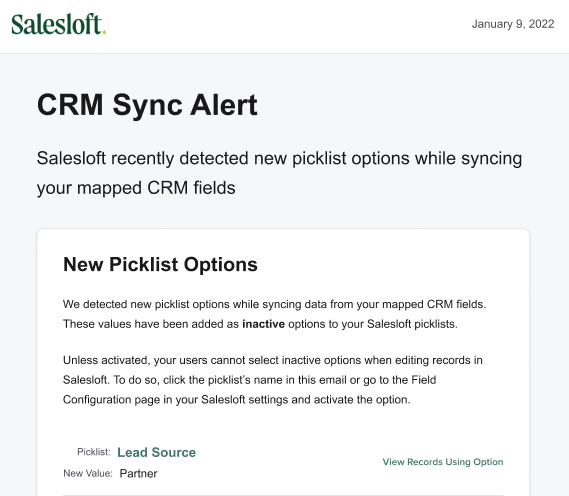
Whenever Salesloft detects new picklist options during a sync of your mapped CRM fields, you’ll receive the following alert via email:
If there are any sync failures detected, you’ll receive this error message:
When CRM Sync pushes a value to a Salesloft picklist field that does not match an existing option (or is unrecognized) in Salesloft, Salesloft will automatically create that value as an inactive option in Salesloft. This automation includes inbound updates via regular bidirectional sync, manual CRM Imports, and automatic CRM Imports via Automation Rules.
In case the CRM picklist value is inactive or is not a desirable value for users to select in Salesloft, the automatically created option is set as Inactive. The CRM Sync Alert Contact is emailed any time an option is auto-created, so you can promptly Activate the option.
Prior to the release of custom picklist fields in Salesloft, teams could only create new fields as text fields.
If you previously mapped a Salesloft text field to a picklist field in your CRM, you may want to create an equivalent picklist field in Salesloft. Once that field is created, you can migrate the picklist information from your CRM into Salesloft to make sure your data is aligned and up to date.
To replace a text field you have already used in Salesloft with a new picklist field, follow these steps:
- Complete steps 1-10 to create the new picklist field in Salesloft. You cannot map to the CRM field if the CRM field is already mapped to a Salesloft field.
- If the field was mapped to an existing Salesloft field, click the three horizontal dots on the right side of the row. Select Clear Mapping. This will remove the field mapping, but save the field in your Salesloft instance.
- Things to Note: If you delete the field mapping, the field and its data will be removed from Salesloft.
- Map the new picklist field to the matching CRM picklist field.
Once your fields are mapped, updates to the Salesloft picklist field will reflect in your CRM (and vice versa, based on your mapping direction). However, your pre-existing CRM picklist option will not proactively update to the new Salesloft picklist. An action must trigger that data to sync.
To backfill your fields with the current values, you will need to force a sync between the two systems. Bidirectional sync happens naturally when fields in either system are updated. You're going to select a mock "dummy" field to perform a mass update by following these steps:
- Find a field that exists in your CRM and create it as a custom field inside Salesloft. This can be a date field, text, field, or boolean as long as we can reliably and safely change the values in your CRM. For our example, let's say we've created a date field in Salesloft and our CRM called "Bump" (as in bump my data).
- Export all of your data from Salesloft by going to the People Page in Salesloft, filtering to records Owned by All Users, and clicking Export. Salesloft will email you a CSV file with all of your records.
- Download the CSV from your email. You can get rid of all columns except the CRM ID. This column will tell us which CRM records will need to be updated.
- You may also remove any People that do not have CRM IDs
- If a Person is a Lead in your CRM, you may remove them during this step if that makes sense for your process.
- Once you have your CRM ID column, add a column for your mock "dummy" field. You can add any value here. Using our example, we would add a column with the title "Bump." Then you can add today's date to all of the rows.
- Save the CSV.
- Perform an update in your CRM using the saved file. You can check your CRM Sync Logs in Salesloft to make sure the update has occurred. The timing of the update will depend on your CRM Sync Frequency.
- The mock "dummy" value and the updated picklist value will both appear as successfully synced in your logs.
Now that your picklist is ready, we want to take the final steps to make sure to replace the legacy text field anywhere it is in use. You'll want to check your Automation Rules as well as your templates and snippets to see where that text field may be in use and replace it with the picklist.
Once all legacy fields have been replaced, you can delete the legacy text field from your field configuration.
