Salesloft’s Dialer Call Recording Announcements are pre-recorded messages that you can play during your call to announce call recording. On days when you host multiple Dialer calls, Call Recording Announcements make it easy to inform everyone on the call about recording.
A team admin can choose to record announcements in Salesloft, or upload pre-recorded announcements for your team to use. Once your team's recording announcements are set, you can play the announcement right before you hit record during a call.
Things to Note:
- Dialer Call Recording Announcements are only available to Salesloft users located in the US/US-based data centers. When using Call Recording Announcements, please be sure to check out the recording regulations for your customer’s region.
- Dialer Call Recording Announcements are not available on EU servers.
In this article, you will learn about Dialer Call Recording Announcements, including:
Things to Note: Turning on Dialer Call Recording Announcements will disable automatic recording.
A team admin sets up Dialer Call Recording Announcements for your team.
To set up Dialer Call Recording Announcements, you’ll start by enabling the Recording Announcements setting. Once you enable the Recording Announcements setting for your team, you can either record an announcement message or upload a pre-recorded announcement file.
To enable the Recording Announcements setting, follow these steps:
1. Navigate to your Team settings, then scroll to the Communication settings on the left and select Dialer.
3. Select Call Recordings from the Dialer page tabs.
4. Be sure that the Enable Recording setting is turned on. (When the toggle area is blue, the setting is on)
5. Click the Recording Announcement toggle to turn the setting on. (When the toggle area is blue, the setting is on).
Things to Note:
- Once you enable Dialer Call Recording Announcements, your team will no longer be able to automatically record Dialer calls, i.e. automatic recording and the Team Recording Default setting will become unavailable.
- The Require Authentication When Sharing setting is not necessary to enable recording announcements for your team, however, you can choose to have this feature enabled with recording announcements.
6. Once you enable the Recording Announcement setting, the recording area will appear where you can choose to record an announcement or upload a pre-recorded announcement file.
Now that you’ve enabled the Recording Announcement setting, you can create the recording announcement that your team will use. One way you can add recording announcements is by recording an announcement message.
To record an announcement message, follow these steps:
1. Click Record an Announcement to open the recording area in a separate window.
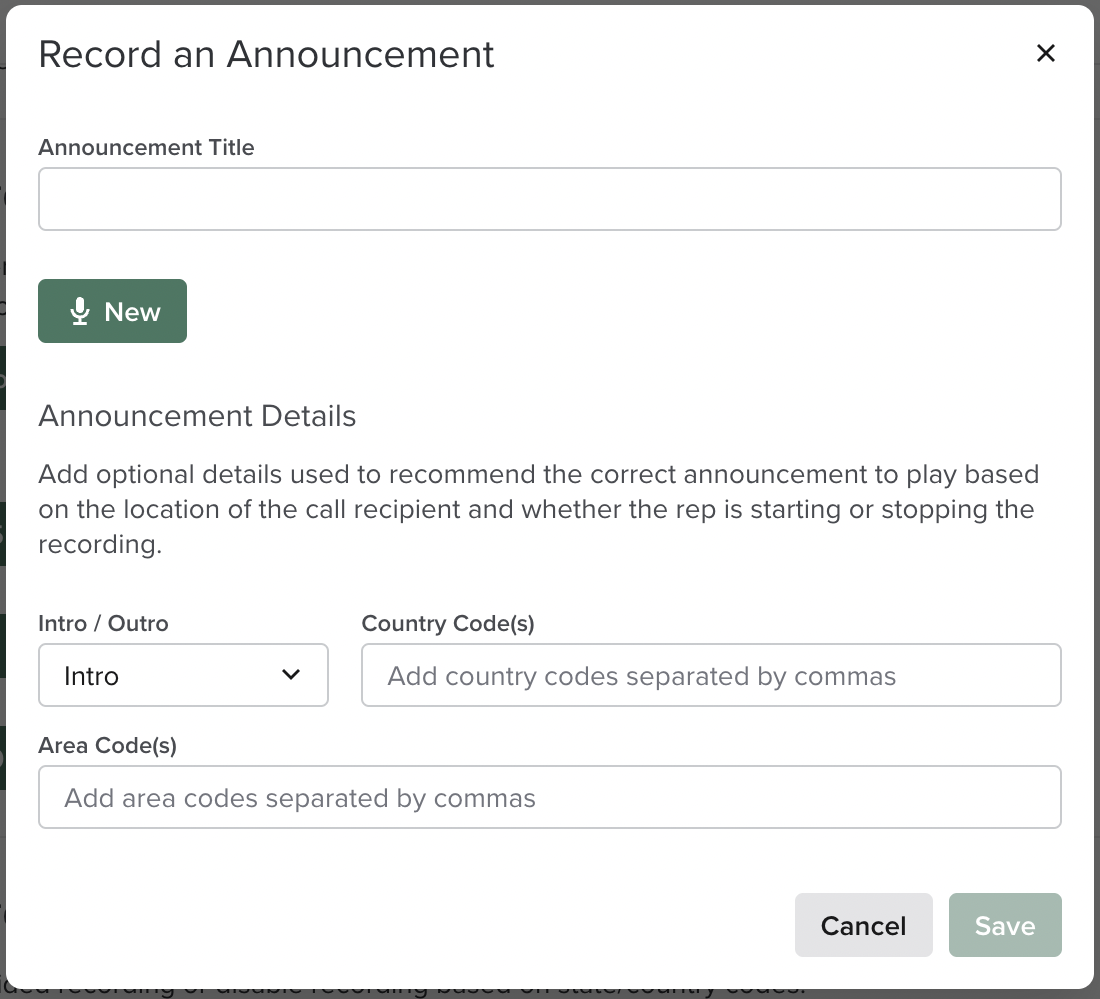
2. Enter a title for the announcement you are about to record.
3. Click New to begin recording. Recording will begin immediately.
4. Once you finish recording your announcement, click Stop to end recording or click Cancel to delete the recording and start over.
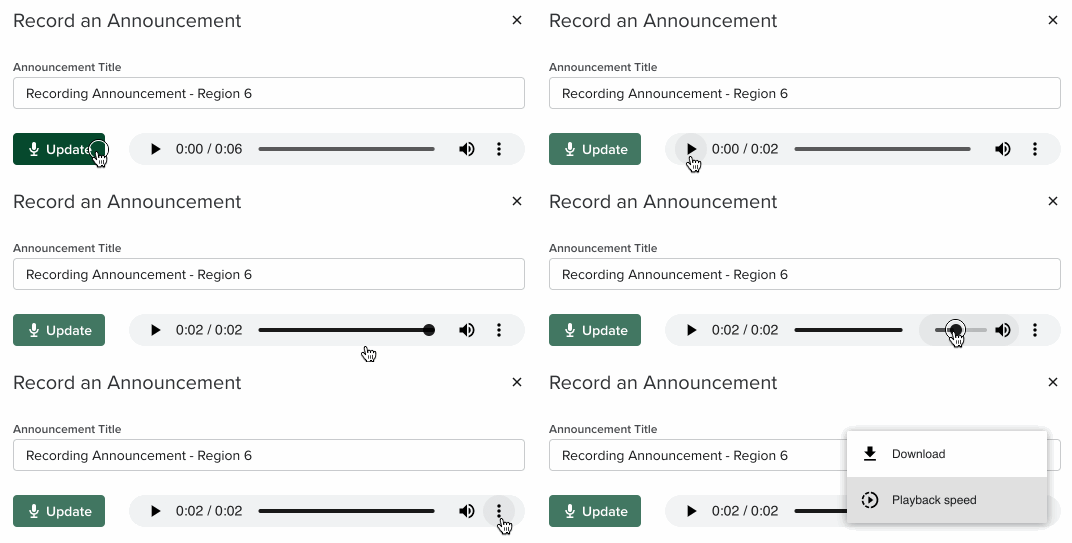
5. The playback area will appear once you stop recording. From the playback area, you can do the following:
- Click Update to redo the recording. Recording will begin immediately.
- Hit the play button to listen to a playback of the message you recorded
- Hover over the volume icon to adjust the playback volume.
- Hit the ellipses to adjust the playback speed or to download the recording.
6. (Optional) Enter the Announcement Details.
7. Click Save.
Once you save the announcement, it will appear in the Recording Announcement area.
Have a pre-recorded message that you want your team to use? You can upload an audio file and use it as your recording announcement.
To upload an audio file, follow these steps:
1. Click Upload an Announcement to open the upload area in a separate window.
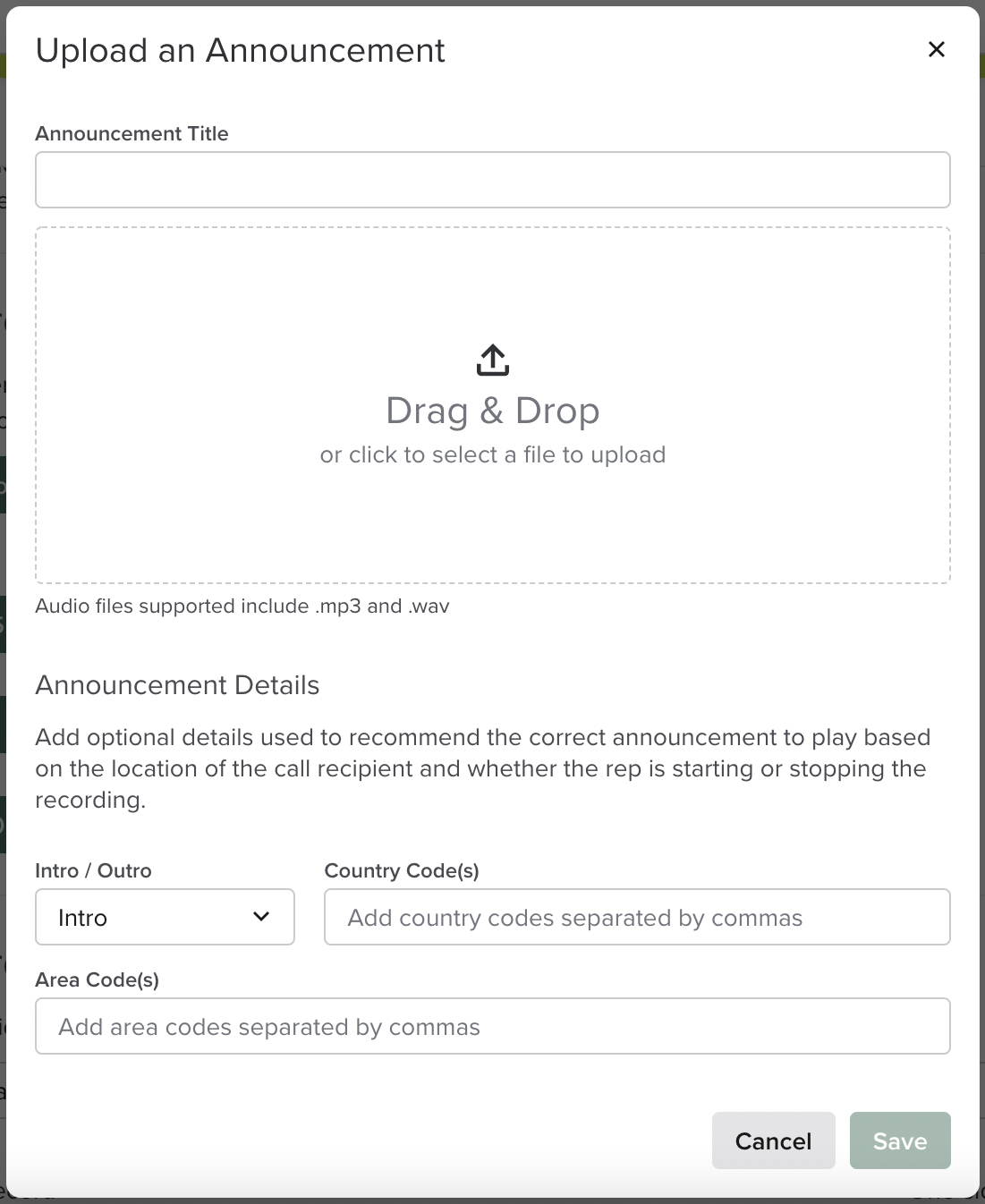
2. Enter a title for the announcement you are about to upload.
3. Click the Drag & Drop area to upload your recording file.
4. Optional: Enter the Announcement Details.
5. Click Save.
Once you save the announcement, it will appear in the Recording Announcement area.
The Announcement Details section includes three optional fields that you can add to your recording announcements.
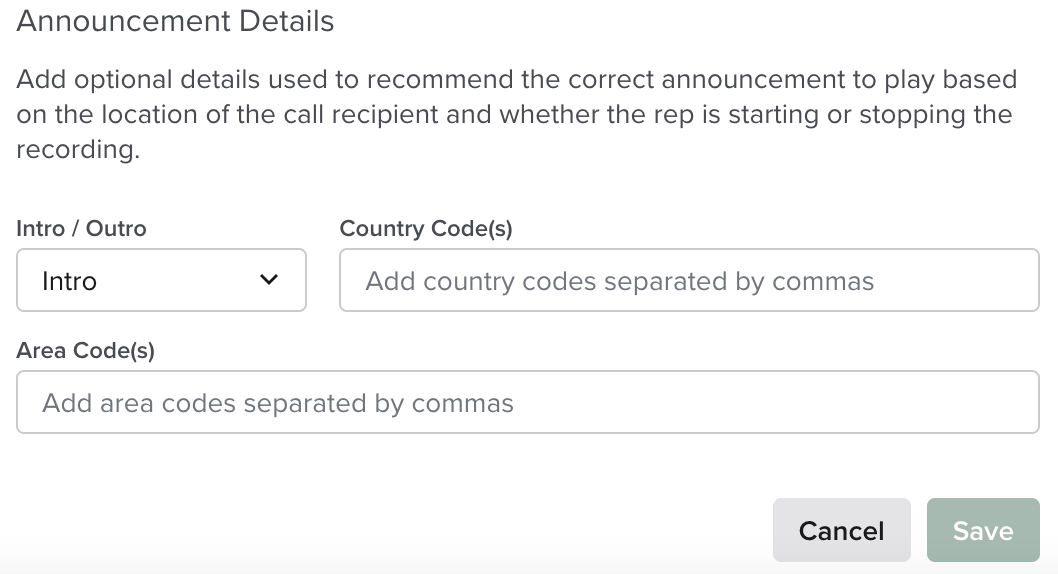
- Intro/Outro: The Intro/Outro field allows you to determine whether the recording announcement should be played during the beginning (Intro) or end (Outro) of a Dialer call.
- Things to Note: Recording Announcements play as soon as you click them. For outro announcements, you must remember to click the announcement before the call ends.
- Country Code(s): The Country Code(s) allows your team to use specific recording announcements when on a call with someone in a particular country, i.e entering +44 in the country code field will make the announcement available will you make a call to someone in Germany.
- Area Code(s): The Area Code(s) field allows your team to use specific recording announcements when on a call with someone in a particular region.
- Things to Note: The Announcement Details fields are optional. If nothing is entered in the Country Code(s) and Area Code(s) fields, the recording announcement will be available when you hit record during every call.
Once you save the announcement, it will appear in the Recording Announcement area.
You can click the play button beside a recording announcement to listen to it, or click the ellipses to edit the recording announcement’s details.
Time to hit the phones and start using call recording announcements. Once a team admin enables the Recording Announcement setting and creates recording announcement messages, you can begin using announcements during your calls.
Things to Note:
- Dialer Call Recording Announcements become available when you manually hit record during a call.
- The call must connect, i.e. the person must answer the phone, before you can play a recording announcement.
To play a Call Recording Announcements, follow these steps:
1. Open the Dialer and make a call.
2. Click the Record icon. A list of recording announcements set for your team will appear.
3. Choose an announcement from the list to play during your call. The announcement will play at the beginning or end of your call depending on the Announcement Details your team admin set., and you can
Recommended Announcements
Recording announcements are labeled Recommended when the number you are calling fits the Country Code or Area Code details that your admin set.
