The Email Tracking Settings decide which Salesloft email activity will be tracked or if you would like to set tracking restrictions.
Salesloft emails have the ability to track views (opens), clicks, and replies. Any of these registered metrics feed into your Salesloft Live Feed and your email analytics. To learn more, check out the How are Opens, Clicks, and Replies Tracked? article.
Tracking can be a valuable tool to help measure your engagement with prospective customers. However, there are instances where tracking should not be used. For example, if someone explicitly says "Do not track my emails" or a regulation is in place, you want to adhere to those request.
You can manage your team's email tracking settings inside the Team Email Settings.
In this article, you will learn about the different email tracking settings and how to apply them, including:
Manage Tracked Activity Defaults
The Tracked Activity settings allow you to set default preferences for your team’s email Open and Click tracking. You can enable or disable open and click tracking for the entire team, and also decide whether to allow users to override these settings and manage tracking for themselves.
To manage the Tracked Activity settings, follow these steps:
- Go to the Email Tracking settings: Navigate to your settings, then select Email under the Communication category. From the admin email settings page, click the Tracking tab.
- Edit the Tracked Activity defaults: Find the Tracked Activity panel, then click Edit. The Edit Tracked Activity Defaults window will appear. From this window, check the box(es) beside the settings you would like to enable. If you would like to disable a setting, uncheck the box beside it.
- Hit Save: Review the settings and hit Save. You will see a checkmark beside each of the Tracked Activity settings you enabled.
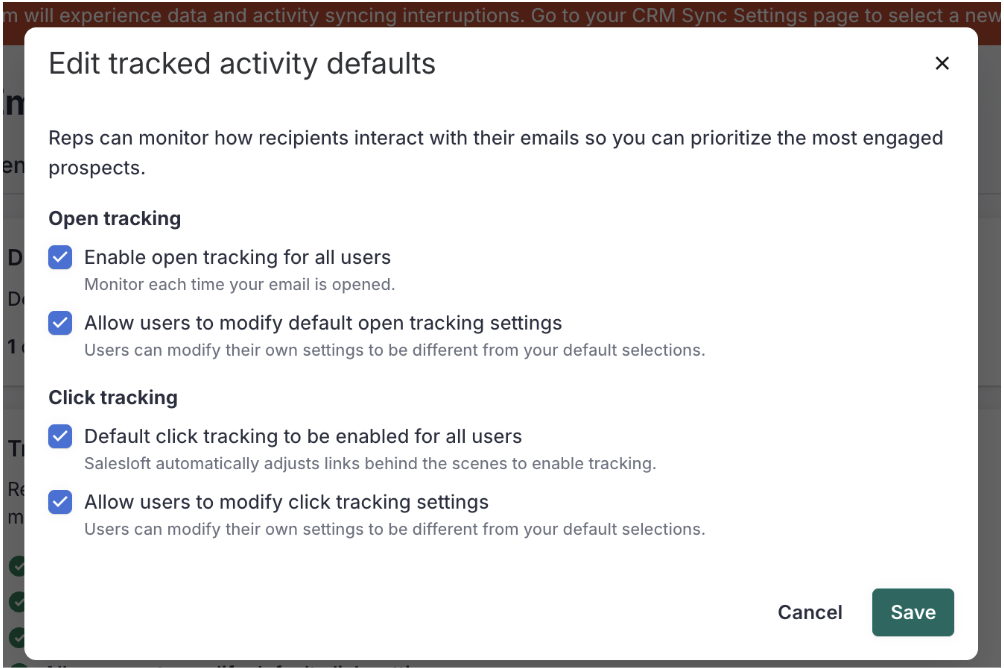
Figure 1: Edit Tracked Activity Defaults.
To set click tracking on by default across your team, check the box for Click Tracking Default under your Admin Email Settings.
Salesloft only Lofts the first person in the "To:" line. CC, BCC, and additional contacts will not be tracked in Salesloft. However, any replies to that thread will be tracked, and they will count toward the contact that thread is Lofted to.
Things to Note: Each user has the ability to disable or enable click tracking within their emails or templates.

Figure 2: Turn on the Click Tracking Default setting.
The Domain Exclusion List allows admins to restrict email tracking and prevent the use of the Loft It button to specific email domains. When you add an email domain to the exclusion list, replies sent from these domains will not be logged into Salesloft.
Things to Note:
- Salesloft automatically adds your team's internal domain to the Domain Exclusion List.
- The domain exclusion list is not the same as the Do Not Contact (DNC) list. Domains that are added to the domain exclusion list can still be contacted via email.
- Blocked domains will only exclude email addresses listed in the "To" field. If an email recipient using a domain from the exclusion list is cc'd or bcc'd on an email, the message will log in Salesloft and track the email.
- The Domain Exclusion List applies to exact domains AND subdomains. This means you could block a company's domain, like salesloft.com, as well as subdomains, like mail.salesloft.com or money.salesloft.com.
- The Domain Exclusion list does not affect emails sent on cadences. These will send as normal.
To add more domains to the exclusion list, find the email address you want to exclude and type the domain that is listed after the "@" in the box provided (e.g., stephanie@salesloft.com would have the domain "salesloft.com").
Figure 3: Add domains to the Domain Exclusion List.
Salesloft's open tracking technology uses pixels to register opens, but the pixels fail to ignore "self views." So, if you open your own email to view a response, the email tracking adds that self view as an open, which messes with your data.
Salesloft can block opens from certain devices when IP addresses or a range of IP addresses are provided.
Things to Note: Self-Views from Gmail will not be counted when a user has a logged into their session of Salesloft or if you are using Salesloft Connect for Gmail.
To block an IP address from your open/view tracking, follow these steps:
- Go to your Settings and find Email under the Communication section.
- Go to the Tracking Tab.
- Scroll to the Block Opens by IP Addresses.
- Enter a valid IP address in the text box.
- If you are entering multiple IP Addresses, each IP should be on its own line.
- Hit Save.
Figure 4: Enter a valid IP address(es) to the text box.
