Each user has the ability to set their calendar invites and meetings the way that suits their process the best. However, certain calendar components may be set by a team admin to provide a unified look for the entire team.
Your team's meetings can be managed from the Meetings Settings located under the Communication section in your Admin Settings. The Meetings page is split into the following tabs:
All admins have the ability to manage meetings by default. You can allow non-admin team members to manage meetings by enabling the Manage Meeting Types permission for their role.
In this article, you will learn about the Meetings Settings page General tab, including:
Your team can schedule meetings directly from the Salesloft platform. Sometimes a meeting might be booked outside of Salesloft. For these instances, Salesloft syncs to your calendars so that your meeting activity will still be logged.
In order for your team's meetings to sync from the calendar, you (or any team admin) must turn calendar sync on by enabling the feature.
Things to Note:
- Enabling calendar sync grants access to the feature for your entire team.
- Calendar Sync is available only for users with Gmail, Office 365, and Microsoft Exchange EWS calendar connections.
- To log meetings to your CRM, logging meetings must be enabled in your CRM sync.
- Calendar sync will not create new People records. At least one guest must be an existing Salesloft Person record.
- Events will not be logged if the guest domain is on the team domain exclusion list.
- Private events will not be logged to Salesloft or the connect CRM.
To enable calendar sync, follow these steps:
- Go to the Meetings Settings, listed under the Communication section. When you access the page, you will be in the General Meeting Settings tab.
- Under Calendar Sync, make sure the Calendar Sync toggle is turned on (blue). When the toggle is on, the label will say Calendar Sync is enabled.
- Once the sync is enabled, each user will need to enable the feature on an individual level.
- Things to Note: If the user does not turn the feature on, their calendar will not sync.
Figure 1: Calendar Sync inside Meetings Settings
Seller Out of Office Automation recognizes when a user has marked Out of Office on their calendar and adjusts their assigned activity due dates for when they return.
Before your team can leverage this setting, you will need to enable the feature as a team admin. If the feature is not turned on by an admin, the user-level toggle will be locked in the "Off" position and display a tooltip stating the feature has been disabled by an admin.
To enable seller out of office automation for your team, follow these steps:
- Navigate to Meetings Settings: In the Salesloft platform, click on your profile icon in the upper right corner. Select Settings, then navigate to the Meetings Settings found under the Communication section. You will land on the General tab within the Meetings Settings.
- Enable the Automation Toggle: Locate the "Out Of Office Automation" section and and switch the toggle to On (blue).
- Share User Instructions: Inform your team that they will need to enable the setting. Share the Set Up Seller Out of Office Automation instructions.
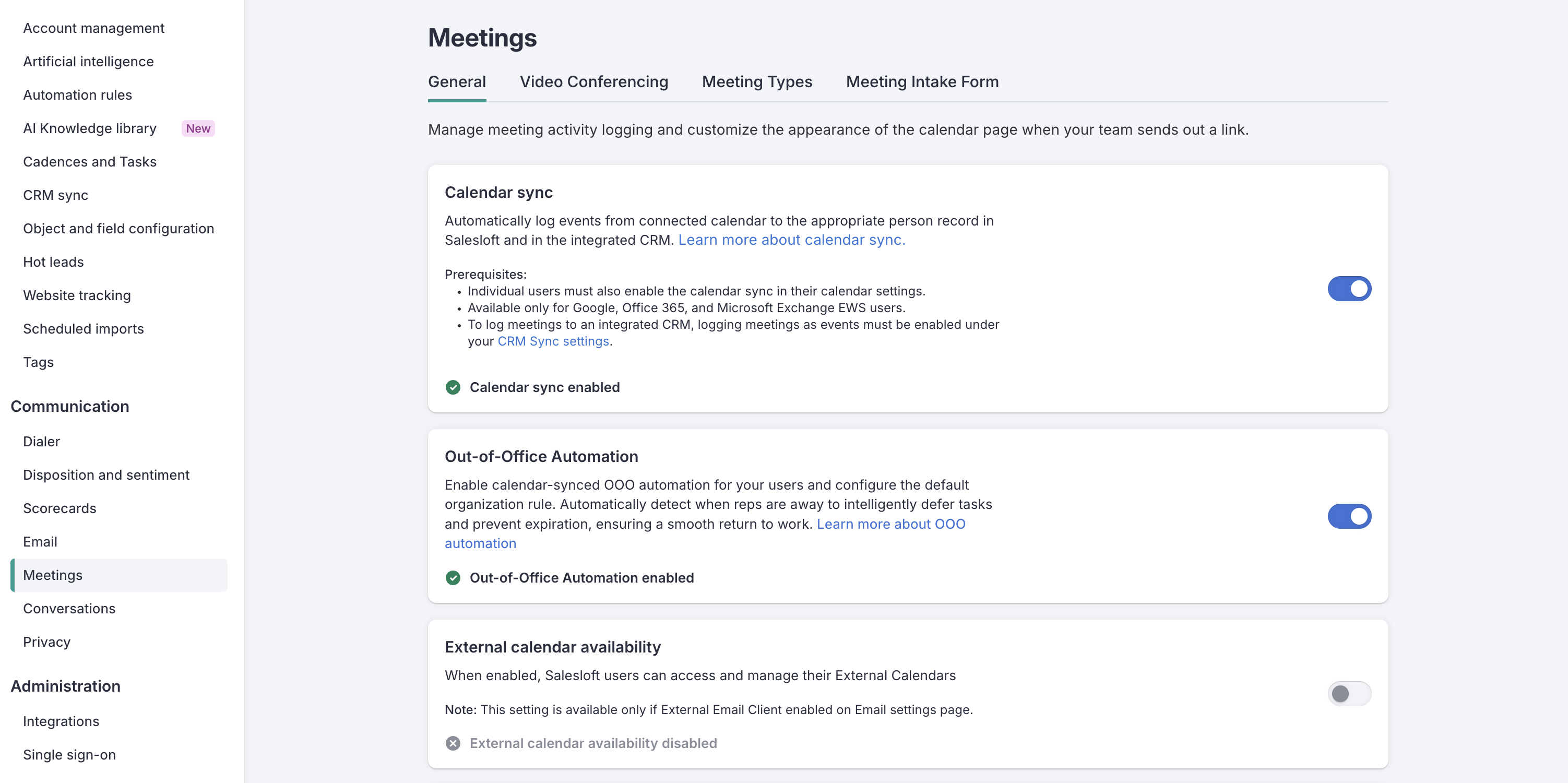
Figure 2: Out-of-Office Automation setting enabled inside Meetings Settings
Salesloft allows users to connect to the calendar synced with their email address. Many teams use Google or Microsoft as their email connection and the calendar by association.
However, if your team uses an alternative email solution, the External Calendar Availability settings allows (or disallows) your users to connect their calendars.
To allow your team to use External Calendars, go to the team
Meeting Settings. You will land on the
General Meetings Settings page. Find the
External Calendar Availability section of the page. Turn the toggle on (blue) to enable External Calendar Availability. You can disable the feature after it’s been turned on by clicking the toggle off.
Figure 3: External Calendar Availability Setting Disabled
By default, Salesloft requires users to connect an email inbox before they can connect a calendar. The Standalone Calendar Connection setting lets your users connect a Google or Outlook calendar without connecting an email inbox. Use this setting if your company security policy restricts third-party access to email but permits calendar access.
Enabling this setting is also a prerequisite for domain-level calendar authentication, which lets you connect calendars for your team in bulk. To learn more, see Domain-Level Authentication. If your team uses an alternative email solution and needs to allow external calendars, see Configure External Calendar Availability.
Things to Note:
- Enabling this setting does not change existing connections. Users who already have email and calendar connected keep both connections, and their email features continue to work as they do today.
- When this setting is on, a user with no email connected can connect only a calendar, or connect both a calendar and an email inbox at any time.
- Users who connect only a calendar cannot send email from Salesloft. For these users, Salesloft hides required email onboarding steps, disables the Send Email buttons, and pauses automated email steps in Cadences.
- When this setting is on, a user cannot connect an email inbox from one domain and a standalone calendar from a different domain at the same time.
- You cannot turn this setting off while a domain-level calendar connection is active. Disconnect the domain-level calendar connection first.
To enable standalone calendar connection, follow these steps:
- Navigate to Meetings Settings: Go to your settings, then select Meetings under the Communication category. You will land on the General tab.
- Locate the card: Find the Enable standalone calendar connection card.
- Turn on the setting: Switch the toggle to on. A notification confirms Standalone calendar connection enabled.
- Share user instructions: Let your team know they can now connect a calendar without an email inbox. Share the Connect Your Calendar to Salesloftarticle.
Turning this setting on also makes the Enable domain level access and permissions toggle available. If standalone calendar connection is off, that toggle is greyed out with the message "Requires standalone calendar connections to be enabled." If a domain-level connection is active, the standalone toggle is greyed out with the message "Disconnect your domain-level calendar connection to enable this setting."
Choose the Right Setup for Your Team
|
Your goal
|
Recommended setup
|
How it works
|
|
Let reps manage their own connections, or comply with a policy that restricts email access
|
Standalone calendar connection on
|
Reps connect only their calendar, or both email and calendar, on their own.
|
|
Connect calendars for your team in bulk, with no manual setup by reps
|
Domain-level calendar authentication on (requires standalone calendar connection on)
|
You connect calendars for the users you select. New users connect automatically.
|
|
Connect new users in bulk without changing existing connections
|
Standalone calendar connection on and domain-level authentication active
|
Existing user connections are never overridden. A user's calendar reconnects through the domain-level setting only if it becomes disconnected.
|
|
Require every user to connect both email and calendar
|
Leave standalone calendar connection off
|
Salesloft requires an email connection before a user can connect a calendar.
|
As a team admin, you can determine the best practices for your team when it comes to meeting behavior. This includes setting up a default for the r
eschedule meeting link .
If your team decides that including a reschedule link is a practice to uphold, enable the Reschedule Meeting Link Team Default. The setting means that anytime a team member creates a meeting, the reschedule link will be included by default.
Things to Note: The Reschedule Meeting Link Team Default settings is only available for Google, Office 365, LinkedIn, and Microsoft Exchange EWS users.Now, “default” does not mean “override.” Your users can still edit their own reschedule meeting link settings. This means, if you set the default to include the reschedule link, a user can select to not include the reschedule link from their own settings.
Figure 4: Reschedule Meeting Link Team Default Setting Enabled
The Connectivity Issues Reference Link is for external Calendar users to receive updates in the event that their calendar is disconnected.
Things to Note: Salesloft users with Google or Microsoft calendar connections will receive updates in the event of their calendar disconnecting. For most users (those not using External Calendar), the reference link will look like a shortcut to the calendar connection area
To set a Connectivity Issues Reference Link, follow these steps:
- Go to the team Meeting Settings. You will land on the General Meetings Settings page. Find the Connectivity Issues Reference Link section of the page.
- Click Edit. A text box will appear.
- Enter the appropriate link in the box.
- Click the green check mark to save. A notification will inform you Connectivity Issues Reference Link Saved.
- You users can navigate to the link in case of a calendar disconnection.
Figure 5: Connectivity Issues Reference Link inside Meetings Settings
The Meeting Branding section allows you to edit how meeting invites will be seen. Adding your company branding to meeting invites adds professionalism and trust to the meetings you send, since you’re putting your company’s stamp on the message.
To update your team’s meeting branding, go to the Meeting Settings and find the Branding section. Select Edit. To learn more about what you can edit in the Branding Settings, check out our Manage Meeting Branding article.
By default, Salesloft logs all activities, including meetings, as tasks in your CRM. While the Task object suits perfectly for completed activities like calls and emails, CRMs have a dedicated activity type for tracking meetings with prospects and customers, known as Events.
When you create meetings in Salesloft, you can also decide how you want to log meetings to your CRM. You may select one of the following options:
- Log Meeting as an Event: Logs to the CRM-specific object designated for meetings and logs meeting information previously missing, like Description, Location, and Invitees.
- Log Meeting as a Task: Logs meetings in the same manner as all other activities executed from Salesloft.
- Things to Note: If you log meetings as tasks, an admin must create custom fields to track important meeting details.
The logging settings are managed from the CRM Connector Settings. To learn how to select your preferred Meeting log type, follow the steps listed in the Manage CRM Team Settings article.
