The Zoom Phone Integration allows you to make Zoom Phone calls inside Salesloft.
This integration replaces the Salesloft Dialer with Zoom Phone. When you make a call inside Salesloft, the Zoom Phone dialer will appear. From the dialer, you can access Salesloft features, like call sentiments and dispositions. The call will take place inside Salesloft and be managed within Zoom Phone's infrastructure. The call will also be logged inside both Salesloft and Zoom
With the Zoom Phone Integration, your team can utilize Salesloft and Zoom features for a seamless call experience.
As an admin, you can initiate the process to set up the Zoom Phone Integration for your team.
Things to Note:
- Setting up the Zoom Phone Integration replaces the Salesloft Dialer with Zoom Phone for your entire team.
- Zoom Phone Integration calls are managed within Zoom Phone's infrastructure. You can manage your team's call settings, like outbound caller ID, from your settings in Zoom.
- Call recordings are managed within Zoom Phone's infrastructure. Salesloft also pulls in call recordings from Zoom Phone calls.
- Call recordings must exceed 120 seconds to appear in Salesloft Conversations.
In this article, you will learn how to set up the Zoom Phone Dialer Integration, including:
The Salesloft Dialer defaults to its own service. This means that when you set up your Salesloft account, the Salesloft Dialer is your default calling service.
By setting up the Zoom Phone Dialer Integration, you are replacing the native Salesloft Dialer with Zoom Phone. To replace the Dialer, you will need to contact our Salesloft Support Team and request to have the Zoom Phone Integration enabled.
Once Salesloft Support has confirmed that the Zoom Phone Integration has been enabled, you can proceed with setup.
Check out the Add the Zoom Phone Smart Embed App section below to continue setting up the integration.
Once Salesloft Support has enabled the Zoom Phone Integration, you will need to add the Zoom Phone Smart Embed app in the Zoom Marketplace. Adding the Zoom Phone Smart Embed app allows you to embed the Zoom Phone into web applications, like Salesloft.
To add the Zoom Phone Smart Embed app in the Zoom Marketplace, follow these steps:
- Navigate to the Zoom App Marketplace and sign in.
- Search for the Zoom Phone Smart Embed app, then click Add.
- Review the authorization notice page, then click Allow.
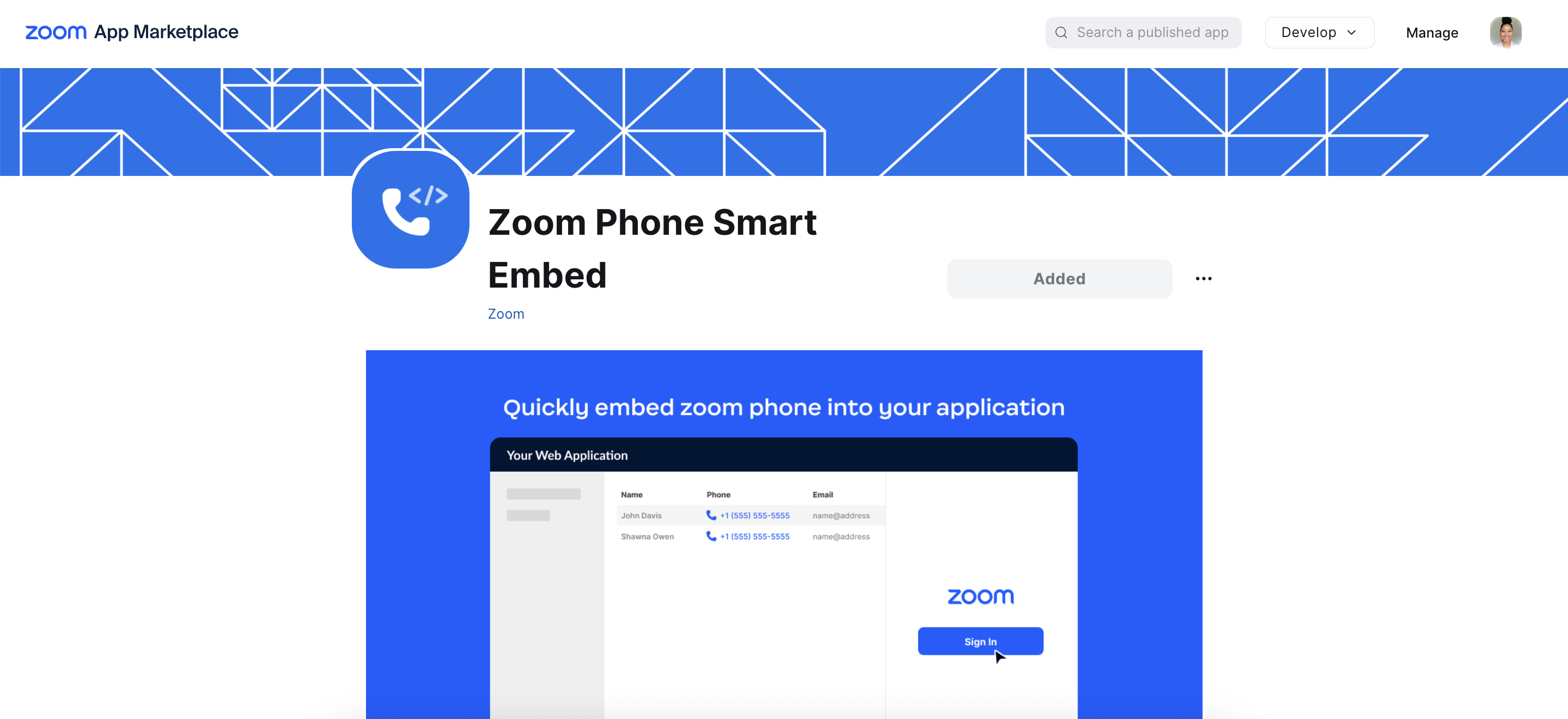
Once you've added the Zoom Phone Smart Embed app to the Zoom Marketplace, you can configure the Zoom Phone Smart Embed app for Salesloft. Check out the Configure the Zoom Phone Smart Embed app for Salesloft section below for more information.
Configuring the Zoom Phone Smart Embed app allows you to embed the app inside Salesloft. This step is what will allow the Zoom Phone dialer to appear inside Salesloft.
To configure the Zoom Phone Smart Embed app to be used with Salesloft, complete the following inside Zoom:
- Enable Zoom Phone Smart Embed in a Chrome extension app. Add the following URL:
- Enable Call Control in 3rd-Party Apps.
- Things to Note: Once you enable the Call Control in 3rd-Party Apps setting, your team will be prompted to manage call controls during their calls. Check out Zoom's Setting call control in 3rd-party apps article to learn more.
Once you’ve configured the Zoom Phone Smart Embed app for Salesloft, you can enable Zoom Phone Smart Embed in Salesloft Connect. Check out the Enable Zoom Phone Smart Embed in Salesloft Connect section below for more information.
Salesloft Connect is Salesloft's Chrome extension application that allows you to take the Dialer with you anywhere outside of Salesloft. By enabling Zoom Phone Smart Embed in Salesloft Connect, you can make and receive Zoom Phone calls from the Salesloft Connect Chrome extension.
To enable Zoom Phone Smart Embed in Salesloft Connect, follow steps in the "How to enable Zoom Phone Smart Embed in a Chrome extension app" section in Zoom's Admin Guide for Zoom Phone Smart Embed Integration. Add the following URL:
Once you’ve added the Zoom Phone Smart Embed app, users on your team can set up the Zoom Phone Integration in their account. Check out the Prepare Your Team to Enable the Zoom Phone Integration section below for more information.
Once you set up the Zoom Phone Integration, each user on your team will need to connect their Zoom Phone account to Salesloft. Connecting your Zoom Phone account to Salesloft allows your call data to be shared between the two platforms.
Share the Connect Your Zoom Phone Account to Salesloft article with your team to prepare them to make the connection.
Want to access a log of your team's Zoom Phone calls? Check out our Calls Standard Report article. Your team can also access their logged Zoom Phone calls from the Person Profile Activity Feed and from the Account Profile Activity Feed.
