Any activities logged in Salesloft, whether they are sent emails, logged phone calls, or other steps, can also be logged in your CRM.
When activities are logged, the type of activity, subject field, and description will be filled out by default. Salesloft activity field configuration allows you to log even more information into your CRM.
Once your fields are mapped, you can leverage the Salesloft activities that have been logged to your CRM to create additional reports.
Things to Note:
- Activity sync is not bidirectional and will only happen from Salesloft into the CRM.
- To get a jumpstart on building reports and dashboards in Salesforce, check out the Insight from Salesloft Dashboard package.
Activity fields are divided into two types: default fields and additional fields.
In this article, we will go over activity field configuration, including:
You must map activity fields to an equivalent CRM field in order to view Salesloft activity field information in your CRM. However, you CRM doesn't typically contain fields named "Cadence" or "Step ID" or any number of these activity fields.
This means you (or more specifically, a CRM Admin) will need to create those fields in your CRM in order to complete the activity field mapping and view all the awesome data that comes along with it. Check out these instructions to create fields in Salesforce.
Things to Note: All users who will log activities in Salesloft must have Read/Write access to all Salesforce Activity fields that are mapped from Salesloft to your CRM.
Here is a complete list of the Salesloft Default Activity Fields and the type of CRM field they should be mapped to:
| Activity Field Name | CRM Field Type | Salesloft Field Description |
| Bounced | Boolean | If an email sent to a prospect bounced. |
| Cadence External Identifier | Text | The identifier you can manually assign to a Cadence, and it will remain the same even on copied versions. |
| Cadence ID | Number | The identifier assigned to a Cadence. |
| Cadence Name | Text | The name given to a Cadence. |
| Call End Time | Date/Time | Time when the caller hangs up. |
| Call Disposition | Picklist | The disposition that the user logged during the call. |
| Call Duration ° | Number | How long the call lasted. |
| Call Sentiment | Text | The sentiment that the user logged during the call. |
| Call Start Time | DateTime | Time when the call is dialed. |
| Call To | Phone Number | The phone number you made the call to. |
| Clicked Count | Number | How many clicks were received on a URL within an email. |
| Email Message ID | String |
The unique string of letters, numbers, and symbols that prevents duplicate email activities in your CRM. |
| Email Template ID | Number | The identifier assigned to an email template. |
| Email Template Title | Text | The name given to a template. |
| Replies Count | Number | How many replies an email has received. |
| Step Day | Number | The day in the Cadence that a step has been set to be run. |
| Step ID | Number | The identifier assigned to a step within a Cadence. |
| Step Name | Text | The name given to a step. |
| Step Type | Text | The type of step (i.e. Email, Phone, or Other). |
| Viewed Count | Number | How many opens/views an email has received. |
| Meeting Assigned To | String | Who the meeting is set with. |
| Meeting Booked By°° | String | Salesloft user who sent the meeting link or booked a meeting on demand. |
| Meeting Canceled Date | DateTime | Updates meeting information in the event the meeting is cancelled. |
| Meeting Duration | Number | Length of the meeting. |
| Meeting Date | Date | Scheduled date of meeting. |
| Meeting Name | String | Name of meeting. |
| Meeting Recording URL | URL | URL link to the meeting recording in Salesloft. |
| Meeting Start time | DateTime | Time when the meeting is set to begin. |
| Meeting Type | String | The designated Meeting Type name that's selected by the User. |
| Meeting No Show | Boolean |
| Salesloft user indicates an invitee did not attend meeting. | |
|
| Meeting Source | Text |
| Will show whether meeting was booked via Salesloft or synced via Calendar Sync. |
|
° Denotes a default Salesforce activity field. This means the field does not have to be custom created.
°°Click Tracking must be enabled for this field. For further details on Click Tracking, check out our doc on Manage Email Tracking.
Salesloft has made the Salesforce activity field creation process simple by providing the Insight from Salesloft managed dashboard package. By downloading the package, most of the activity fields will be created in your Salesforce instance for you (how nice is that?).
Things to Note: While the Insight for Salesloft dashboard package creates the activity fields in Salesforce, it is your team's responsibility to complete the field mapping process after the fields are created.
The Insight dashboard includes the following fields:
Name
|
Field Type
|
| Active Account | Formula (Number) |
| Call Disposition | Text(255) |
| Call Sentiment | Text(255) |
| Salesloft Cadence Name | Text(255) |
| Salesloft Clicked Count | Number(18, 0) |
| Salesloft Email Template Title | Text(255) |
| Salesloft Replies Count | Number(18, 0) |
| Salesloft Step Day | Number(18, 0) |
| Salesloft Type | Formula (Text) |
| Salesloft Unique Click Count | Formula (Number) |
| Salesloft Unique Reply Count | Formula (Number) |
| Salesloft Unique View Count | Formula (Number) |
| Salesloft View Count | |
If you do not wish to download or use the dashboard package and would like to manually create the custom activity fields in Salesforce, you may do just that.
Default activity fields are readily available in Salesloft. This means you can map the fields directly to their equivalent CRM activity field.
Things to Note: While default fields show on the Salesloft side, some of them may not be in your CRM account. Create custom fields in your CRM in order to map the activity fields, OR download our Insight from Salesloft dashboard package, which will create the Salesforce activity fields.
To map default activity fields, follow these steps:
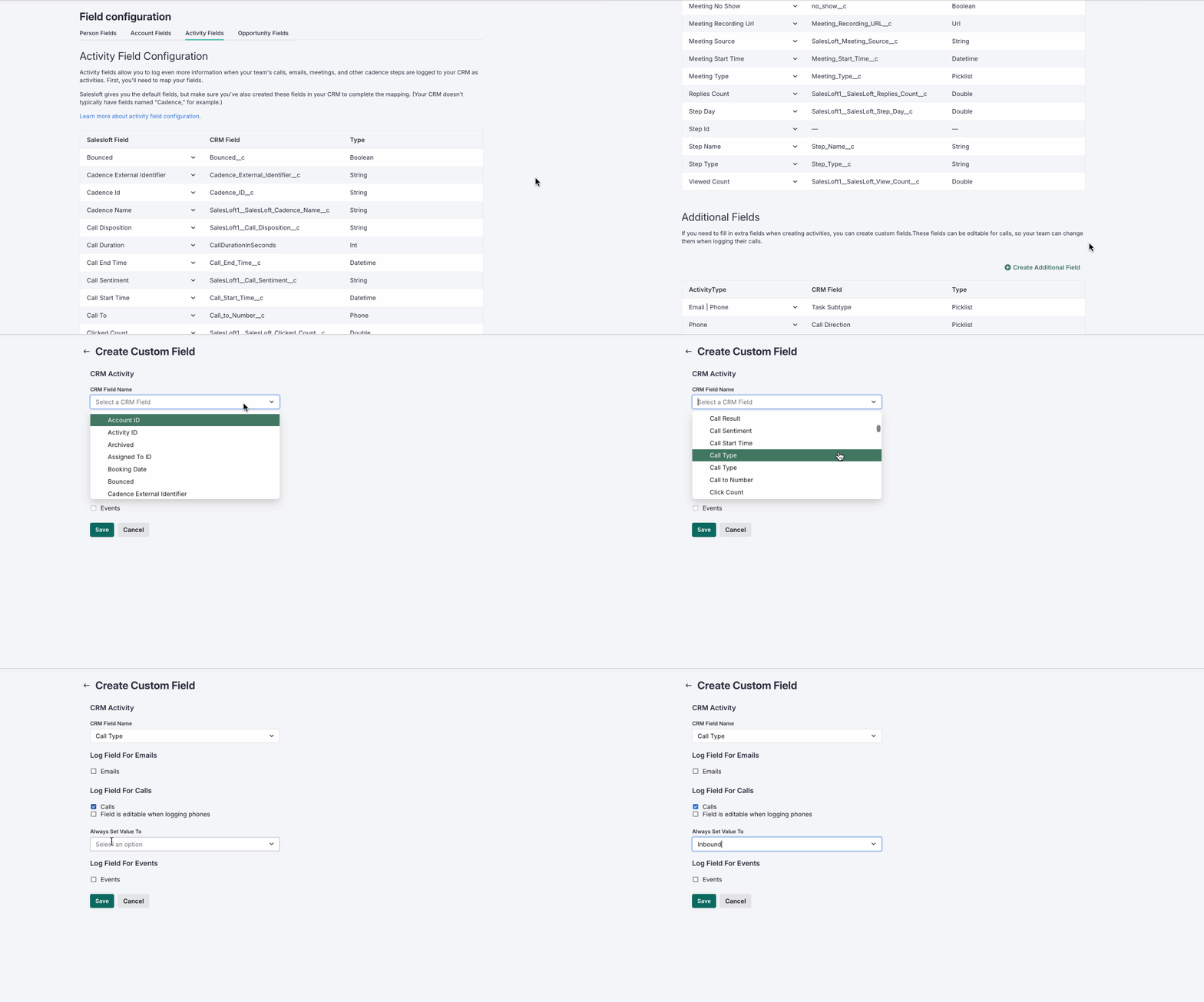
- Navigate to the Activity Fields tab by accessing your Settings, selecting Field Configuration, and clicking the Activity Fields tab.
- Find the Salesloft field you would like to map and select the ellipses on the same line.
- Click Edit Mapping.
- Use the CRM Field Name dropdown picklist and chose the appropriate CRM field.
- Click Save.
If your team uses specific activity fields that need to be logged, you can add those fields in your Additional Fields section.
Additional fields can be set as a default option so all your Salesloft activity is logged the same. Or you can set the field so you can edit the information when your users log a call.
To add an additional field for your activity logging, follow the instructions below:
- Navigate to the Activity Fields tab by accessing your Settings, selecting Field Configuration, and clicking the Activity Fields tab.
- Scroll to the bottom of the page and click New Additional Field.
- From the picklist, select the CRM Field Name the field will map to.
- Check the box(es) for the type of activity you would like to log the field for. When you check a box for the activity you want to log, :
- Emails: Email logs will require a set value. For the Email activity, you must set a value to log in the field information using the following checkbox:
- Always set value to: Sets a fixed value for all emails logged.
- Calls: You have two options for call logs. From the Calls activity, you have the following additional options:
- Field is editable when logging: Selecting this box will add a field to the call log box when your users make their calls. They can update the field when their calls are logged.
- Always set value to: Sets a fixed value for call logs.
- Events: Event logs will require a set value. When you check the Events box, you must set a value to log in the field information:
- Hit Save.
This table provides additional information regarding Standard Fields used for Meeting Logging when syncing meeting activity to Salesforce.
| Salesloft Field Name | CRM Field Type | Example Value | Description | Fields Populates on Events for Meetings | Field Populates on Tasks for Meetings | Fields Populate on Tasks for Conversations |
| Cadence Name | Custom Field (Text) | Inbound MQL Cadence | The Cadence the person was in when the meeting was booked | Yes | Yes | No |
| Meeting Assigned To | Custom Field (Text) | John Doe | The meeting is assigned to the user's calendar for owns the meeting (organizer) | No | Yes | Yes |
| Meeting Booked By | Custom Field (Text) | John Doe | Booking user is the default unless booked on behalf of another user (e.g., BDR booking for AE, 'Booked By' is the SDR). | Yes | Yes | No |
| Meeting Canceled Date | Custom Field (Date/Time) | 3/18/2024, 9:27 AM | If the meeting is canceled through Outlook or Google, the system records the date and time of the cancellation. | Yes | Yes | No |
| Meeting Date | Custom Field (Date) | 3/18/2024 | The date when the meeting is scheduled. | Yes | Yes | Yes |
| Meeting Duration | Custom Field (Number) | 30 | The overall duration of the meeting. | No | Yes | Yes |
| Meeting Name | Custom Field (Text) | Demo | The title of the meeting, equivalent to the subject for tasks logged. | No | Yes | Yes |
| Meeting No Show | Custom Field (Boolean) | TRUE | In the Salesloft app, the meeting can be manually marked as 'No Show.' | Yes | Yes | No |
| Meeting Recording URL | Custom Field (URL) | https://app.Salesloft.com/app/conversation-intelligence/recordings/03b1de62-e1f1-42ad-bf1c-811045dfgdfgdfg | All web conference calls are logged with a link to the Conversation recording. Dialer calls captured via CI are logged as a separate entity and not as a recording | No | No | Yes |
| Meeting Source | Custom Field (Text) | Booked in Salesloft | Two default booking options are available: Booked in Salesloft (via calendar link or in-app) or External Sync (captured through calendar sync on O365 or Google Calendar). | Yes | Yes | No |
| Meeting Start Time | Custom Field (Date/Time) | 10/2/2024, 8:30 AM | The specific date and time when the meeting begins. | No | Yes | Yes |
| Meeting Type | Custom Field (Text) OR
Standard Event Type Field | Default Personal Meeting | By default, it is a Personal Meeting, but users can select a different meeting type in-app for via Google Calendar | Yes | Yes | No |
In this table you can find additional information regarding Preconfigured Fields that do not require mapping when syncing meeting activity to Salesforce.
| Salesforce Field Name | Salesforce Field Type | Example Value | Description | Fields Populate on Events for Meetings | Fields Populate on Tasks for Meetings | Fields Populate on Tasks for Conversations |
| Location * | Standard Field - Event Location | https://salesloft.zoom.us/j/94356728279 | The location field is populated either in-app or provided in Google or O365 calendar invitations. | Yes | No | No |
| Description | Standard Field - Event or Task Description | Description Field | The meeting description field is sourced from the Salesloft Meeting Description or the description in Google or O365 calendar invitations. | Yes | No | Yes |
| Assigned To (Owner) | Standard Field - Task or Event Assigned To | John Doe | The user whose calendar the meeting is booked on in Salesloft is automatically recorded. | Yes | Yes | Yes |
| End (EndDateTime) | Standard Field - Event End | 10/23/2024, 8:45 AM | The start of the meeting, formatted as 10/23/2024, 8:45 AM | Yes | No | No |
| Sart (StartDateTime) | Standard Field - Event Start | 10/23/2024, 8:00 AM | The end of the meeting, formatted as 10/23/2020, 8:00 AM | Yes | No | No |
| Subject | Standard Field- Event or Task Subject | Meeting Booked: Meeting with Salesloft Demo |
The subject field is pre-configured for Events and Tasks and follows a specific format:
For meetings booked or captured via Calendar Sync: "Meeting Booked: [Meeting Name]"
For meetings logged from Conversations: "Recording: [Meeting Name]"
| Yes | Yes | Yes |
| Attendees | Standard Field - Event Attendees | John Doe | The Attendees field displays all attendees and their acceptance status for the event. However, if Shared Activity Syncing is in use, this field will not be populated. Attendees are included only if their email addresses exist in both Salesloft and Salesforce. | Yes | No | No |
| Created By | Standard Field- Task or Event Created By | John Doe | The user whose calendar the meeting is booked on may differ from the actual person who created the meeting in Salesloft. | Yes | Yes | Yes |
| Name (Who ID) | Standard Field - Task or Event Name | John Doe | Lookup(Contact,Lead). The related Lead or Contact is determined based on whether Shared Activities is enabled or disabled. If enabled, the field links to all attendees on the invite; if disabled, it links to the specific Lead or Contact. | Yes | Yes | Yes |
| Related To (What ID) | Standard Field - Task or Event Related To | Salesloft | Lookup(Account,Opportunity). The related opportunity is populated if the associated Contact is a Contact Role on an open Opportunity. | Yes | Yes | Yes |
*Things to Note: Microsoft Teams recently updated its meeting link format to include additional URL parameters. These updated links may exceed 255 characters — the maximum character length for Salesforce's standard Location field on Events and Tasks. When a Teams link exceeds this limit, Salesloft omits it from the Location field entirely to prevent a broken URL from being stored. The meeting itself syncs normally; only the Location field is affected. This issue primarily affects users on the legacy Teams client. The new Teams client generates shorter links that comply with the 255-character limit.
- If your team regularly uses Microsoft Teams and relies on the Location field for meeting links, consider mapping a custom Salesforce field with a higher character limit in place of the standard Location field. Work with your Salesforce admin to create a custom text field and update your Activity Field Configuration mapping accordingly.
If your team uses Tasks Subtypes inside Salesforce, you can select a subtype value when logging Salesloft activities. With the Task Subtype log in place, you can filter and view Salesloft activities at a more granular level inside Salesforce.
To set the Task Subtype of Salesloft Activities, map the field as a Custom Activity field.
Things to Note:
- When mapping activity fields, all Users must have read and write access to the field based on Salesforce Field Level Security. Sync errors will occur if a user, including the admin, does not have read and write access to the Task Subtype Field in Salesforce Field Level Security. To resolve the issue, have a Salesforce Admin update your user profile so you have read and write access to the Task Subtype Field.
- The Task Subtype can only be set when the Task is being created and cannot be changed.
The Task Subtype field mapping is managed under Additional Fields on the Activity field configuration table.
When you map this field, set a value of Email for Emails logged, and Call for Calls logged.
Things to Note: Do not make this field editable when logging a call.
