Once you begin completing your activities, you want the assurance that the activity is correctly logged to your CRM. Unfortunately, log errors can still happen due to one reason or another.
The good news is that we provide you with CRM Notifications!
In this article, you will learn how to view and manage CRM notifications when they occur, including:
As an individual user, you need to know whether or not your activities are logging to your CRM so you can be sure that your data is all in sync. Salesloft provides a notification that will keep you up to date if any activity fails to log to your CRM. Also, this shows your CRM status — whether you are connected or disconnected to your Salesforce instance.
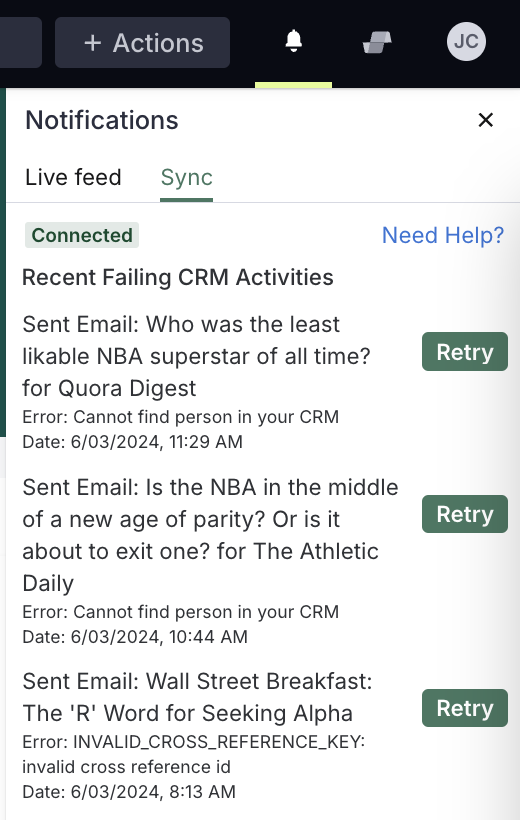
Where is this notification? In the top right corner of your navigation menu, you'll see a bell icon. When an activity fails to log to your CRM it will show in a menu accessed through the bell icon. Click the bell icon and then click sync to view the most recent failed activities. These failed activities display an error message, and allow you to retry the failed activity.
To view your failed CRM activity logs, follow these steps:
- Click the bell icon in the upper right corner of your Salesloft Top Navigation.
- A dropdown menu will appear, click Sync to view your most recent CRM activity failures. The failure will include the activity that failed and an error message for why the failure occurred. Use the error message to address the issue. If necessary, escalate the error to your team admin.
- Once the error has been addressed, click Retry to attempt to log the activity again.
If you have many error messages, you can click View All Failing Activities at the bottom of the dropdown menu. This will take you to a page with all of the failing CRM activities listed.
When your team logs Salesloft activity to your CRM, each user can track their failed CRM log attempts from the bell icon or from their CRM Settings page. While it's useful for each user to be aware of any logging failures, most users can't fix the errors that cause a log failure because they don't have Salesforce Admin access.
Which is why Salesloft admins can view the failing Salesforce activities of your entire team. Think of this like a safety net for you to catch a logging failure and fix the error, where a failed log may otherwise go unnoticed (and harm your data).
Admins can see recent failing SFDC activities for the entire team from the lightning bolt icon, aka the New Salesforce Notifications on the nav bar. There will be a notification badge on the lightning bolt icon whenever any user's activity fails to log in Salesforce.
If your CRM disconnects from Salesloft, your activity will not be able to log. This can cause a backup of errors that will need to be addressed and could potentially slow down your work flow.
The CRM Connection Lost banner notifies you if your CRM ever loses connection from Salesloft. The banner will appear as a red bar across the top of your Salesloft window, directly beneath the top navigation bar.
Things to Note: The CRM Connection Lost banner is visible for both Salesforce CRM and Dynamics CRM customers.
There are two types of CRM Connection Lost Banners. The banner you see will depend on whether you are a Salesloft user or the Main CRM Connector.
Salesloft User CRM Connection Lost Banner
If you are an Salesloft users and your CRM Connection is Disabled or in a bad state, you will see a Global Alert Banner letting you know you need to resolve this issue immediately.
A button towards the right side of the banner will direct you to your Person CRM Connection's page.
Main CRM Account Connection Lost Banner
When the Main CRM Connector is Disabled or in a Bad State, every admin for that Salesloft instance will see a Global Alert Banner letting them know they need to resolve this issue immediately. Since the loss of connection for the Main CRM completely halts CRM sync for your team, all team admins will also be alerted of the lost connection with the global alert banner and receive an email notification.
A button towards the right side of the banner will direct you to your CRM Sync Settings page. Here, the Main Connector or any team admin can Manage your CRM Settings and resolve the issue.
The Failing CRM Activities page shows a log of any activities that failed to push to your CRM. These logs are kept in Salesloft, and show the issue in your CRM (like an unmapped field or field restriction), that is keeping Salesloft from completing the log.
You can access the Failing CRM Activities page for one of the following locations:
- Click the bell icon in the upper left corner of the navigation bar.
- From your Personal CRM Settings, click the View Failing Settings option.
On the Failing CRM Activities page, you will see a table with all of the failed activities listed. The data shown on the page will differ based on your roles and permissions. For example, as a standard user, you will only see logs that you have attempted. Team admins and users with the Manage CRM Logs permission with see logs for the entire team.
To learn more, check out the Failing CRM Activities Log article.
