What are our call sentiments? Your Call Sentiments let you know the outcome of your connected calls. Was the call a bad fit? Is the prospect interested in more information?
To view the Call Sentiments Analytics, select Team Productivity in the Analytics drop down and then click on Call Sentiments.
The sentiments will determine your positive call ratio. If your calls result in a low positive call ratio, you can take that information as a tip to learn more positive call practices, like editing your call scripts or using more call coaching.
Things to Note:
- Sentiments that have not been selected when a call is logged will not appear in the chart.
- If you have only used the Sentiment field without the disposition of Connected, that data is still included. This means the total number in the circle might not match the number of Connected Calls.
In this article, you will learn about Call Sentiments Analytics, including:
Call Sentiment Analytics consists of two charts and a drill down table. Use the filters to adjust the data that you see.
The Call Results Panel
The Call results panel contains the following details from the top of the panel working our way down:
- Panel Name: Call results
- Primary Metric: Calls logged
- Primary Metric Chart: Below the Calls logged metric, the chart shows the visual representation of the primary metric.
- Secondary Metrics:
- % Positive calls
- Voicemails
- Connected calls
- Positive calls
- Period Comparison based on date selection: To the right of the metrics, you will see a small percentage in either green or red. This will show how your numbers have increased or decreased over time.
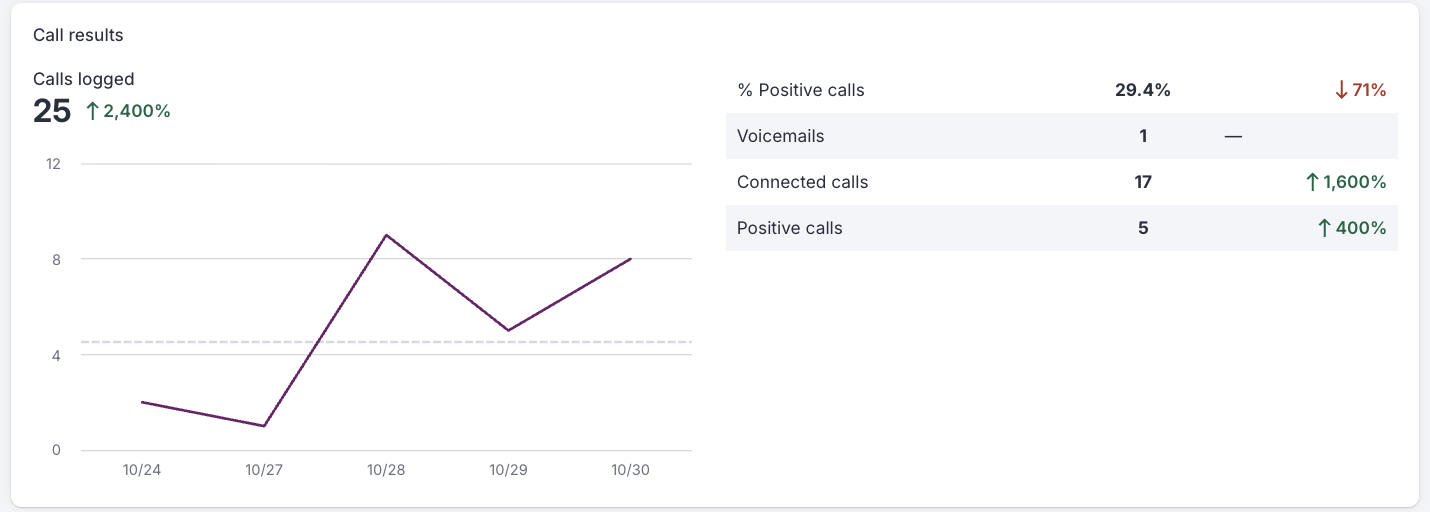
Figure 1: Example: Call results panel
The Top 10 Call Sentiments Panel
The Top 10 call sentiments panel contains the following details from the top of the panel working our way down:
- Panel Name: Top 10 call sentiments
- Chart: A horizontal bar chart of up to 10 sentiments ranked in descending order by the number of times a call is logged with that sentiment.
- Legend: Shows the roles associated with each sentiment count displayed in the graph. You can hover over a sentiment in the chart to highlight the number of roles associated with that sentiment. If you do not wish to see a particular role in the graph, you can deselect that option by clicking the name of the role you do not want shown. The option will be removed from each sentiment's bar when it's been deselected.
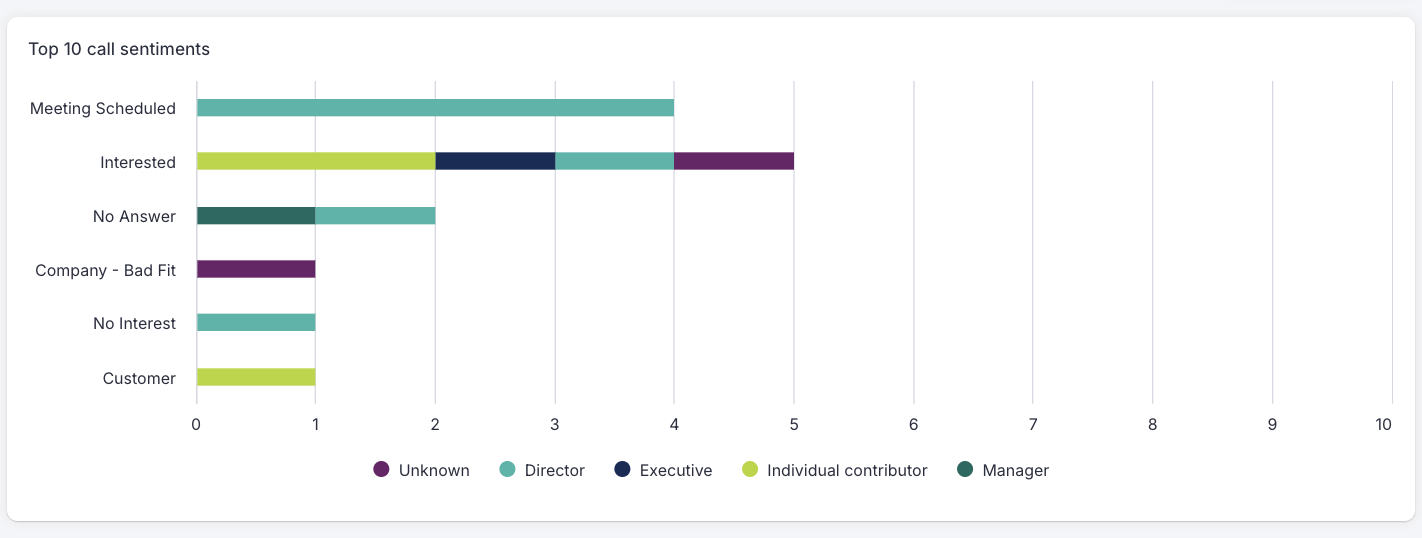
Figure 2: Example: Top 10 call sentiments panel
Call Sentiments Standard Report
The Call Sentiments report provides a detailed record of each team member's call data.
The Call Sentiments report data can be adjusted by using Analytics Filters. When you change any of these filters, you can save the page view to Create Custom Reports.
Salesloft offers specific reports that focus on Call Sentiments. The available reports include:
- Call Sentiments by User
- Call Sentiments by Sentiment name
- Call Sentiments Over Time
Call Sentiments by User View
Use the dropdown on the left side of the screen to switch to the Call Sentiments by User view.
The Call Sentiments by User view filters the Call Sentiment Standard Report to display the total number of call sentiments logged by each user.
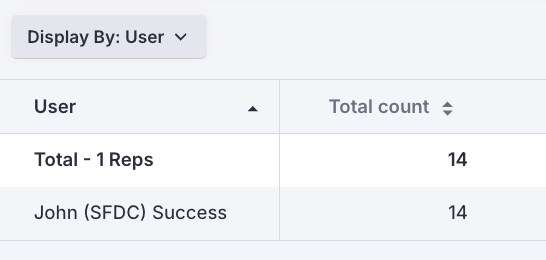
Figure 3: Call Sentiments Standard Report filters by User
Call Sentiments by Sentiment Name View
Use the dropdown on the left side of the screen to switch to the Call Sentiments by Sentiment name report view.
The Call Sentiments by Sentiment name view filters the Call Sentiment Standard Report to display the total number of times each sentiment was logged.
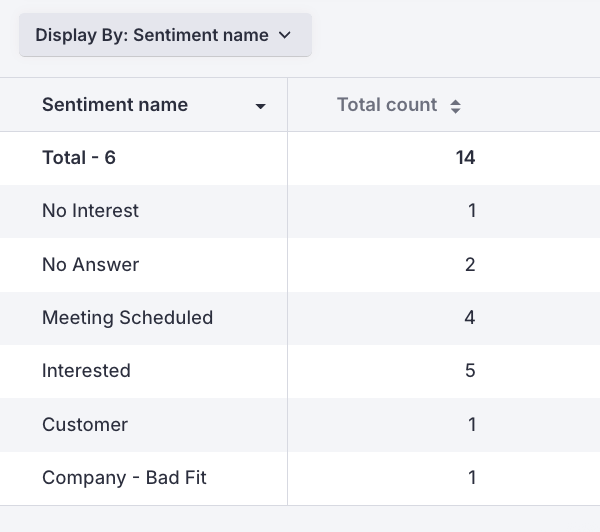
Figure 4: Call Sentiments Standard Report filters by Call Sentiments by Name
Call Sentiments Over Time View
Use the dropdown on the left side of the screen to switch to the Call Sentiments Over Time report view. Choose from the following timeframe options:
- Hour
- Day
- Week
- Month
- Hour of Day
- Day of Week
The Call Sentiments Over Time view filters the Call Sentiment Standard report to show the total number of call sentiments logged over a selected period of time.
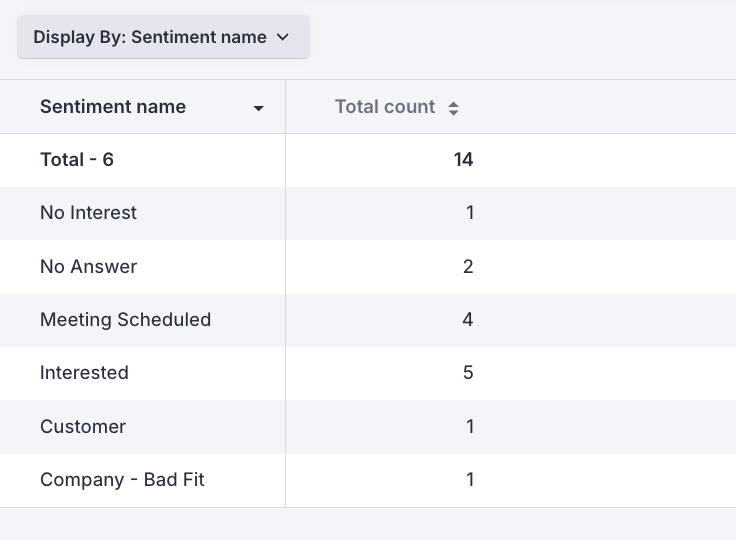
Figure 5: Call Sentiments Standard Report filters by Call Sentiments Over Time
To learn more about Call Sentiment Analytics, check out:
