By following these troubleshooting steps, you should be able to resolve common OAuth error codes encountered with Salesforce and ensure a smooth integration with Salesloft. If issues persist, please reach out to Salesloft support for further assistance.
In this article, you can find common OAuth errors that may occur with Salesforce and possible fixes, including:
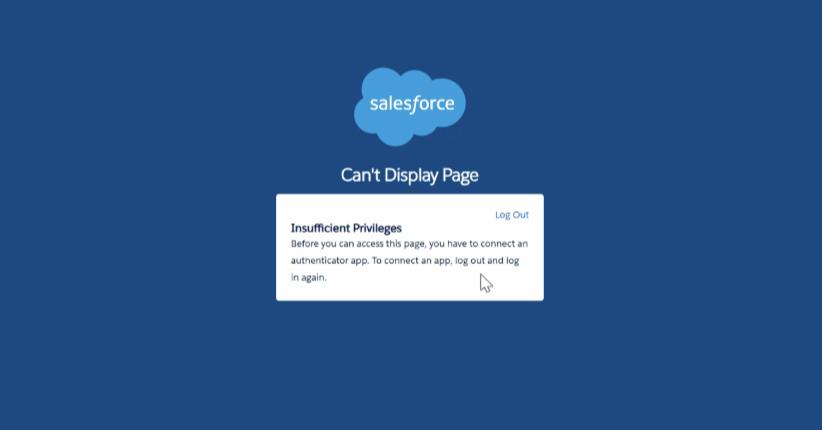
Figure 1: Insufficient Privileges error message in SFDC.
Symptoms
Users experiencing this issue may notice:
- An error message stating:
“Insufficient Privileges. Before you can access this page, you have to connect an authenticator app.” - Being blocked from accessing certain pages or the system entirely
- Being prompted to log out and log back in
Common Causes
The “Insufficient Privileges” error is a Salesforce Identity Verification Enforcement error that occurs when a User Profile or Permission Set requires Multi-Factor Authentication (MFA), but the user’s account has no registered verification method (e.g., Salesforce Authenticator, Google Authenticator, or a Security Key).
Troubleshoot
To do this via a Salesforce Permission Set, follow the steps below:
- Setup → Permission Sets.
- Open the relevant Permission Set (or create a new one).
- Click "System Permissions".
- You'll see "Waive Multi-Factor Authentication for Exempt Users" — check the box and Save.
- Then assign the Permission Set to the API-only integration user.
Symptoms
Users experiencing this issue may notice:
- An error message during the login or authentication process stating:
OAUTH_APP_ACCESS_DENIED&sso_provider=salesforce - Being blocked from connecting their Salesloft account to Salesforce.
- An inability to sync data between the two platforms despite having valid credentials.
Common Causes
This error occurs when the Salesloft Data Sync App policies in Salesforce are restricted to "Admin approved users are pre-authorized," but the specific user's Salesforce Profile has not been explicitly added to the allowed list. Salesforce is blocking the connection because it doesn't recognize the user's role as having permission to use the Salesloft integration.
Troubleshoot
To resolve this and grant the necessary permissions within Salesforce, follow the steps below:
- Navigate to the Setup menu in Salesforce.
- In the Quick Find box, search for and select External Client Apps.
- Locate the Salesloft Data Sync App (listed as Salesloft SF Sync) in the list.
- Click Manage App Policies (or click the App Name, then click Edit Policies).
- Ensure the "Permitted Users" field is set to "Admin approved users are pre-authorized."
- Scroll down to the Profiles section at the bottom of the page.
- Click Manage Profiles and check the box for the specific Salesforce Profile(s) assigned to your impacted users.
- Click Save.
Starting in September 2025, Salesforce is enforcing new security restrictions on how third-party applications connect. This may cause connection issues for new users or when re-authenticating the Salesloft integration.
The Solution
The Salesloft Data Sync App needs to be installed and approved within your Salesforce org before users can authenticate. If you have not yet installed the Salesloft Data Sync App, see Install and Connect the Salesloft Data Sync App from Salesforce Marketplace for full instructions.
If the app is already installed and users are still seeing this error, a Salesforce Administrator can resolve it using one of the following options:
Option 1: Confirm App Status (Recommended)
- As a Salesforce Administrator, go to Setup.
- In the Quick Find box, search for External Client Apps and select it.
- Locate the Salesloft Data Sync App (listed as Salesloft SF Sync).
- Confirm the App Status is set to Enabled. If it is not, enable it.
Option 2: User-Specific Permission
If for any reason Option 1 is not feasible, a Salesforce Administrator can grant a specific permission to the user's profile.
- Your Salesforce Administrator should navigate to Setup.
- In the Quick Find box, search for "Profiles" and select the user's profile.
- Under the "System Permissions" section, they should enable the "Approve Uninstalled Connected Apps" permission.
Final Step for Your Users
Once the Salesforce Administrator has completed one of the steps above, please have your users do the following before trying to connect again:
- Clear their browser's cache and cookies.
- Try connecting to Salesforce from Salesloft again by going to Settings → CRM → Connect.
Additional Resources
To learn more, check out this detailed article about this issue.
Verify that the user's profile in Salesforce has been granted the "API Enabled" permission. This is crucial as it allows the user to make API requests within your Salesforce organization. Lack of this permission will prevent the user from connecting their personal Salesforce account to send activities.
Navigate to Setup in Salesforce and search for External Client Apps in the Quick Find box. Locate the Salesloft Data Sync App (listed as Salesloft SF Sync) and confirm it is not blocked. If it is blocked, unblock the app to restore connectivity.
Things to Note: If your team is in the process of migrating from the legacy Connected App to the Salesloft Data Sync App, do not block the legacy Connected App until all users have re-authenticated via the Salesloft Data Sync App. See Migrate Your Team from the Connected App to the Salesloft Data Sync App for Salesforcefor Salesforce for guidance.
If your organization enforces IP restrictions for connected apps, it's essential to ensure that Salesloft's IPs for your team’s specific region are correctly whitelisted within the user's profile.
Troubleshooting Steps:
-
Reach out to Salesloft Support to request the whitelisting of all traffic from Salesloft servers in Salesforce for your team’s instance.
-
Once Support confirms the completion of this request, you will be provided with an IP address for whitelisting.
