When someone’s personal Snippet is working extremely well, you may want to make that Snippet accessible to your entire team and share that wealth of content. The easiest way to share content is by converting a personalized Snippet into a team Snippet.
Salesloft admins and users with the Manage Team Snippets permission can convert personal Snippets into team Snippets– giving your entire team access to the content.
In this article, you will learn how to convert a personal Snippet into a Team Snippet. This article includes:
- Once converted to a team snippet, edits may be restricted based on user roles and permissions.
- Converting a personal Snippet into team Snippet will not remove the original personal Snippet.
For a quick overview of how to convert a personal Snippet into a Team Snippet, check out this video:
To convert a personal Snippet into a team Snippet, follow these steps:
- Navigate to the Snippets Page: Hover over the Content tab on the top navigation panel, then select Snippets. This will direct you to the Snippets page.
- Find and select Snippets: Filter & sort to find the selection of Snippets you would like to choose from. For example, you could filter by the user who created the Snippet. Check the box beside the Snippet(s) you wish to copy. Additional actions will appear at the top of the table.
- Select “Convert”: Click More from the actions that appear above the table, then select Convert. The Convert Snippet modal will appear.
- Add Group assignments: From the modal, click the text box and check the box(es) beside the group(s) you want to assign the converted Snippet to.
- Things to Note: By default, boxes beside the current user's group and their children groups will be selected. You can uncheck the boxes to deselect a group.
- Confirm Action: Hit Convert. Once a personal Snippet is converted, users will see a new Snippet created under Team Snippets list with the same name and body as the original personal Snippet.
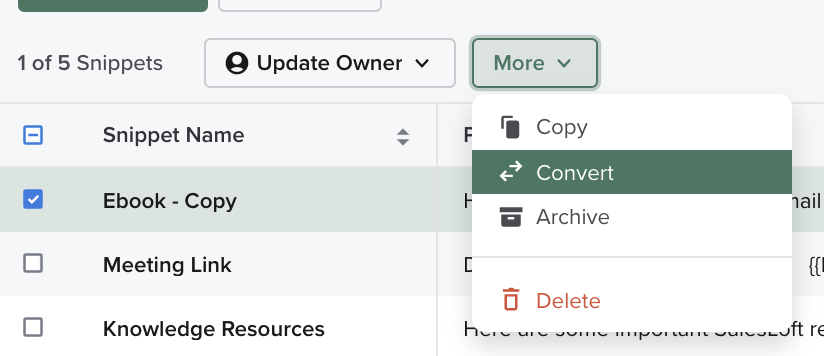
Figure 1: Convert a personal Snippet into a team Snippet from the Snippets page.
Once you convert a personal Snippet into a Team Snippet, you can assign it to groups. When you assign a Team Snippet to a group, visibility is based on group visibility, not ownership. Assigning team snippets to a group requires the same permission as editing team snippets: Manage Team Snippets.
- Notify Your Team: Let team members know the snippet is available and how to use it.
- Test for Effectiveness: Track usage and response rates to ensure the snippet performs well.
