Salesloft Deals helps you track and manage opportunities by syncing data between Salesforce and Salesloft.
To ensure opportunity data stays accurate and up to date, you may occasionally need to create a new object while working in Deals. If you notice that something is missing—like an account, contact, or opportunity—you can create a new object directly within Deals.
In this article, you will learn how to create a new object in Deals. This article includes:
- There are three types of objects you can create inside Deals, including:
- Contact
- Account
- Opportunity
- All objects created inside Deals will be synced back to Salesforce.
- Fields displayed may vary based on your team's Object Creation Settings. A team admin can go to the Deals Admin tab, go to Screen Settings, and select CRM Object Creation. From that tab, the admin can manage the fields shown when new objects are created.
Check out the following videos on how to create objects in Deals:
Create a New Account
Create a New Contact
Create a New Opportunity
Contacts are the people you work with throughout the Deal. Inside of Deals, these people may also be known as your stakeholders.
While Contacts are very similar to Leads — and may even start as a Lead — Contacts must be associated with an Account in Salesforce.
To create a new Contact from Deals, follow these steps:
- Navigate to Deals: Hover over the Workspace tab on the top navigation panel, then select Deals. This will direct you to the Deals page. You will automatically land on the Pipeline tab.
- Select “Create Object”: Click the Create Object dropdown in the upper right corner of the page.
- Select “Contact”: Click Contact. The Create Contact modal will open.
- Enter the field details: Required fields will have a red asterisk.
- Assign the Contact to an Account: Next, you’ll need to assign the Contact to an Account. Select one of the following Record Type options:
- Existing Account: Add the Contact to an Account that already exists in Salesforce (and Deals). If you choose to add the Contact to an existing Account, click the Account dropdown to type the name of an Account. Results will populate as you enter the word. Select the name of the Account.
- Create New Account: Add a new contact to a new Account. If you choose to create a new Account, enter the Account name and website url (optional). Enter the Account Name (required) and Website (optional).
- Hit “Create Contact”: Select the Create Contact button.
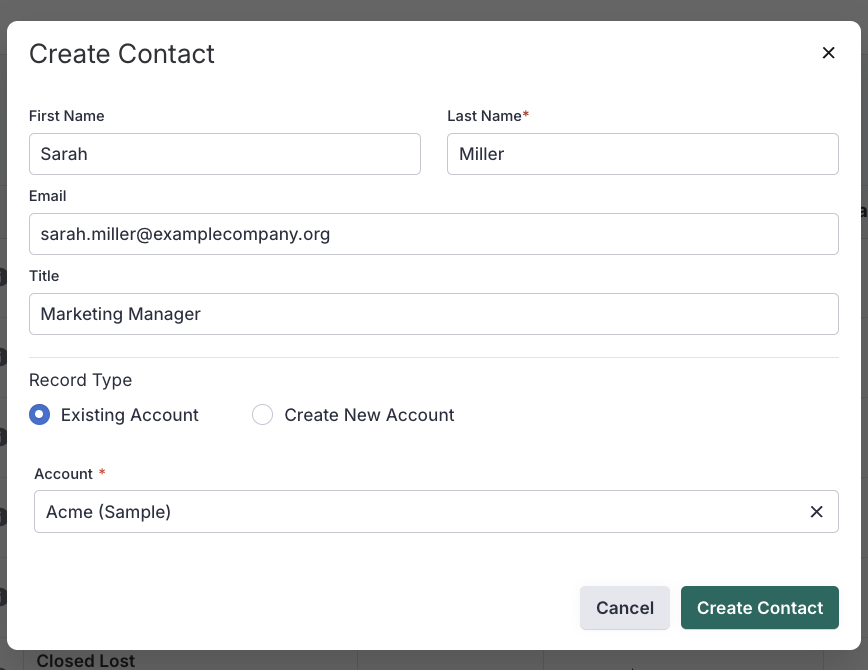
Figure 1: Create a new contact in Deals.
Accounts are the businesses that you are trying to close Deals with in Salesforce. Typically, these will be company names.
To create a new Account from Deals, follow these steps:
- Navigate to Deals: Hover over the Workspace tab on the top navigation panel, then select Deals. This will direct you to the Deals page. You will automatically land on the Pipeline tab.
- Select “Create Object”: Click the Create Object dropdown in the upper right corner of the page.
- Select “Account”: The Create Account modal will open.
- Enter the field details: Required fields will have a red asterisk.
- Hit “Create Account”: Select the Create Account button.
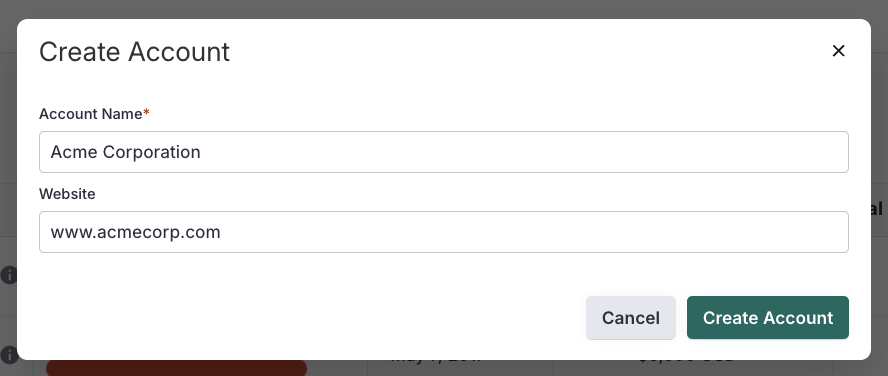
Figure 2: Create a new Account in Deals.
Your Opportunities are the potential future sales for an account you want to work on or track. Your Salesforce Opportunities equal your Salesloft Deals.
To create a new Opportunity from Deals, follow these steps:
- Navigate to Deals: Hover over the Workspace tab on the top navigation panel, then select Deals. This will direct you to the Deals page. You will automatically land on the Pipeline tab.
- Select “Create Object”: Click the Create Object dropdown in the upper right corner of the page.
- Select “Opportunity”: The Create Opportunity modal will open.
- Enter the field details: Required fields will have a red asterisk.
- Hit "Create Opportunity": Select the Create Opportunity button.
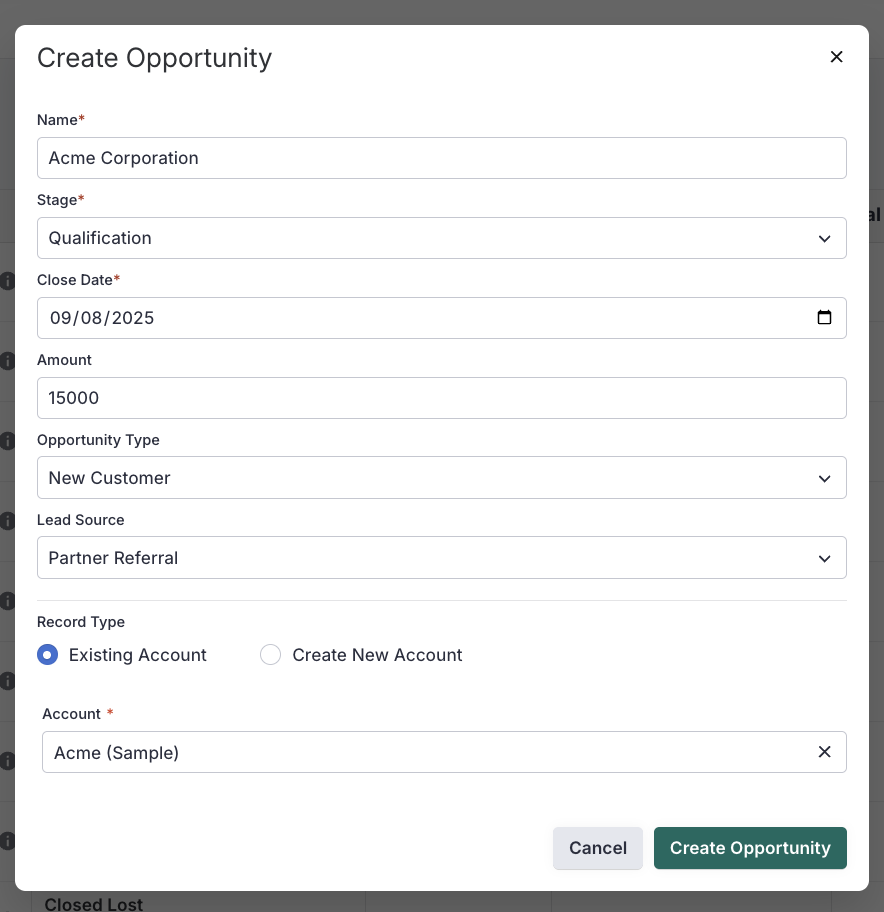
Figure 3: Create a new Opportunity in Deals.
Dependent Fields When Creating an Opportunity
When creating a new Opportunity, there are often fields that are required for the creation to complete successfully.
Salesforce required fields show up when you are creating a new opportunity in Deals. Only valid pick lists options that are dependent on other fields in object creation will be shown. You can see what fields are required to create a new opportunity, update them, and save the new opportunity.
Things to Note: The dependent field needs to be added to the opportunity creation screen through the admin settings in Deals so it can be seen
Auto-Add Stakeholders
When you create a new opportunity in Deals, the Added Stakeholders window will appear. This window shows relevant stakeholders who were automatically added based on their engagement within the last 60 days.
You can keep these stakeholders, or alter them to suit your needs.
To review and make changes to automatically added stakeholders, follow these steps:
- From the Added Stakeholders window, review the stakeholders that were automatically added to your opportunity.
- To change a stakeholder’s role:
- Use the Opportunity Contact Role dropdown to select a new role for the stakeholder.
- Click Save.
- To delete or remove a stakeholder:
- Click the checkbox beside a stakeholder’s name.
- Click Save.
