Sometimes creating a sales forecast can feel like you are throwing darts at a board and hoping you land on the right number. To help take the guesswork out of your forecasting, you can lean on the data from your own previous opportunities. By seeing how sales have progressed in the past, you can calculate how different types of deals will develop in the future, and build an accurate forecast.
Deals Flow Chart takes the data you need to make an informed forecasting decision and lays it out in a way that clearly shows your pipeline trends.
To get to the Deals Flow Chart, hover over Analytics in the Salesloft top menu and select Pipeline Review. From the Pipeline Review Analytics page, click the Flow Chart tab. The Flow Chart page consists of filters, the Deals Flow Chart, and an opportunity list view that can help you see how your sales have progressed over a period of time.
In this article, you will learn the parts of the Deals Flow Chart and how to analyze the details, including:
The actual Deals Flow Chart dominates the majority of the Flow Chart page. The contents inside the chart may change based on the filters you have selected, your team's Salesforce settings, or your amount of data.
Let’s take a look at the different components of the Deals Flow Chart.
The Deals Flow Chart at a Glance (Unselected View)
When you first see the chart with all of the data, this is known as the "Unselected View." The Unselected View does not highlight a specific track inside the charge. This view sets the stage for your data. You can get a quick glimpse at the data included inside the Flow Chart before diving into the specifics.
Let's walk through the different pieces of the Deals Flow Chart.
Figure 1: The Deals Flow Chart (unselected view)
- Categories and Amount: The categories are the types of deals as determined in your Salesforce Forecast configuration. The amount listed to the right of the category tells you the amount of money associated to the deals included in that category. Some standard categories include:
- Pipeline: Early stages of opportunity development that have not been assigned to a Forecasting category yet.
- Best Case: This indicates the sales process may be completed by the close date, given an ideal set of circumstances that the seller documents and shares during forecast meetings.
- Commit: Based on the seller’s best estimates, the sales process will complete by the close date reflected.
- Omitted
- Closed
- New: Opportunities that have been added as new during the presented period. These will not be linked to any categories on the left side, as they have just been created as new ones. This metric will be under the line on the chart, and the sum of these deals will be added to the end pipeline amount only.
- Pulled In: This represents opportunities that were not scheduled within the timeframe presented, however, have been pulled into this timeframe, from a future date. This metric would be under the line and will not be calculated in the pipeline start amount, as this has been added to the calculation after the pipeline start date. This number will be added to the pipeline end sum.
- After (date) Line: Events below the line happened after the start date of the chart. Items above the line include anything that was in that Category (Pipeline, Best Case, Commit etc.) ON as of the start date.
- Date Range: The time period for the Flow Chart.
- Deal Sizes: The amount range for deals included in the chart from lowest to middle to highest amounts.
- Flows: The connecting lines that represent the movement of opportunities from left to right. These show the trends of the various types of opportunities into stages over time.
- Stages and Amounts: The stages mimic the opportunity stages found in your teams Salesforce instance. Salespeople update the opportunity stage as the deal moves through the sales process. The Amounts listed to the right of the stages tell you the dollar amount attributed to the opportunities with that stage label. Stages include:
- Won: Opportunities that have been closed as won.
- Idle: Opportunities under this category have not changed stages to one of the handfuls of stages that we present on the right-hand side of the chart. This would also include opportunities that moved between stages which are not presented in the chart, such as Advanced, Regressed, moved to develop, etc.
- Pushed Out: Indicates that the close date for these opportunities has been pushed out. This metric will be under the line, and the amount of Pushed will be subtracted from the pipeline end number.
- Lost: This indicates that these opportunities have been closed as lost. This metric will be under the line, and the amount of Lost will be subtracted from the pipeline end number.
Analyze the Deals Flow Chart (Select View)
Now that you understand the different parts of the Deals Flow Chart, how can the chart help you make an informed forecasting decision?
The movement of the opportunities is represented with a connecting line, from left to right. Inside the chart, select any of the lines connecting to highlight the tracks that the category took. Flows may split into multiple different lines. For example, when you select Pipeline, tracks can lead to Won and Pushed based on the stages of the opportunities.
By tracking this kind of movement, you can learn if the opportunities marked in your Forecast categories are successful (Won) or if they are struggling (Pushed/Lost).
Figure 2: Example: The Deals Flow Chart (select view)
When you hover over the flow line, a tooltip appears that includes specific details for that flow like the direction, opportunities data included in the flow, and the percent of opportunities moving to a certain stage out of the full category.
Deals Flow Chart Opportunity List
Below the chart, is a list of opportunities that contribute to the chart’s data based on your filter parameters. When you select a specific flow inside the chart, the opportunity will adjust and show only the opportunities that apply that line of flow.
This list allows to you view the opportunities that may have the greatest impact on your pipeline and forecast, or be your greatest liability.
Things to Note: The Flow Chart list can accommodate up to 10,000 opportunities in the data table.
Inside the opportunity list table, you can edit fields, select columns, and even manage the columns that are visible using the Column Selection icon found on the row of filters. Editing fields may be particularly helpful if there are any data updates that need to be reflected in your chart.
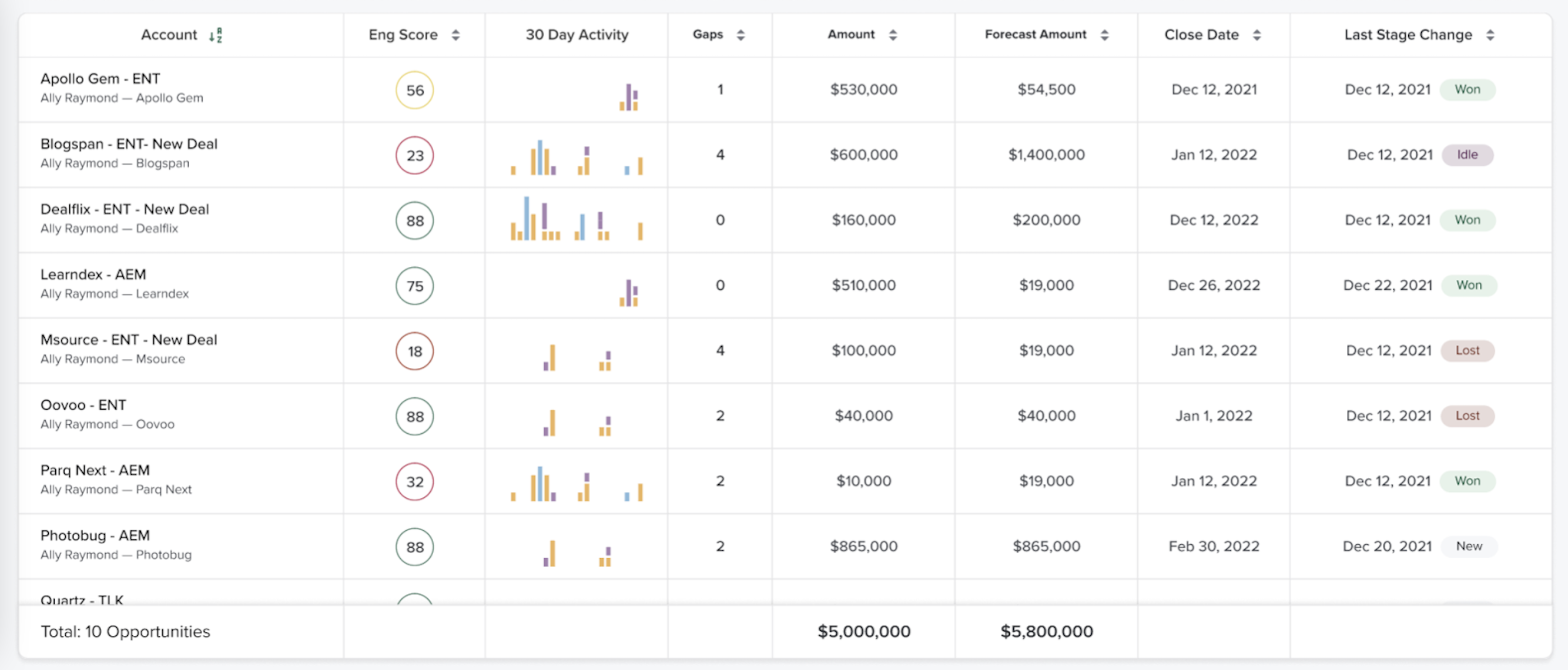 Figure 3: Example: The Deals Flow Chart Opportunity List
To learn more about Deals Flow Chart Analytics, check out:
