When a person is created in Salesloft without being imported from your CRM, it will remain unlinked unless:
- A CRM record with the matching email address already exists.
- An Automation Rule is configured to create the record.
- The user manually creates the person as a Lead or Contact in the CRM.
In this article, you will learn the actions to take to avoid unlinked People in Salesloft by creating Leads or Contacts in your CRM. This article includes:
Before users create Leads or Contacts in your CRM, we recommended performing the following setup:
- Map essential Lead and/or Contact fields: To ensure complete data sync to your CRM, bi-directionally map all essential Lead and/or Contact fields.
- This includes Last Name, First Name, Email Address, Company Name, Owner CRM ID (for accurate ownership), and Account CRM ID (to link Contacts to Accounts). Fields that are not bi-directionally mapped will not sync to your CRM when records are created.
- To set the field direction, go to Settings, then select Object and field configuration. Go to the Person fields. Then, click Edit next to the desired field name and select Salesloft ⇋ CRM under Direction.
- Mark CRM fields as Mandatory: To maintain data integrity and ensure automation rules trigger, mark your required CRM fields as mandatory in Salesloft.
- Implement fallback values for these fields to accommodate records created from sources that don't enforce required inputs.
- To configure a field as required for Salesloft person creation and set a default value, navigate to
- Settings, then select Object and field configuration. Go to the Person fields. Then, click Edit for the desired field, then check Make required for Salesloft person creation and specify the Salesloft default value.
- Map CRM Username to Users: Ensure all users are mapped to their CRM Username. This mapping is essential for Salesloft to correctly set the CRM Owner to the Salesloft Owner.
- When adding new users, this setting is automatically configured if their email addresses match in both Salesloft and your CRM.
- To map users to their CRM Username, go to Settings, Users, then assign the CRM Username in the User table.
- Confirm Fields are Mapped across third-party sources: When exporting records directly from a third-party data source to Salesloft, ensure all relevant fields are accurately mapped.
- For example, when configuring the ZoomInfo to Salesloft integration, confirm that the "Company Name" field in ZoomInfo is mapped to the "Company Name" field in Salesloft.
If your organization requires all Person records to exist in your CRM, create Automation Rules to automate this process. These rules can trigger when the person record is created or when an activity is logged.
Things to Note:
- Important Best Practice: Always place a "Create Lead in CRM" rule below your "Create Contact" rule. This acts as a fallback, ensuring people are still created as Leads in your CRM even if their Salesloft Account isn't yet linked to a CRM Account.
- Salesloft Automation Rules cannot create CRM Account records.
Create a "Lead Creation" Rule Example (Recommended)
To create the Lead Creation Rule, follow these steps:
- Go to Settings and select Automation Rules.
- Click Create New Rule.
- Set Trigger to: "CRM Data Sync: When a Person is not found in my CRM".
- Set Action to: "Create Lead".
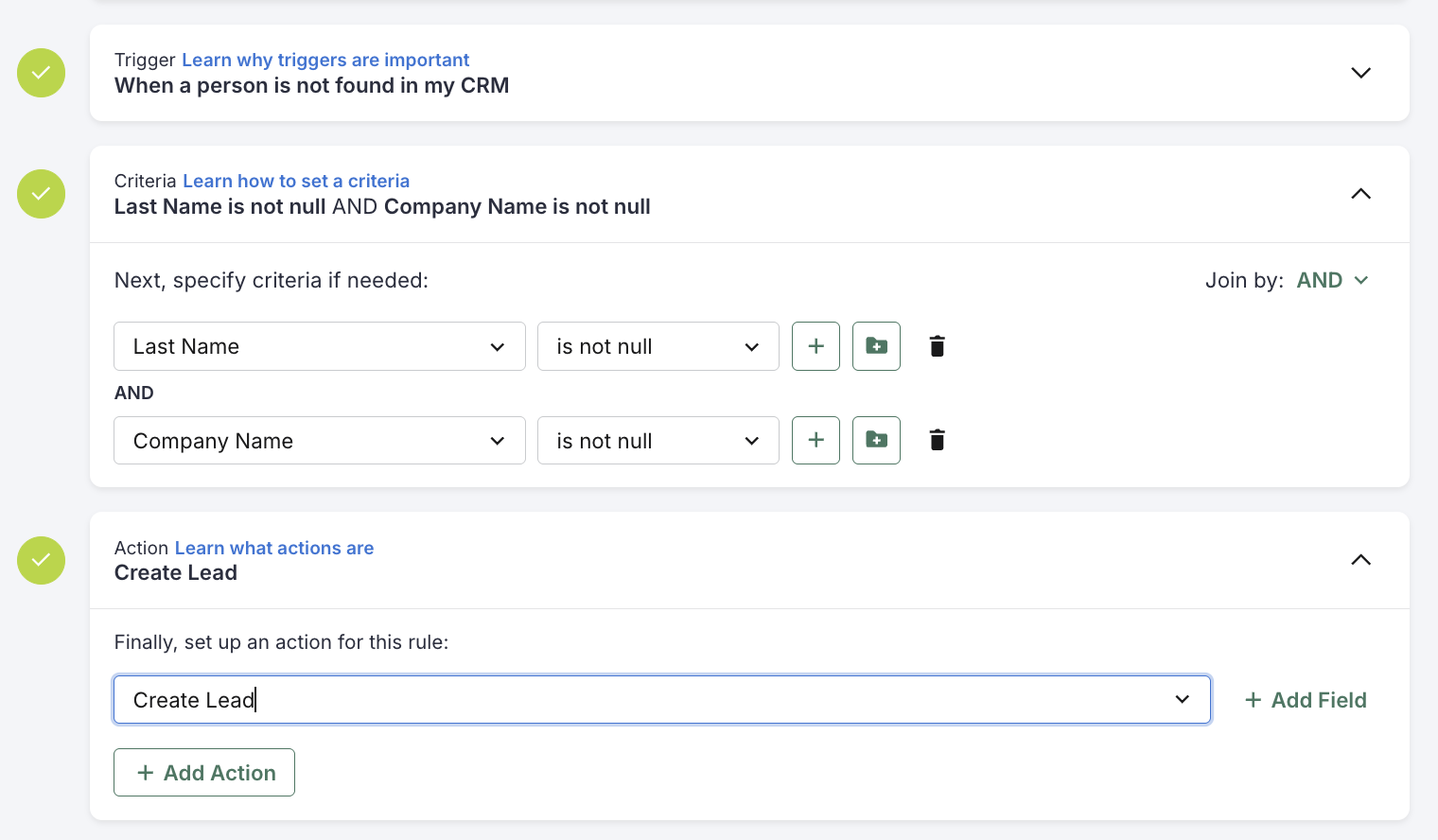
Figure 1: Lead Creation Rule Example
Create a "Contact Creation" Rule Example
To create Contacts in your CRM, and ensure they are linked to an existing CRM Account, use the criteria ‘Account - CRM Owner ID is not null' in your "Create Contact in CRM" automation rule. This prevents "orphaned" Contacts.
- How it works: This rule checks if the Salesloft Account (linked to the person) already has a CRM Owner ID, meaning it's already connected to an Account in your CRM. If it does, the person is created as a Contact and linked.
- Mapping: For Contacts to correctly show their linked Account in your CRM, ensure the 'Account CRM ID' field on the Salesloft Person object is bi-directionally mapped to your CRM.
Set up Contact Creation Automation Rules with criteria that match your CRM's required fields: For instance, for Contacts, specify 'Last Name is not null' to ensure data completeness.
To create the Contact Creation rule, follow these steps:
- Go to Settings and select Automation Rules.
- Click Create New Rule.
- Set Trigger to: "CRM Data Sync: When a Person is not found in my CRM".
- Set Action to: "Create Contact".
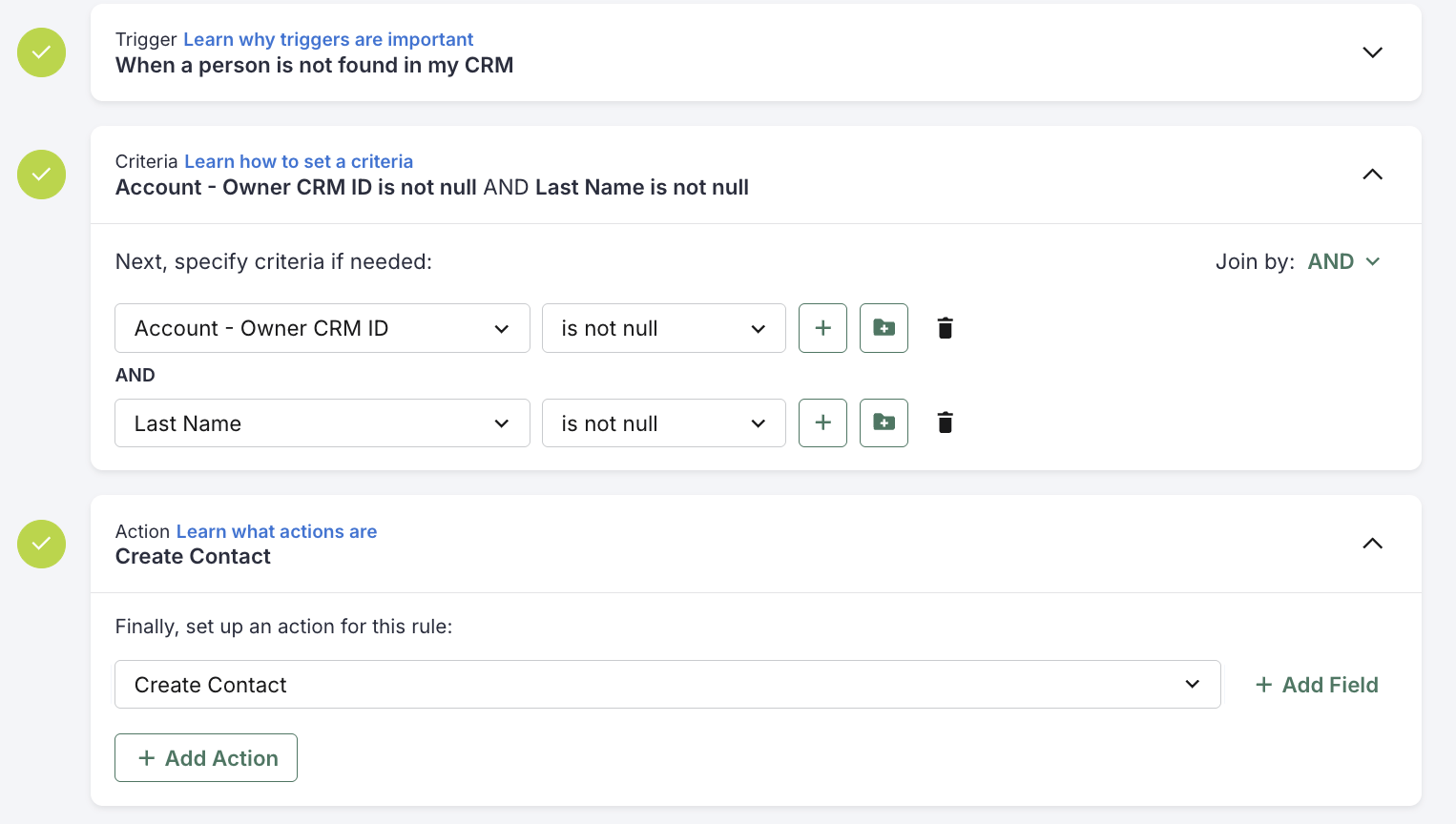
Figure 2: Contact Creation Rule Example
Q: Why is my Salesloft Automation Rule not creating Leads or Contacts in CRM?
- A: Ensure fields are bi-directionally mapped and required CRM fields are marked mandatory in Salesloft with fallback values set. Additionally, review your CRM Sync Log for any CRM-side errors (e.g., due to missing required fields or validation errors) preventing record creation.
