API (Application Programming Interface) calls allow two applications to "talk" to each other. Each time data is shared between the two systems, an API call is made. Salesloft (and many other applications) use API calls to log information in between our platform and your Salesforce account.
Salesforce sets restrictions on the number of API calls made to their servers in a 24 hour period. Think of this kind of like your credit limit. You have a set amount of credit you may use, and if you go over that limit, your card will be declined.
Things to Note:
- You may purchase additional API Calls in Salesforce.
- To learn more about why you have exceeded your API calls within Salesforce, visit the API call limits and reporting FAQ.
In this article, you will learn the ins and outs of Salesforce API calls and how Salesloft connects with them, including:
While there is a Salesforce limit for how many API calls can occur, the number of API calls made by your team each day completely depends on your team's integration(s) and use with Salesforce's API.
This means, the more actions you take or applications you have integrating with your Salesforce account, will make it more likely to quickly rack up API calls.
All this being said, we can't say what the specific number of API calls your team will make, since it depends completely on your use case. But we can tell you when Salesloft makes calls to help you monitor that usage.
Salesloft will make API calls when the following events occur:
- Activity Logging
- Salesloft to Salesforce Updates: Changes on a field to a Person or Account in Salesloft that call Salesforce to update an equivalent field
- Salesforce to Salesloft Updates: Changes to any of the following fields in Salesforce that will update an equivalent Salesloft field according to field mapping:
- Leads
- Contacts
- Accounts
- Opportunities
Things to Note:
- Salesforce sets a daily API Limit within a 24 hour window. If you reach your API limit, Salesforce will not allow Salesloft to make any additional calls. When that limit is hit Salesloft will show Salesforce sync failures due to no API Credits being allowed. Salesloft Admins can retry any sync failures manually the following day or after more credits have been accrued.
- Salesloft admins can set their Salesforce Sync intervals to limit the number of API calls made to Salesforce.
- If too many API calls are being made, the Field Configuration may be edited to include less fields or set fields to sync in one direction.
With all these questions about limitations surrounding API calls, Salesloft offers the option to set a threshold to warn you when the amount of API requests have been met. This gives you the power to prevent future Salesforce sync failures from occurring by purchasing extra API calls or disabling specific services.
As a Salesloft admin, from the Salesforce Connector page under the API Usage tab you can view information about the Total API calls available versus the number of API calls used.
A visual representation of your API calls can keep your mind at ease, or spring you into necessary action. This is why we've provided bar codes that show the daily limit of API calls allowed by your CRM.
Two bar codes can be found under the API Limits tab:
- Total API Calls Used: Shows the total API calls allowed by your CRM and the total number of calls that have been made from all of your integrations (not just Salesloft).
- API Usage Threshold: This is the limit that can be set by a Salesloft admin. Once the limit is reached, you may receive an email notification that you have reached your set limit. To learn more, see the set up below.
The bar color will appear based on % of API usage as follows:
- Green: 0-80%
- Orange: 80%-90%
- Red: 90%-100%
Threshold notifications can give you a heads up that your team is reaching the API call limits. You can enable a threshold notification that will be sent to the Salesloft user who is designated as your CRM Main Connector.
To set a threshold, follow these steps:
- Inside Salesloft, click on your initials and select Settings.
- Navigate to the CRM Sync section in the left-hand menu.
- Click on the API Limits tab at the top of the page.
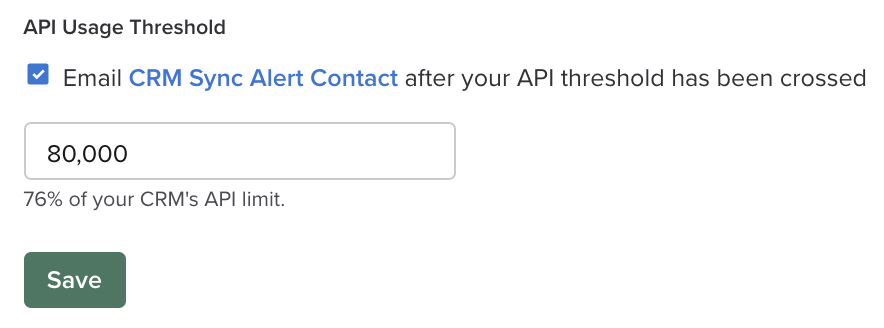
- Find the API Usage Threshold section. Select the checkbox for "Email CRM Sync Alert Contact after your API threshold has been crossed." Prior to selecting the checkbox you will not be able to edit the text box below and it will say No Threshold.
- Once you select the checkbox, enter the ideal threshold for when you want to be notified about your API Calls. We recommend setting this number lower than your total number of API calls so you can take action prior to reaching your limit.
- Things to Note: Setting a threshold will not stop API calls from occurring.
- Hit Save. The API Usage Threshold bar will adjust color based on the set API threshold.
While viewing the API usage within Salesloft can set your mind at ease, you may view your API calls directly in Salesforce from the System Overview page. To access the system overview page, from Setup, enter System Overview in the Quick Find box, then select System Overview to see your usage.
Enterprise additions of Salesforce may view an API Usage report. The report is only available in Salesforce Classic. You can learn more about the API Usage report here.
