Salesloft Connect may stop working as expected due to outdated software, login mismatches, conflicting extensions, or network sync issues. This guide walks you through the most common fixes in order — start with Fix 1 and work through them until the issue is resolved.
In this article:
You're in the right place if you're experiencing any of the following:
- Salesloft Connect is installed but not functioning in Gmail, Salesforce, or another CRM
- The Salesloft side panel is not loading or appearing where expected
- Salesloft buttons or panels are missing from Gmail or your CRM
- The extension appears installed but you are prompted to log in repeatedly
- The extension is lagging, unresponsive, or out of sync
- Salesloft Connect is not appearing in your Gmail inbox at all
If none of these match what you're seeing, please contact our support team..
Find your cause and jump to the fix:
| What happened | Jump to fix |
| Chrome or the extension is out of date | Fix 1 |
| You're not logged in to Salesloft via the extension | Fix 2 |
| The email connected to the extension doesn't match your Salesloft account | Fix 3 |
| The extension is behaving unexpectedly or loading stale data | Fix 4 |
| Another Chrome extension is interfering with Salesloft Connect | FIx 5 |
| The extension is lagging or out of sync | Fix 6 |
| Salesloft Connect is not appearing in Gmail | Fix 7 |
| Not sure what caused it | Start with Fix 1 — it resolves most cases |
Salesloft Connect is regularly updated to stay compliant with Google Chrome's latest releases. If either Chrome or the extension is out of date, the extension may stop working correctly.
✅ How to know it worked: Restart Chrome after updating. If the issue was caused by an outdated version, Salesloft Connect should load and function normally in Gmail and your CRM.
Salesloft Connect requires you to be logged in to Salesloft directly through the extension. Without this, Chrome and Salesloft cannot connect properly.
- Click the Salesloft Connect icon in your Chrome toolbar.
- Check your login status: If you see a list of Salesloft Connect settings, you are logged in. If you see a login screen, you are not.
- Log in via the extension using your Salesloft credentials if prompted.
✅ How to know it worked: Click the Salesloft Connect icon again. If you see your Salesloft Connect settings rather than a login screen, you are successfully logged in.
The Chrome extension links to the email address connected to your Salesloft account. If you are logged in with a different email address, the extension will not function correctly.
- Check which email is linked to your Salesloft account.
- Check which email you are using in Chrome: Click the Chrome Extension in the navigation bar. You can see the connected email address listed under the Account information. Make sure you are signed into Chrome and the extension with this same email address.
- If the emails don't match: Log out of the mismatched account in the extension, then log back in using the email linked to your Salesloft account.
- Refresh your browser after logging back in.
To update or manage the email addresses linked to your Salesloft account, visit the Set Up Your Email Account - Gmail knowledge base.
✅ How to know it worked: Reload Gmail or your CRM. Salesloft Connect should appear and function normally.
Cached data can sometimes cause Salesloft Connect to behave unexpectedly. Clearing your cache forces the browser to load fresh data.
- Clear your browser cache: Follow the steps in the How to Clear Your Cache article.
- Reload any open Gmail, Salesforce, or Salesloft tabs after clearing the cache.
✅ How to know it worked: Reload Salesloft Connect. If stale cached data was the cause, the extension should load and behave normally.
Other Chrome extensions can interfere with Salesloft Connect's functionality. Temporarily disabling them helps identify whether a conflict is causing the issue.
- Open the Chrome extensions menu by clicking the puzzle piece icon in your Chrome toolbar.
- Disable other extensions one at a time by toggling them off.
- Reload Salesloft Connect after disabling each extension to check whether the issue resolves.
- Re-enable extensions one at a time once you have identified the conflicting extension.
✅ How to know it worked: If Salesloft Connect begins functioning normally after disabling a specific extension, that extension is the source of the conflict. Leave it disabled or remove it to prevent the issue from recurring.
If the extension is lagging or out of sync, disabling and re-enabling it can restore normal functionality.
- Right-click the Salesloft icon in your Chrome toolbar and select Manage Extensions. This opens the Extensions Manager in a new browser window.
- Disable the extension: Click the toggle next to Salesloft Connect. When the toggle is gray, the extension is disabled.
- Wait a few moments, then click the toggle again to re-enable the extension. When the toggle is blue, the extension is enabled.
- Reload any open Gmail, Salesforce, or Salesloft tabs.
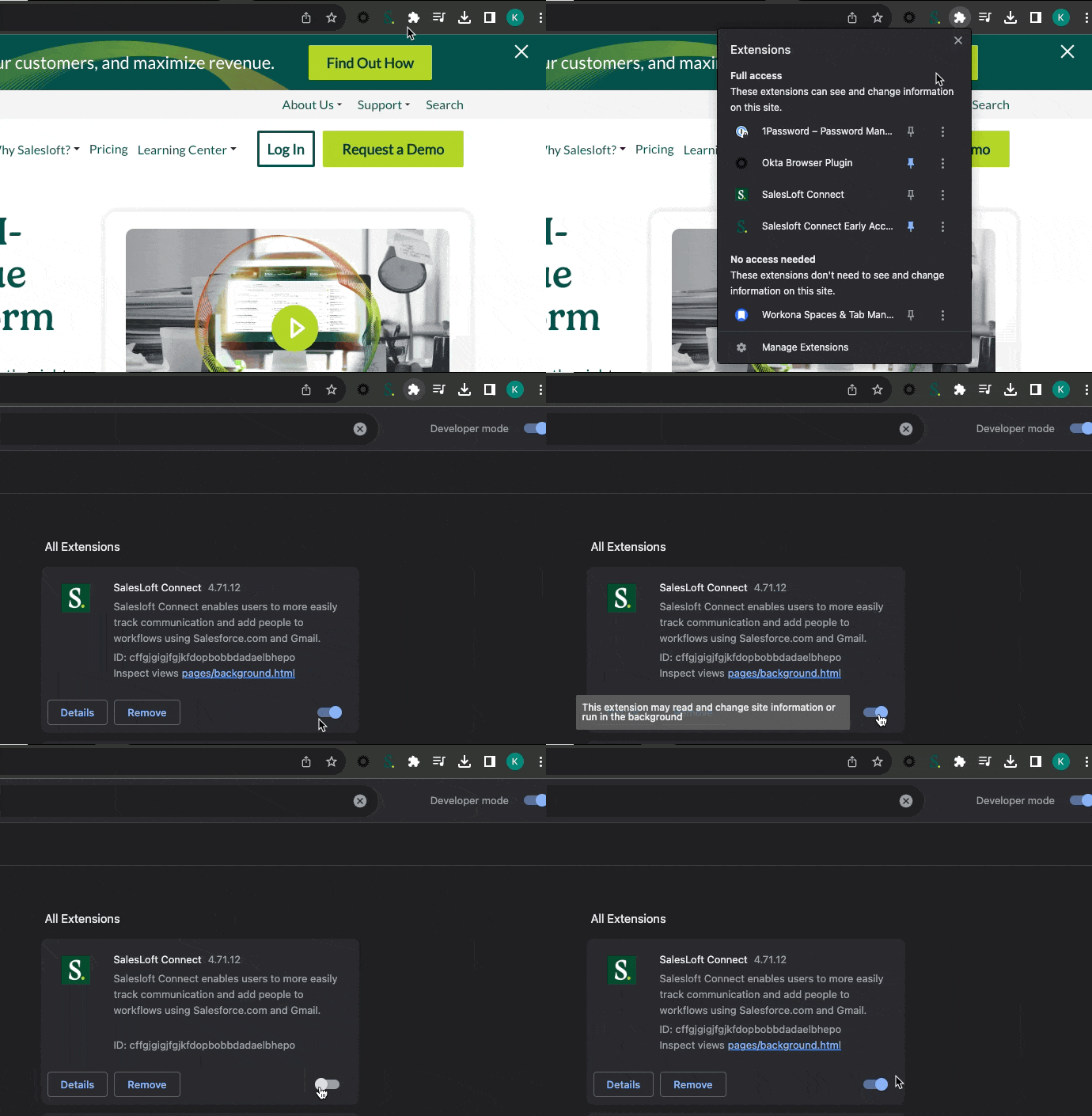
✅ How to know it worked: After reloading your tabs, Salesloft Connect should appear and respond normally in Gmail and your CRM.
If Salesloft Connect is installed but not appearing in your Gmail inbox, the most common cause is a mismatch between the email addresses used across your Salesloft account, Gmail, and Google account settings. All three must match for the extension to surface correctly in Gmail.
- Check your Salesloft email settings: In the Salesloft web app, go to your Settings and confirm which email address is connected under Email Settings.
- Check your Gmail Send mail as setting: In Gmail, go to Settings → Accounts → Send mail as and confirm the same email address is set as the default.
- Check your Google account settings: Confirm the same email address is selected as your primary Google account email.
- If any of these don't match: Update them so all three use the same email address.
- Reload Salesloft Connect: Go to chrome://extensions, find Salesloft Connect, and toggle it off then back on to reload the extension.
✅ How to know it worked: Refresh your Gmail inbox. Salesloft Connect should now appear in the Gmail interface as expected.
If you've worked through all the fixes above and Salesloft Connect is still not working:
- Check for known issues: Visit the Salesloft Status Page to see if there is an active incident affecting the extension.
- Contact support: Reach out to our support team. To help us resolve this faster, have the following ready:
- Your account name and the email address you use to log in
- A description of what you were doing when the issue occurred
- A screenshot of the error or unexpected behavior
- The version of Salesloft Connect you are running
Understand the feature:
Salesloft Chrome Extension Overview — What the extension is, where it works, and what you can do with it
Get back to what you were doing:
Send Emails from Gmail — How to send and track emails from Gmail using Salesloft Connect
Make and Receive Calls Using the Salesloft Connect Dialer — How to use the Dialer across your Chrome browser
