User Relationship fields are Account fields that represent a specific relationship between an Account and a User in Salesloft.
Admins can create any number of User Relationship fields in Salesloft Accounts that are populated via mapped CRM User lookup Account fields. This feature associates multiple Users to an Account record instead of having a single Account Owner.
By creating User Relationship fields, your team can unlock new Team Selling workflows within Salesloft by creating more relevant Account list views, providing visibility for related Users to an Account, and unlocking the ability to automatically add people to a Team Cadence and assign them to a specific User Relationship.
Things to Note:
First, you need to create a User Relationship field for an Account by following these steps:
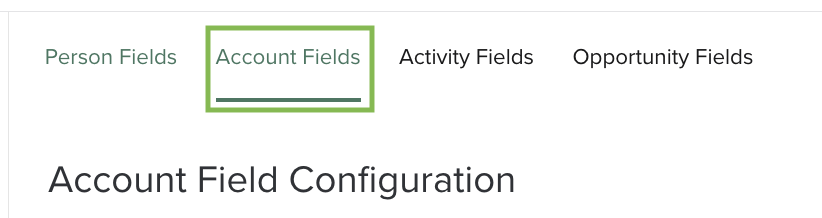
- Navigate to Field Configuration and click the Account Fields tab.
- Scroll to the bottom of the page to the User Relationships table. Click Create User Relationship field.
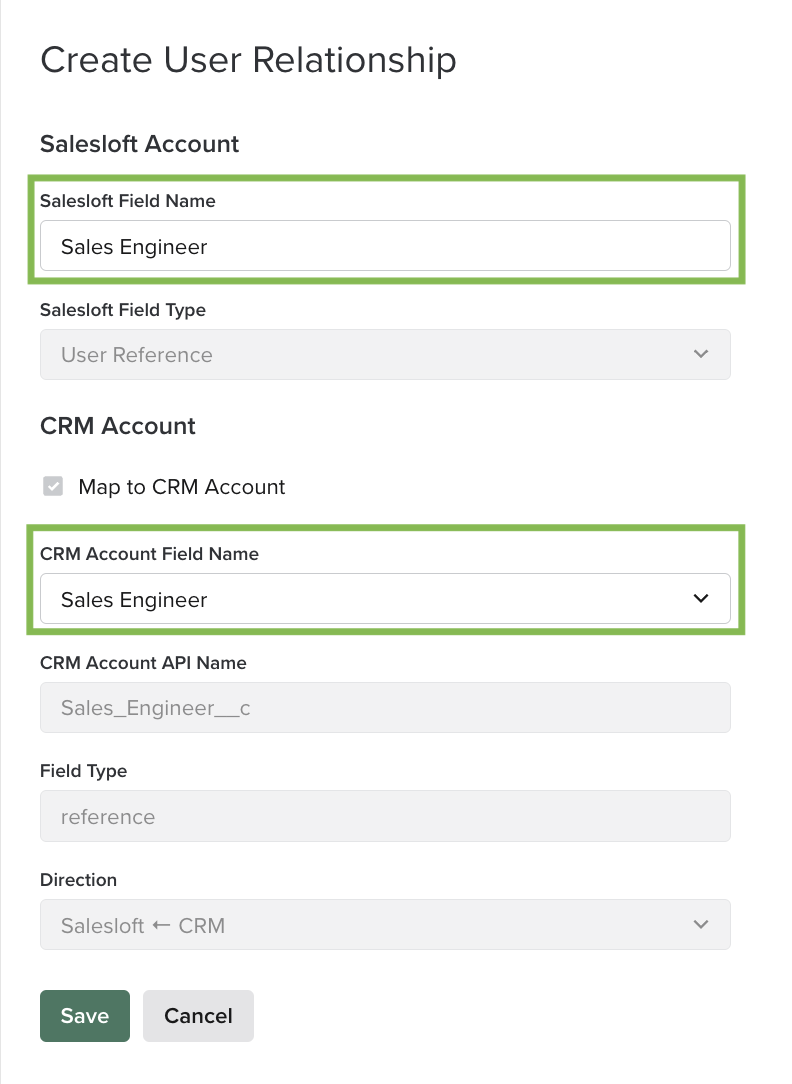
- Name the User Relationship Field. This field name will be how the User Relationship is represented in-app.
- Select which CRM Account field you want to map the User Relationship field to.
- Things to Note: Salesloft accepts a CRM User ID value for this field, which can be a CRM User Lookup/Reference field or a text field with the case-insensitive CRM User ID.
- Hit Save.
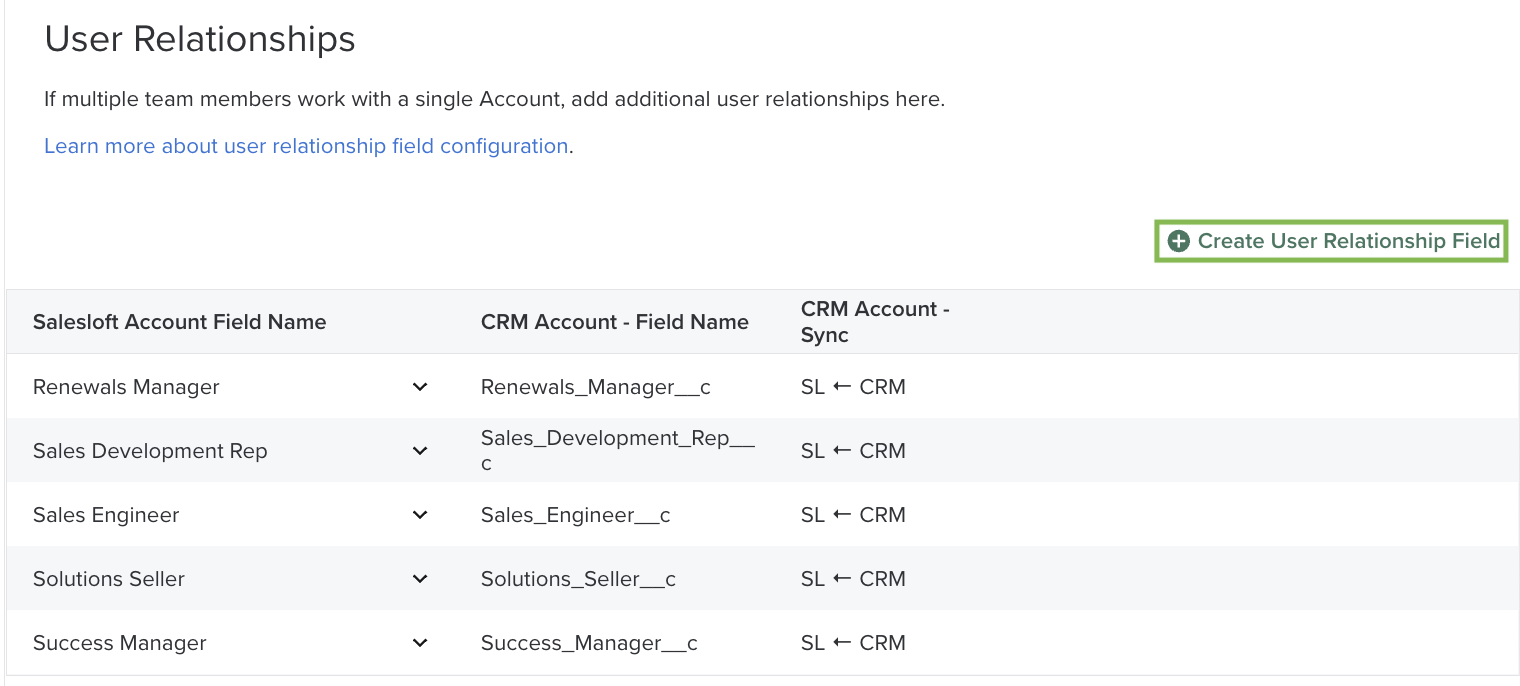
Managing User Relationship fields requires you to set up some mapping first. User Relationship field values are CRM User IDs synced from the CRM into Salesloft. To translate the CRM User IDs to a Salesloft User, all Salesloft Users with a CRM license should be mapped to a CRM User. For more information, read our article on User Management.
Things to Note: Salesloft requires mapping User Relationship fields to a CRM User Lookup field or text field with the case-insensitive CRM user ID for User Relationship fields to function.
Only admins and users with Manage CRM Field Configuration permissions can create User Relationship fields on the Account Object. You may need to adjust your permissions settings to take advantage of this feature.
To check your permissions, take these steps:
- Navigate to your Team Settings.
- Scroll down to Roles and Permissions.
- Click the Permissions tab. Here, you’ll see all the permissions that have been enabled for your role. For more information about editing roles and permissions, check out our Roles and Permissions article.
User Relationship fields sync one-way from CRM to Salesloft. You can’t change a User Relationship field value from within Salesloft other than the standard Salesloft Owner field. In addition, field syncing is only supported on the Account Object (Account Fields).
Salesloft does not currently support the ability to create a User Relationship field that is not mapped to a CRM field.
After creating a User Relationship field, the following actions will sync the values from CRM into Salesloft:
- The Account record is saved/modified in the CRM
- The Account is imported or re-imported into Salesloft from the CRM
Things to Note: Each Salesloft User must be mapped one-to-one to a CRM Username for these features to work as expected. If you have multiple Salesloft Users mapped to the same CRM Username, we do not recommend using this feature.
You can view the User Relationships panel on an Account record. The Salesloft Owner, CRM Owner, and all User Relationship fields are included in this panel.
Unmapped Users will be displayed as Unmapped User. User Relationships with a null value will be hidden under the View Blank Fields link.
To see User Relationship fields without a value, click View Blank Field. Clicking Hide Blank Fields will hide fields with a null value.
You can also filter Account views in Salesloft via User Relationship fields. They appear under Account Roles when adding a filter.
User Relationship field filters can be set to No User (field value is null), Unmapped User (CRM User ID not mapped to Salesloft User), or any specific Salesloft User.
Admins can leverage User Relationship fields in Automation Rules. Automation Rules help you manage everyday repetitive tasks, such as adding a Person to a Cadence when they book a meeting.
When you define User Relationships, they can be used in Automation Rules in the following ways:
- User Relationship Fields as Automation Rule Criteria: All User Relationship fields are available for use as Automation Rule Criteria. The criteria will be based on the Salesloft User aligned with the CRM User ID in the User Relationship field.
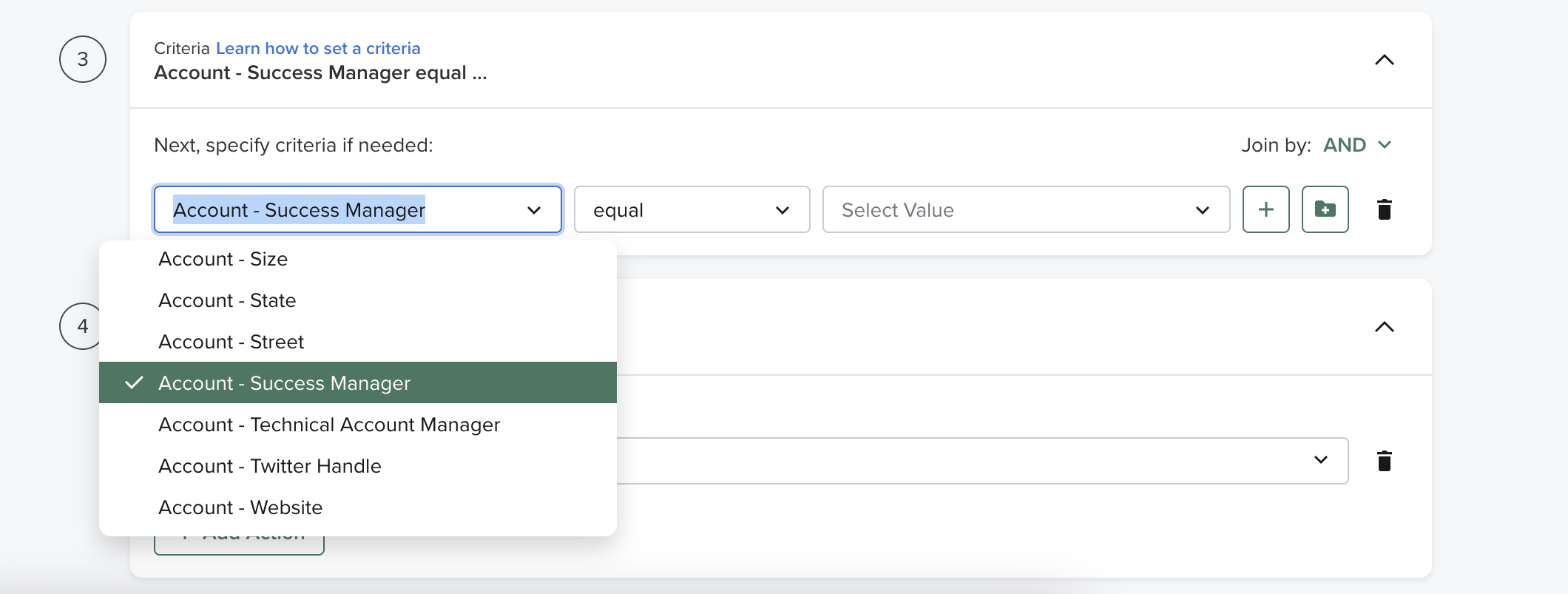
- Set Cadence Assignee when Adding a Person to a Team Cadence: All of the User Relationship fields you create are available as a Cadence Assignee option for the following Automation Rule Action:
- Add to Cadence (Person Updates Trigger, Engagement Trigger, Meetings Trigger)
- Add all People at Account to Cadence (Account Trigger, Person Updates Trigger)
- Add People related to this Opportunity to a Cadence (Opportunity Trigger)
- Things to Note:
- The Salesloft Person Owner will be the default assignee.
- This type of Automation Rule is only applicable for Team Cadences. Personal Cadences will always have steps assigned to the Cadence Owner.
- The ability to set a Cadence Assignee dynamically to the Salesloft Person Owner, Account Person Owner, and any Account User Lookup field is supported for any Rule trigger that supports Add to Cadence as an available action.
When you are running a Team Cadence targeting Customer Success, Renewals, or any other non-standard sales use case, you can assign the Cadence steps to a User whose role is defined by a User Relationship field on the Account Object.
