In order for your team to leverage Conversations, your users must be connected to a meeting platform where they will actually host their meetings. Before connecting to your team’s platform of choice, teams need to properly configure the integration between the meeting platform and Salesloft. Once that prep work is in place, the Salesloft instance can be configured specifically for your meeting platform - Zoom.
Teams using Zoom will rely on the Salesloft Zoom API integration. Admin Configuration allows a Salesloft admin to enable and configure the Zoom API Integration for the entire team at once, or in bulk. This ensures that all users have access to the integration without requiring them to manually enable it in their individual instances.
Alternatively, individual users can enable the Zoom API Integration within their own Salesloft instance.
In this article, you will learn how to configure the Zoom API Integration for your team as an admin. This article includes:
Before you can bulk configure the Zoom API Integration for your team, there are a few pre-requisites you must meet.
- To bulk configure the Zoom API Integration, you must:
- A Zoom admin must pre-approve the Salesloft Conversations app in the Zoom Marketplace and establish your team’s cloud recording settings in Zoom. Check out the Zoom API Integration Admin Guide to learn more.
- When you bulk configure the Zoom API Integration, Salesloft finds user domains from your organization that also match in Zoom and connects them. For this reason, we recommend connecting the Zoom account with an email that matches your email address in Salesloft.
- Salesloft may take up to 30 to 40 minutes to populate users depending on the number of users. You can leave this page, and the process will continue in the background.
- Users' emails must match their Zoom emails. If the two do not match, Salesloft will not be able to connect the user. You can update a user’s email to match their Zoom email from the Users settings.
- Do not click "Disconnect" unless you intend to fully remove the Zoom integration for all users. Doing so will:
- Sever the integration for every connected user.
- Notify affected users by email.
- Cause disruption to scheduled and recorded meetings.
- For admins that are reconnecting your Zoom API integration:
- Only the original Zoom Admin should perform the reconnection steps.
- Reconnecting the Admin-Level Zoom API Integration enables all recent updates.
- The ‘Reconnect’ button is typically only visible to the admin who set up the Admin-Level integration initially. Other admins will see a Disconnect button instead.
- Users in an error state or those who were disconnected are not reconnected through this process. These users will need to be addressed individually or through separate support actions.
If you are a new Salesloft or Zoom customer, an admin must establish your team’s Zoom connection.
When the connection is established, you also authorize the integration between Salesloft and Zoom for your team.
To establish the initial connection and authorize the Zoom API Integration for your team, follow these steps:
- Navigate to the admin Conversations settings: Go to your settings. Select Conversations under the Communication category. You will automatically land on the General tab.
- Connect Zoom as the Video Integration Platform: Scroll to the Video conferencing integrations: Scroll to find the Zoom tile, then hit Connect. A Zoom authorization window will appear.
- Review the authorization page: Click the Approve for all users toggle. Clicking this toggle ensures all users are authorized to use the integration. Once you authorize the connection, you will be directed back to the Conversations settings page.
- Confirm the Zoom API Integration has been connected: From the Conversations settings page, you should now see information about the team and a Manage button. This means that the Zoom API Integration was successfully connected.
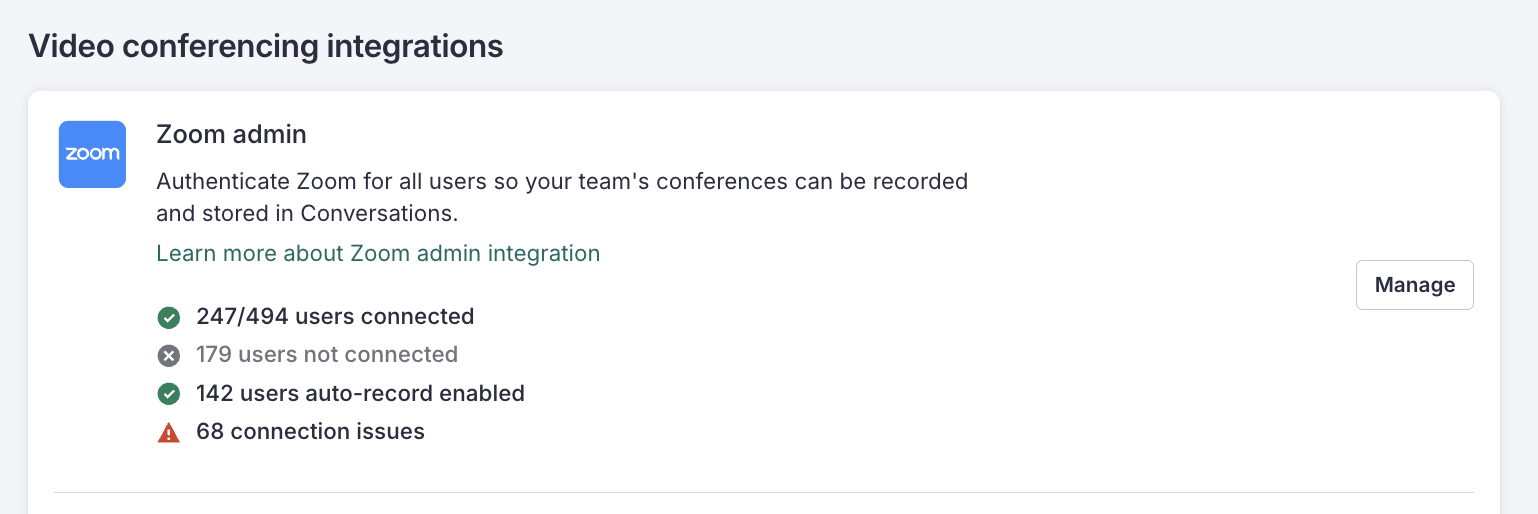
Figure 1: Zoom API Integration connected in settings.
Once the connection has been established, you have the option to enable your users Zoom API integration connection from the Zoom Setting User Management table.
The User Management Settings table allows admins to configure the Zoom API integration by enabling or disabling a user’s connection to the integration, and by managing the associated Zoom settings.
To configure the Zoom Integration for your team, follow these steps:
- Navigate to the admin Conversations settings: Go to your settings. Select Conversations under the Communication category. You will automatically land on the General tab.
- Click “Manage” in the Zoom Integration section: From the admin Conversations settings, scroll down to the Video Conferencing Integrations section. In the Zoom admin section, select the Manage button. This will take you to the Zoom Admin Settings inside Salesloft. There you will see the User Management table for the Zoom API Integration.
- View your team’s connection to each Zoom setting: In the user table, check the connection status for each setting listed as a column header. Setting connection is denoted by different colored bubbles:
- Yes + Green bubble with a check mark: User is connected
- No + White bubble with an ‘x’: User is not connected
- Caution icon + Red bubble: Salesloft has detected an issue(s) that may be causing a disconnection. Click the bubble to learn more about the issue(s).
- Enable/Disable Zoom settings: Check the box beside each user who you would like to enable or disable a Zoom setting for. Click the Bulk Actions dropdown that appears. Choose one of the following options to enable/disable the integration for a user:
- Connect account
- Disconnect account
- Manage Additional Settings (optional): You can also enable default settings for your users in the user management table. Check the box next to the users’ names and use the bulk actions to enable or disable additional settings. To learn more, check out the Manage the Zoom API Integration article.
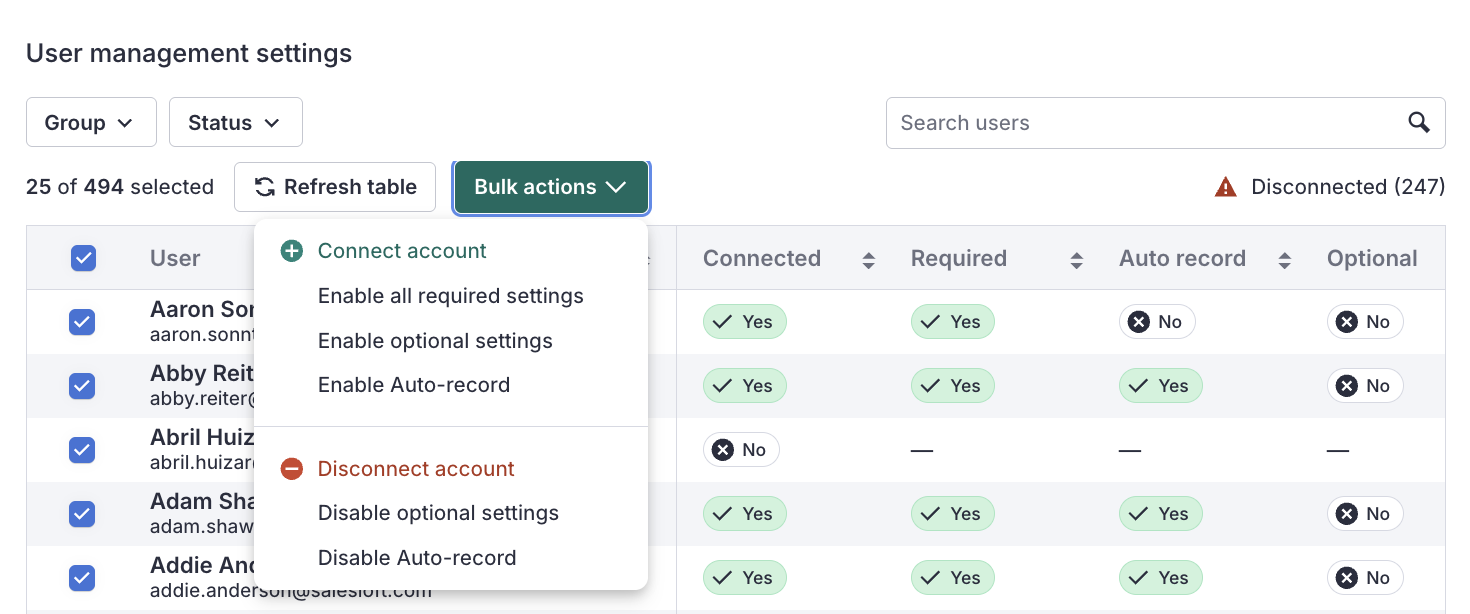
Figure 2: Zoom User Management Table Bulk Actions
Bulk disconnecting the Zoom API Integration removes admin control of the integration and disconnects all users from the integration. To revoke the Zoom API Integration for your team, follow these steps:
- Navigate to the admin Conversations settings: Go to your settings. Select Conversations under the Communication category. You will automatically land on the General tab.
- Click “Manage” in the Zoom Integration section: From the admin Conversations settings, scroll down to the Video Conferencing Integrations section. In the Zoom admin section, select the Manage button. This will take you to the Zoom Admin Settings inside Salesloft. There you will see the User Management table for the Zoom API Integration.
- Disconnect the Zoom Admin: In the Zoom admin tile, then click Disconnect. A Disconnect Admin Account window will appear.
- Confirm the action: In the Disconnect admin account box, hit Disconnect.
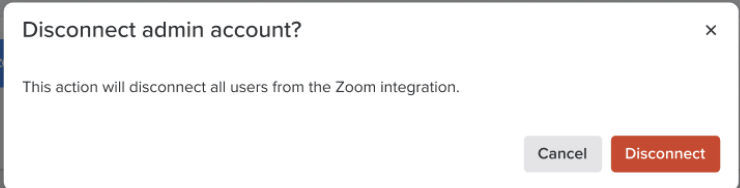
Figure 3: Bulk Disconnect the Zoom API Integration.
If your Zoom integration was disconnected for the team and needs to be reconnected, a team admin can perform the action in the Conversations Settings. This action only applies to users who were previously connected successfully.
To bulk reconnect the Zoom API Integration, follow these steps:
- Navigate to the admin Conversations settings: Go to your settings. Select Conversations under the Communication category. You will automatically land on the General tab.
- Find the Zoom Admin “Reconnect” Button: Scroll down to the Zoom API Integration panel. As the original integrating Admin, you should see a Reconnect button.
- Select Reconnect: Click the Reconnect button and follow the on-screen prompts to re-authorize the connection with Zoom.
Manage the Zoom API Integration
- Once you enable the Zoom API Integration for your team, the User Management Settings table appears on the Conversations settings page. This table allows admins to manage your team's access to the integration, view your team's connection status and more.
- To learn more, check out the Manage the Zoom API Integration article.
- For authorization and permission purposes, the Zoom API Integration proactively captures meetings. This means that the integration only captures meetings that are scheduled after the integration is enabled. Pre-existing, recurring meetings will not be captured by the integration unless the meeting invite is altered. To ensure that pre-existing, recurring meetings are captured, check out our Capture Pre-Exisiting Meetings via an API Integration article.
How to Identify Which Admin Configured the Integration
If you are the Admin who originally configured the integration, you may see a blue banner in the Conversations settings that says: “Reconnect your Zoom account to enable automatic meeting recording for Conversations.”
