Auto-Delete allows Salesloft to automatically delete recordings after a set expiration period.
This setting is disabled by default, however, admins can enable it to better manage recording storage.
When enabling this setting, the admin will set an expiration period, ex: 100 days. Once the expiration period is set, every day at 1:00 AM EST Salesloft will look for recordings that have reached the set period. Recordings that have reached the expiration period will be permanently deleted.
In this article, you will learn about the Auto-Delete setting, including:
- Deleting recordings is a permanent action. Recordings that have been deleted may not be recovered.
- Auto-Delete is disabled by default.
- Recordings are deleted at 1:00 AM EST on the day they reach their expiration. For example, if you set the auto-delete period to 120 days, any recording older than 120 days will be automatically removed at 1:00 AM EST.
To enable the Auto-Delete setting for your team, follow these steps:
- Go to your Conversations settings: Click your initials in the upper right corner of any Salesloft page, then select settings. Select Conversations under the Communication category.
- Select Auto-Delete tab: Select the Auto-Delete tab. This will open the Auto-Delete settings page.
- Enable Auto-Delete: Click Edit in the Auto-Delete panel. Then, select Auto-delete conversations recordings.
- Set Auto-Delete Expiration: In the Delete recordings older than field, enter the number of days after which a recording should be deleted. This value sets the expiration age Salesloft uses to remove recordings. You can also use the up and down arrows to adjust the number.
- (optional) Choose to exclude recordings included in playlists: Check the Exclude recordings included in playlists box to prevent any recordings that appear in playlists from being automatically deleted.
- Hit Save and Confirm Auto-Delete. Hit Save in the upper right corner. A confirmation window will appear. Review the confirmation details, then check the box to confirm that you understand recordings will be permanently removed. Hit Save.
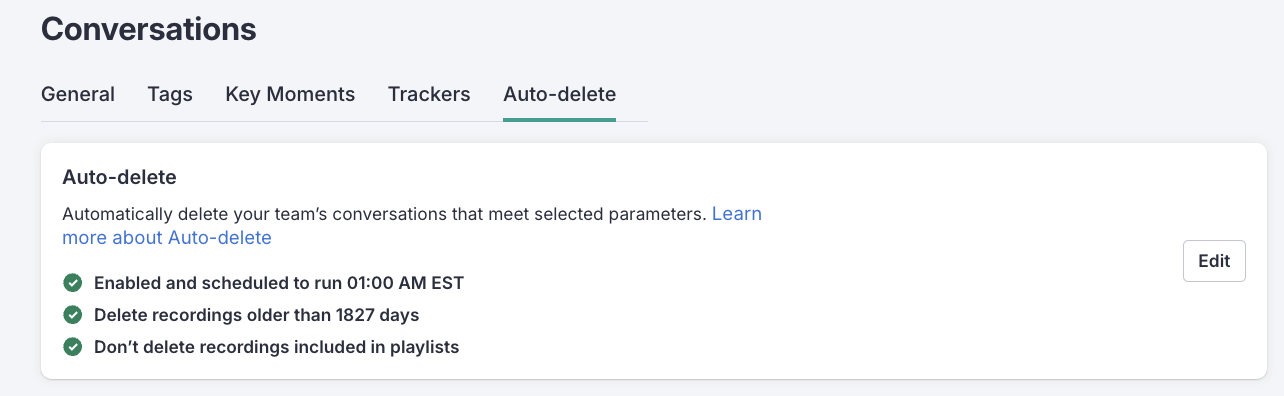
Figure 1: Enable Auto-Delete setting.
To manage Auto-Delete expiration, follow these steps:
- Go to your Conversations settings: Click your initials in the upper right corner of any Salesloft page, then select settings. Select Conversations under the Communication category.
- Select Auto-Delete tab: Select the Auto-Delete tab. This will open the Auto-Delete settings page.
- Enable Auto-Delete: Click Edit in the Auto-Delete panel. Then, select Auto-delete conversations recordings.
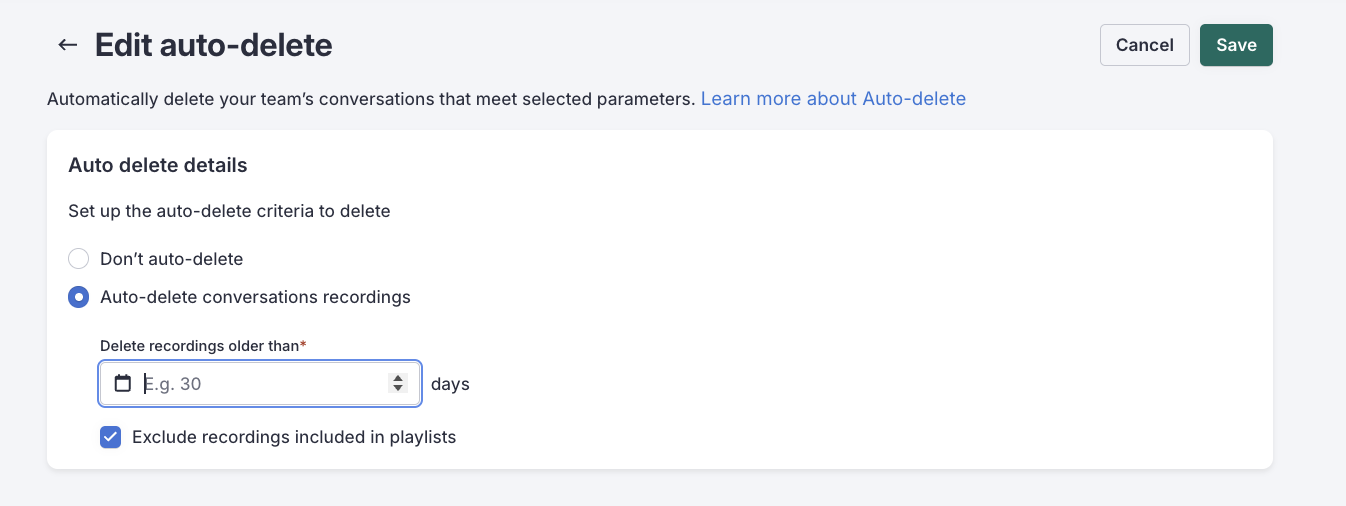
Figure 2: Manage Auto-Delete Expiration setting.
How long do recordings stay in Salesloft? As long as your company’s Salesloft account is active, your recordings will be in Salesloft indefinitely. The only exceptions are if someone deletes them manually or if you have an Auto-Delete setting enabled. In the event the account is terminated, recordings will only be available for 30 days after the date of termination.
Are shared links to recordings always valid? No. Shared links have a default expiration of 30 days from when they are created from Share > Copy link option. This happens automatically, and the link will expire at that time, no matter what. You can always set a custom expiration date that’s longer if you need to, but the link will expire on whatever date you set.
What happens if the account is terminated? Do the links still work? If your company’s Salesloft account is terminated, all your data, including recordings and their links, will still be accessible for 30 days. After that, everything might be permanently deleted, and the links will no longer work.
Can I recover any recording that was deleted? Deleting recordings is a permanent action. Once a recording has been deleted, Salesloft removes it from the database along with any metadata related to it.
How can I stop or prevent the process from running? The automatic deletion process runs daily at 1:00 AM EST. As an admin, you can enable and disable Conversations Auto-Delete as often as you’d like. As long as you disable Conversations Auto-Delete before 1:00 AM EST, your recordings will not be deleted.
To disable Conversations Auto-Delete, check out the Disable Conversations Auto-Delete section.
If there is a specific recording that I want to keep, how can I prevent it from being removed? If you want to keep a recording that is outside of the Auto-Delete criteria, you can add it to a playlist and click the Recordings included in a playlist option on the Edit Auto-Delete window.
For more information on adding recordings to a playlist, check out the Recordings Actions Guide.
Can I see which recordings will be deleted? Conversations Auto-Delete does not create a separate list containing recordings that are scheduled to be deleted.
To determine which recordings will be deleted, you can compare the Auto-Delete criteria set for your team to the creation date of the recording in question. If a recording’s creation date falls within the date range set for your team’s Auto-Delete criteria, the recording will be automatically deleted at 1:00AM EST.
Can I pick the date and time for Conversations Auto-Delete to run? Once it is enabled, Conversations Auto-Delete runs daily at 1:00 AM EST. You can not pick the dates for Auto-Delete to run, but you can disable it manually.
To disable Conversations Auto-Delete, check out the Disable Conversations Auto-Delete section.
Will Conversations Auto-Delete remove Calls located in the Dialer section? Conversations Auto-Delete does not remove the link to the call recording. It will remove the call from your main Conversations interface, but the recording link will remain accessible in these places:
If you wish to delete dial call recordings, submit a request to the Salesloft support team.
- Review existing recordings to identify any that should be saved, exported, or flagged before they expire.
- Update or create playlists to ensure important recordings are preserved if the “exclude playlists” option is enabled.
- Check out the Conversation Adoption Analytics to verify that users are recording meetings as instructed and to understand user behavior post-recording, i.e. reviewing, sharing, and collaborating on recordings.\
