Conversations is a meeting and call recording capture solution.
Teams can review and share meetings, document notes, and create curated lists of conversations or clips for later review. Salesloft AI surfaces relevant summaries and recaps along with Key Moments, Action Items, and details from sellers’ recordings to help you understand the voice of the customer, and get deeper context about the deals in your pipeline.
Salesloft Conversations is primarily used by sales representatives, sales managers, sales operations and enablement teams, marketing teams, and customer success teams. It helps streamline communication, manage follow-ups, and enhance engagement with prospects and customers through various channels.
Sales managers and team leaders use it for monitoring and coaching, while sales operations optimize processes and integrations. Marketing teams align their efforts and refine messaging based on engagement data, and customer success teams ensure ongoing communication and identify opportunities.
Video Tour - Conversations
A team admin must enable Conversations for users. We suggest reviewing the Conversation Admin Checklist to properly set up Conversations for users.
Admins may need to enable additional permissions for roles to access the full functionality including:
Things to Note: Users with a license that enables them access to Conversations will be able to access the Tracker Trends page in the Team Productivity section of Analytics.
Before using Conversations, each user must perform the following set up actions:
Conversations uses API integrations to establish a connection between Salesloft and select meeting platforms. This allows the platforms to share recording files and related meeting data.
A team admin needs to establish a connection between Salesloft and the selected meeting platforms. For additional information on setting up these integrations, refer to the following help docs:
Additionally, Users should manage their meeting platform settings. To learn how to connect Salesloft Conversations to your meeting platform, select your meeting platform link below:
In the event that your team does not leverage one of the integrations listed above or would prefer to capture Microsoft Teams meetings using the bot, users can capture meetings with the Salesloft bot. Click here for details on Conversations Bot Settings.
Most of your Conversations activites like managing recordings, playlists, and clips will happen from the Conversation Page. You can access the Conversations page by hovering over Activity on the global navigation menu and selecting Conversations.
You can also access conversation recordings from various areas inside Salesloft.
You can find conversations by:>
- Selecting Activity > Conversations from the top navigation menu.
- Activity Panel of a Person's Profile Page: Conversations linked to a Person record will appear on the Person's Profile page in the activity history. Selecting a Person from Contacts > People and then navigating to the Past Activities or the Conversations Tab on the Persons Profile Page.
- Activity Panel of the Account Profile Page: Conversations linked to an Account record will appear on the Account's Profile page in the Activity History.
- Conversations linked to an Opportunity will appear in the Deal view.
The Conversations page is separated into tabs that categorize your recordings based on their stage in the capturing process and the way you’ve managed them, including:
-
Recordings: Allows you to access all of your and your team’s recordings. Once a recording is captured, it will appear here. The Recordings tab also offers filters to help you refine your view.
-
Your Clips: Displays the clips you created. Clips are snippets of a recording that you can use to pinpoint key moments during a conversation.
-
Playlists: Displays the playlists you and your team created. From this page, you can search for specific playlists or create a new playlist
-
Upcoming: Meetings and calls that are scheduled on your calendar.
-
In Progress: Conversations that were scheduled on your calendar and are currently taking place.
-
Incomplete: Shows recordings that were not captured. Check out the Conversations Troubleshooting & FAQ knowledge baseto learn about capturing incomplete recordings.
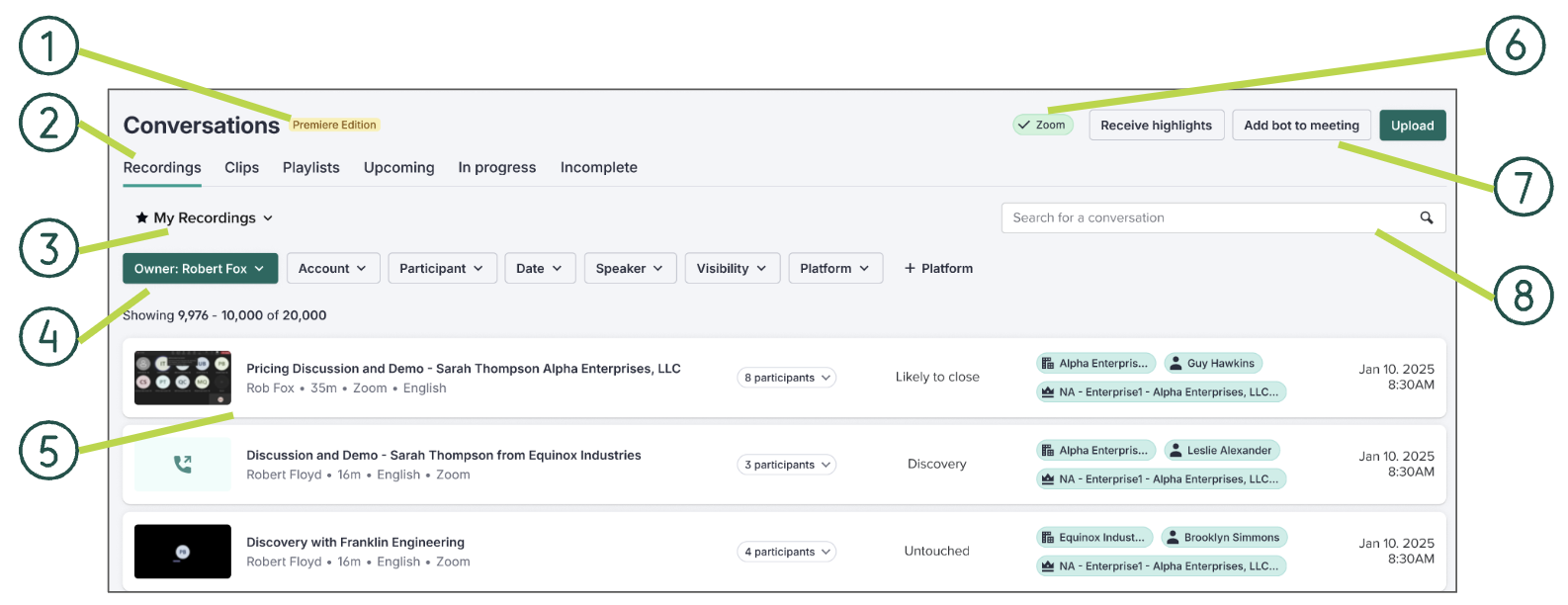
Figure 1: Example: The Conversations Page
The Conversations Page includes the following:
- License Label: Next to the Conversations page title, you'll see a label that identifies your Salesloft license type.
-
Conversations Page Tabs: Access to the various tabs.
-
Saved Views: Displays your Saved Views When you apply filters on the Recordings tab, the list of recordings that appear is called a View. You can save Views to refer back to a certain refined list of recordings.
-
Conversations Filters: Allow you to refine the list of recordings that appear on the Recordings page.
-
Conversations Navigator: Lists your recordings and related data. Check out the Conversations Navigator
-
API Settings: Shows the API Integrations that you enabled. Check out the Conversations Integrations knowledge base to learn about the API Integrations you can enable.
-
Conversations Toolbar: Tools that help you manage your conversations and recordings, including:
-
Receive Highlights: Allows you to receive periodic emails that contain your saved views
-
Add Bot to a Meeting : Allows you to add a bot to a meeting
-
Upload : Allows you to upload a recording file to Conversations
-
Search Bar : Allows you to find specific recordings
Let’s explore the components on this page.
Filters allow you to view specific recordings. Each tab in Conversations comes with a different variation of the following default filters:
- Owner
- Account
- Participant
- Date
- Speaker
- Visibility
- Platform
- Standard Fields
- Duration
- Language
- Tag
- Tracker
- Opportunity Fields
- Amount
- Close Date
- Record Type
- Stage
- Recording Status Filter (Upcoming Tab only)
- Ready to record
- Auto-record disabled
- Loft disabled
- Can’t loft
For more information about filters in Salesloft, check out our Complete List of Salesloft Filters article. To learn how to use filters in Salesloft, check out our Filter Salesloft Page Views article.

Figure 2: Conversations Filters
The first tab found in Conversations, is the Recordings tab. The Recordings tab is where you can view captured recordings alongside relevant meeting data such as the participants, dates, and duration of the meeting.
The list of recordings is referred to as the Conversations Navigator, since you navigate to various recordings from the list.

Figure 3: Example: Conversations Recordings Tab Navigator
Each row contains the following information about your recordings:
- Recording Details: Displays details relevant to the recording, including:
- Recording Title: Title of the meeting based on the event scheduled in your calendar.
- Recording Owner: Person within your organization who scheduled the meeting and owns the recording.
- Duration: Length of the recording.
- Language: Main language detected during the meeting.
- Platform: Platform that the meeting took place in.
- Participants: Lists the meeting attendees.
- Opportunity Stage: Stage that an opportunity is currently in.
- Related Opportunity Data: Lists related opportunity data, including:
- Account: Related Account record in Salesloft.
- People: Related Person, or People, record in Salesloft.
- Date and Time: Date that the meeting took place and time that the meeting began, i.e. recording started.
When you hover over the date and time, additional actions are available. Select the down arrow to see the expanded view of the recording navigator.
Things to Note: Some features require permission access. If you do not see one of the features, please reach out to a team admin.
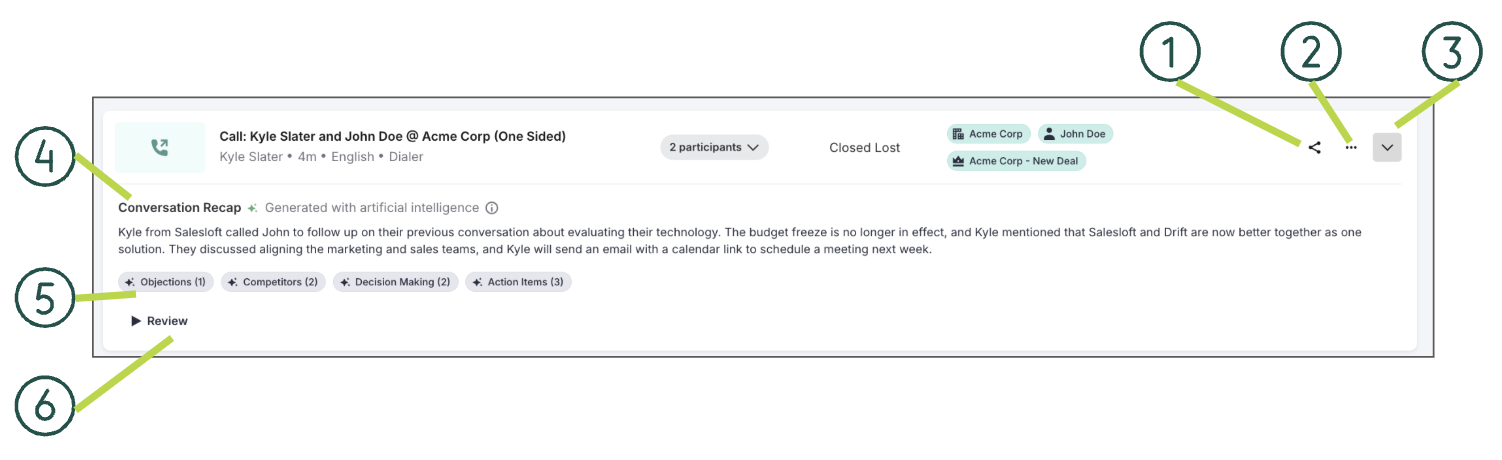
Figure 4: Example: Conversations Recordings Tab Navigator - Expanded View
Let’s walk through the additional actions and expanded view.
- Share a Recording
- Recording Actions: Allows you to take specific actions on a recording. Click the ellipses to open the Recording Actions dropdown. The Recording Actions dropdown included:
- Open Expanded View: Expands the Conversations Recording Navigator to show the summary and AI insights.
- Conversation Recap: AI-generated summary of the conversation.
- Key Moments: AI-generated moments in your call. Hover over a display to see a summary of the call and the time stamp of when moments occurred.
- Review: Opens the Recording Details Page where you can watch or listen to the recording.
Conversation Recording Details Page
When you select an individual recording, you will land on the Conversation Recording Details page. This page is divided into panels where you can watch or listen to the recording, review Scorecards, and access call insights like related objects, AI Key moments, the recording transcript, and more.
Let’s walk through each panel on the Conversation Recording Details page.
Recording Details
Found at the top of the page, the Recording Details panel contains the standard meeting information. Here's a look at the Recording Details panel:
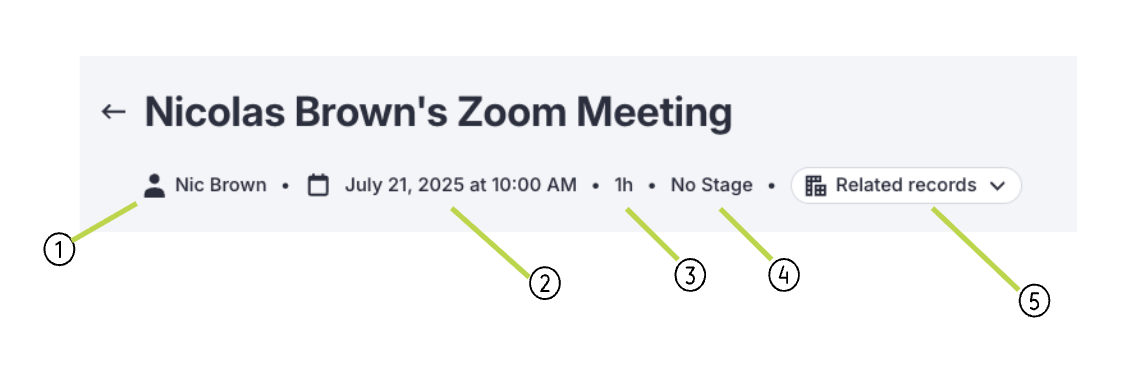
Figure 5: Recording details on the Conversation Details Page.
The Recording Details panel includes:
- Meeting Owner: Name of the Salesloft user who owns the meeting. Typically this is the person who sent the meeting invite.
- Date and Time: Date and time the meeting took place
- Duration: Length of meeting (hours:minutes)
- Stage: Current status of the meeting within the sales process (e.g., Discovery, Demo, Negotiation).
- Related Records: Dropdown that lists relevant Person, Account, and Opportunity data. The data included on this tile is automatically populated by Conversations and contains clickable links that direct you to the corresponding Person Page, Account Page, or Opportunity in Deals.
The Video Player
The video player is where you will view and analyze your recorded meeting. It contains the video itself along with additional features that help you pick apart the call whenever necessary. Here's a look at the video player:
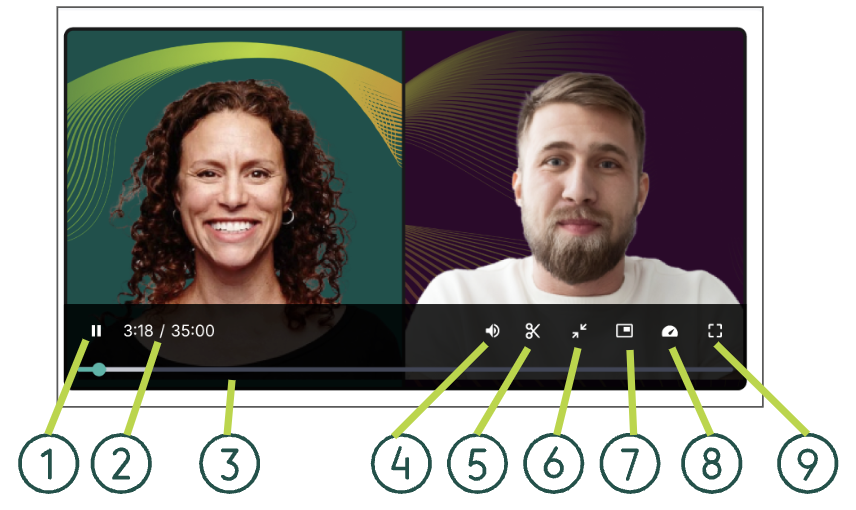
Figure 6: Video Player on the Conversation Details Page.
The video player contains a toolbar that holds the following actions:
- Play/Pause Button: Click the start playing the recording. Once the recording starts, the Play button will turn into a Pause button that you can click to briefly stop the recording.
- Elapsed Time: Shows the elapsed time and total video duration
- Media Progress Bar: Shows the time remaining on the video and and includes a loading bar to show how much of the video has been loaded.
- Volume: Slide to raise or lower the audio.
- Speed: Click to adjust the video speed. Speed options include:
- 0.5x
- 1x (default)
- 1.25x
- 1.5x
- 1.75x
- 2x
- 2.5x
- 3x
- Minimizer (Video Size Adjuster): Allows you to minimize or maximize the video player, offering flexible viewing sizes (Large, Medium, Small).
- Picture-in-Picture: Allows you to keep their video visible while performing tasks outside of the Conversation Details Page.
- Things to Note: Picture-in-Picture Mode is currently only supported in Google Chrome.
- Theater Mode: View the video in full screen mode.
The Audio Player
For Dialer calls that have been processed within Conversations, you will see an audio player. Since there is no video to display, the audio player is compacted into the recording controls only. Here's a look at the audio player:
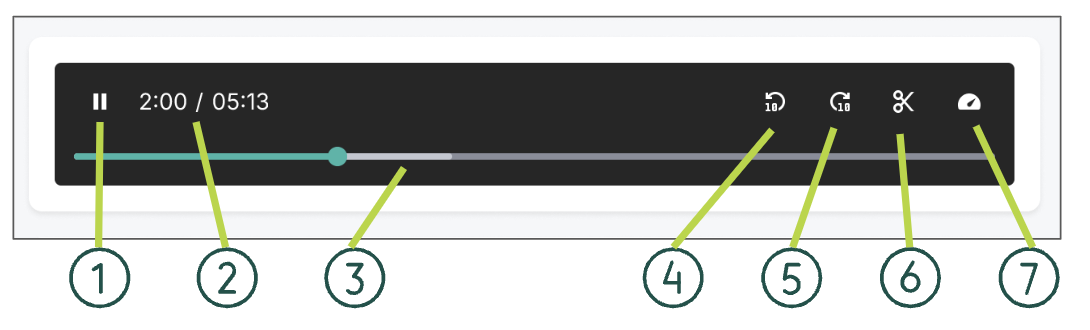
Figure 7: Audio Player on the Conversation Details Page.
Within the audio player, you will see the following buttons:
- Play Button: Runs the audio recording.
- Elapsed Time: Shows the elapsed time and total video duration.
- Media Progress Bar: Shows the time length of the audio and includes a loading bar to show how much of the audio has been loaded.
- Jump back 10 seconds: Rewinds the audio within the recorded timeline.
- Jump ahead 10 seconds: Moves the audio forward through the audio timeline quickly.
- Clip: Allows you to create clips from important parts of the call that may be shared with others.
- Speed Control: Plays the audio at a faster speed. This way you still hear and see all the content but in a fraction of the time. Speed options include:
- 0.5x
- 1x (default)
- 1.25x
- 1.5x
- 1.75x
- 2x
- 2.5x
- 3x
Recording Actions
Beneath the video/audio player are various buttons that allow you to perform certain actions. Here's a look at the recording actions:
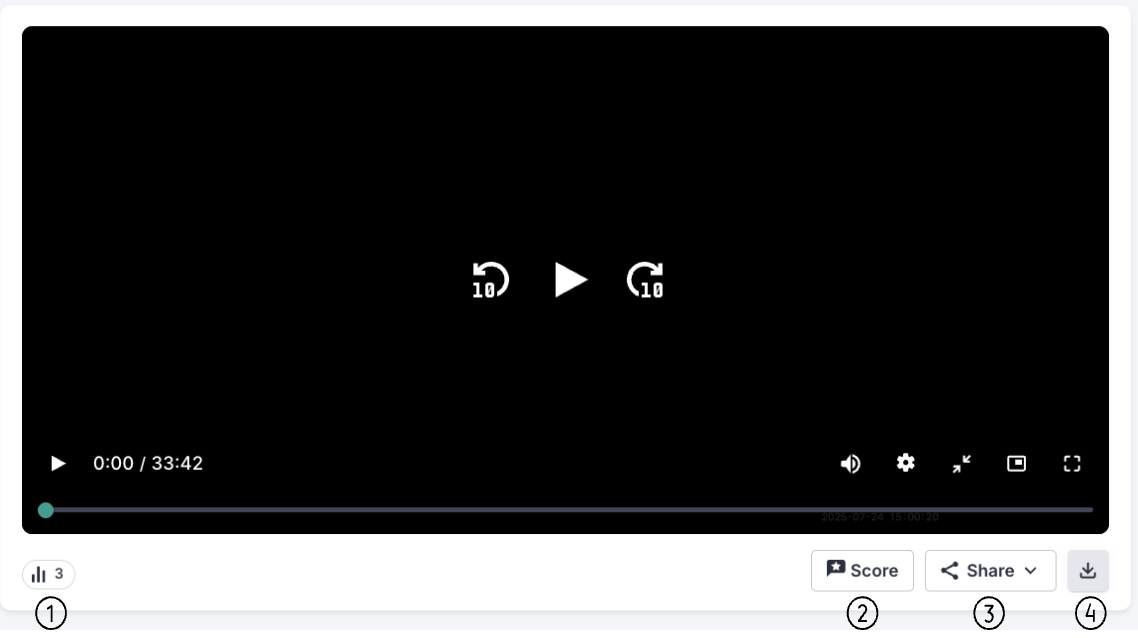
Figure 8: Recording Actions beneath the Video/Audio Player.
The recording actions include:
- View Conversation Analytics: Shows key insights from the conversation, including the number of interactions, including shares, comments, or notes and date participants played video/audio
- Score the Conversation: Allows you to evaluate the quality and effectiveness of the conversation using a custom or predefined scoring rubric.
- Share: Allows you to share the conversation with teammates or stakeholders via the following:
- Download:
Participants
The Participants panel provides a detailed breakdown of speaker engagement. Here's a look at the Participants panel:
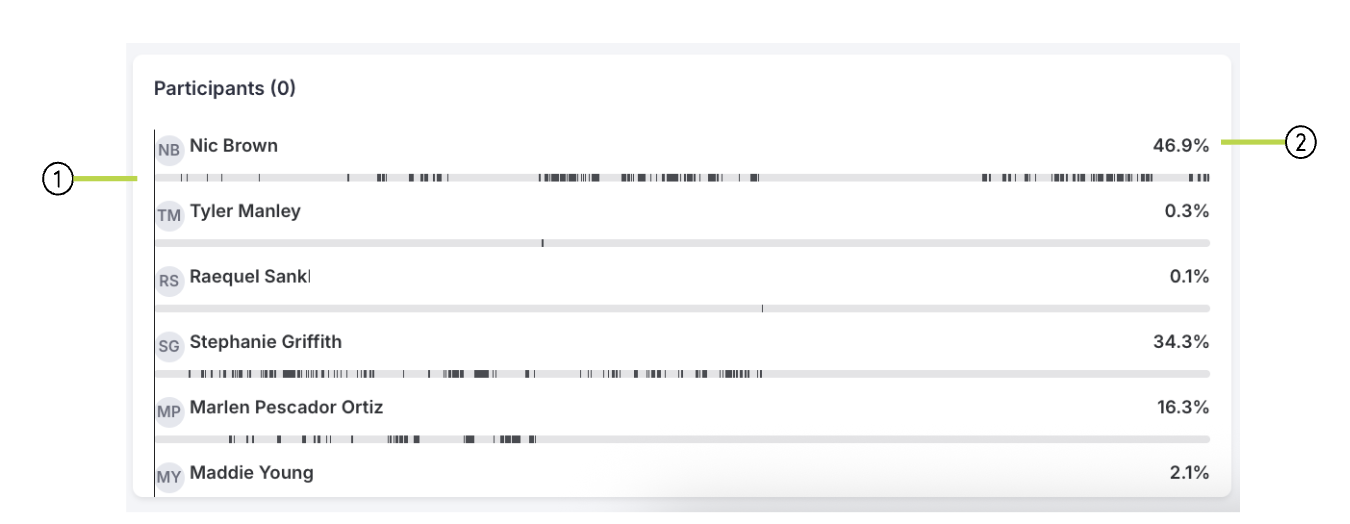
Figure 9: Participants panel on the Conversation Details Page.
The Participants panel includes:
- Speaker Timeline: A visual bar that tracks the conversation flow. Colored segments on the timeline represent the moments each participant was speaking.
- Talk Time: The percentage of the meeting each person spoke.
This timeline is interactive. Click any segment to jump to that specific point in the audio or video.
Player Tabs
To the right of the video/audio player are four tabs: Recap, Transcript, Trackers, and Comments. Here's a look at the Player tabs:

Figure 10: Player tabs on the Conversation Details Page
The Player tabs include the following:
- Recap: AI-generated summary of the call , top Key Moments, and Next Steps.
- Key Moments: AI-generated highlights of the most impactful parts of the conversation, categorized by type (Decision Making, Objections, Competitors) with timestamps for quick navigation.
- Transcript: Review the full, word-for-word text of the conversation, attributed to each speaker. Search for specific keywords or click any word to jump to that moment in the call.
- Trackers: Identify Trackers used during the call and the timestamp in which they occurred. Click a Tracker Group from the Trackers panel to get started.
- Comments: Review and leave comments. Mention/tag other Salesloft users.
Once you have created a clip (or multiple clips), the clips will live under the My Clips tab on the Conversation Intelligence page.
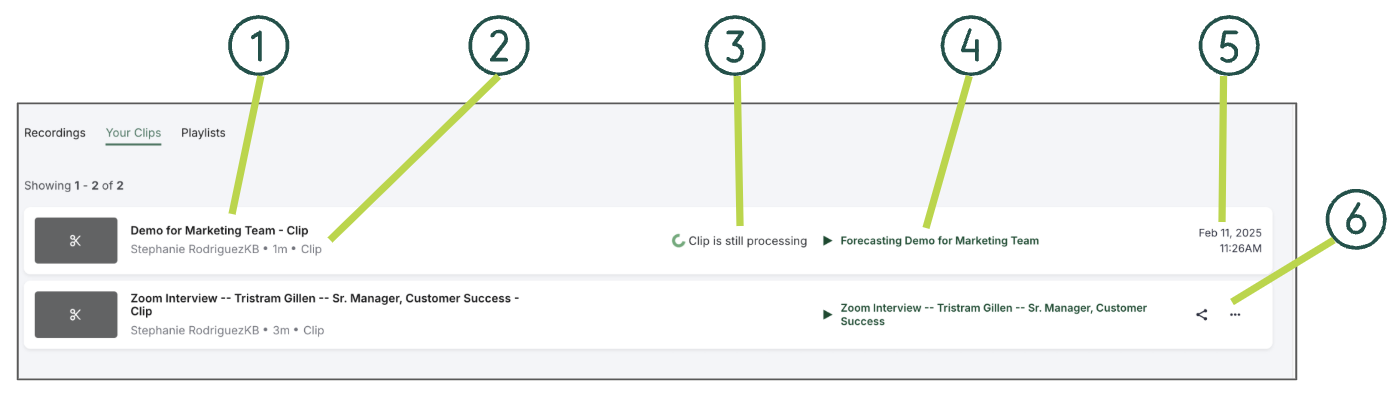
Figure 11: Example: Your Clips
Each Clip contains the following:
-
Clip Name: Title of the Clip. Click the Clip name to view the Clip.
-
Clip Details: User who created the Clip. Duration of the Clip.
-
Clip Status: New Clips may appear with the message Clip still processing if the Clip has not been loaded yet.
- Full Recording: Opens the Recording Detail Page to view the full recording.
- Date and Time: When the Clip was created.
- Clip Actions: (ellipses icon): When you hover over a clip and select the ellipses on the right of the clip, you can access additional clip actions. The following actions are available:
- Manage Playlists: Opens the Manage Playlists module where you can assign the clip to a previously created Playlist (see walkthrough below).
- Copy Link: Saves the Clip link to your clipboard so you can paste the link into an email or other message.
- Delete: Removes the Clip from your Salesloft record.
Conversations Playlists allow you to create and view collections of recordings and clips. Similar to cataloging books in an actual playlist by genre or creating your own music playlist (for a more relevant reference), you can store recordings in playlists dedicated to the type of call, a rep's strong calls versus poor calls, or whatever naming convention you choose.
Full Recording with Video : Represented by the video camera icon, includes the full video recording.

Figure 12: Example: Full Recording with Video Icon
Clips : Represented by the scissors icon, includes previously created clips that have been added to the playlists via the Manage Playlist action.
Figure 13: Example: Clips Icon
Dialer Call : Represented by the phone icon, pulls in Conversations recordings from the Salesloft Dialer.

Figure 14: Example: Dialer Call Icon
Shows meetings and calls that are scheduled on your calendar.
Auto-Record Upcoming Meetings Toggle Status
From the Upcoming tab in Conversations, you can view a list of meetings scheduled on your calendar and check whether they are set to be automatically recorded.
Each upcoming meeting displays an Auto-Record toggle, which indicates its current recording status. Here's what each toggle state means:
- Blue Toggle (Enabled): Auto-Record is turned on. This meeting will be automatically recorded when it starts.
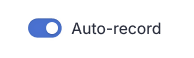
Figure 15: Example: Auto-record On
- Gray Toggle (Off, Clickable): Auto-Record is currently off for this meeting. You can enable it by clicking the toggle, or manually start the recording when the meeting begins.
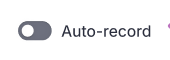
Figure 16: Example: Auto-record Off
- Gray Toggle (Disabled, Unclickable): Auto-Record is unavailable for this meeting. This typically means the meeting was created using an integration that does not support automatic recording.
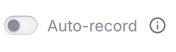
Figure 17: Example: Auto-record Disabled
- Disabled Auto-Record + Loft Toggle Off: If the Loft Meeting toggle is turned off, the Auto-Record toggle will also be disabled. To automatically record a meeting, you must enable the Loft meeting toggle first.

Figure 18: Example: Auto-record off, Loft meeting off
- Blue Toggles Disabled (Unclickable): If the Loft Meeting toggle and the Auto-Record toggles are blue, but disabled and unclickable, this means that you are not the owner of the upcoming meetings you are viewing.

Figure 19: Example: Blue Toggles Disabled
Conversations that were scheduled on your calendar and are currently taking place.
The Incomplete Meetings page will show a complete list of meetings that were not able to upload due to an issue.
