The Zoom API Integration allows you to capture your Zoom meetings inside Salesloft. This integration uses an API to establish communication between Salesloft and Zoom, and allows Zoom to share recorded meetings with Salesloft. The integration connection ensures that meeting recordings and related data are automatically captured and synced inside Salesloft.
By enabling this integration, you can easily access meeting insights, review conversations, and enhance your follow-up strategy—all within Salesloft.
In this article, you will learn how to enable the Zoom API Integration in your individual Salesloft instance. This article includes:
For a quick overview of how to set up the Zoom API Integration, check out the video below:
- Before you can enable the Zoom API Integration, an admin must pre-approve the Salesloft app in the Zoom Marketplace and configure the Cloud Recording settings in Zoom.
- If your admin bulk configured the Zoom API Integration, you do not need to enable the integration in your individual instance.
- The Zoom API Integration only captures meetings that adhere to the Conversations Meeting Capturing Rules.
- The Zoom API Integration proactively captures recordings. This means that only meetings scheduled after the integration is enabled will be captured. If you would like this integration to capture a recurring meeting, you will need to update the meeting invite, ex: make a slight update to the meeting title. Updating the meeting invite will allow the Conversations Zoom API Integration to recognize the meeting as a new meeting, thus, it will be captured. Check out the Capture Pre-Existing Meetings via an API Integration article to learn more.
Once you are sure you’ve met all of the requirements, you can proceed to configure your Zoom settings.
The Zoom API Integrations relies on Zoom’s recording functionality to record your meetings and make the recording files available. To ensure that the integration successfully captures your Zoom recording files, you will need to enable the following settings in Zoom:
-
Automatic Recording: Allows recording to begin as soon as the host or co-host joins the meeting. This ensures that there is a recording for Conversations to capture.
-
Cloud Recording: Allows the meeting host or co-host to record their meeting in the Zoom cloud. This ensures that the meeting is saved where Salesloft Conversations can capture it. When you enable Cloud Recording, you’ll need to enable three additional settings, including:
-
Record speaker view: This allows the host to record the speaker view.
-
Add timestamp to recording: Includes the meeting date and time in your cloud recording. Salesloft includes this data on the Recording Details Page.
-
Create audio transcript: This creates an audio transcript of your recording. Salesloft displays the transcript on the Recording Details Page.
Things to Note:
-
If automatic recording in Zoom is enabled, internal meetings will be recorded by Zoom, but they will not be captured in Conversations.
-
Before enabling automatic recording, keep in mind that this setting may cause an increase in your company's Zoom cloud storage costs, which you'll need to discuss with Zoom, along with your manager, Finance, and IT departments first.
-
The Zoom API Integration captures your recorded Zoom meetings via an API. Once your meetings are inside Salesloft Conversations, you can delete them in Zoom to free up Zoom storage.
Automatic Recording
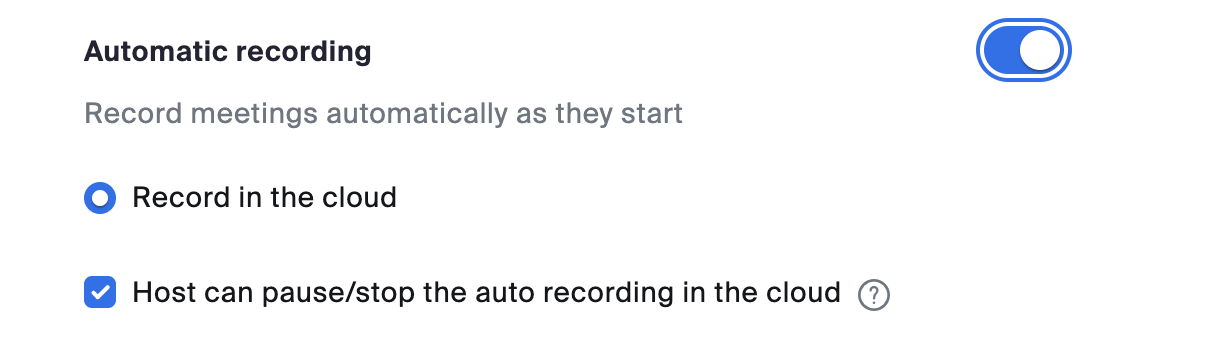
To enable Automatic Recording in Zoom, follow these steps:
- Navigate to your settings in Zoom.
- Select Recording from the top menu options.
- Scroll down to Automatic Recording and click the toggle. When the toggle area is blue, the setting is enabled.
- Select Record in the Cloud.
- Check the Host can pause/stop the auto recording in the cloud box.
Things to Note: Once you click the Automatic Recording toggle, the Record in the cloud setting should be selected.
Cloud Recording
To enable Cloud Recording in Zoom, follow these steps:
-
Navigate to your settings in Zoom.
-
Select Recording from the top menu options.
-
Scroll down to the General section.
-
Click the Cloud Recording toggle. When the toggle area is blue, the setting is enabled.
-
When you enable Cloud Recording, the additional settings should appear. Scroll down and check the boxes beside the following settings:

Once you enable the Zoom API Integration and the Zoom settings, you can proceed with enabling the Zoom API Integration.
Enabling the Zoom API Integration establishes a connection between Salesloft and your Zoom account. This connection is what allows Zoom to share your meeting recording files with Conversations.
To enable the Zoom API Integration follow these steps:
-
Click your initials in the upper right corner, then select Settings.
-
Select Conversations.
-
Scroll to the Zoom tile and click Connect. (You will be directed to Zoom’s login page.)
-
From Zoom’s login page, enter your Zoom credentials to continue.
-
Review the Authorize Notification page, then click Allow.
-
In the Zoom tile, you should see the following:
-
Connected as [your email address].
-
All required settings enabled
-
(optional settings) Optional settings such as , ‘Capture internal and unscheduled meetings.’ are not required to capture meetings via the Zoom API Integration. Optional settings will only appear if you enable them.

By enabling the Zoom API Integration, you establish a connection between Salesloft and Zoom. Now, it's time to configure your settings to ensure Conversations successfully captures your meetings and metadata.
To configure your settings and ensure you're set up for Conversations capturing success, proceed to the Configure Zoom Settings section below.
Configure Optional Settings
The Zoom API Integration in Salesloft Conversations can capture any meeting you record in Zoom, whether it’s an internal meeting or one with external participants. However, if you'd rather not capture internal meetings, you have the option to control this with the Capture internal and unscheduled Zoom meetings setting. By configuring this setting, you can choose to exclude internal meetings from being captured, ensuring that only the relevant external meetings are available in Conversations.
To configure the Capture internal and unscheduled Zoom meetings setting, follow these steps:
-
Go to your settings in Salesloft.
-
Select Conversations.
-
Find the Zoom tile, then click Manage.
-
Click the toggle area beside Capture internal and unscheduled Zoom meetings. When the toggle area is blue, the setting is enabled or, turned on.

Check out the Conversations Meeting Capturing Rules to learn more about the meeting capturing rules.
