When you're managing a deal, you need to be sure you are talking with the right group of people. Think about it. If you don't know who is going to be a part of the decision-making process, chances go way down on closing the deal.
This group of people, referred to as the Buying Group, includes all of your Stakeholders, or anyone you talk to through a deal — from advocates and team leads to heads of business and key decision makers.
To help identify and keep track of your engagement during a deal with the right stakeholders, Salesloft Deals includes the Buying Group panel.
The panel can be found on any individual Deal View page. Any stakeholders associated with the Opportunity will be listed in the panel. Stakeholders can be added, removed, viewed, and edited all from within this panel.
In this article, you will learn about the details and actions you can take from the Stakeholders panel,
The Buying Group panel, as mentioned above, will show anyone who has been added as a Stakeholder on the deal (or as Contact on the Opportunity). A sales rep, manager, or leader will see a single list of stakeholders that include Opportunity Contact synced from the CRM and Salesloft identified people associated with the opportunity based on recent activity.
The panel will show the list of names in rows with relevant Stakeholder information like their title, a grey badge showing the Opportunity Contact Role, and Stakeholder engagement metrics.
The names of the stakeholders appear in the following order:
- Primary Contact: This is the key decision maker or your main point of contact (depending on which you think is most important).
- Things to Note: There is only one Primary Contact. You can't have two (2) primary contacts.
- Last engaged date: As long as there is engagement data, the most recently engaged stakeholder will be on top.
- Contact Role: If the logic above does not apply, the order will match the order in the picklist of contact roles.
- Alphabetically: If the stakeholders do not contain engagement data or have a contact role, they will be listed alphabetically.
Let’s walkthrough the details you can view for a stakeholder:
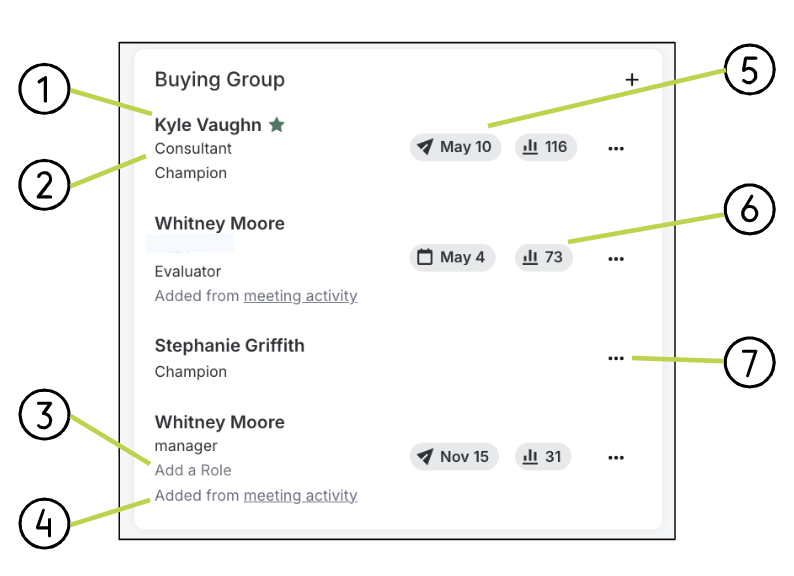
1. Name
2. Job title
3. Role/Add a Role
4. Auto Buying Capture Information
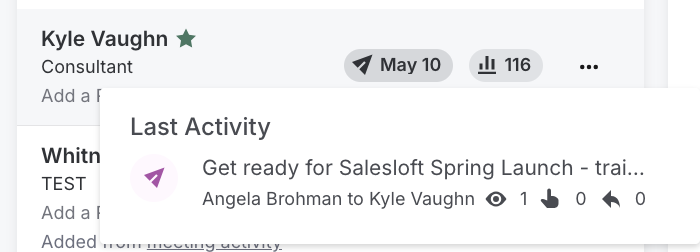
5. Last Activity: The last time they were on a meeting or replied to an email.
6. Seller Buyer Activity
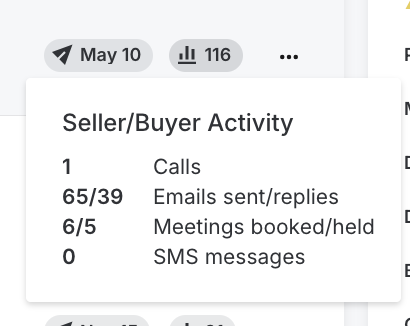
- Calls: How many calls were logged to this Person.
- Emails Sent/ Replies: How many emails were sent to this Person / How many times did they reply to an email.
- Meetings Booked/ Held: How many meetings were book with this Person / How many meetings took place.
- SMS Messages
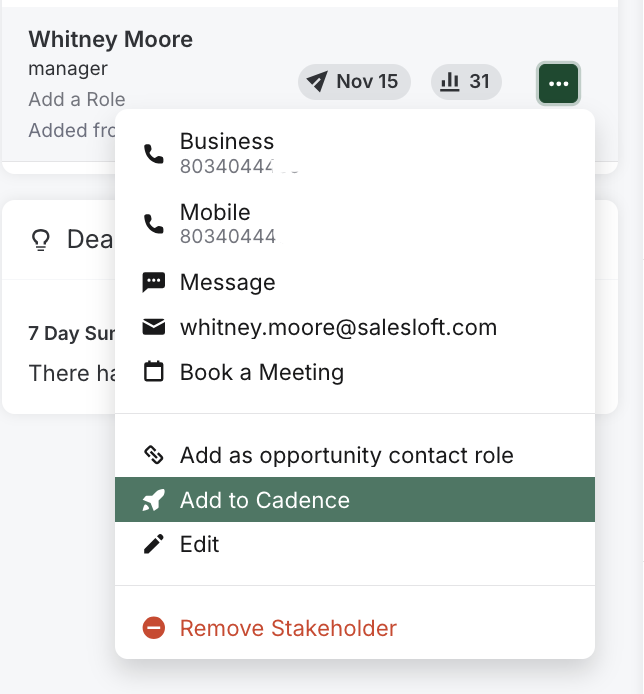
7. Stakeholder Actions
Identifying and logging the key stakeholders of a deal is a crucial part of knowing who needs to be engaged to move an opportunity from open to closed (won). For many reps, finding stakeholder contact information and adding contacts to a list is a tedious activity that takes away from selling time.
Fortunately, Salesloft takes care of this by automatically identifying and adding the appropriate people you've engaged with to an opportunity using Auto Buying Group Capture.
Auto Buying Group Capture identifies contacts related to opportunities based on emails and meetings. When people have been identified, they are automatically associated with the Deal as a stakeholder.
Stakeholders include:
- A Salesloft Person who is related to an opportunity due to association with a salesloft activity
- A CRM-ingested Opportunity Contact record in the CRM if it exists.
The Stakeholder will be associated with all open opportunities, unless we know more. Specifically:
- If the stakeholder is an Opportunity owner or associated via Opportunity Contact Role with a set of open Opportunities, Salesloft respects and restricts ownership to those Opportunities.
- If the stakeholder is associated with no Opportunities or Accounts, we leverage information from other participants in the activity.
Things to Note:
- Auto Buying Group Capture is enabled by default.
- The “Primary” Stakeholder is determined by the CRM.
- Stakeholders added via auto buying group will not be automatically created as Contact Roles in Salesforce. The user must choose to add the person as a Contact Role for this to sync to Salesforce.
- Salesloft will attempt to link People records we create to existing Contacts and Leads in the connected CRM in this slide.
Once a stakeholder is gathered via Auto Buying Group Capture, you will see a single list of stakeholders inside the Buying Group panel that include Opportunity Contact Roles (OCRs) synced from the CRM and Salesloft identified people associated with the opportunity.
Imagine that you are working through a deal and one of the contacts introduces you to a brand new member of the team. This new team member will need to be included on any decisions moving forward which means they need to be added as a stakeholder.
Now, the individual was not added to the meeting and you have not previously emailed them, so auto buying capture has not added them to your Buying Group yet. You can proactively add this person as a stakeholder.
To add someone as a Stakeholder, follow these steps:
1. Go to the Deal View and find the Buying Group Panel.
2. In the upper right corner of the panel, click the plus sign +. This will open the Add Stakeholder view.
3. Search for existing contacts OR click to Create a New Stakeholder. The search will automatically show People at Account. These are the Contacts that are linked to the Opportunity in Salesforce. You can also search and add contacts that are not linked to the Account.
4. When you select Create a New Stakeholder text boxes will appear where you can add the person's information.
5. Click Save. The stakeholder will be added to the deal.
New Stakeholders will be linked to their equivalent Person record in Salesloft Cadence. If a Person record cannot be found, a new Person record will be created based on the Stakeholder data. The Stakeholder data used to create a Person record includes:
- First name
- Last name
- Email address
- Phone number
- CRM ID
Things to Note: The Last name and either the email address or phone number must be included for the record to be created successfully.
The Person that is created in Cadence is treated like any other record in Cadence in the following ways:
Each stakeholder represents a contact you communicate with through a deal. While the Stakeholder Panel offers a quick glance at stakeholder activity related to the deal, you may be missing important details about that individual and their engagement with your organization.
The stakeholder in deals links to a Person within Cadences. When you click the name of a stakeholder, you will navigate to the Person Profile Page in the same tab. The Person Profile Page allows you to quickly dive into the details of a Person and see all of the Activity Feed details of the engagement that this person has had.
Things to Note
- If you go to a Person Profile page from the Stakeholder Panel and click the Back button, you will return to last page you were on, most likely the Deal View.
- If the stakeholder has not been imported into Salesloft as a Person, their name will not appear as a clickable link. Make sure the Person is Imported into Salesloft.
The Opportunity Contact Role is a Salesforce identifier. Specifically, it labels the role that a contact plays on a deal such as the buyer, decision maker, and so on. Opportunity Contact Role is a standard field in Salesforce that can be customized to fit the terms used by your business.
Salesloft Stakeholders may include the Contact Role information to help you align the details between Salesloft and your Salesforce CRM.
Things to Note:
- Stakeholders added from auto buying capture will not be automatically created as Contact Roles in Salesforce.
- You will only see the to add a contact role if there is a related lead/contact record in your CRM. Without a record, the option to add a contact role will be gray.
To add the Opportunity Contact Role on a Stakeholder, follow these steps:
- Access a Deal View and find the Buying Group panel.
- Find the Stakeholder that needs an opportunity contact role. Select the ellipsis (...) to the right of their name. A menu will dropdown.
- Select Add as Opportunity Contact Role.
- Select the role.
- Hit Save. Once you perform the action, the contact role will say "added as…"
When you look at your Deal View or reviewing Buying Group engagement, you might realize that another action is necessary.
Say you forgot to send a meeting invitation, follow-up email, or realize you haven’t heard from a stakeholder in a while and want to call or message them on the spot. You can perform all of these actions directly for the Buying Group panel.
Things to Note: The Stakeholder must be a created Person in Salesloft to perform various actions, If the Stakeholder is not linked to a Person record, you will now see the action
The following are the actions you can perform from the Buying Group panel. To learn more about each action, select the action name and check out the action-specific article:
- Add a Stakeholder to Cadence
- Book a Meeting with a Stakeholder
- Book a Meeting from the Stakeholder panel does NOT require access to the Chrome Extension.
- You must have your calendar setup in Salesloft to Book a Meeting.
- If your calendar isn't connected when you click Book a Meeting, an error message will appear. In the Unable to Book Meeting window, click to cancel or click Connect to Calendar. Connect to Calendar will redirect you to the Calendar personal settings where you can connect you calendar.
- Call a Stakeholder
- If the Stakeholder does not have a phone number, the option to call will not appear.
- Email a Stakeholder
- If the Stakeholder does not have an email address, the option to email will not appear.
- Send SMS Text Messages to a Stakeholder
- Sending SMS Text Messages from the Stakeholder panel does NOT require access to the Chrome Extension.
- Below are the permission checks Salesloft completes before SMS texting is possible to a Stakeholder:
If someone leaves an organization or no longer needs to be associated with the deal, you can remove them as a stakeholder.
To remove a stakeholder, follow these steps:
- Hover over the person's name. The metrics will change to a blue down arrow.
- Click the down arrow to open a menu of actions.
- Select Remove from Opportunity. A warning will pop up to confirm you would like to remove the stakeholder.
- Click Remove.
