The Conversations Page is where your recorded video conferences and calls live, but have you ever wondered how the recordings actually get there? Well, Conversations captures them.
Capturing, in this context, means obtaining recording files and storing them inside Salesloft. Conversations achieves this through several methods, including:
- API Integrations
- Bot Integrations
- Manual Upload
- Salesloft Dialer
By setting up one of these methods, you enable Conversations to capture your meetings and calls, then make them available on the Conversations Page.
In this article, you'll explore the different ways Conversations captures recorded video conferences and calls, including:
Before a recording file is captured, Conversations ensures that it adheres to the Meeting Capture Rules.
The Conversations Meeting Capture Rules ensure that all recordings meet the necessary standards for quality, compliance, and organization. Any meeting, or recording file, that does not adhere to the Meeting Capture Rules will not be captured by Conversations.
The Meeting Capturing Rules are:
- Your calendar must be connected to Salesloft
- This lets Conversations know when a meeting is scheduled.
- Domains on your meeting invite must not be on your team's Do Not Record list
- If your team admin has added any domain to the Do Not Record list, Conversations will not capture the meeting based on the setting's rule.
- Public domain recognition must be enabled
- By default, public domains, like Gmail or Yahoo, are not captured by Conversations. However, if a team admin enabled the Public Domain Recognition setting, Conversations will capture meetings invited to those email addresses.
- Things to Note: If a public domain is included in your internal domain list or in your team's Do Not Record list, Conversations will not capture the meeting per those governance rules.
- Meeting link must be listed in the meeting invite
- Your meeting URL (i.e. https://zoom.us/j/5555555555) is like the access code that triggers Conversations into action. For visibility, the meeting link must be included in one of the following spots in your meeting invite:
- The location field
- Within the meeting description field
- Google Calendar's Add Video Conferencing link exclusively for Zoom
- (Conversations Bot only) Meeting must be scheduled in advance
- The calendar invite must have been sent and include the meeting platform link at least 20 minutes or more prior to the scheduled start time.
- (Conversations Bot only) Your meeting invite list must include an external domain
- The Conversations Bot will not join internal meetings. If all of the email addresses on your invite list have your same domain (the end of your email address i.e. @salesloft.com), the Bot will not join and capture the meeting.
Conversations API Integrations connect Salesloft with a third-party video conferencing platform to capture meeting recordings onto the Conversations Page.
Salesloft offers the following API Integrations:
By enabling one of these integrations, meetings you record inside that platform can be automatically captured by Conversations and made available inside Salesloft.
But what is an API and how does the integration work?
An API (application programming interface) is a set of rules and protocols that allows different software applications to communicate with each other. The Conversations API Integrations allow Salesloft Conversations to communicate with one of the video conferencing platforms to obtain recording files. So, when you record a meeting in your preferred video conferencing platform, Conversations can communicate with that platform to capture the recording file and related metadata.
How does Conversations know when to capture a meeting via an API Integration?
Conversations captures meetings that are scheduled on your calendar. When a Zoom, Microsoft Teams, Google Meet, or Webex meeting is scheduled on your calendar, Conversations will use the corresponding API Integration to capture the recording file.
Things to Note: Conversations API Integrations proactively capture meeting recordings. This means that only meetings scheduled after the integration is enabled are captured via the API integration. If you would like an API integration to capture a recurring meeting or a previously scheduled meeting, you will need to update the meeting invite. Updating the meeting invite will trigger Conversations to recognize the meeting as a new meeting, thus, Conversations will capture the meeting.
To learn more about API Integrations or to set one up, click one of the API Integrations listed above to be directed to the corresponding article.
Conversations Bot Integrations enable the Bot to join and record meetings scheduled on your calendar. The Conversations Bot is a digital recorder that appears as an attendee in your meetings. Within seconds of the meeting starting, the Conversations Bot will join and begin recording the conversation.
Salesloft offers the following Bot Integrations:
Once the meeting concludes, the Bot processes the recording and makes it available on the Conversations Page for review, editing, and analysis.
How does the Bot know when to join a meeting?
The Bot can automatically join meetings that are scheduled in your calendar via the link in the meeting invite. You can also manually add the Bot to your meeting from the Conversations page.
Things to Note:
- The Bot will not join meetings to public/generic email domains (like @yahoo or @gmail) unless a team admin enables Public Domain Provider Recognition.
- Meetings must be 120 seconds or more to be picked up by the Conversations record.
- We currently cannot support web conferencing meetings that are over 10 hours long due to the large file sizes.
By enabling a Conversations Bot Integration, you ensure that important meetings are recorded without manual intervention, providing a reliable way to revisit discussions, capture actionable insights, and enhance team collaboration.
Check out the Manage the Conversations Bot article to learn how you can begin capturing meetings via a Bot Integration.
Recorded Salesloft Dialer calls can also be captured in Conversations. Admins can enable the Call Recording setting, which allows recorded calls to be automatically captured in Conversations.
Things to Note:
- Calls must be 120 seconds or more in order to be picked up by the Conversations record. However, if you have a business case where you need to review Dialer calls that are 60 seconds and over inside Conversations, you can submit a case to our Support team to update that setting for you.
- Call recordings will adhere to the same settings applied within your team's recording governance restrictions. If a recording is disabled, Conversations will not work. Meanwhile, one-sided recordings will be picked up by Conversations.
- We currently cannot support Dialer calls that are over 2 hours long due to the large file sizes.
- Conversations does not capture Outbound calls made using Passthrough.
To learn more about recording Dialer calls, check out our Call Recordings article.
You can view captured meetings from the
Conversations page. To access the Conversations page, hover over the Activity tab, then select
ConversationsYou will automatically land on the
Recordings tab, which contains all of the meetings that have been captured for your team. The captured meetings will appear in tiles, like the image below, and will include the meeting title, the length of the meeting from the time that the bot joined until the time that the meeting ended, and additional details about the meeting.
Fig 1: The Conversations recordings tab
To view additional details about the captured meeting, you can click the meeting title to open the
Conversation Details Page.
If your team uses multiple meeting platforms, you can use the
Platform filter to find meetings captured by a certain platform.
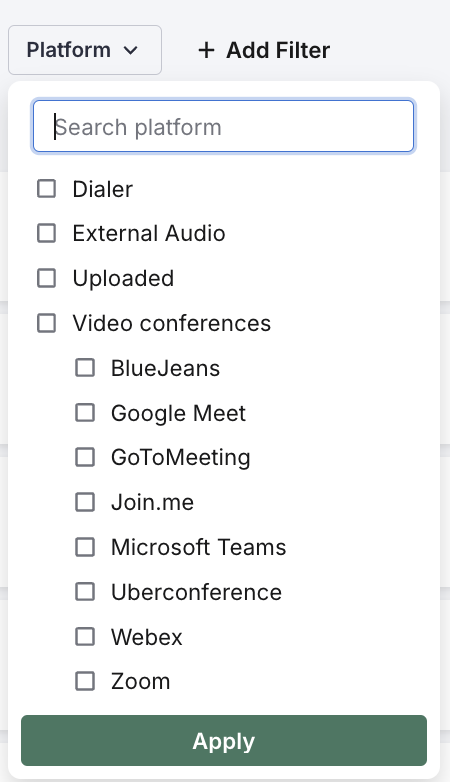
Fig 2: The Platform filter
Experiencing trouble with Conversations? Whether the bot isn’t joining your meetings or your call transcripts are available, check out the Conversations Troubleshooting Guide for assistance with Conversations.
