The Conversations Bot is a virtual machine that joins a user's meetings as a participant to record, transcribe, and perform additional Conversations magic.
As awesome as the possibilities are, you may still want to set some parameters for the bot. This is where the Bot Settings come into play. The Bot settings let you manage the way the Conversations bot appears and behaves within your team’s instance.
As a team admin, you can manage the Bot Settings by going to your settings, then selecting Conversations under the Communication category. You will land in the General Settings tab, which is where the Bot settings live.
Thing to note: The Bot will not be able to join meetings if your Teams organization has the Required Verification Checks setting enabled.
In this article, you will learn about the settings specific to the Conversations Bot, including:
As mentioned above, the bot joins calls that will be recorded. By default, the bot will be named (Company Name) Meeting.
However, if you want to think of the bot as your team’s buddy that joins calls, you can rename the bot to whatever fits your team’s needs (robo-recorder, Nancy, John Smith, for a few examples).
To edit the bot name, follow these steps:
- Go to Conversations under your Communication settings.
- From the General tab, find the Bot Name section. Click the pencil icon that says Edit Bot Name.
- Enter your preferred bot name in the text box.
- Hit Save.
The bot is a valuable, record-keeping assistant during calls with prospects and customers. However, certain meetings should not have a recording bot in attendance. You know, those meetings with external partners or company stakeholders where recording won't be helpful for training purposes.
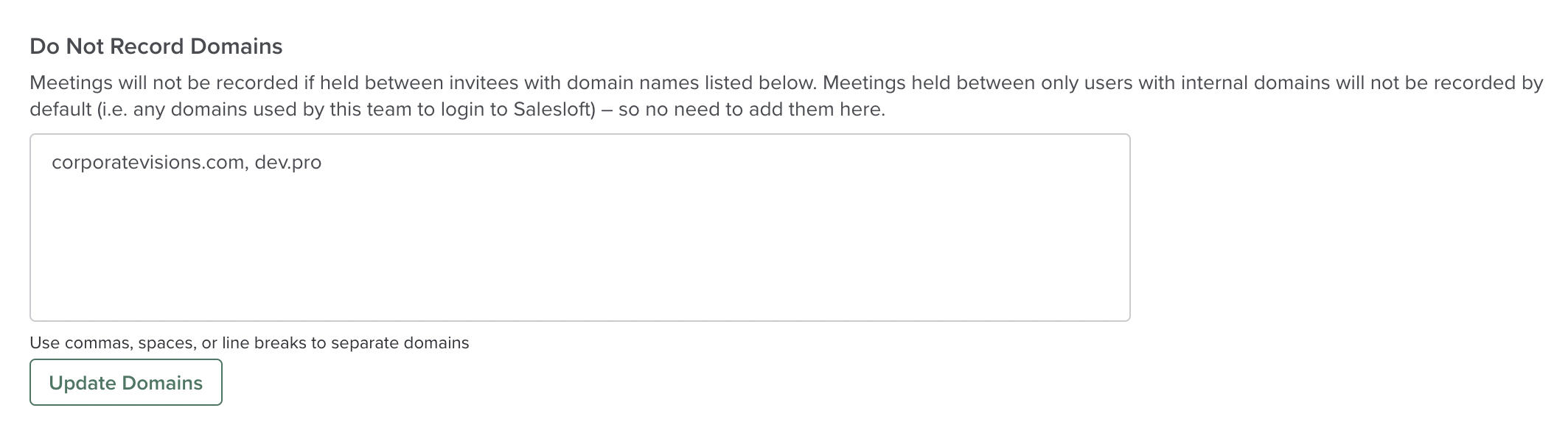
It's for these exact reasons that Conversations has included Do Not Record Domains Settings. A team admin determines the email domains that should be included as Do Not Record Domains. Then, whenever one of those domains is detected in a calendar invite, the bot will not attend the meeting.
Things to Note:
- Do not add your company's domain to the Do Not Record list. You internal domain is already recognized and marked as Do Not Record by Conversations. The Do Not Record list is strictly for email domains outside of your organization that you do not wish to have recorded.
- Once an admin adds a domain, it should apply retroactively to upcoming meetings that have been scheduled previously. This means that the bot should no longer be queued up for these meetings, and the meetings should be removed from the UI under the Scheduled tab.
To add a domain to the Do Not Record list, follow these steps:
- Go to Conversations under the Communication settings.
- Select the General Settings tab, scroll to the Do Not Record Domains box.
- Click within the box to edit the text and type in the email domain.
- You must enter a valid email domain. If invalid domains are inputted into text box, a red error message will appear under the text box notifying you that the domain is invalid or that the proper separation methods was not used.
- Each domain must be separated by commas, spaces, or line breaks.
- Once the domains are added, click Update Domains. A confirmation will pop up in your window.
The Bot Behavior section is where you can configure how and when the bot will join your team's meetings. The bot behaviors include join behaviors and join time.
The join behavior setting allows you to decide when the bot will join your users' meetings.
Things to Note: The default bot join behavior is set so the bot will join all meetings where the Salesloft user is present, regardless if the host/organizer of the calendar invite is internal or external to their company.
To choose your team's join behavior, click the checkbox or the text for one of the following options:
- Bot will record all meetings when a Conversations-enabled team member is present: The bot will join any meetings the Conversations user attends if someone at their company sent the invite. If you choose this option, you may choose to have the bot automatically join your team's meetings scheduled by someone outside your company (below).
- Bot will automatically join your team's meetings scheduled by someone outside your company: If you have selected to record meetings the user attends (above), this option will record all meetings that your users are invited to, including invites from people outside their company.
- Bot will only record meetings when a Conversations-enabled team member is the organizer of the calendar event: The bot will only join meetings where the Salesloft users are the hosts/organizers of the calendar invites.
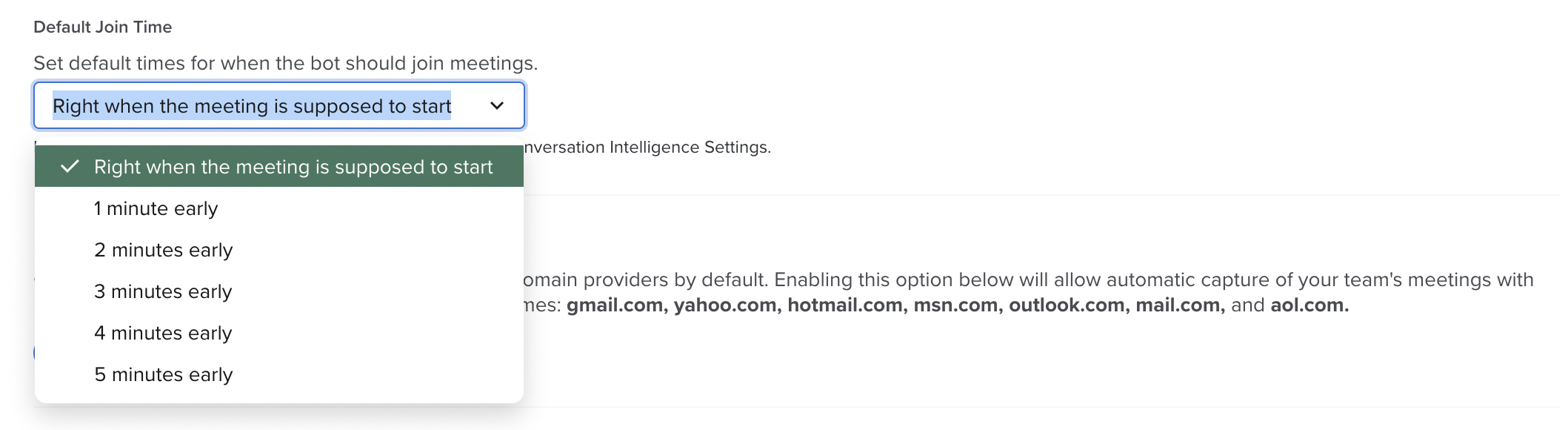
The bot timing denotes when exactly the bot will join a meeting. Your bot timing options include:
- Right when the meeting is supposed to start
- 1 minute early
- 2 minutes early
- 3 minutes early
- 4 minutes early
- 5 minutes early
Things to Note: Individual users can override the bot time within their own user settings.
By default, the Conversations bot will not join meetings that are sent to email addresses with generic or public domains (like @gmail or @yahoo). This is actually a measure to keep the bot from attending personal meetings. So, if you set a calendar invite with your parents, who use @yahoo.com email addresses, the bot would not join the meeting.
However, if you are working within a B2C (business-to-consumer) organization, you may interact with people using this style of email.
Team admins can determine whether or not the bot attend meetings that include invites to public domain email addresses by turning on the Public Domain Provider Recognition feature.
Things to Note: If a Salesloft team member's login credentials use an email address with a public domain (like @gmail.com), Conversations will include that domain as an internal domain. Since Conversations does not record internal meetings, future meetings sent to people who use that public domain will not be recognized by Conversations.
When enabled, Public Domain Provider Recognition supports the following commonly used public domains:
To turn Public Domain Provider Recognition on, follow these steps:
- Go to Conversations under the Communication settings.
- Under the General Settings tab, scroll to the Public Domain Provider Recognition section.
- Click the toggle so that it turns blue. Once the toggle is on, a green confirmation message at the top of the page will verify the setting is enabled.
Below the Bot Detects Alternate Emails section, you will find a chart that list all of your Conversations users. Next to each user's name you can see the the various email domains and email addresses they were using to connect their email clients and calendars to Salesloft.
This list allows you to determine if Salesloft will capture all of the domains your team is using.
If you realize an email address or domain is missing, submit a support ticket directly from the page in the app.
